Bitwarden and Proton Pass are the best starting points for free password sync across Android, iPhone, and Windows. Both let you open the same vault on all three devices. If your family needs to share some logins while keeping others private, start with 1Password. If you want to choose where your encrypted vault is stored, look at Enpass. For sync over your own Wi-Fi, consider Sticky Password.
Think about how you sign in on your PC. A browser extension can fill logins in Chrome or Edge. A Windows app gives you a separate place to view and manage your vault. If you need autofill inside Windows desktop programs, check that feature before subscribing.
Password managers at a glance
| If you need… | Start with | What to check |
| Free sync across phones and Windows | Bitwarden or Proton Pass | Both have Windows apps and browser extensions. |
| A shared family vault | 1Password | Each person can keep private items and access shared ones. |
| Your own cloud storage | Enpass or Safe | Choose a storage provider that works on all three devices. |
| Local Wi-Fi sync | Sticky Password or mSecure | Sync is a paid feature. Check how your devices connect. |
| Free, browser-based access on Windows | Zoho Vault or Norton Password Manager | Install the browser extension and turn on mobile autofill separately. |
17 password manager apps for Android, iPhone, and PC
1. Bitwarden — Best free all-rounder
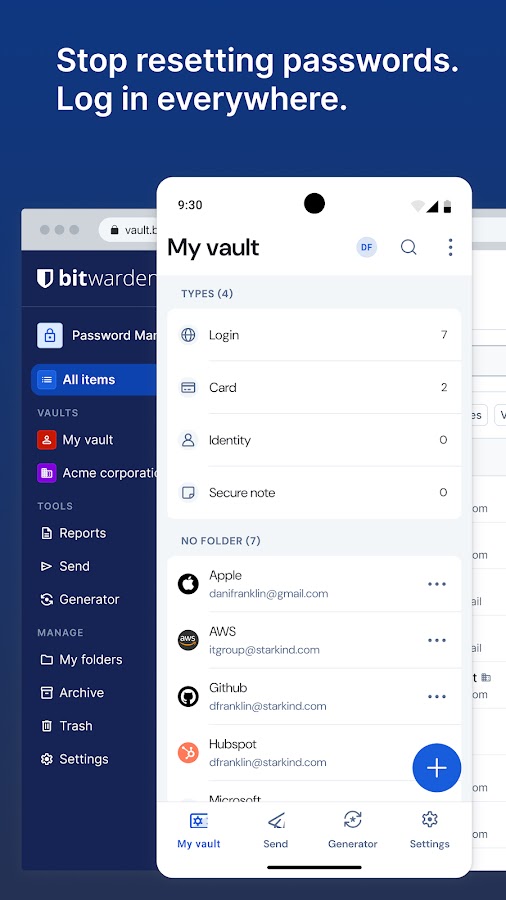
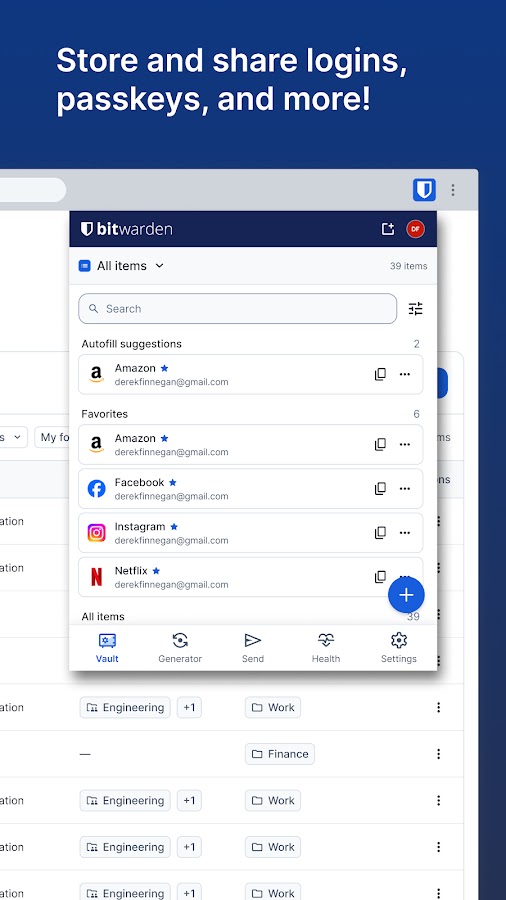
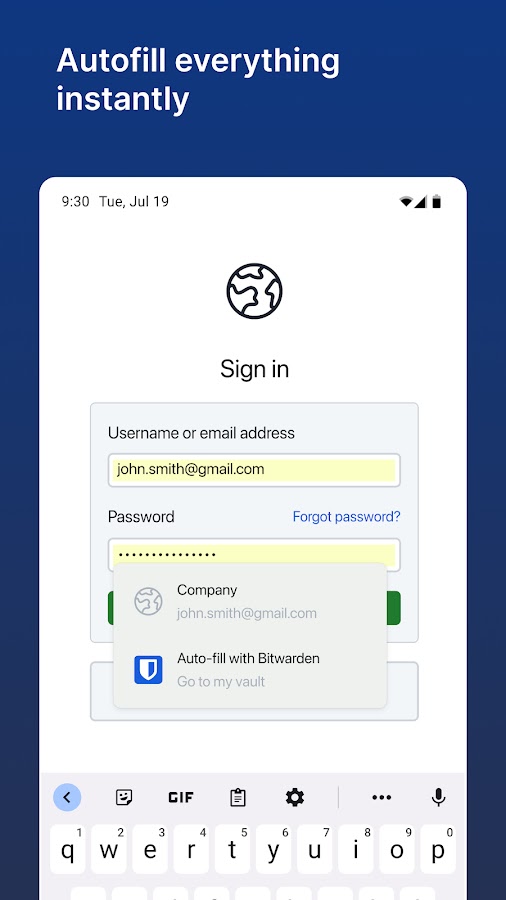
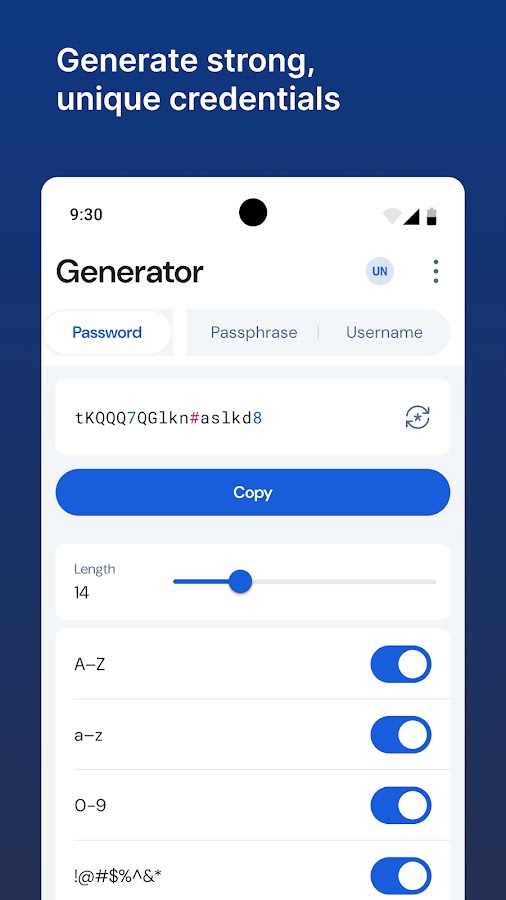
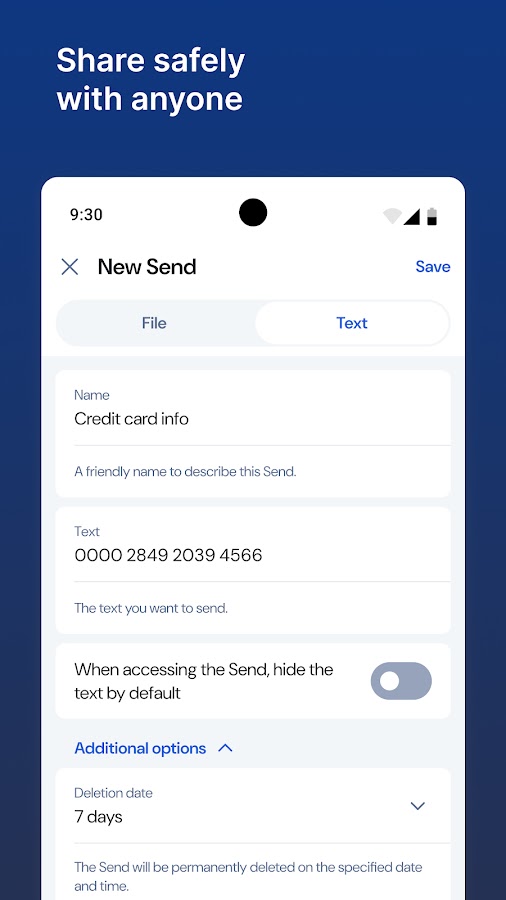

Bitwarden makes sense if you switch between an Android phone, an iPhone, and a Windows PC throughout the week. The free plan supports unlimited logins and devices, so you can start with the browser extension and add the desktop app later. Bitwarden also supports passkeys on compatible devices and browsers.
2. 1Password — Best for households with shared logins
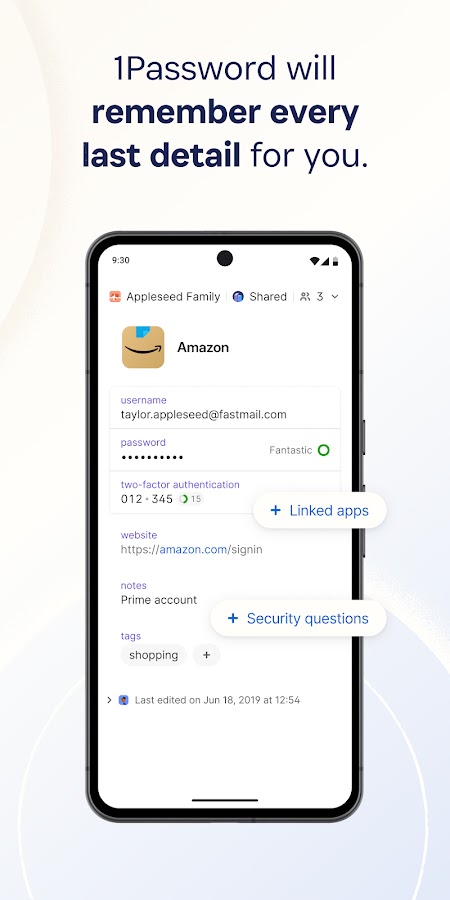
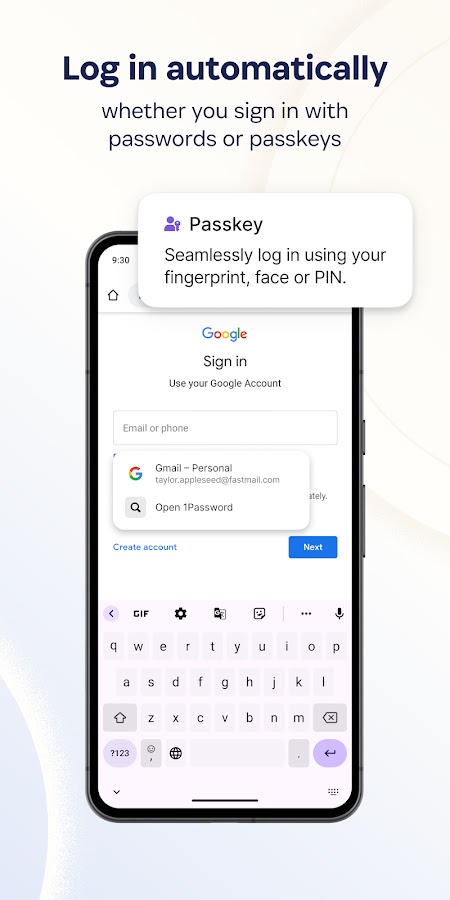
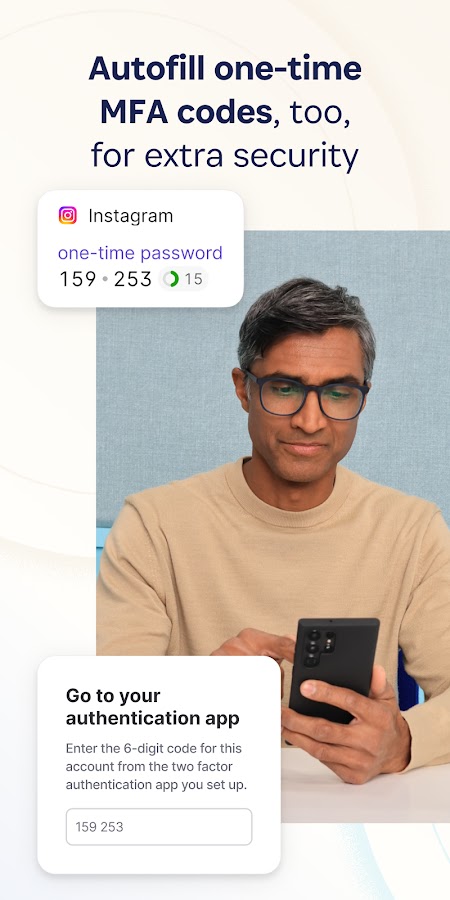
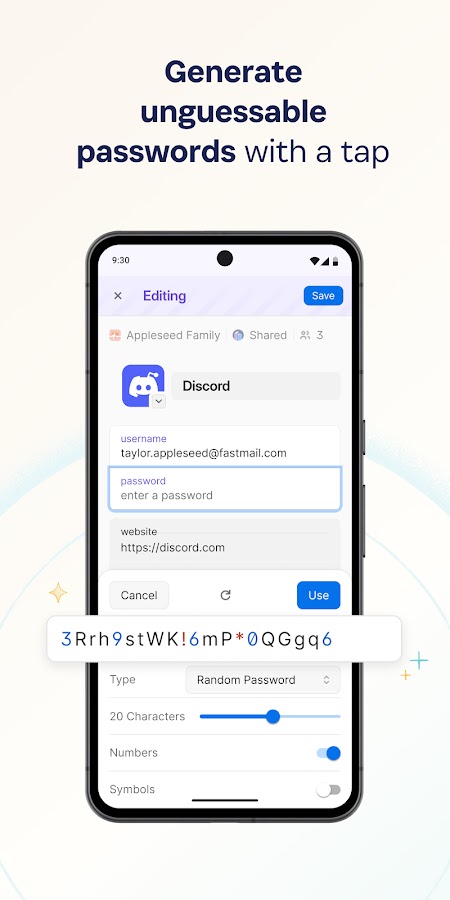
A family can put Wi-Fi and streaming logins in a shared vault while keeping individual accounts private. Each person has their own sign-in. When you set up your account, save your Emergency Kit somewhere you can reach without the vault. It contains the Secret Key and sign-in details you may need to add another device.
3. Proton Pass — Best free option with email aliases
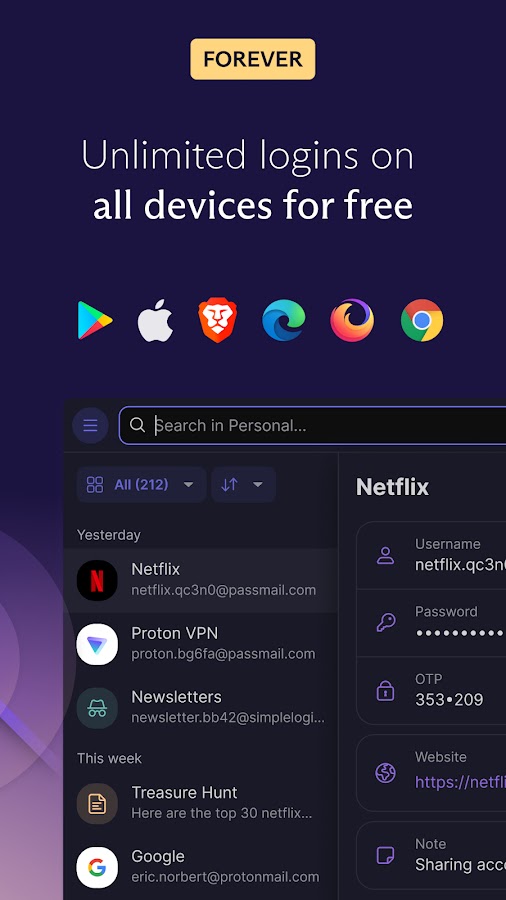
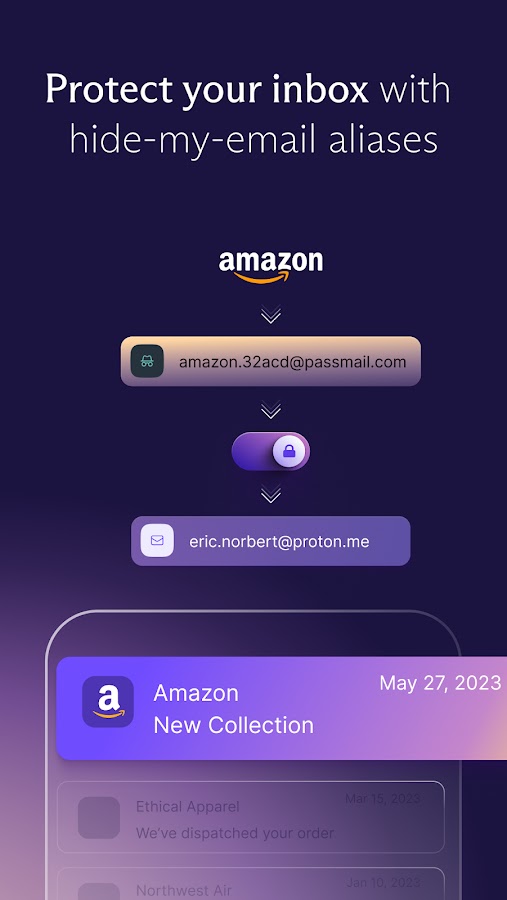
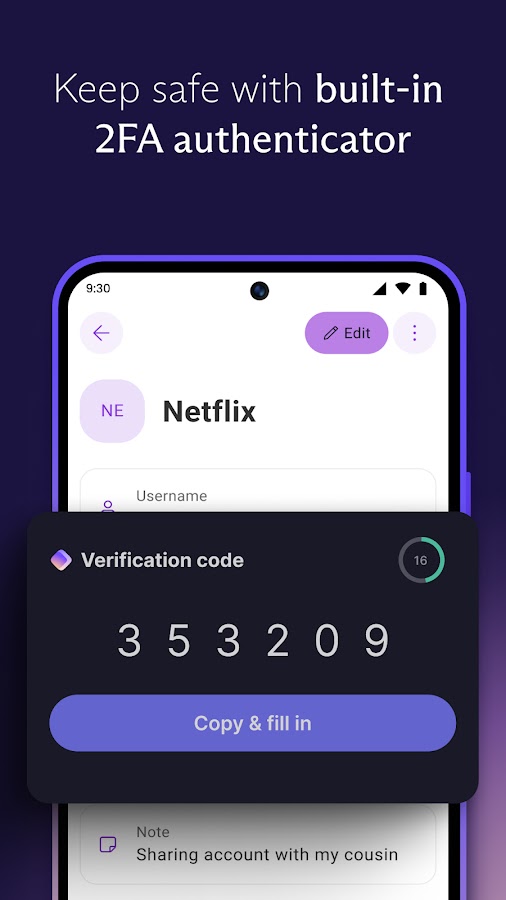

Proton Pass syncs passwords and supported passkeys across unlimited devices on its free plan. It also includes a limited number of hide-my-email aliases. You can use a separate address for a shopping account or newsletter and save that alias alongside the login.
4. NordPass — Best if you use one device at a time
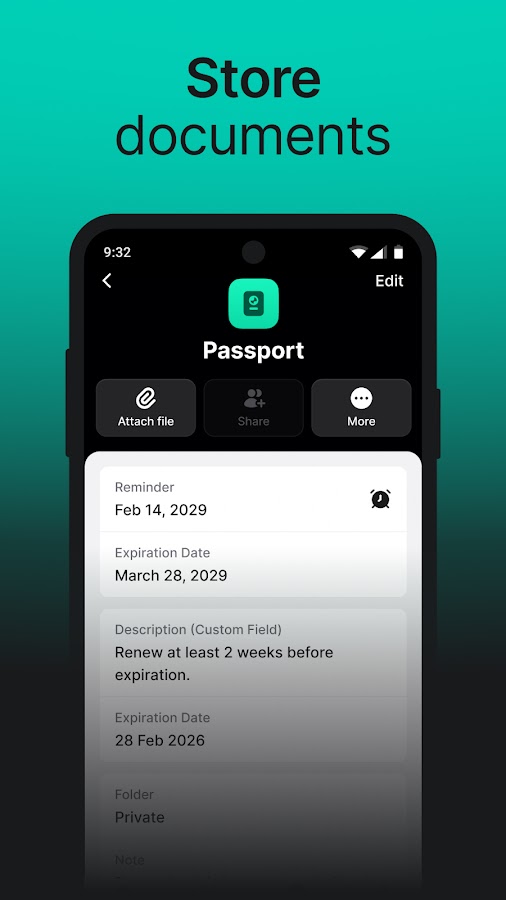
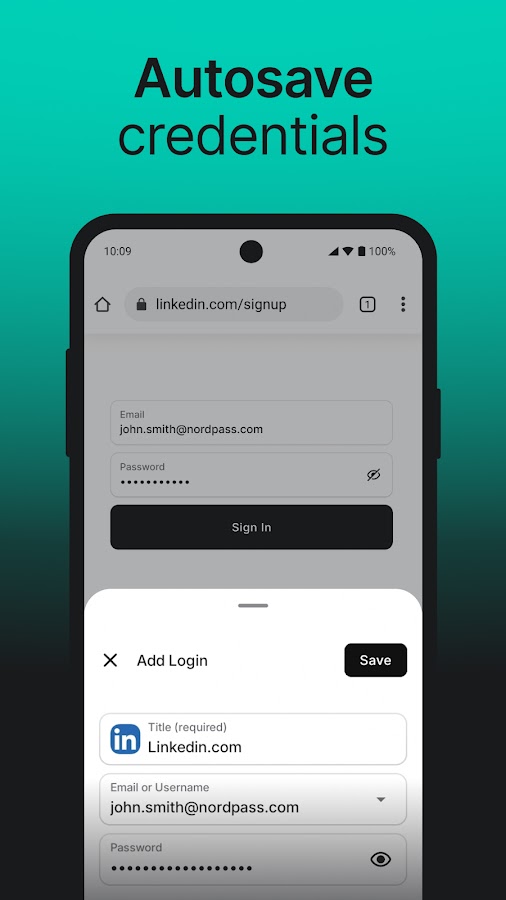
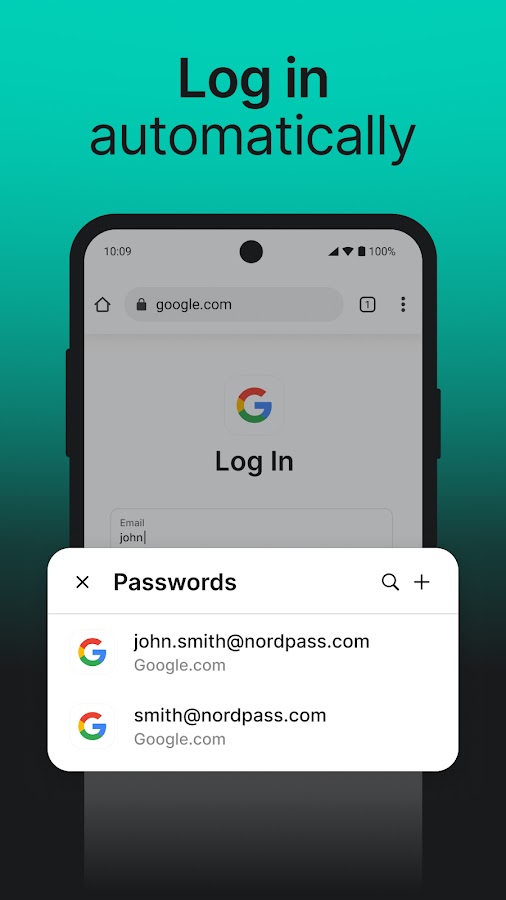
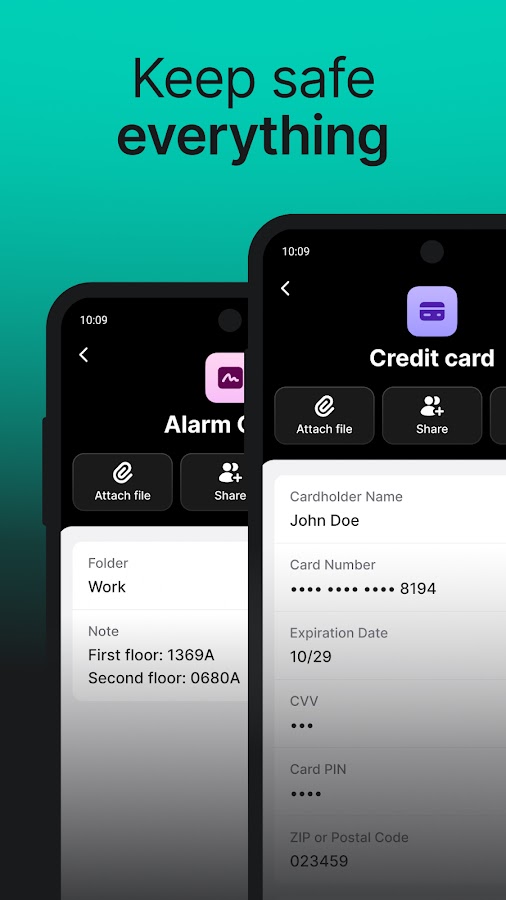

Your vault stays synced on NordPass Free when you switch devices. The practical limit is that signing in on one device can end your session on another. If you move between your phone and PC throughout the day, Premium lets you stay signed in on multiple devices at once.
5. Keeper — Best for storing logins and verification codes together
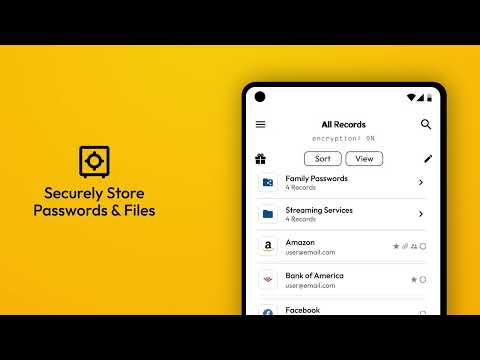
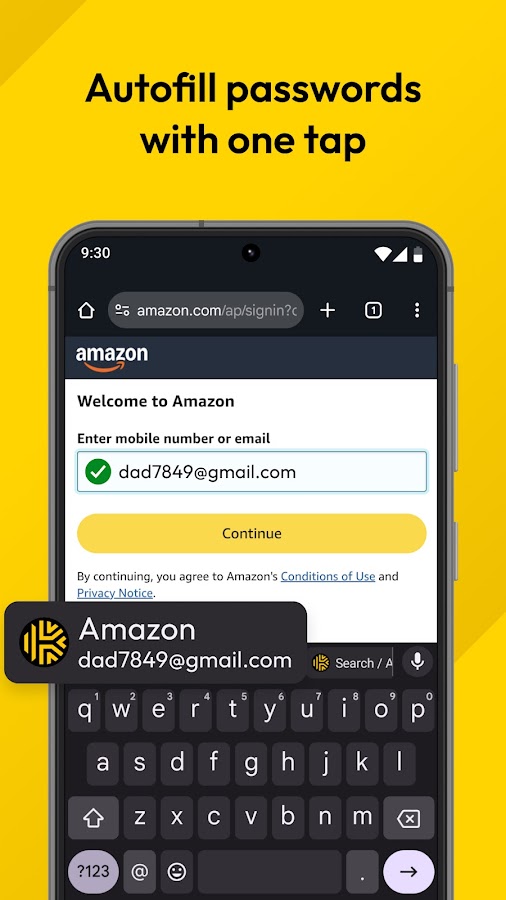
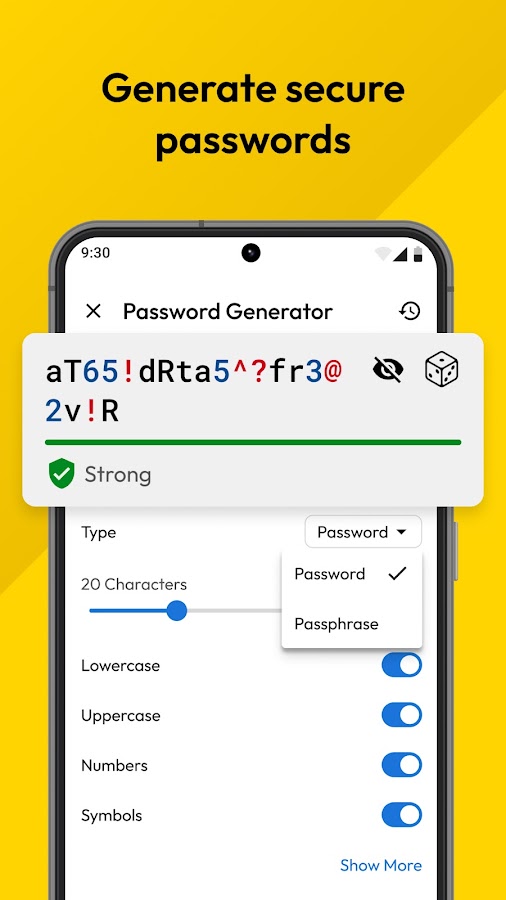
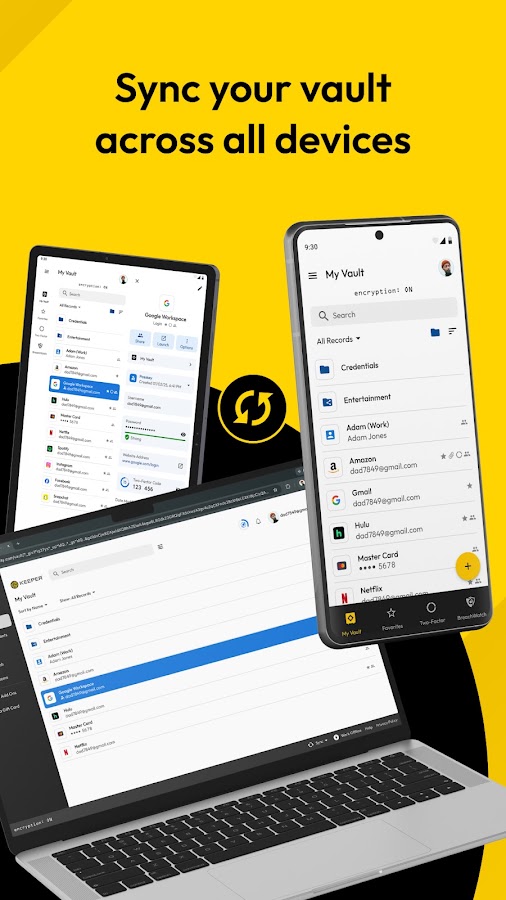
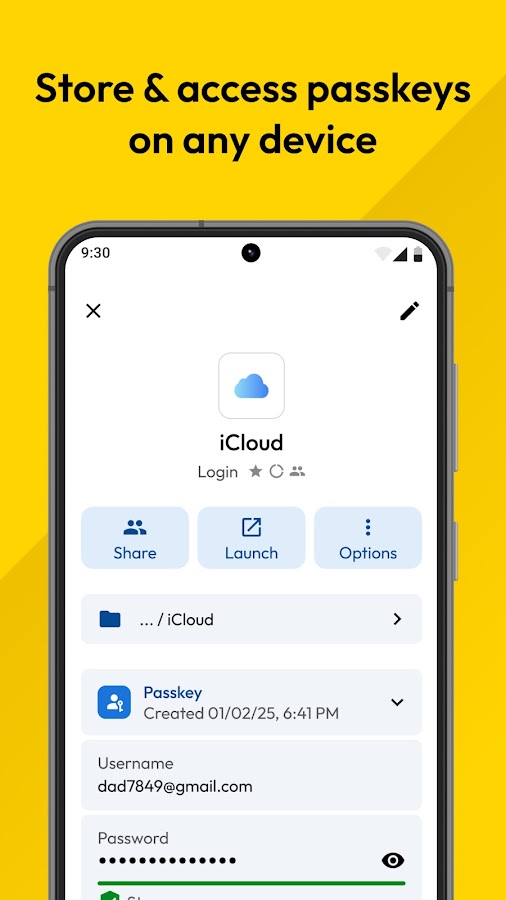

Keeper can store passkeys and time-based verification codes alongside logins. That saves a step when signing in to sites that ask for a code. Keep the second factor or recovery codes for your Keeper account itself somewhere outside the vault. The free plan is limited to one mobile device.
6. Dashlane — Best for a browser-first Windows setup
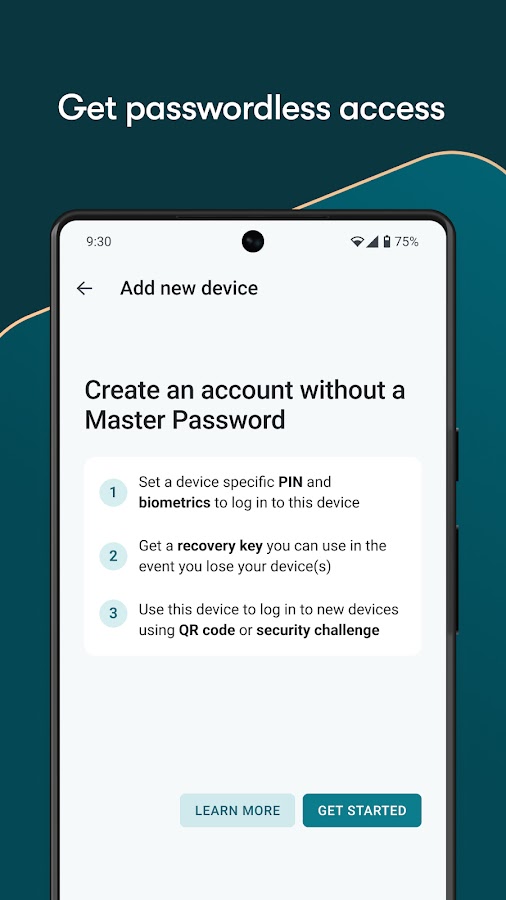
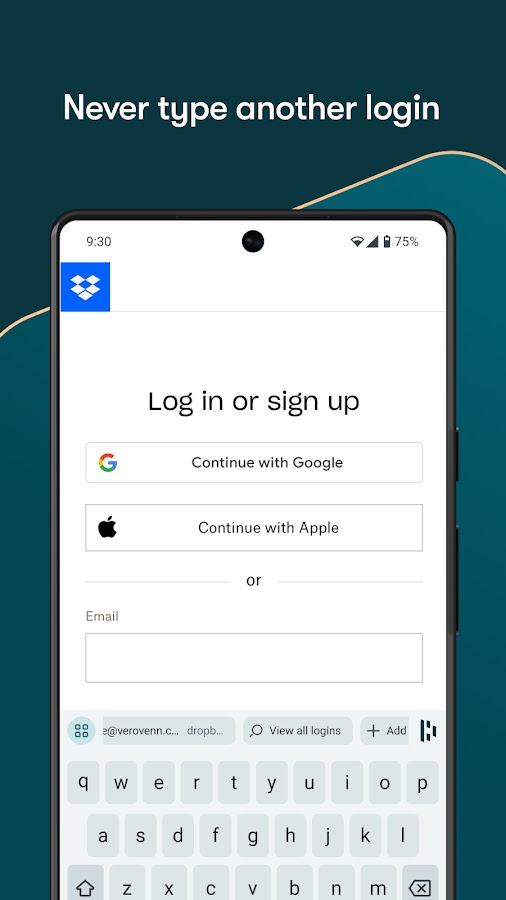
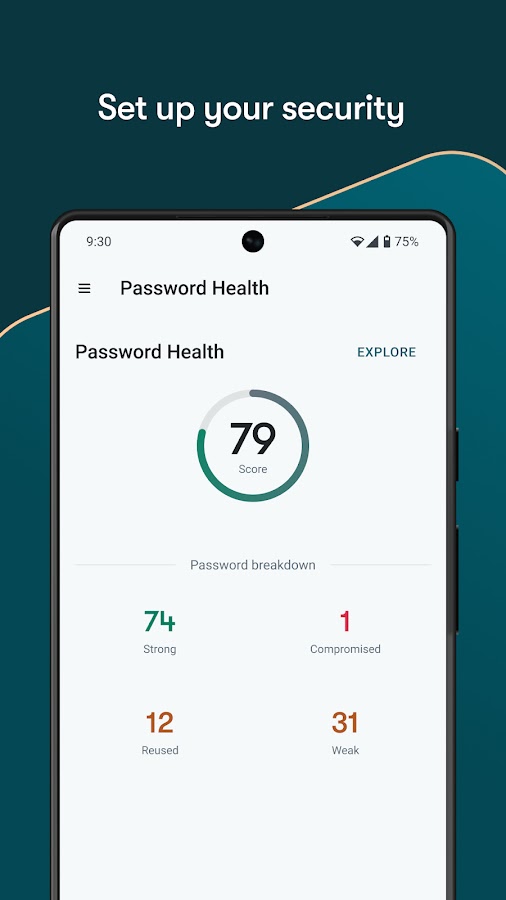
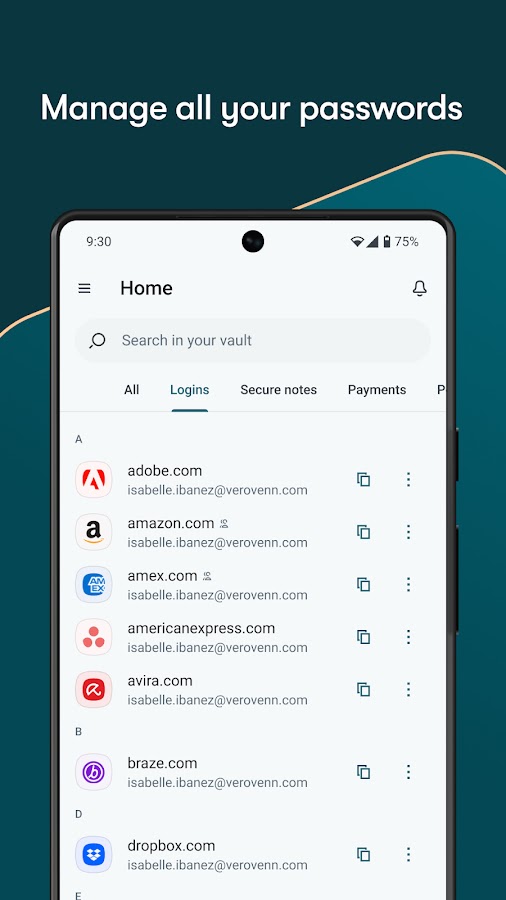

Dashlane fits a setup where most Windows logins happen in a browser. Use the extension on your PC and system autofill on Android or iPhone. Dashlane has retired its permanent free personal plan, so use any trial to check how it works with the browsers and mobile apps you sign in to most.
7. RoboForm — Best for autofilling web forms
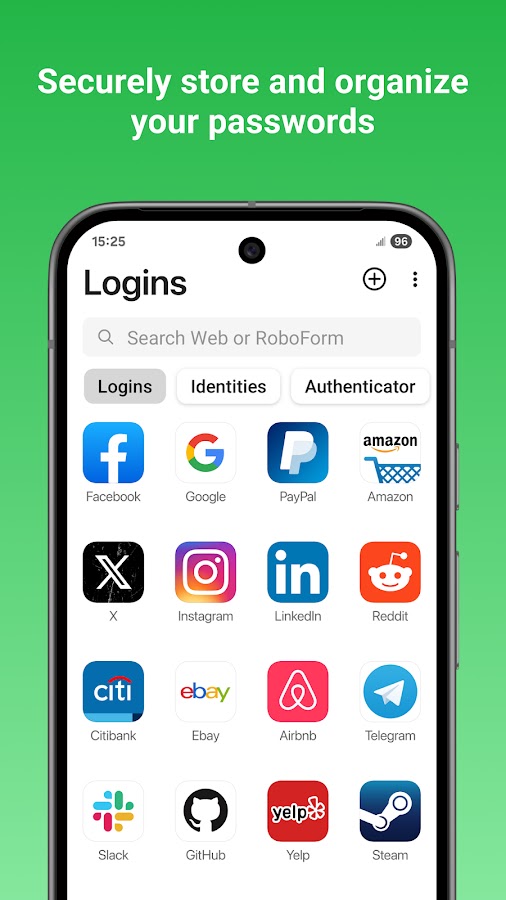
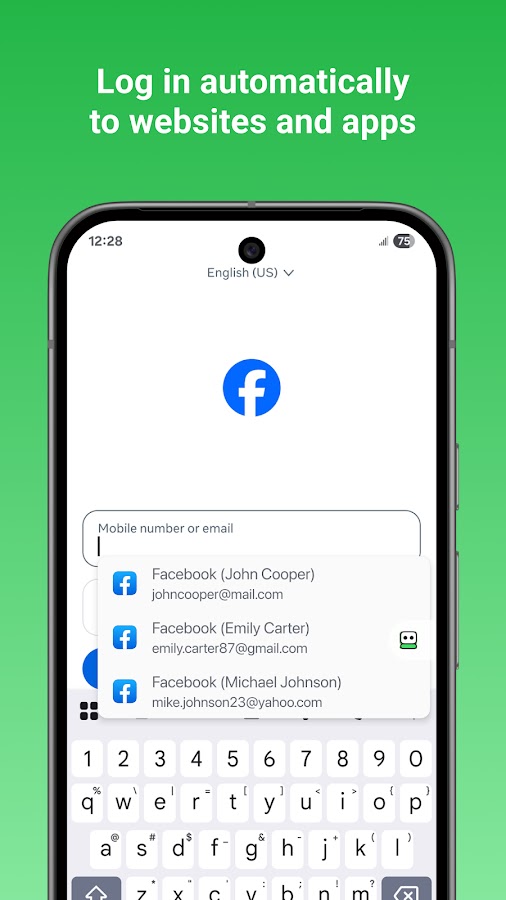
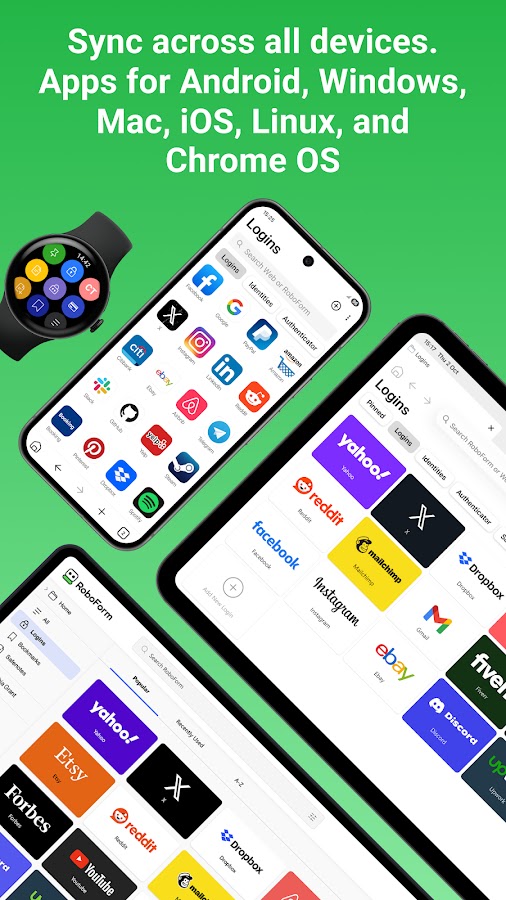
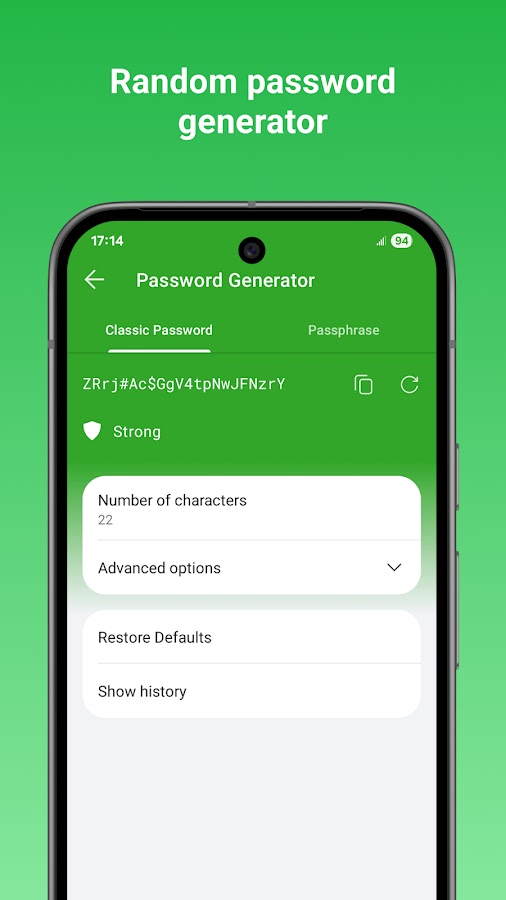

RoboForm is useful when you repeatedly fill out forms with the same name, address, or contact details. It stores that information in identity profiles alongside your logins. If you want to use the same data on a phone and a Windows PC, evaluate the Premium setup, which includes cross-device sync.
8. Enpass — Best for choosing your own cloud storage
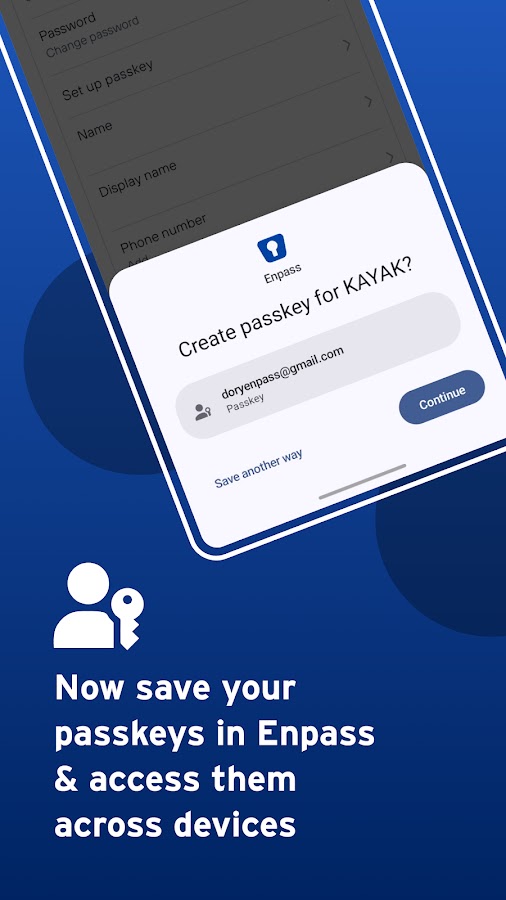
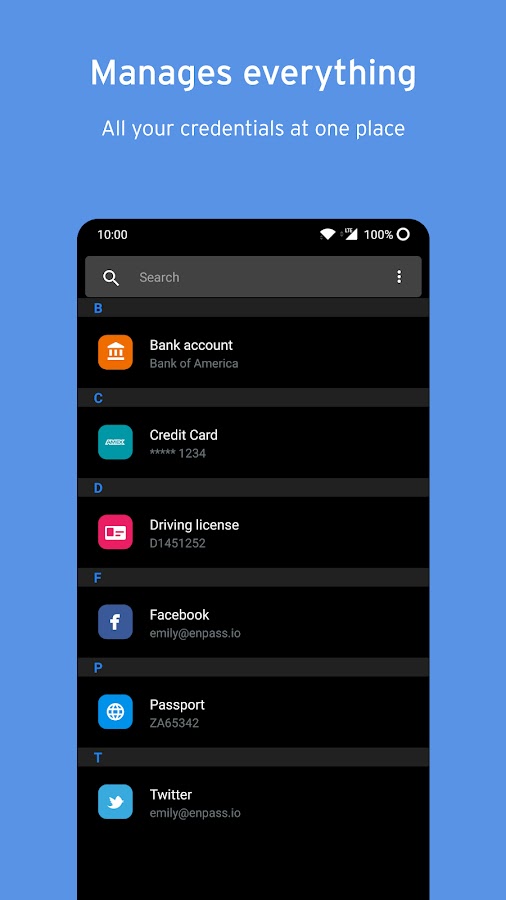
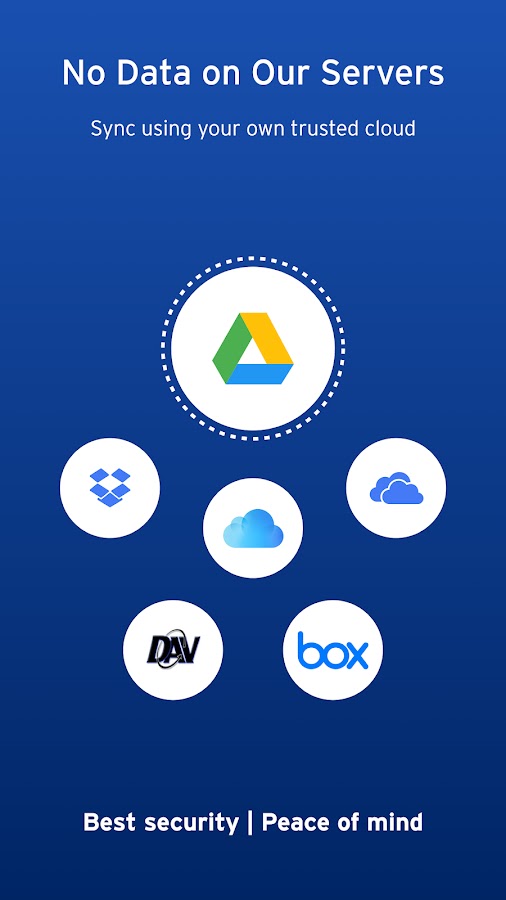
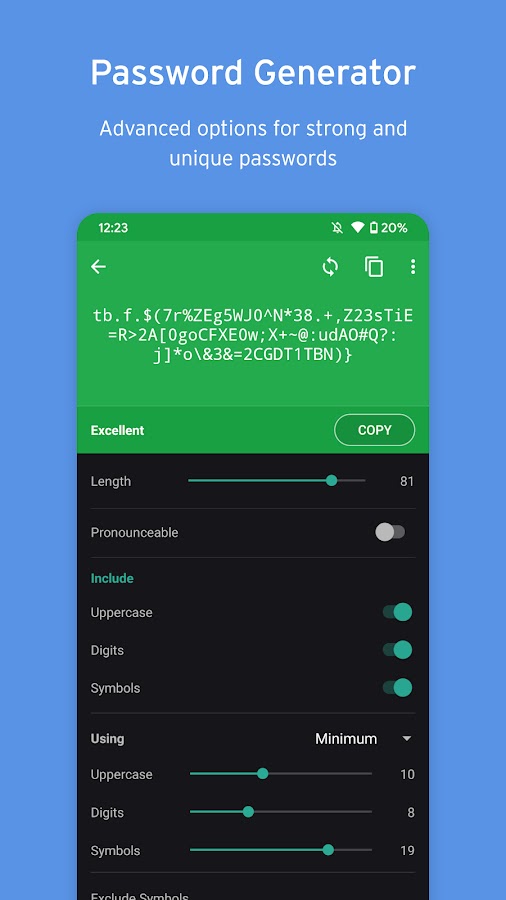
Enpass lets you choose where its encrypted vault is stored. Dropbox, Google Drive, and OneDrive are options for a mixed-device setup. Pick one service that you can access from Android, iPhone, and Windows before loading the vault. The free tier has a 25-item limit, which matters if you plan to import years of saved logins.
9. Sticky Password — Best for local Wi-Fi sync
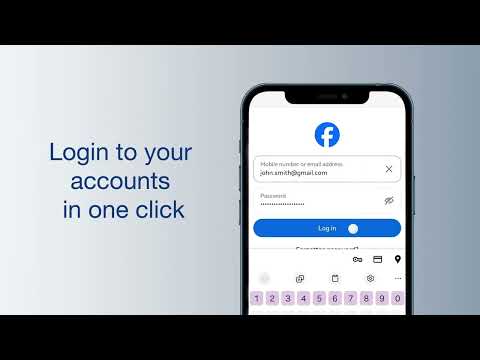
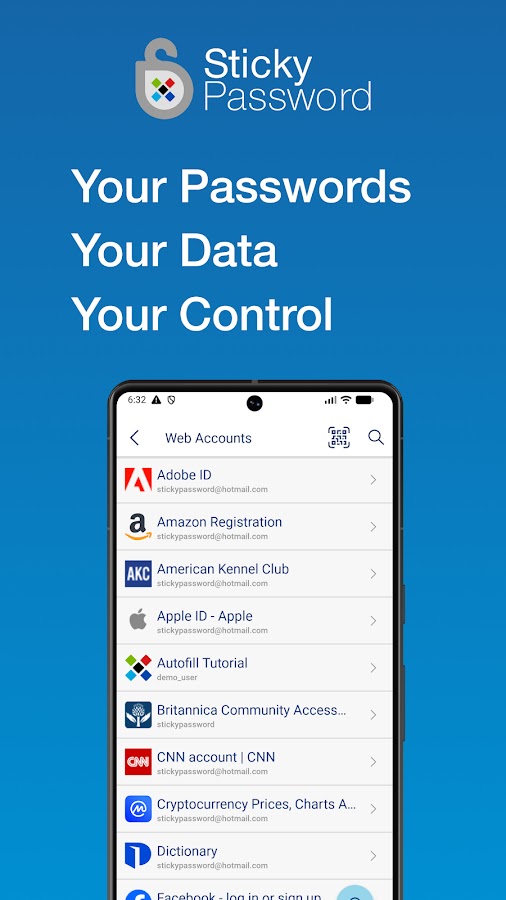
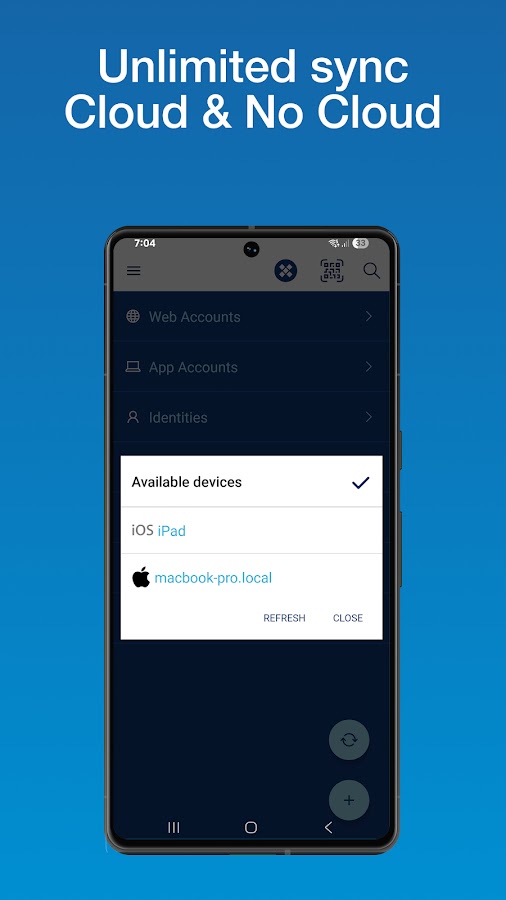
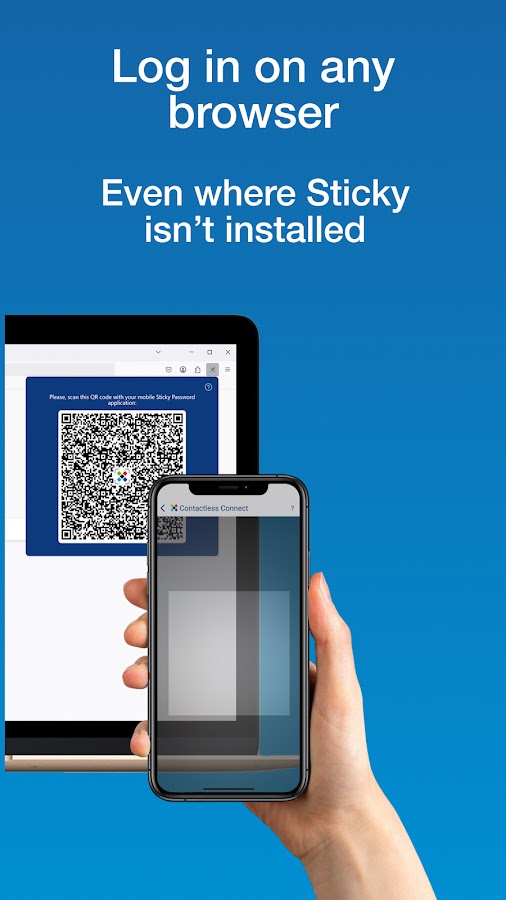
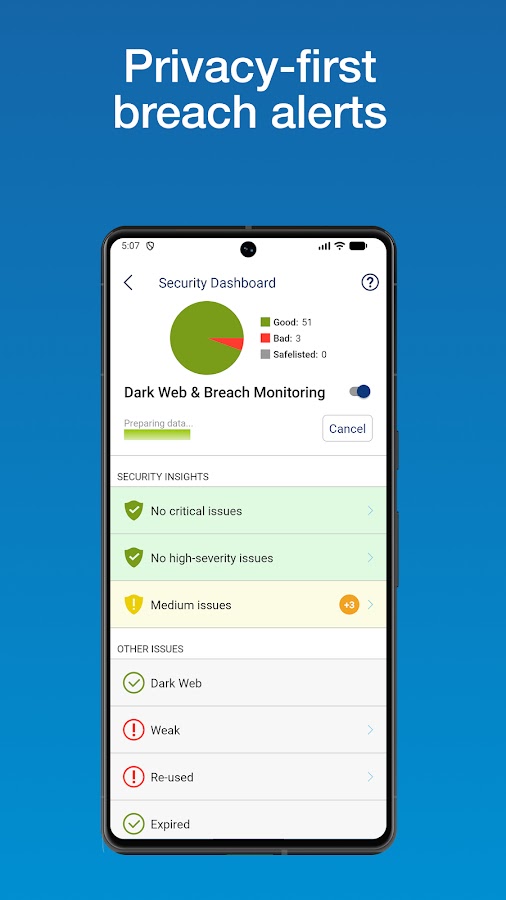
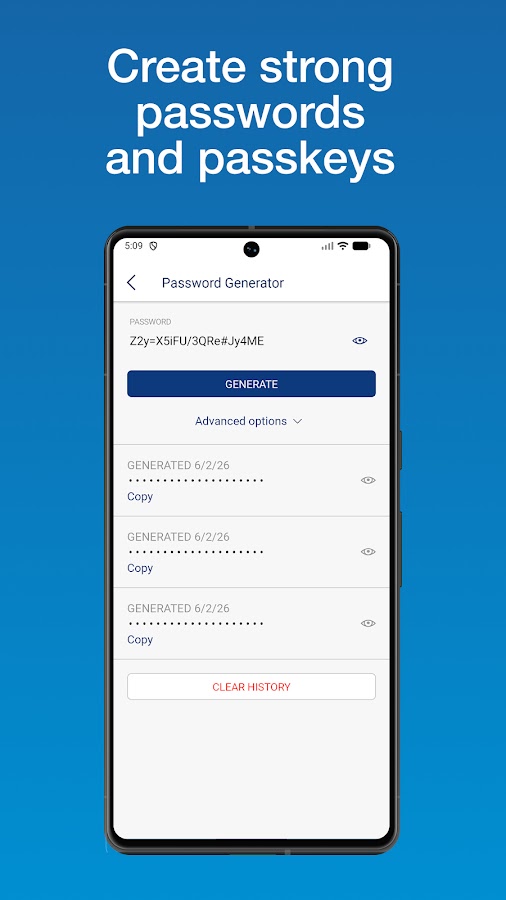

Sticky Password can sync between compatible phones and computers on the same local network. Choose Wi-Fi sync if your devices usually come together at home or in the office. If you expect a password changed on a trip to reach your PC immediately, cloud sync is more practical.
10. Password Manager: Safe — Best for a vault in your own cloud account
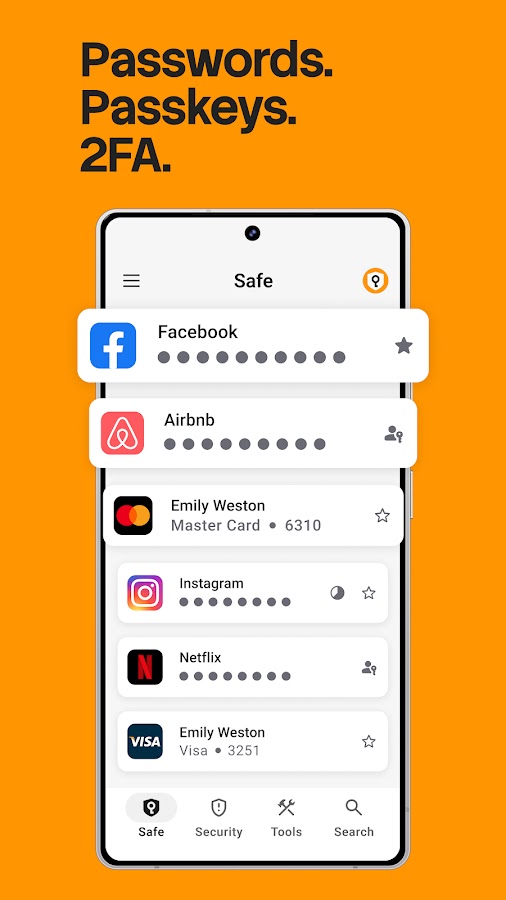
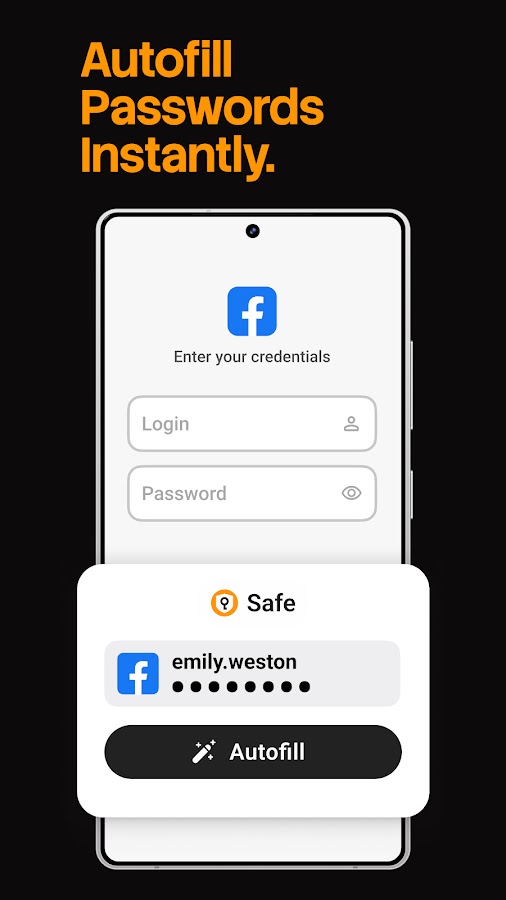
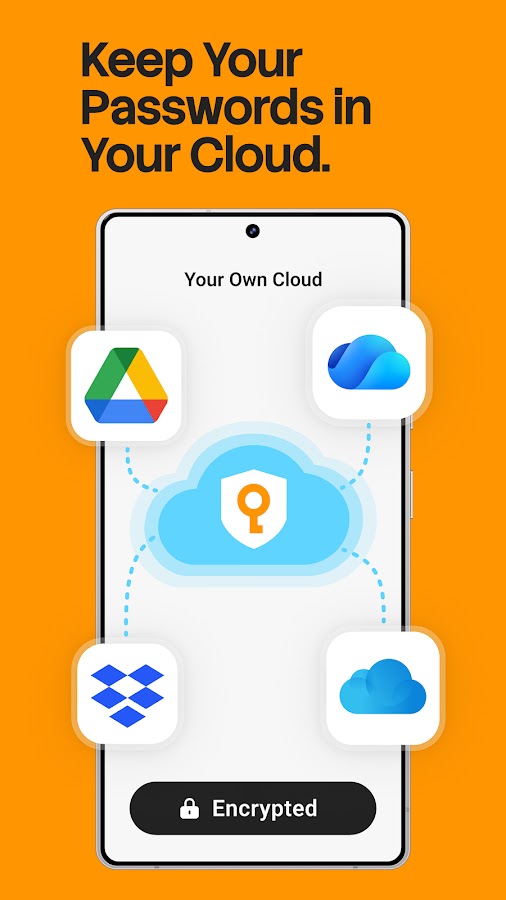
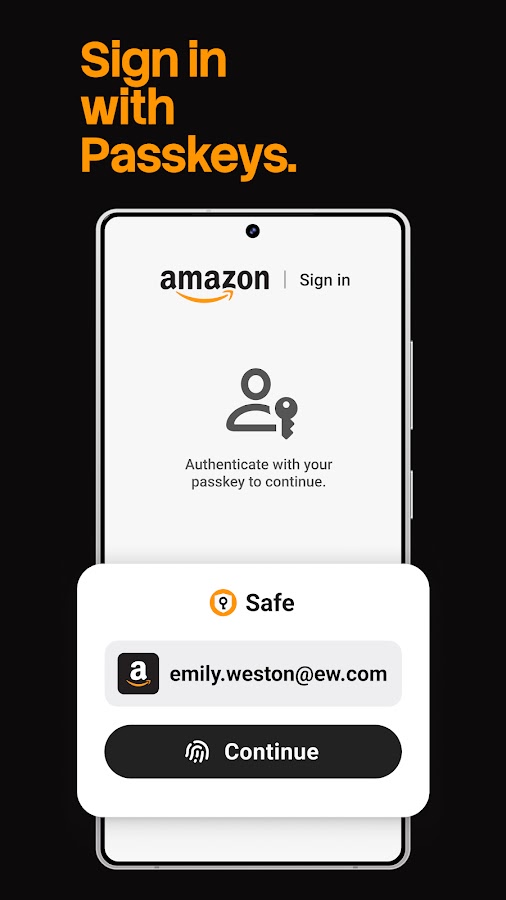

Safe by SafeInCloud stores its encrypted database in the cloud account you choose. Google Drive, Dropbox, and OneDrive are cross-platform options. The Windows app is free, while mobile sync requires a Premium license after the trial. Look for Password Manager: Safe when installing it. SafeInCloud 1 has a separate store listing.
11. mSecure — Best for custom records and templates
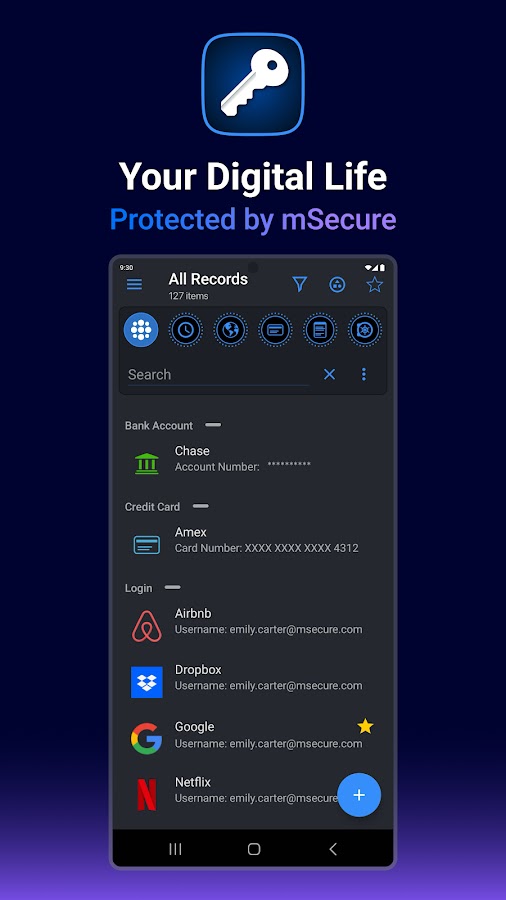
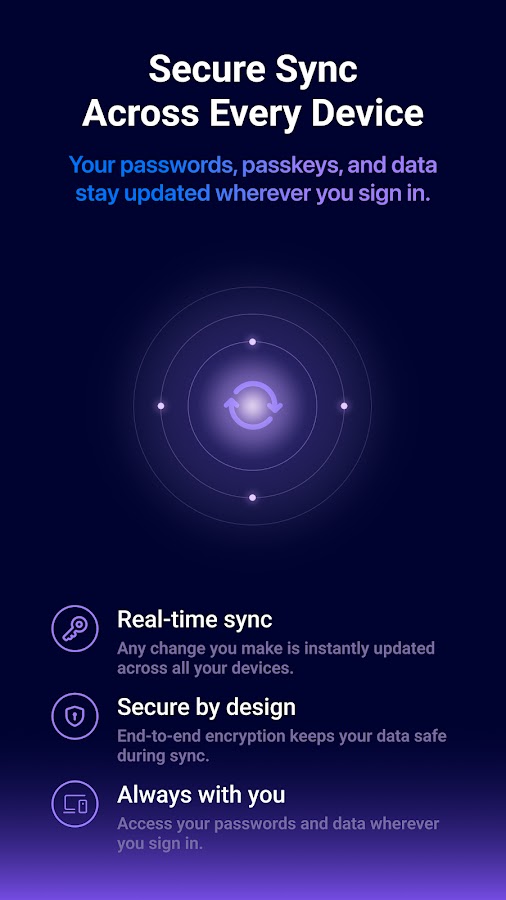
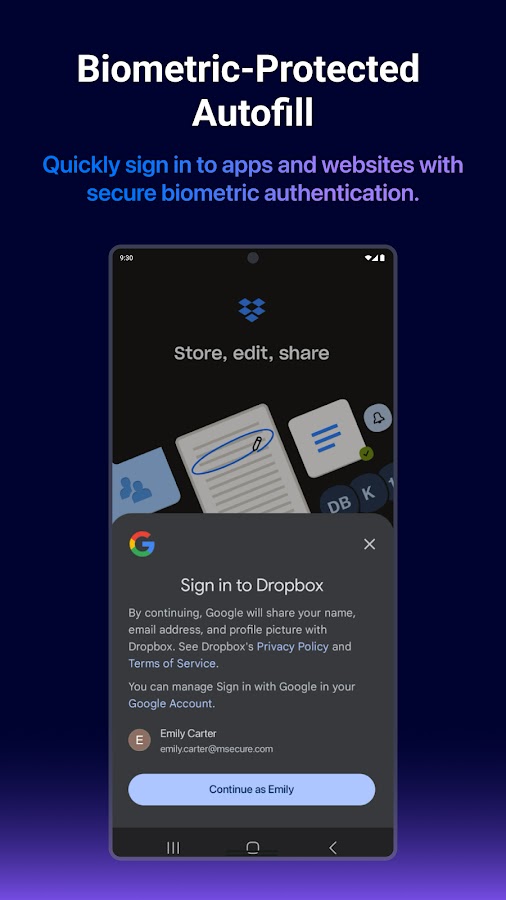
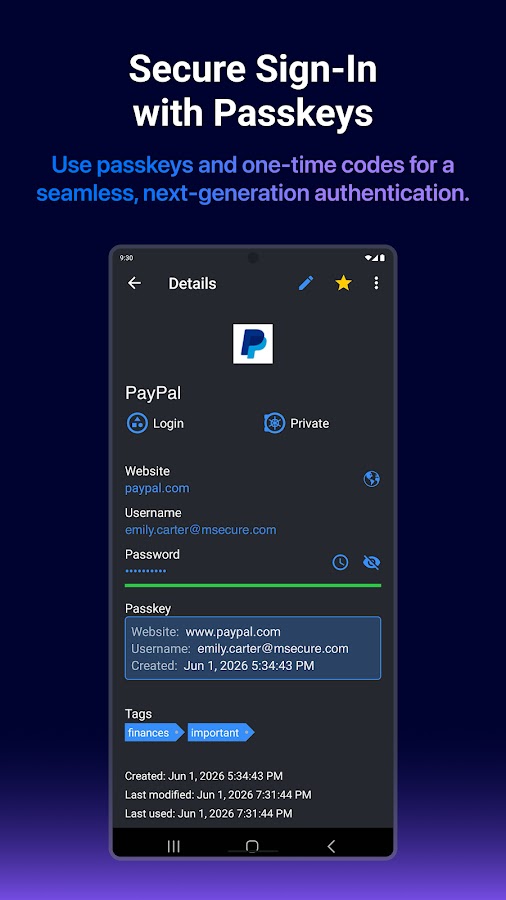
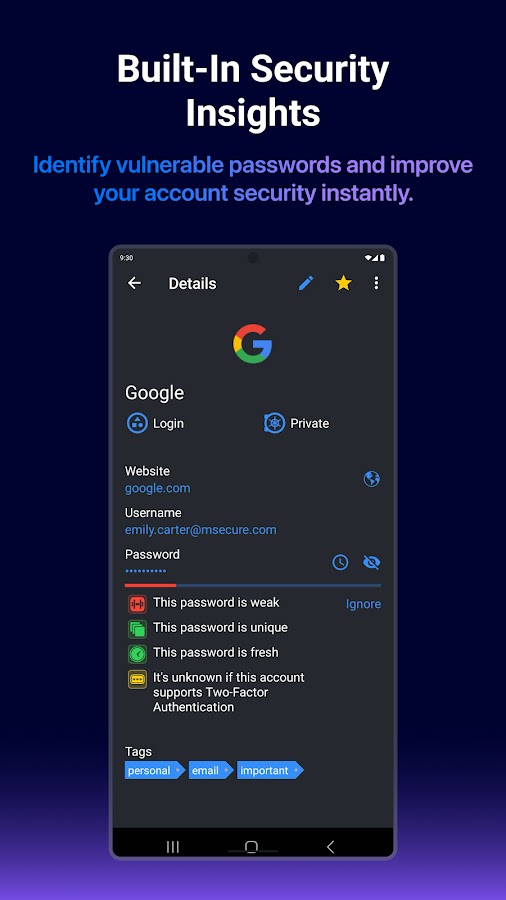
mSecure is useful if you keep software licenses, memberships, and other records alongside passwords. Its templates give each record its own fields, making it easier to find a license key or membership number. For an Android, iPhone, and Windows setup, you can use mSecure Cloud or Dropbox.
12. Password Depot — Best for managing a vault as a database file
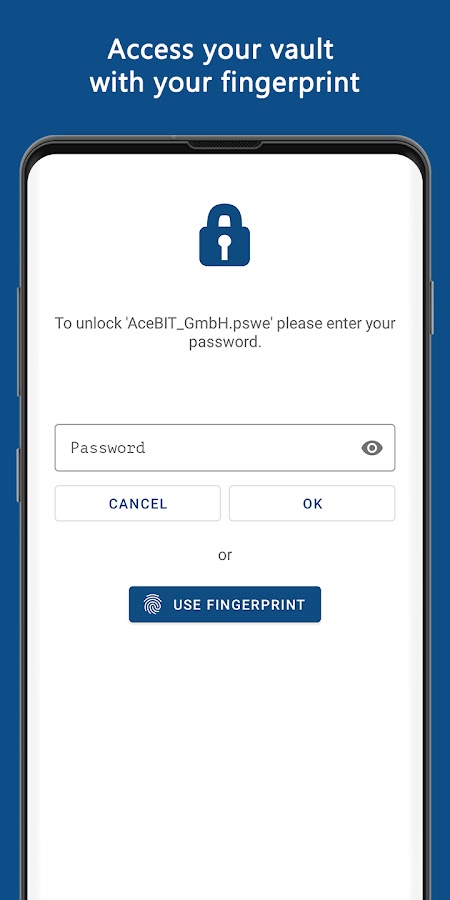
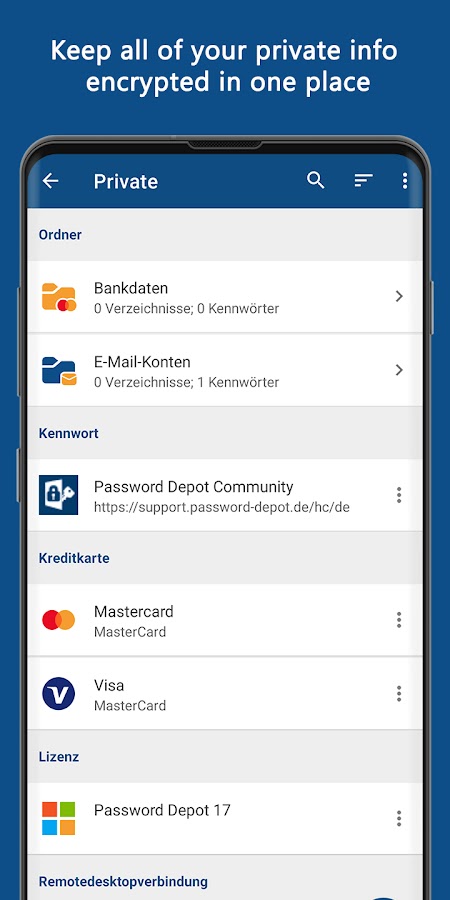
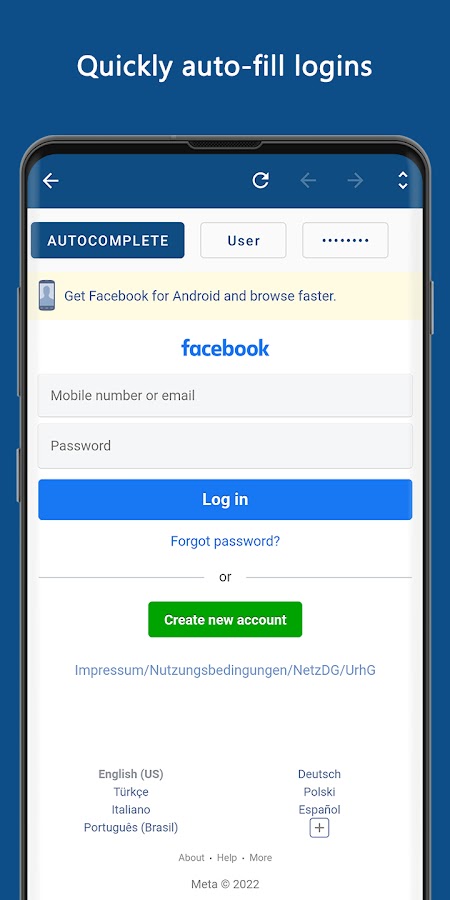
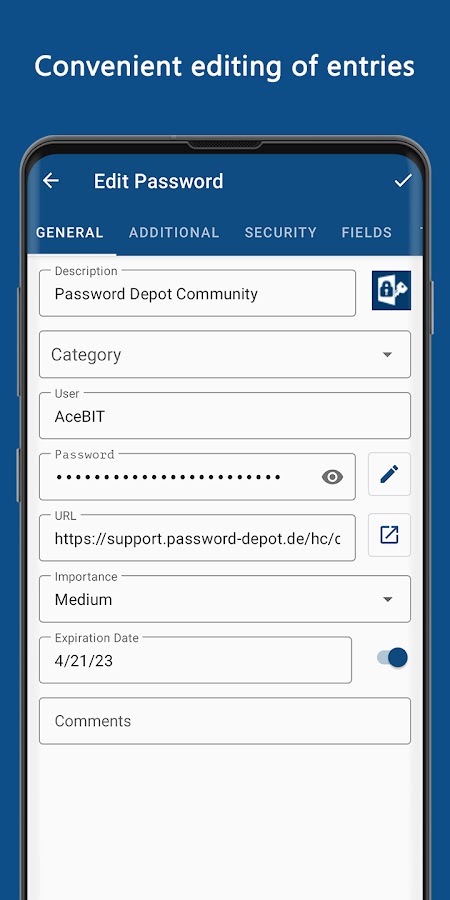

Password Depot lets you store an encrypted database in a service such as Dropbox or OneDrive and access it from its Android and iPhone apps. It suits people who are comfortable managing a database file. The free Windows mode uses a single local database, so plan on the full Windows version if you want one cloud database across all three platforms.
13. Zoho Vault — Best free option for a browser-based workflow
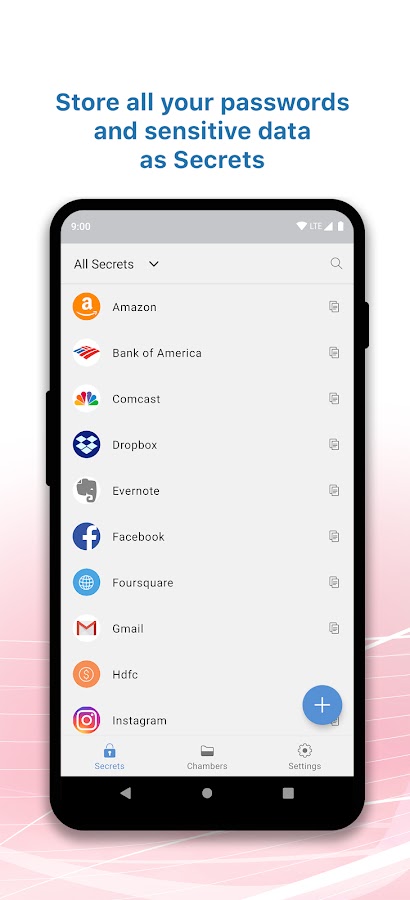
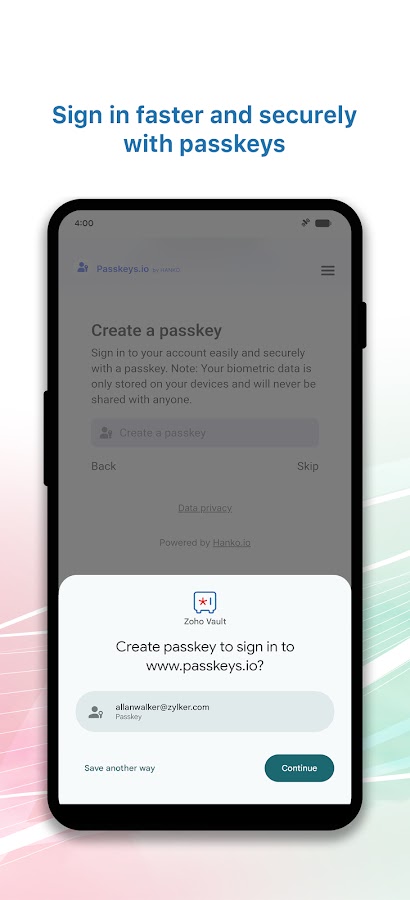
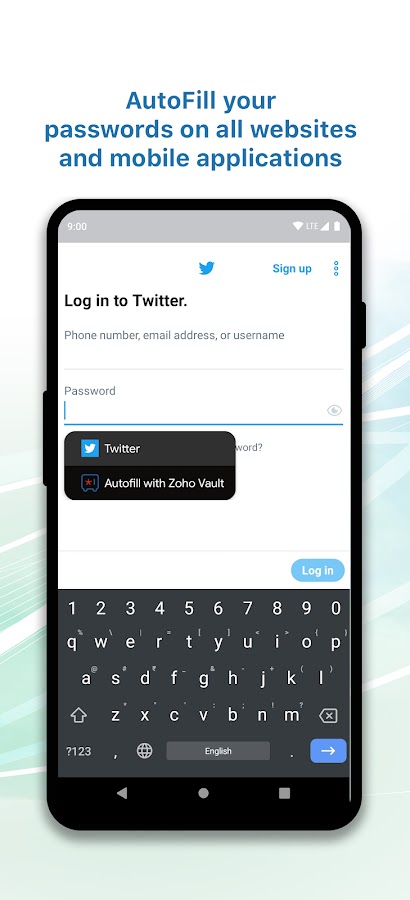
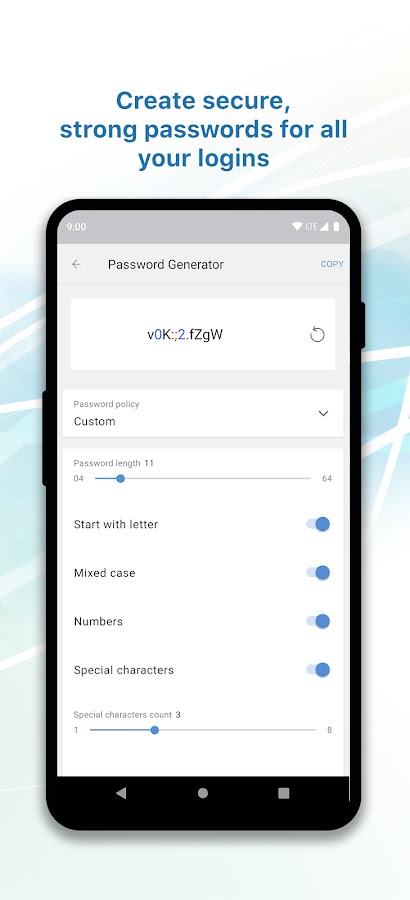
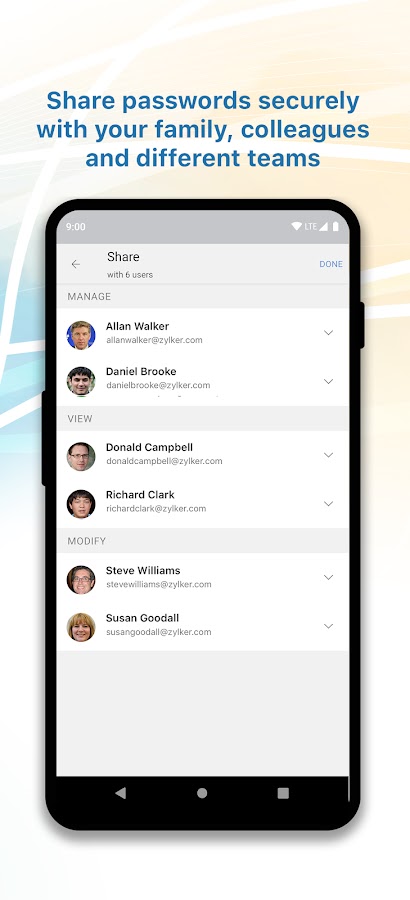

Zoho Vault is a good fit if you use a browser on Windows and want a personal vault that also works on Android and iPhone. Its free plan supports unlimited passwords and device sync. Team sharing and administrative controls are available if you later need to manage work accounts for several people.
14. Norton Password Manager — Best for a straightforward free cloud vault
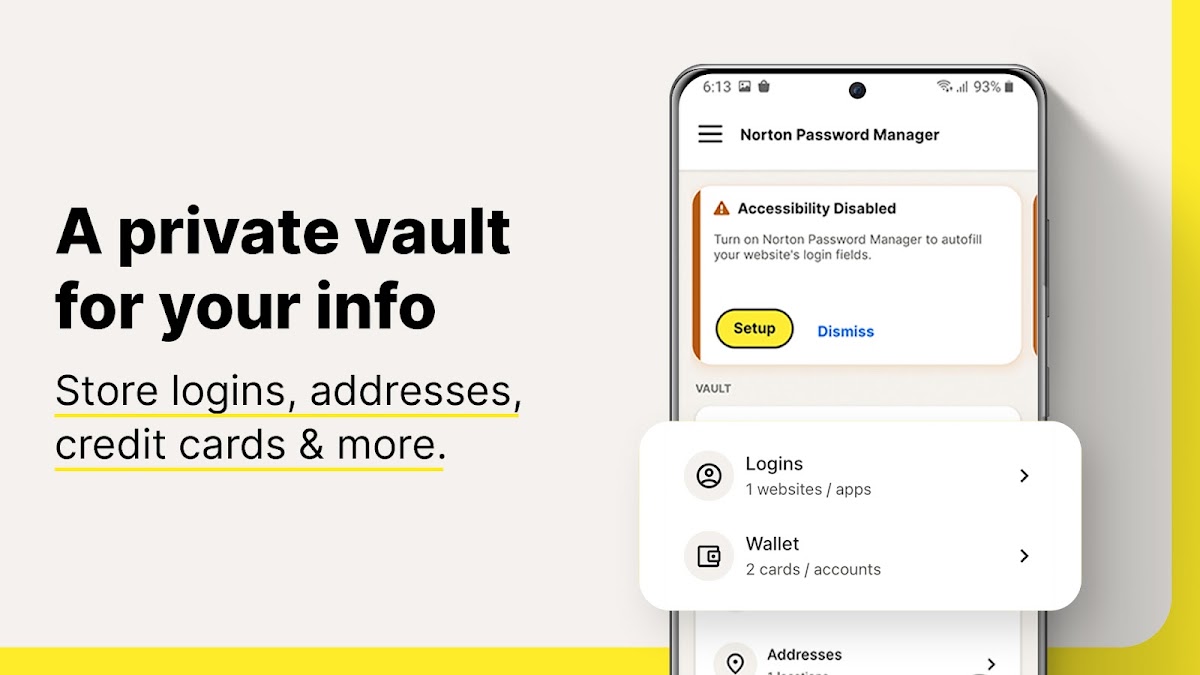
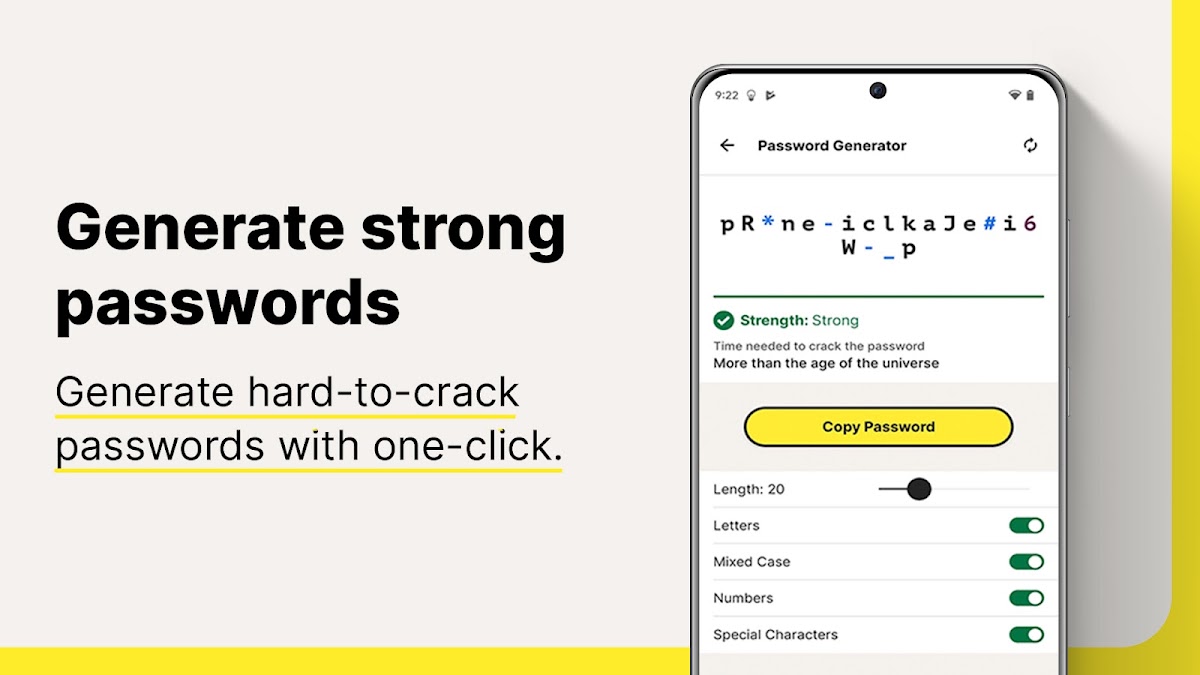

Norton offers a cloud vault, a password generator, and browser autofill. Its mobile apps connect to the same vault. It fits a simple setup where you want to save a login on your phone and use it later in your browser on Windows.
15. Avira Password Manager — Best for syncing passwords and notes
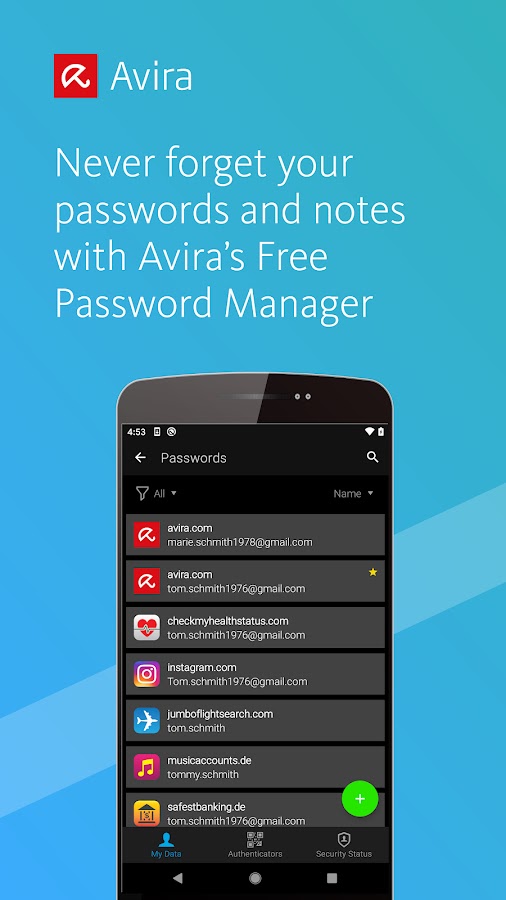
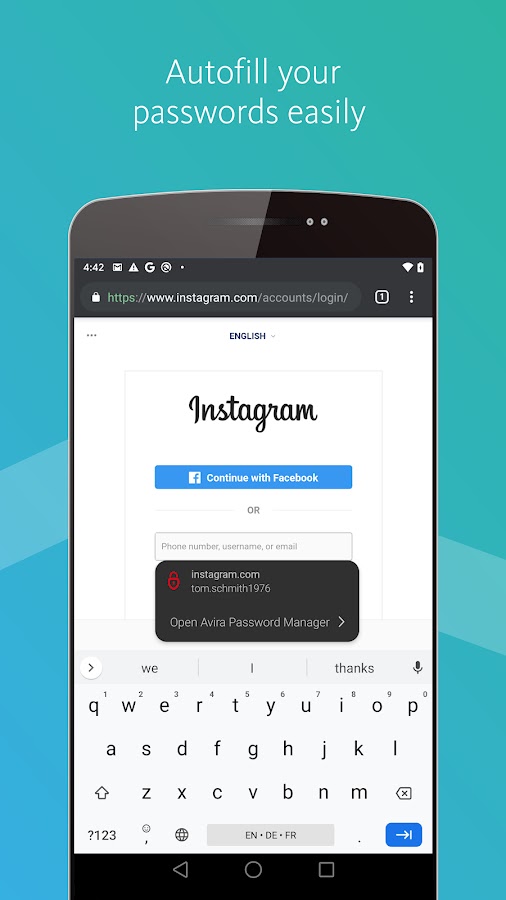
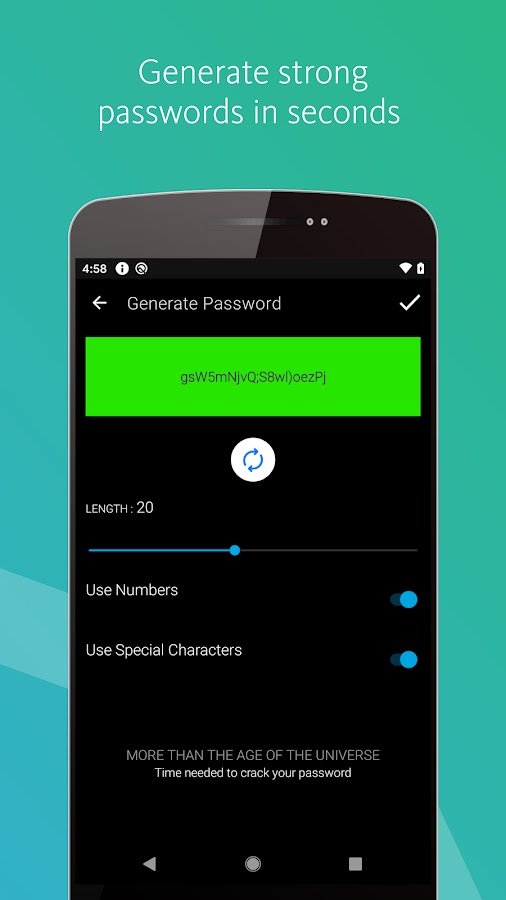
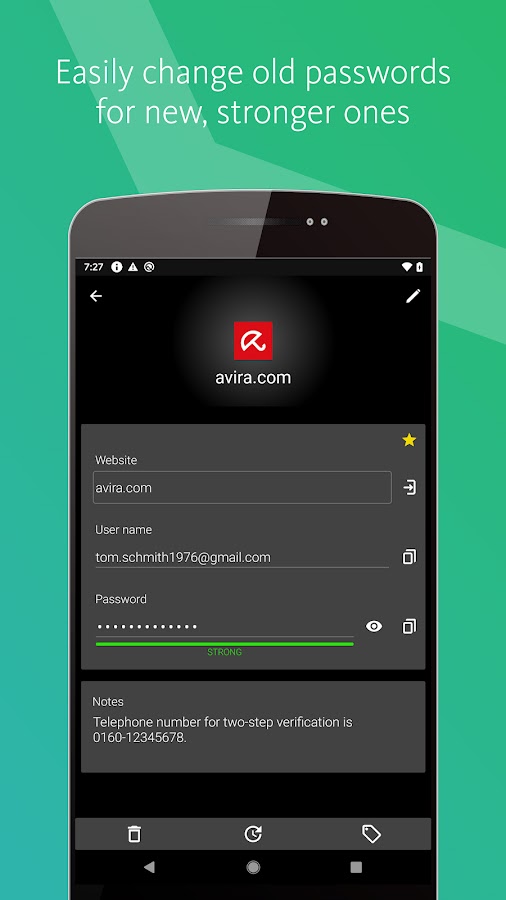
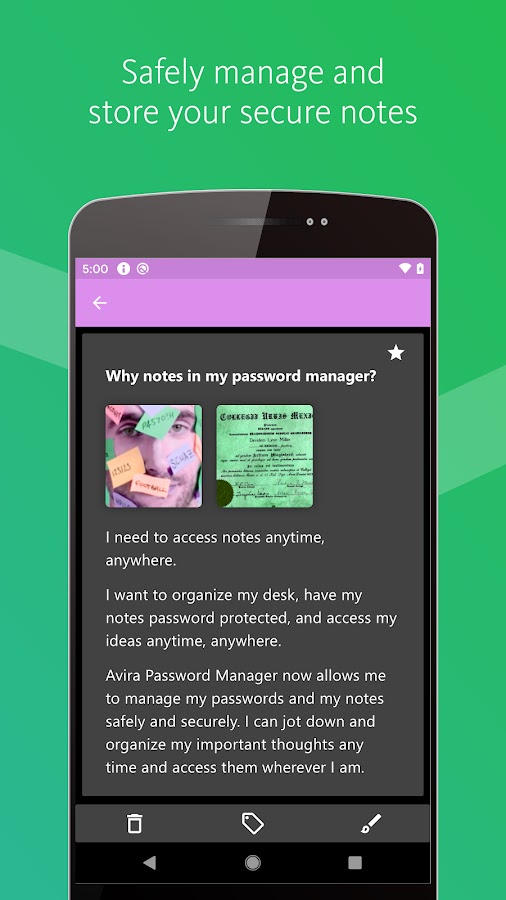
Sign in to the same Avira account on your phones and PC browser to keep passwords and notes in sync. The browser extension also works without an account, in which case it stores data locally. Set up account sync and confirm it works before importing your main vault.
16. LogMeOnce — Best for free sync with passwordless sign-in options
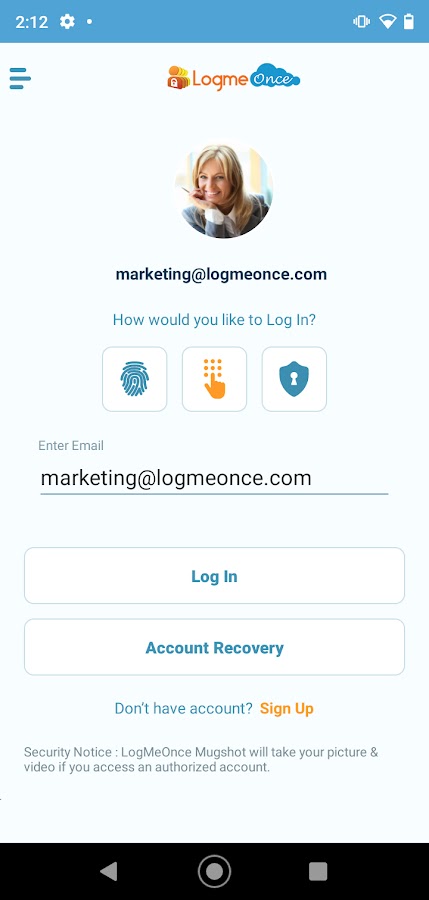
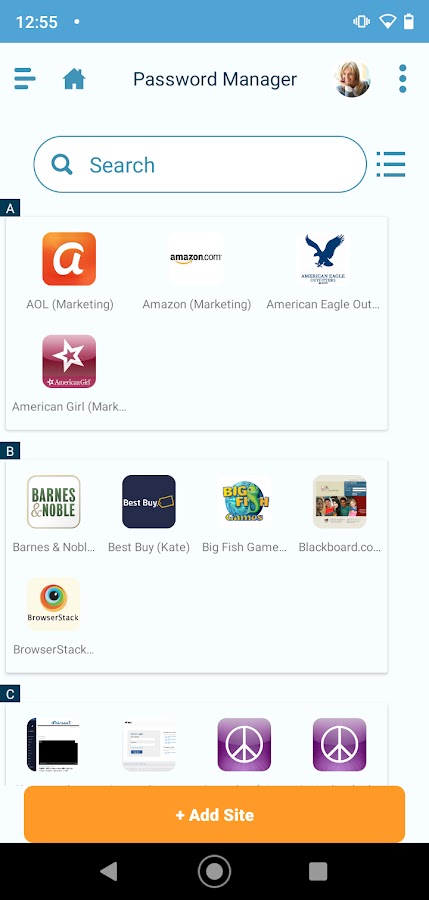
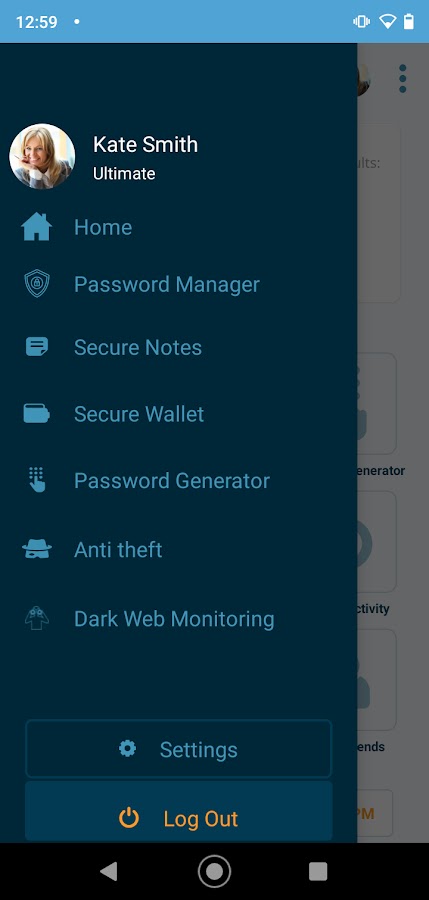
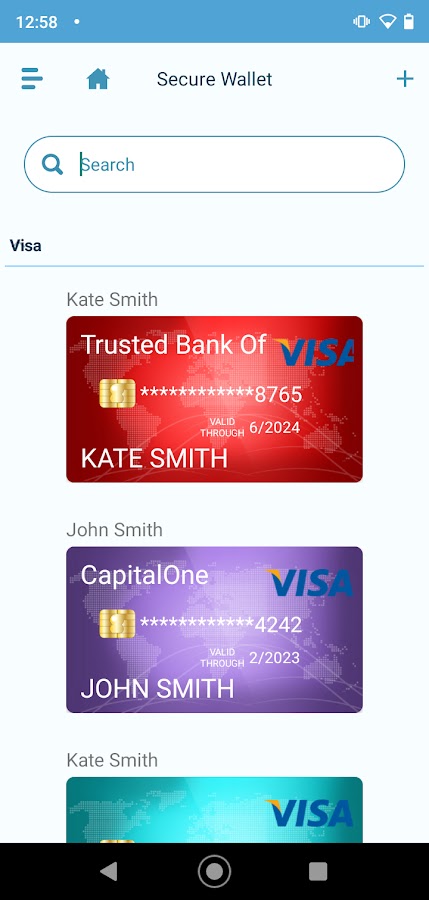
LogMeOnce is another option if you want to sync an Android phone, an iPhone, and a Windows browser without subscribing. It offers passwordless sign-in options, including QR-based login. Check how account recovery works before relying on your phone as your main way into the vault.
17. LastPass — Best suited to existing subscribers
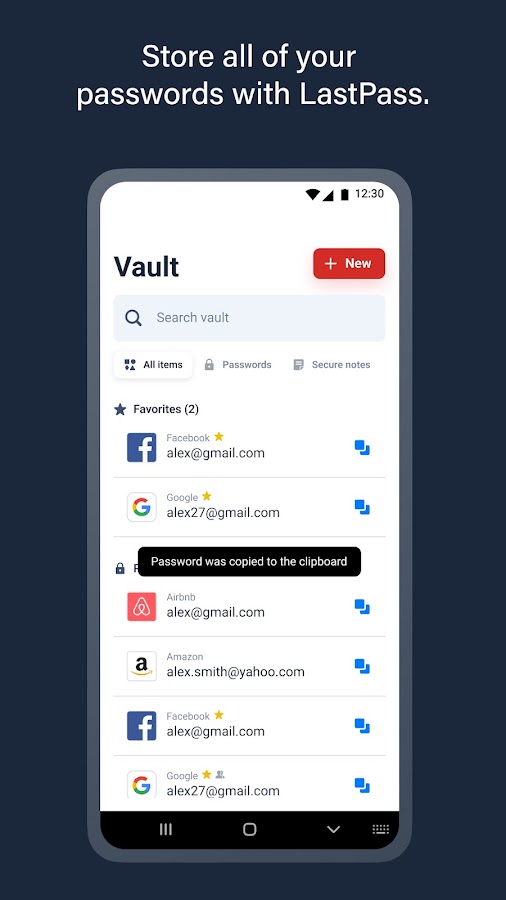
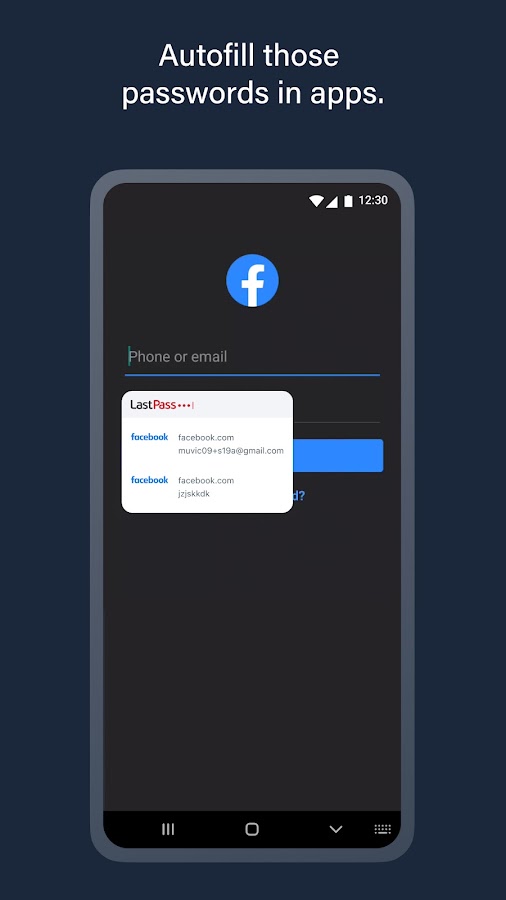
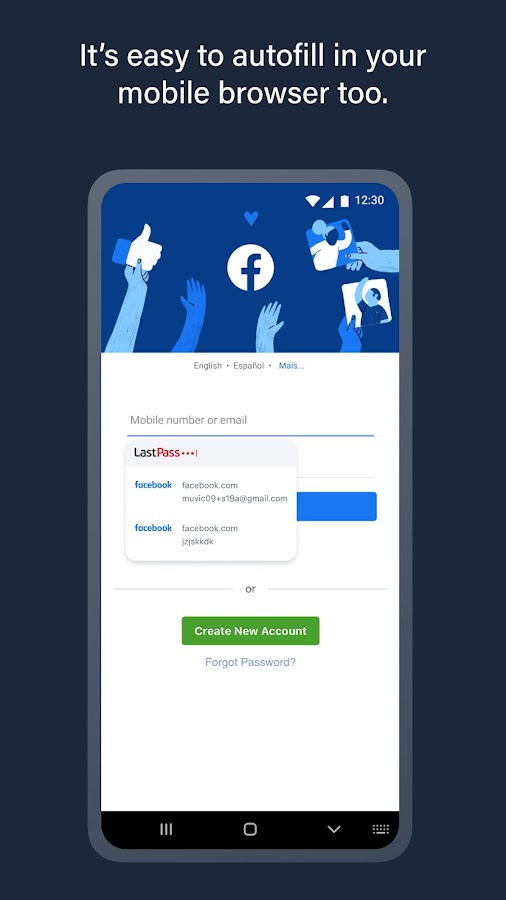
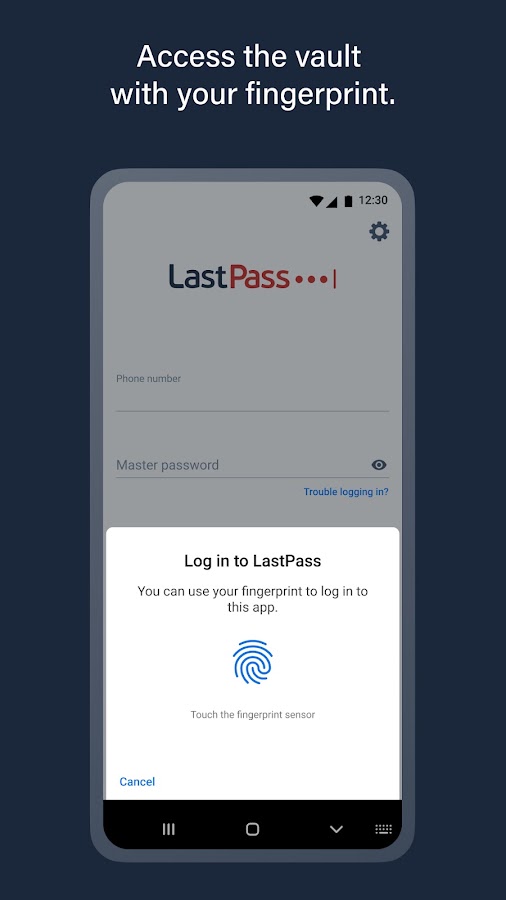
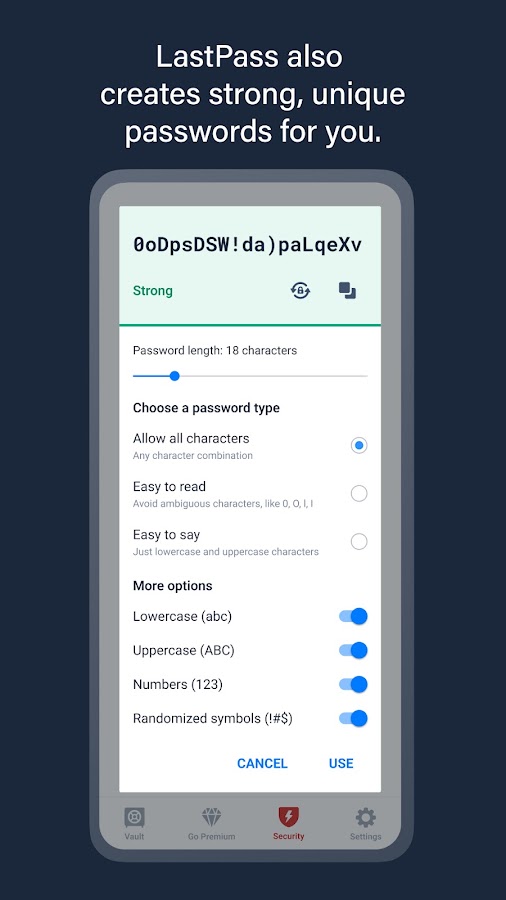

LastPass Free limits access to one device type, either mobile or computer. Paid plans cover the three-device setup. Security history is also worth weighing. In 2022, LastPass disclosed that an attacker copied a backup containing encrypted vault fields and some unencrypted data, including website URLs.
How to set up password sync on Android, iPhone, and Windows
- Install the password manager on both phones. On Windows, install its browser extension or use its desktop app to manage the vault. Use the same account on every device. If the app uses a database file, connect each device to that same database.
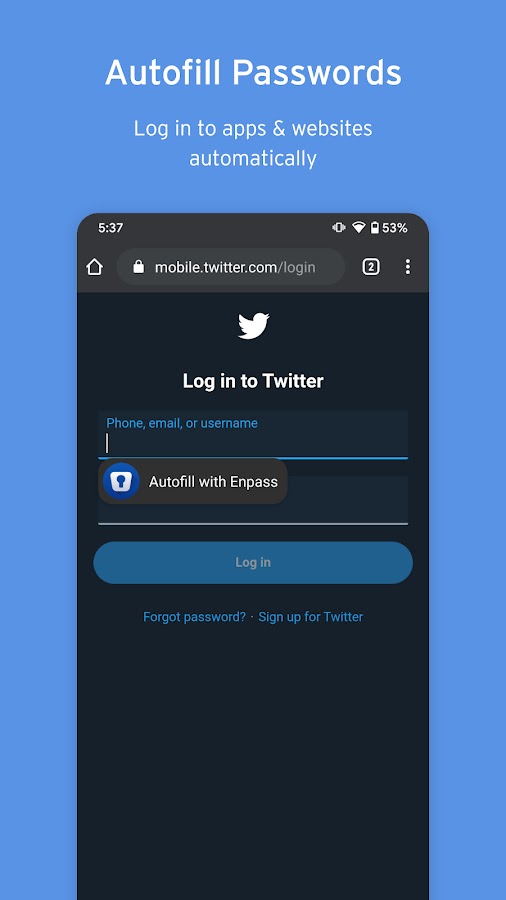
- Turn on mobile autofill. On iPhone, open Settings → General → AutoFill & Passwords and select your password manager. On Android, search Settings for Autofill or Preferred service. Menu names vary by device.
- Check sync and autofill separately. Save a test login on Android and confirm it appears on iPhone. Edit the entry on iPhone, then check that the new value appears on Windows and fills on the intended website.
- Set up recovery before migrating. Save your recovery kit or backup codes somewhere you can reach if you lose your phone or cannot unlock the vault. If your manager uses a database file, check how to restore it.
- Import your existing logins. Verify a few important entries before disabling your old autofill provider. If the migration creates an unencrypted CSV export, remove that copy once you’ve confirmed the import.