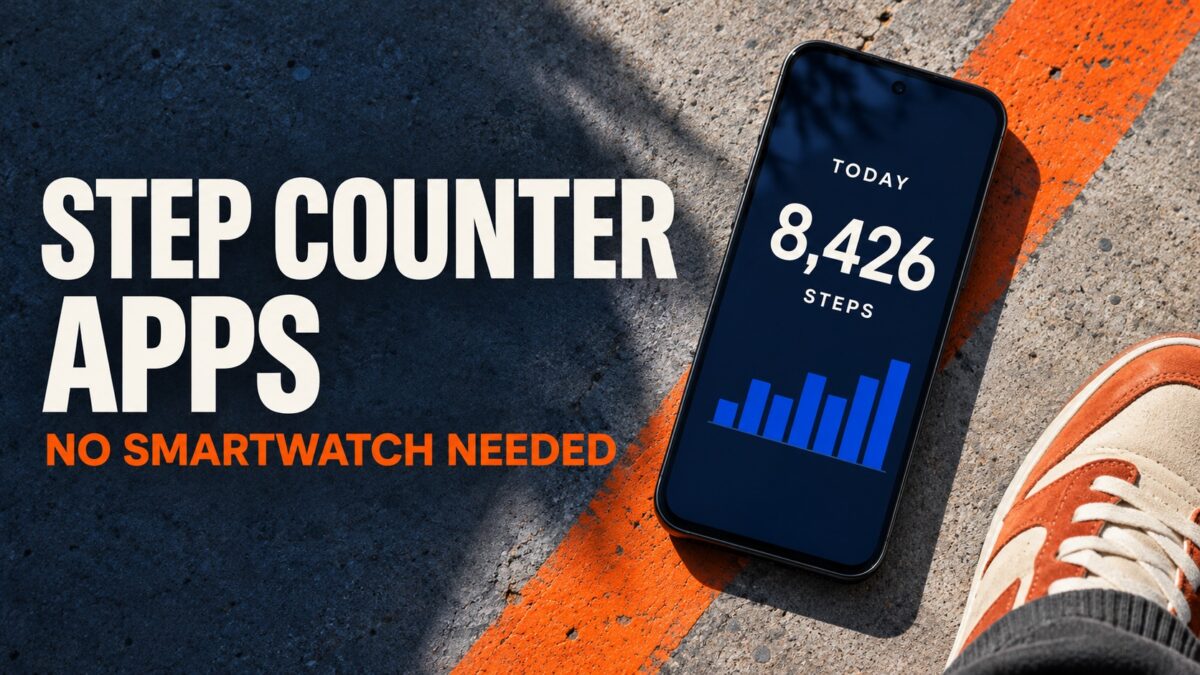
A phone in your pocket is enough to count steps. StepsApp is a good first pick for a clear daily total and useful widgets. Pacer makes more sense if you also want to record walking routes, while StepUp is a better fit for step challenges with friends. If you have an iPhone and only want to see how many steps you took, check Apple Health before downloading another app. It already counts steps when you carry the phone.
For everyday movement, look for automatic background tracking. For a planned walk, you might prefer an app with a start button and a route map. This comparison is based on documented features and store listings. The picks reflect what each app is suited to, and accuracy was not tested side by side.
Best phone-only step counter apps at a glance
| App | Best for |
| StepsApp | Daily totals, trends, and widgets |
| Pacer | All-day step counts and mapped walks |
| Samsung Health | Steps alongside exercise and other health data |
| Google Fit | An activity journal with steps and Heart Points |
| Google Health (Fitbit) | Fitbit’s activity dashboard using just the phone |
| Mstep (Leap Fitness Group) | A standalone pedometer with no GPS tracking |
| ActivityTracker | Daily and weekly activity history |
| Accupedo | Step goals and walking logs |
| EasyFit | Step goals, badges, and water tracking |
| StepUp | Private step challenges with friends |
| WalkFit | Guided walking plans |
| Sweatcoin | Rewards for eligible steps on supported phones |
| GStep | Recording individual walks and routes |
| iSteps GPS Pedometer | A classic pedometer with a daily totals mode |
1. StepsApp — best for checking your daily total
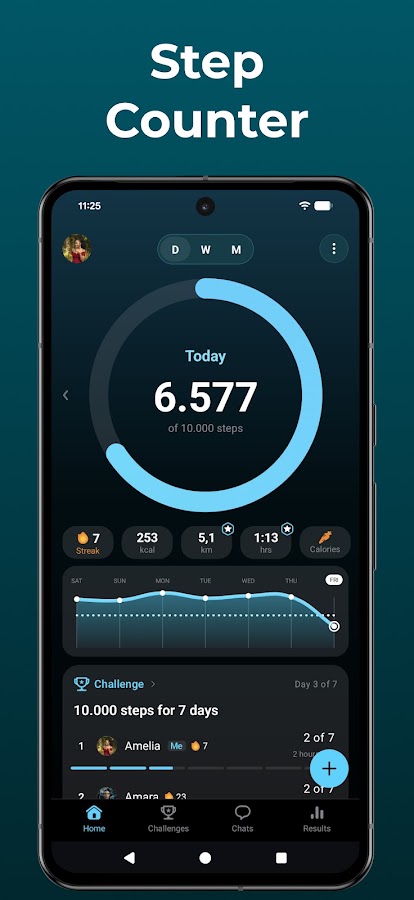
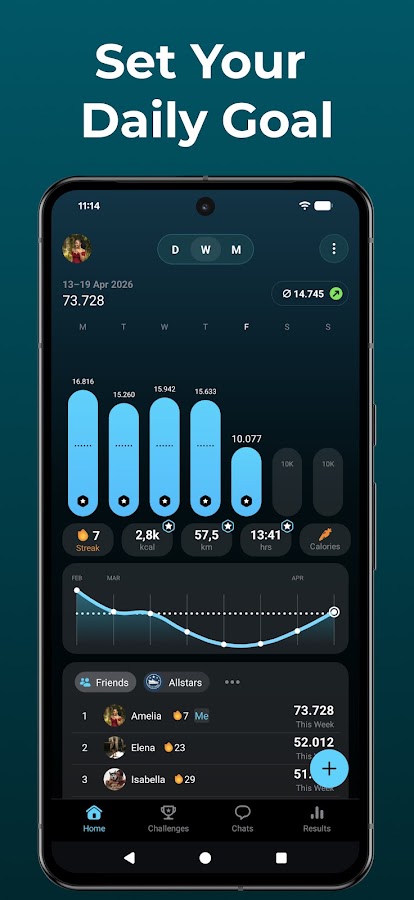
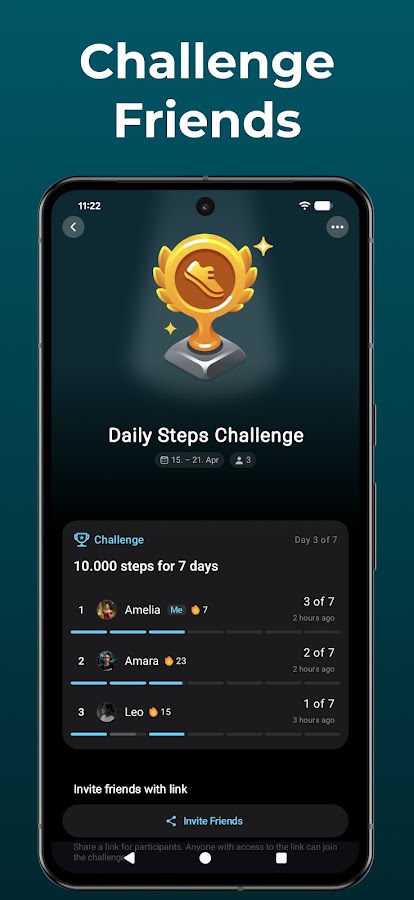
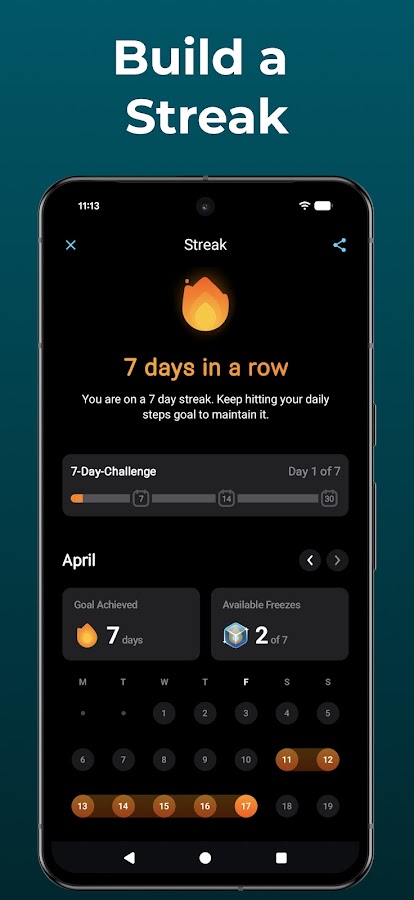
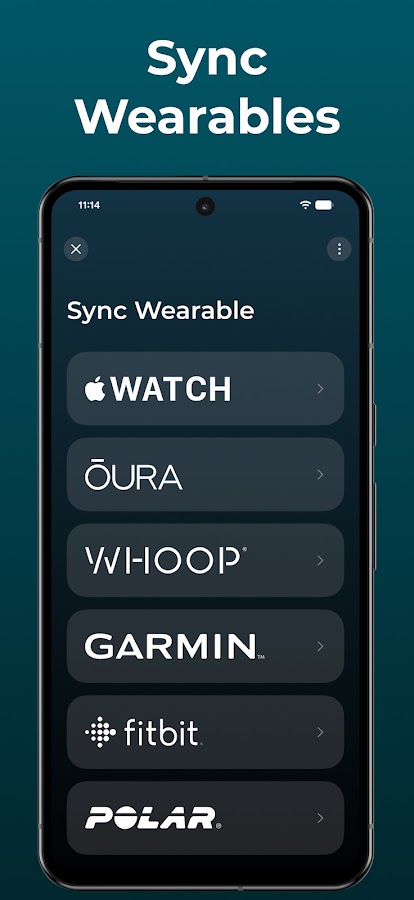
StepsApp makes your step count easy to see with progress charts and widgets. It’s a good fit if you want to check your total between errands or see how this week compares with the last. On Android, it uses the phone’s built-in step counter when available and falls back to the accelerometer on devices without a dedicated step sensor. The iPhone version supports Apple Health. Advanced analytics and some extras are part of the Pro plan.
2. Pacer — best for daily steps and walking routes
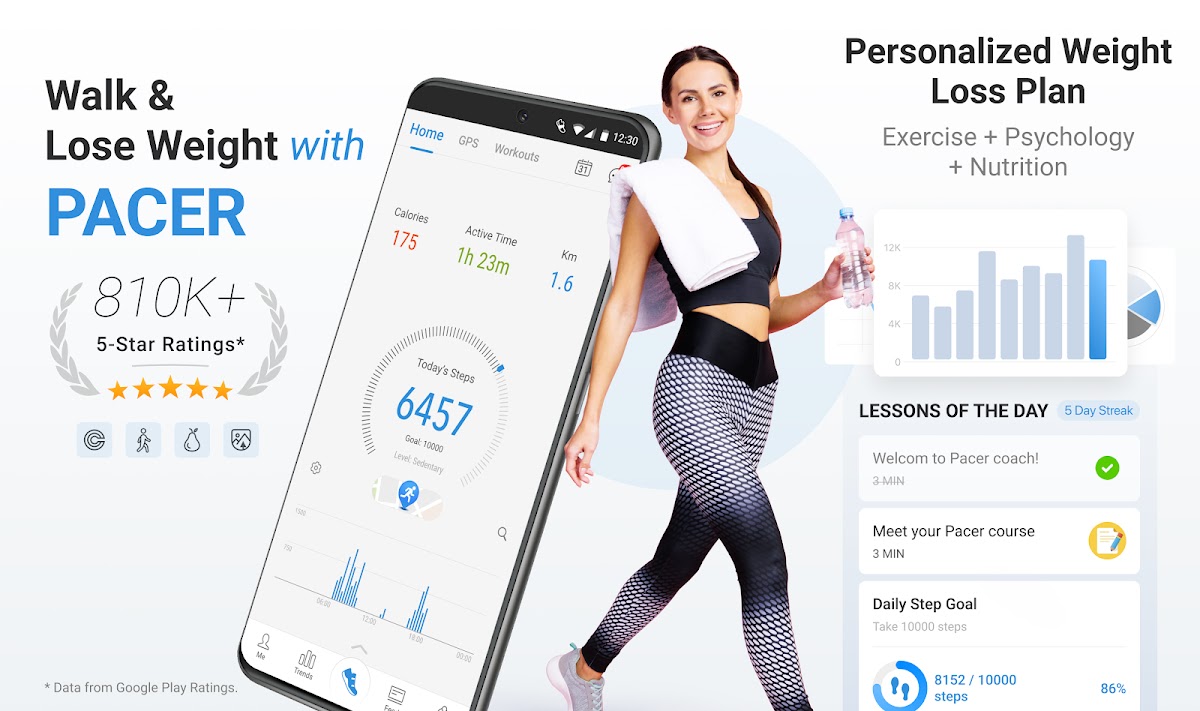
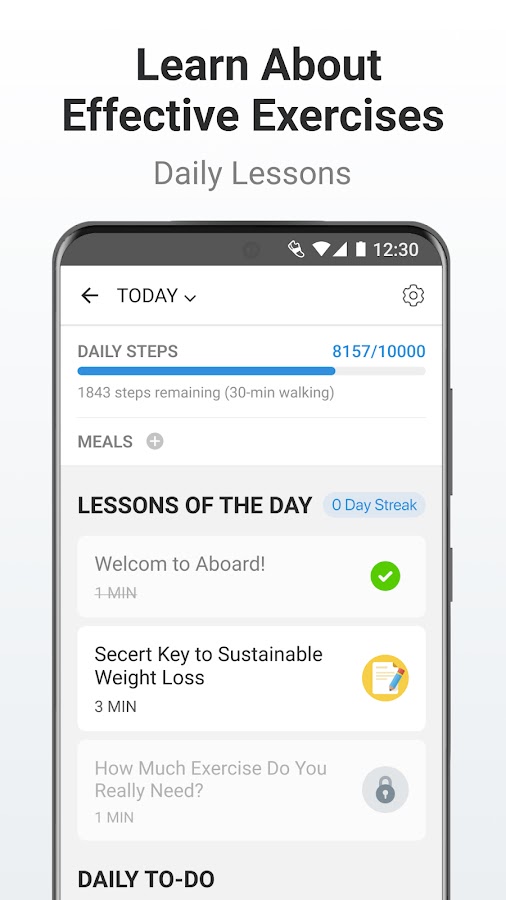
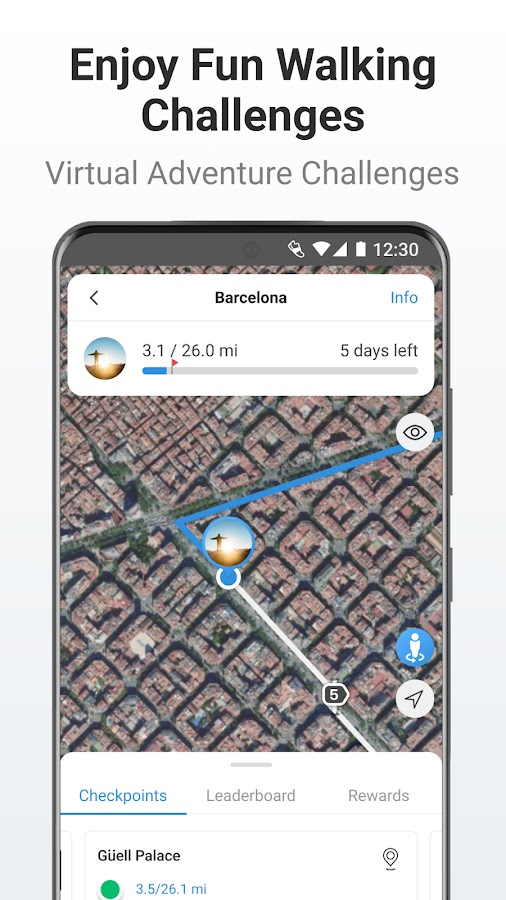
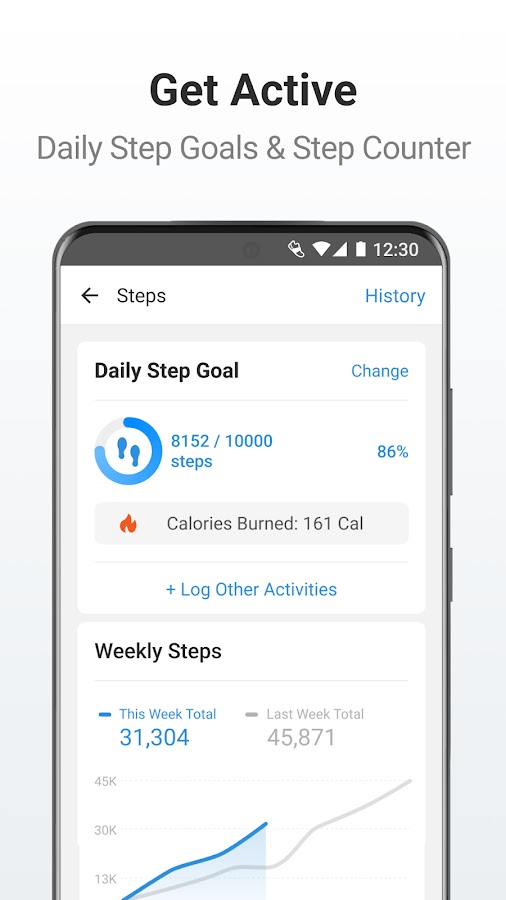
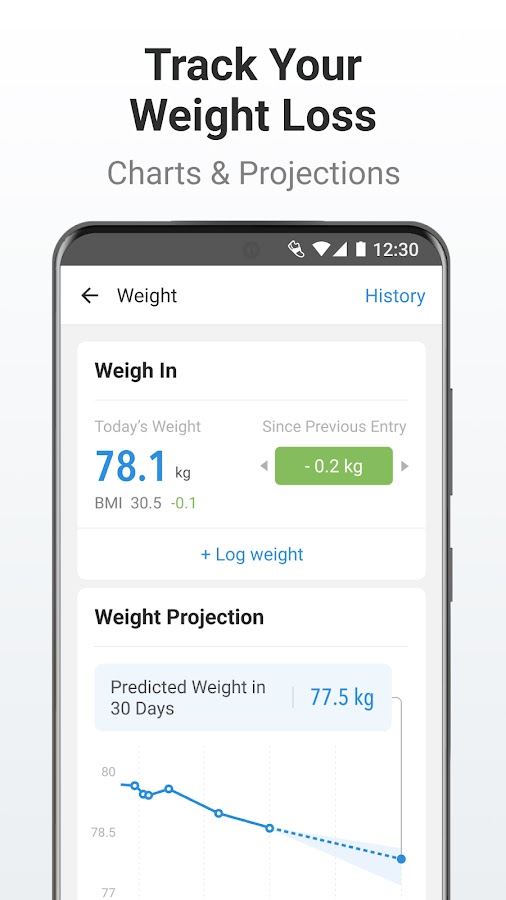

Pacer uses the phone’s motion sensors as its default step source. It counts everyday movement and offers GPS tracking for walks you want to record on a map. That’s handy if you want your trip to the store in the daily total but only want to save the route for your evening walk. The app also offers groups and challenges. Wearable sync is optional.
3. Samsung Health — best for Galaxy phone users
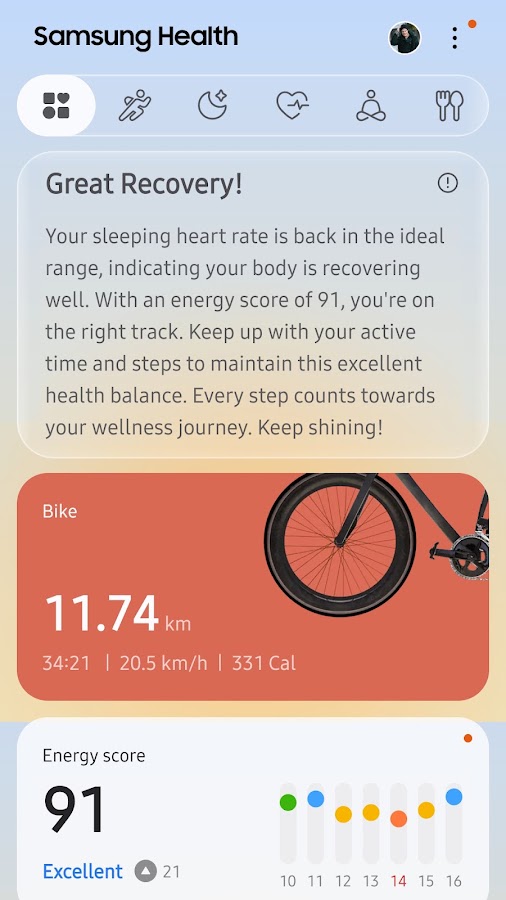
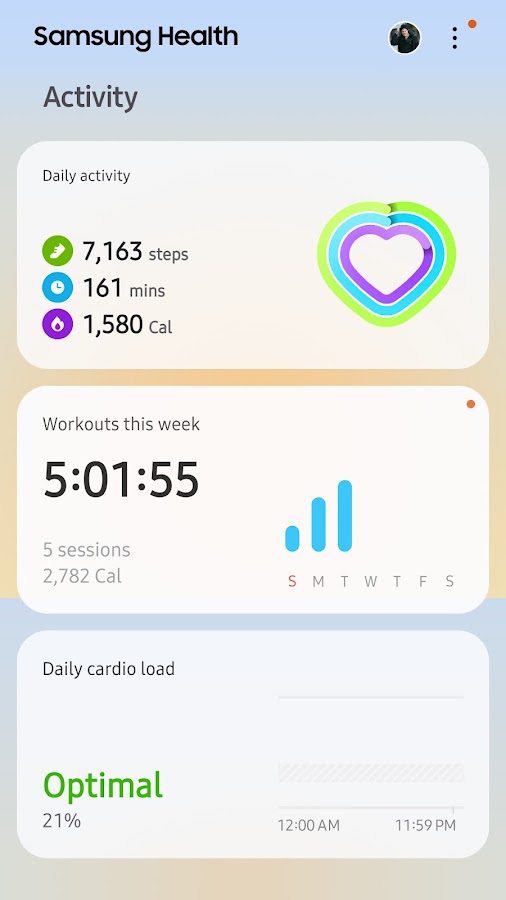
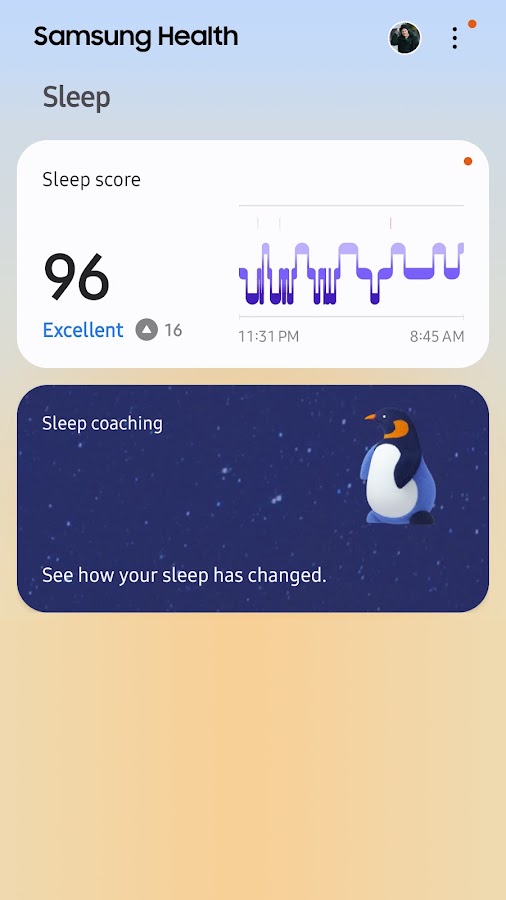
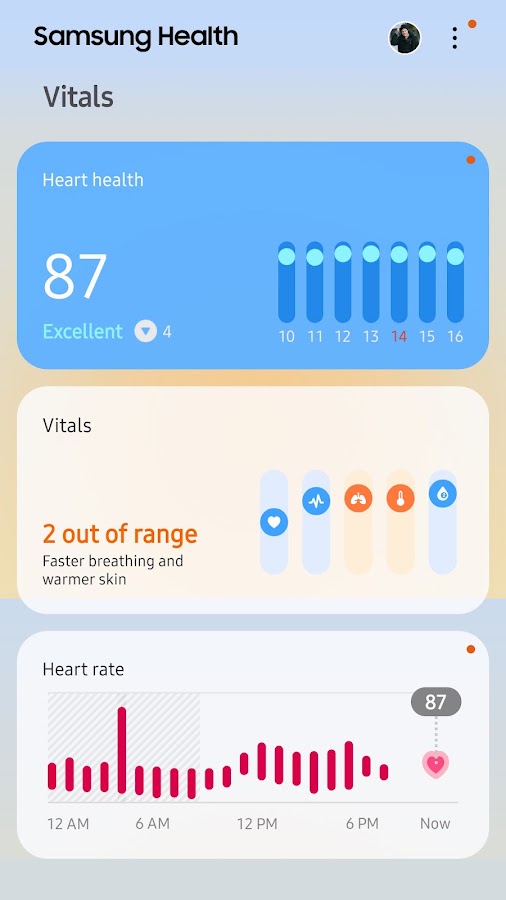
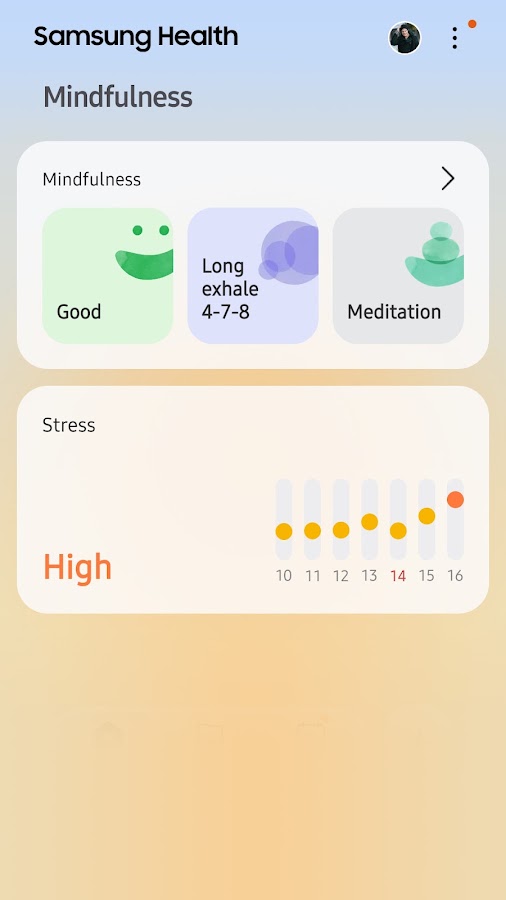

On Android, Samsung Health can record steps while you carry your phone. If you’ve connected several devices, you can view the phone’s count separately from the combined total. On iPhone, Samsung Health can read step data from Apple Health once you grant access. Choose it if you already use Samsung Health for exercise or want your walking history alongside other activity records.
4. Google Fit — best for a simple activity journal
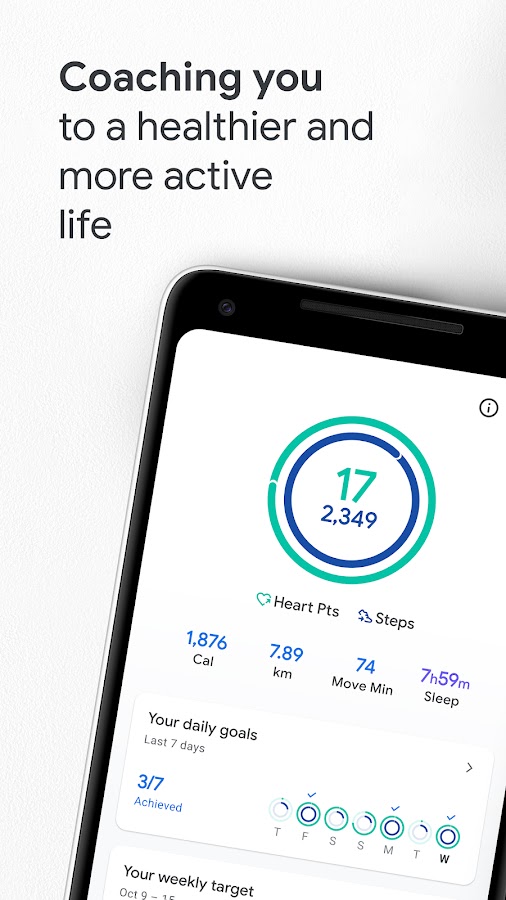
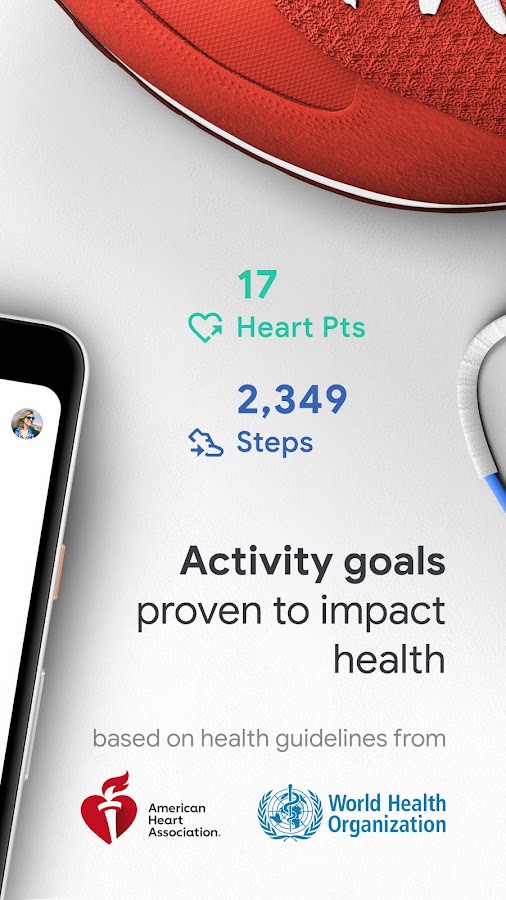
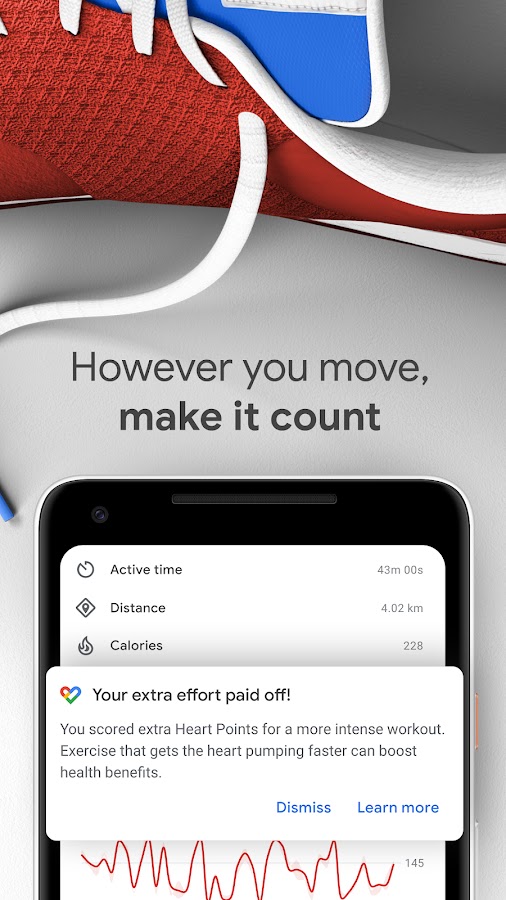
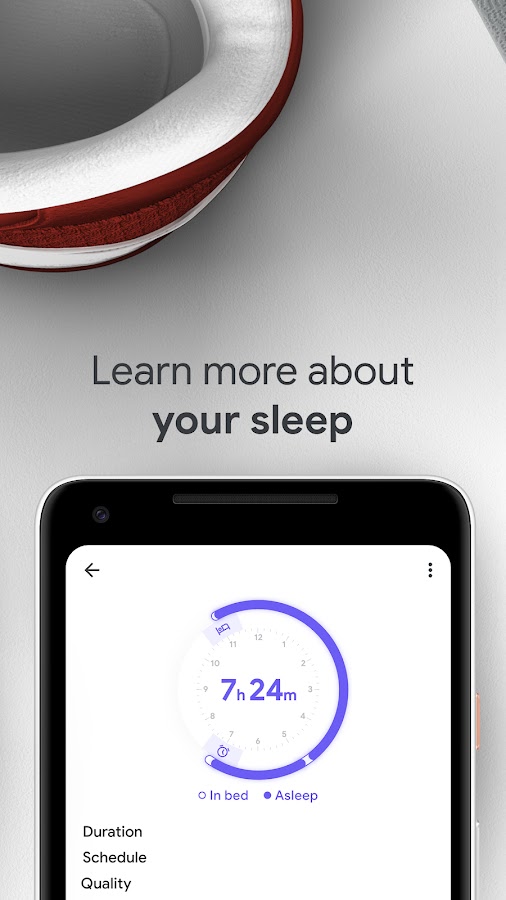
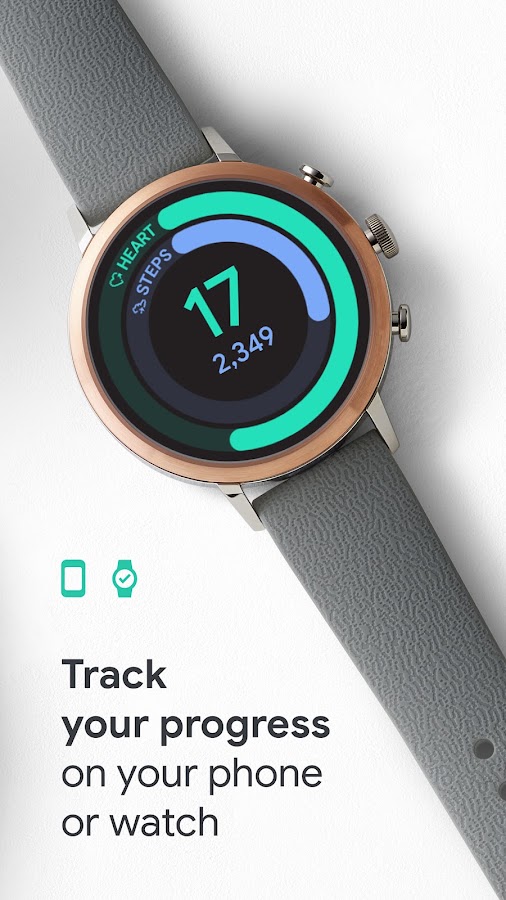

Google Fit puts your step count in the same journal as walks, workouts, and Heart Points. On Android, enable automatic activity tracking and grant the physical activity permission. On iPhone, allow Google Fit to read activity data from Apple Health. It’s a sensible choice if you already use Fit and want to see more than a daily step total.
5. Google Health (Fitbit) — best for the Fitbit dashboard without a tracker
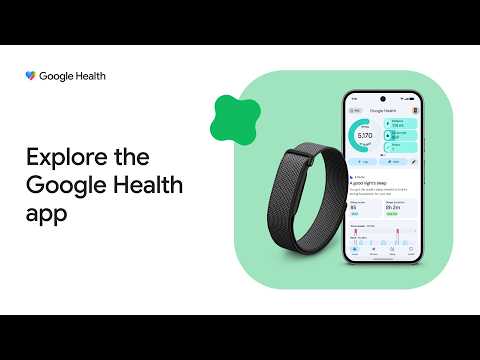
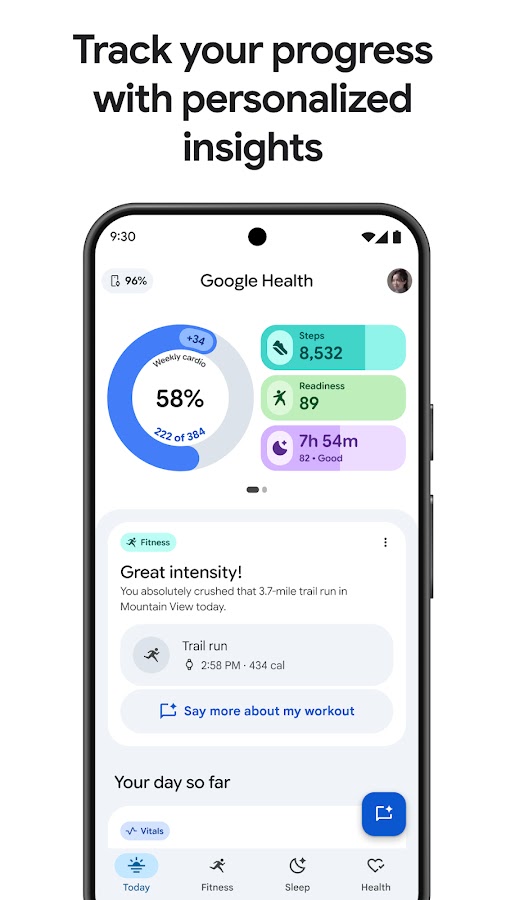
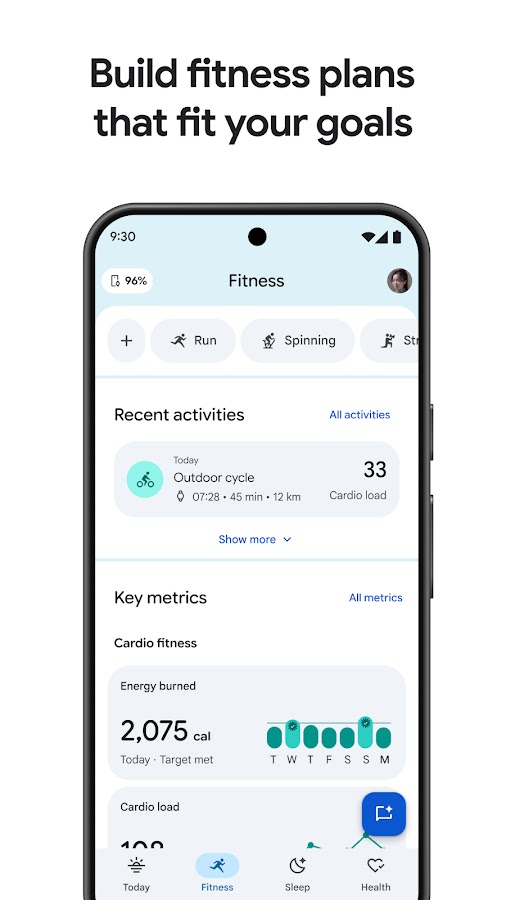
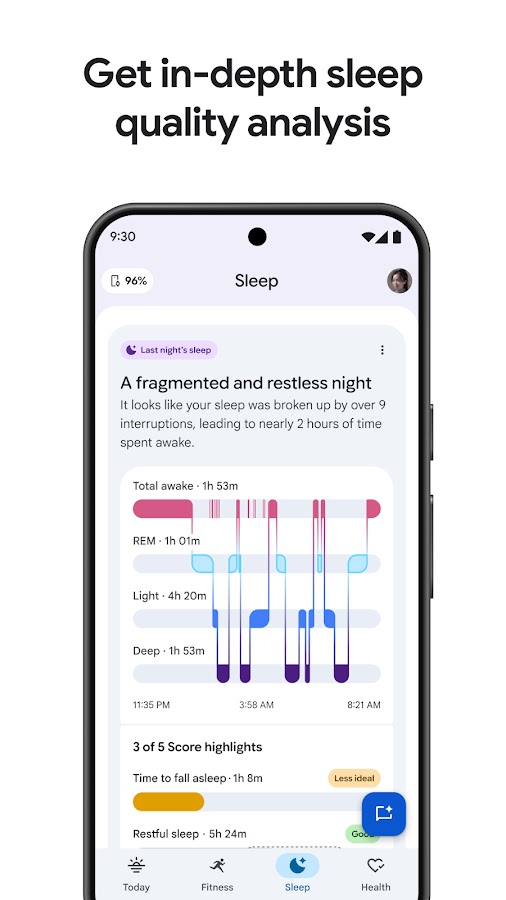
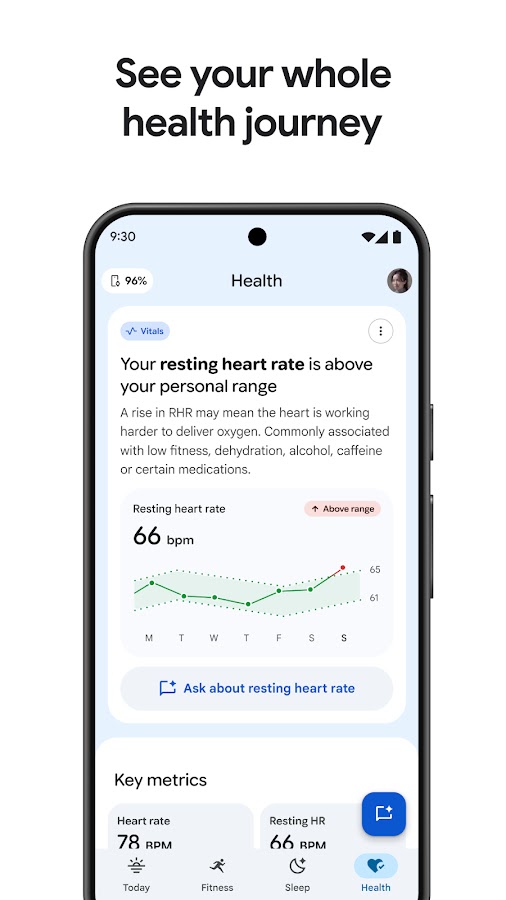
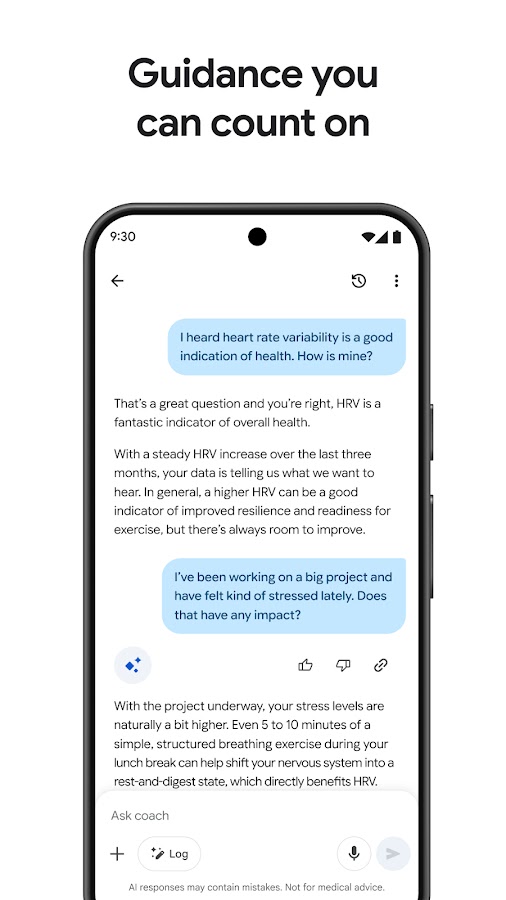

The former Fitbit app is now listed as Google Health (Fitbit). During setup, choose Just the app when asked which tracker you’re setting up. The phone can record steps, distance, and estimated calories once you enable tracking. Google Health and Google Fit are separate apps. If you’re looking for the Fitbit dashboard, choose Google Health.
6. Mstep — best for straightforward step tracking on Android
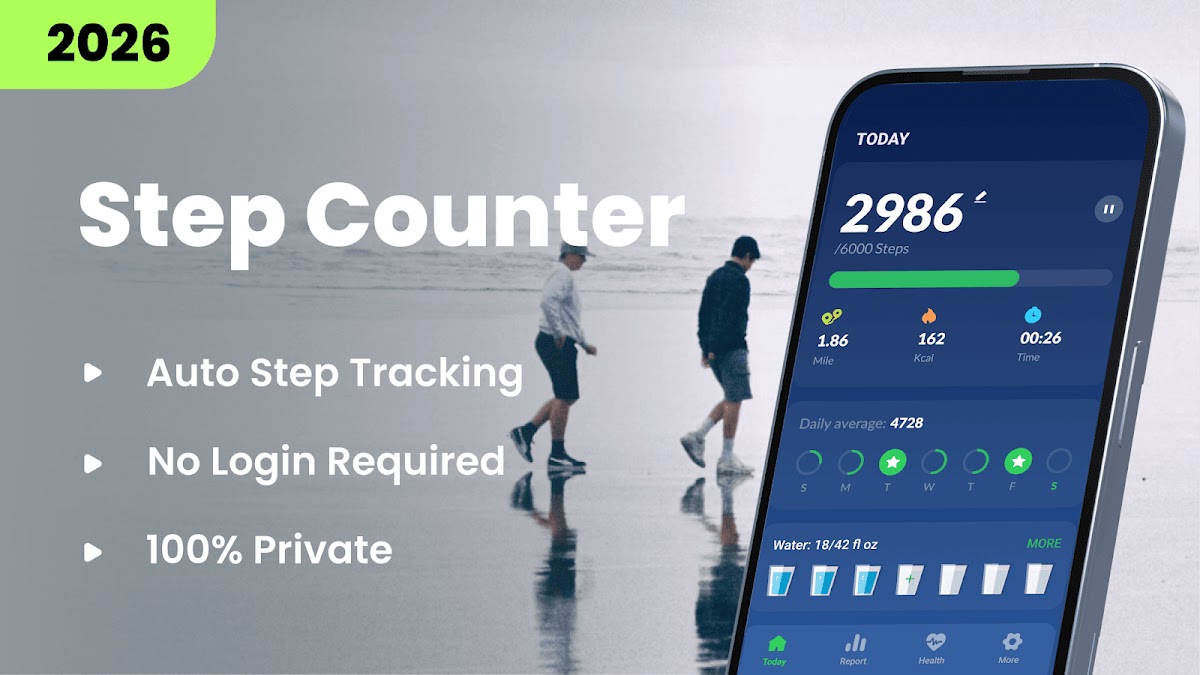
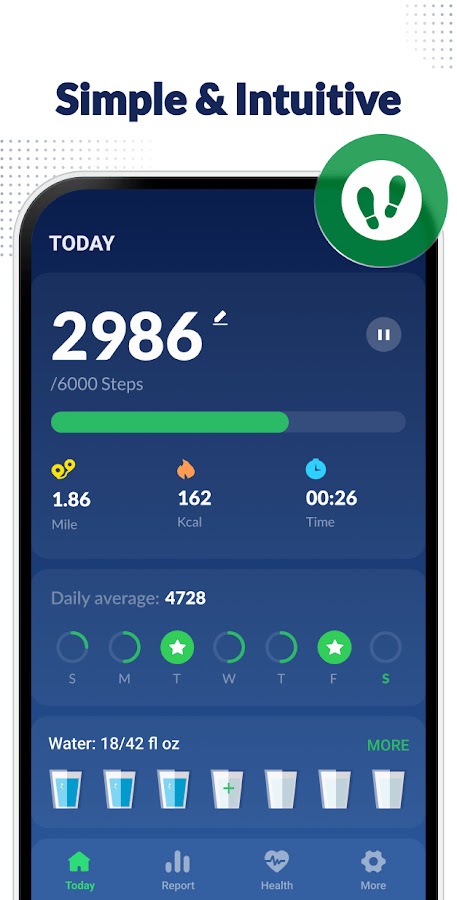
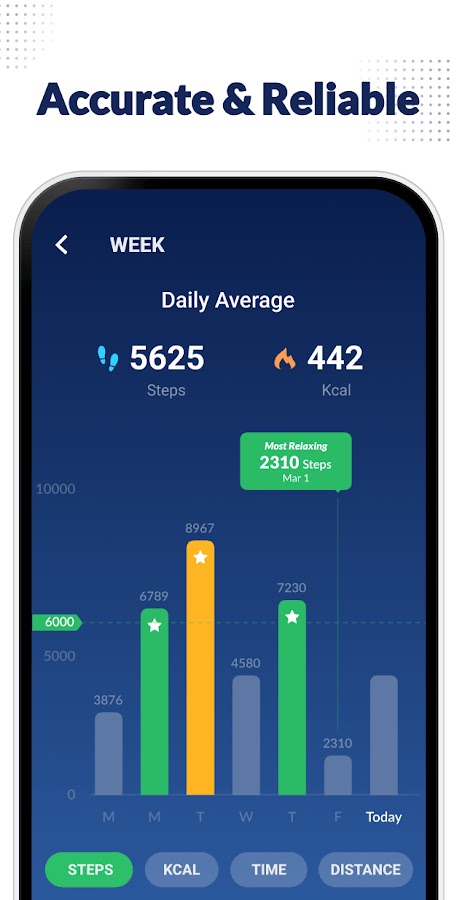
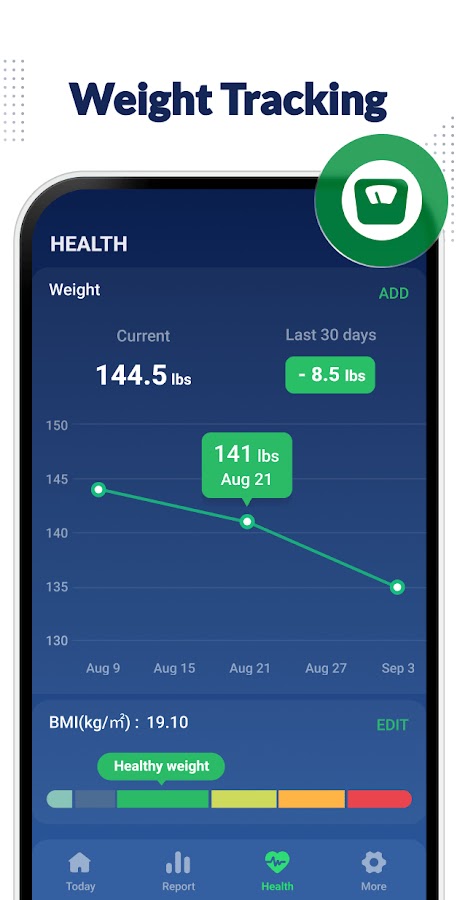
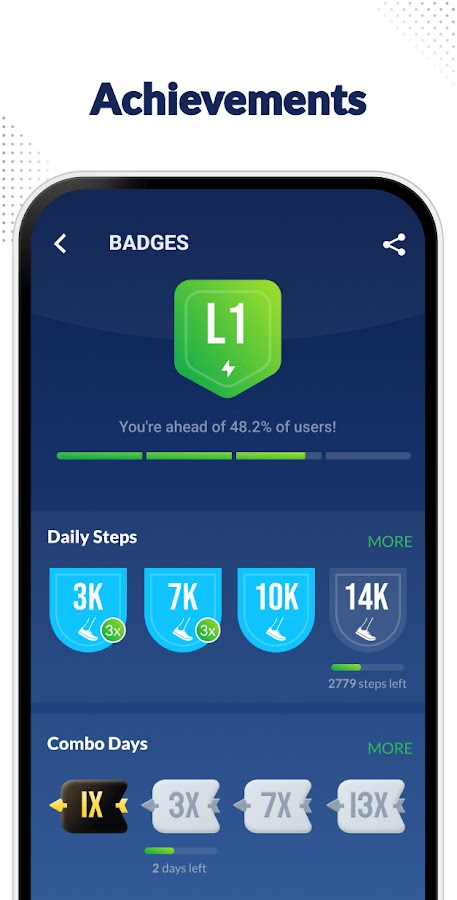

Search for the Leap Fitness Group listing, which may appear as Step Counter – Pedometer or include the Mstep name. It uses the phone’s built-in sensor to count steps without tracking your GPS location. Open it, start the counter, and carry your phone as usual. You can check daily steps, estimated distance, walking time, and trends later.
7. ActivityTracker — best for comparing days and weeks
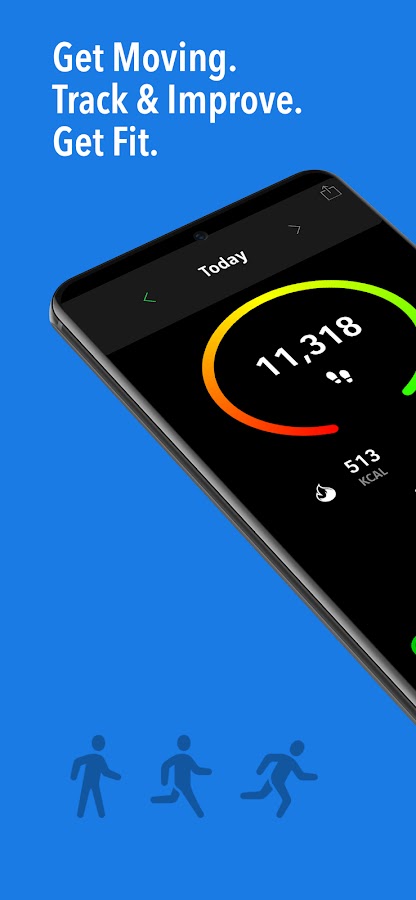
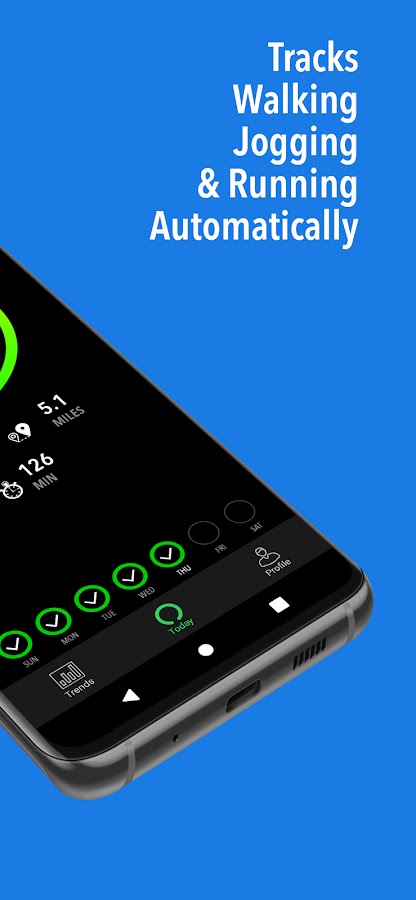
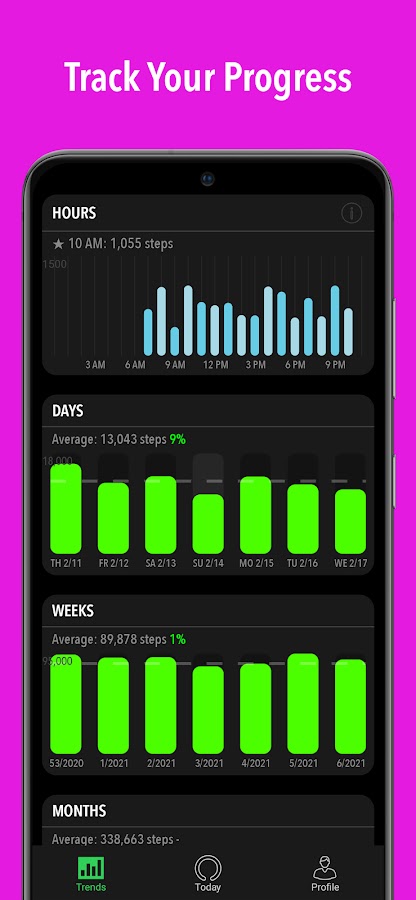
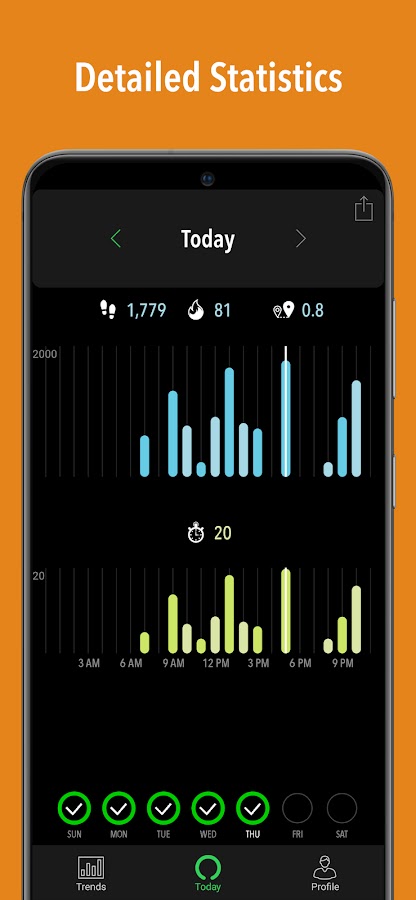
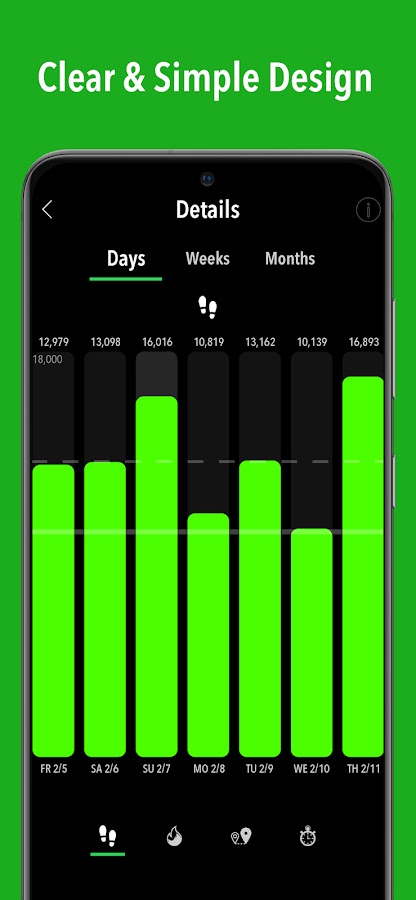
ActivityTracker focuses on steps, distance, and time spent moving. The day and week views are useful when your schedule varies. You can see, for example, how much a long weekend walk adds to your weekly total. The app tracks activity with the phone alone, and the iPhone version also supports Apple Health. Choose it if activity history is the main thing you want from a pedometer.
8. Accupedo — best for step goals and walking logs
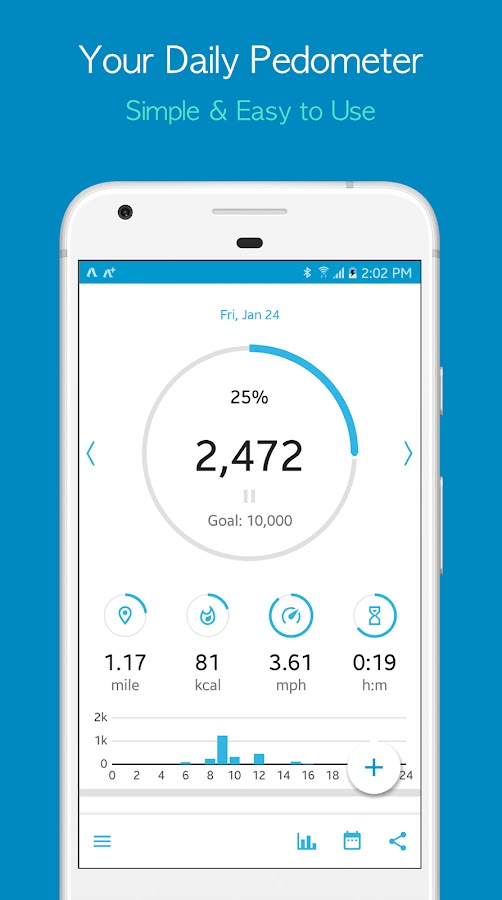
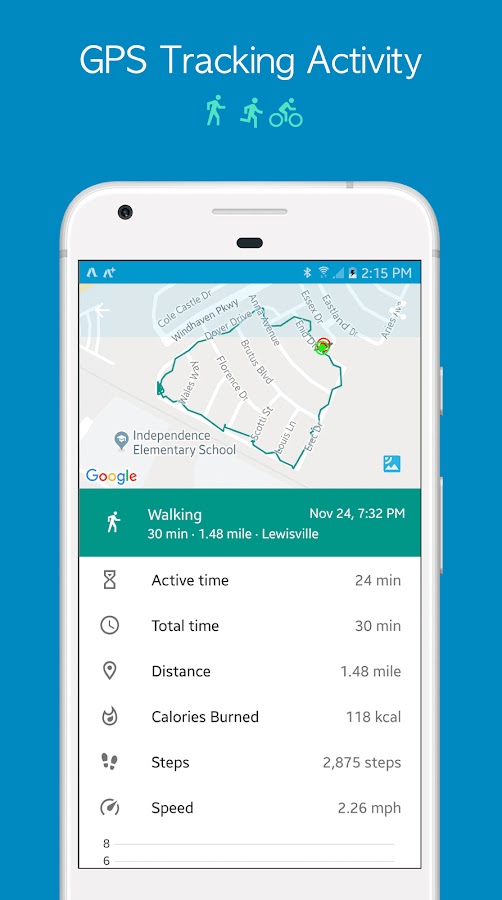
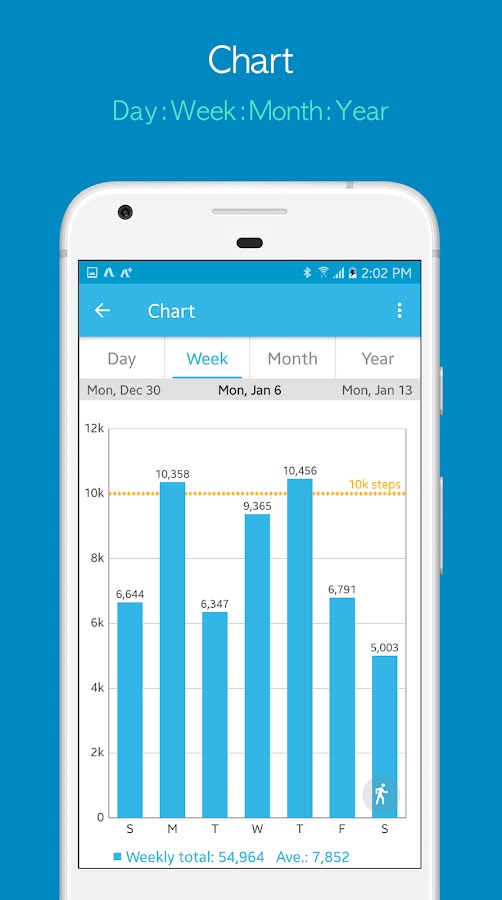
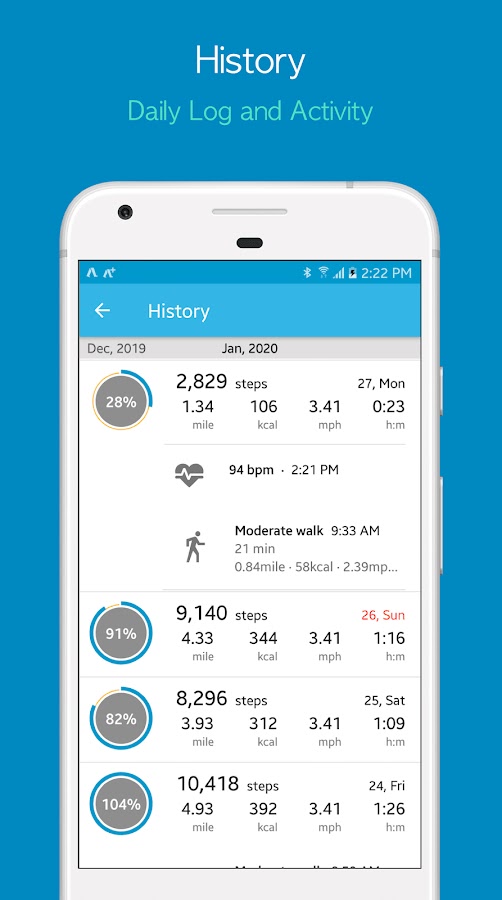

Accupedo automatically records daily walking and shows your history in charts and logs. Set a daily step goal and use the log to check how often you reach it. The developer says it can count with the phone in a pocket or bag. If you switch between those positions, try the same short walk with each one to see which gives you the more consistent count.
9. EasyFit — best for tracking steps and water in one place
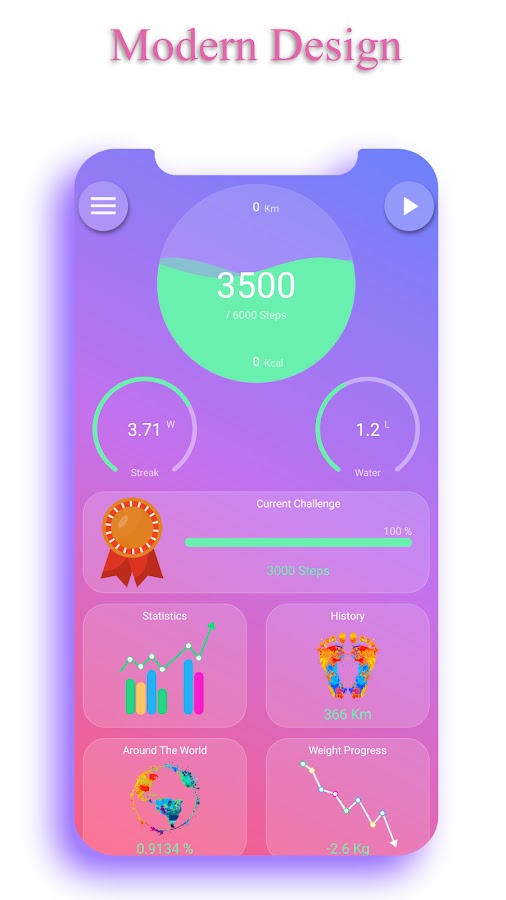
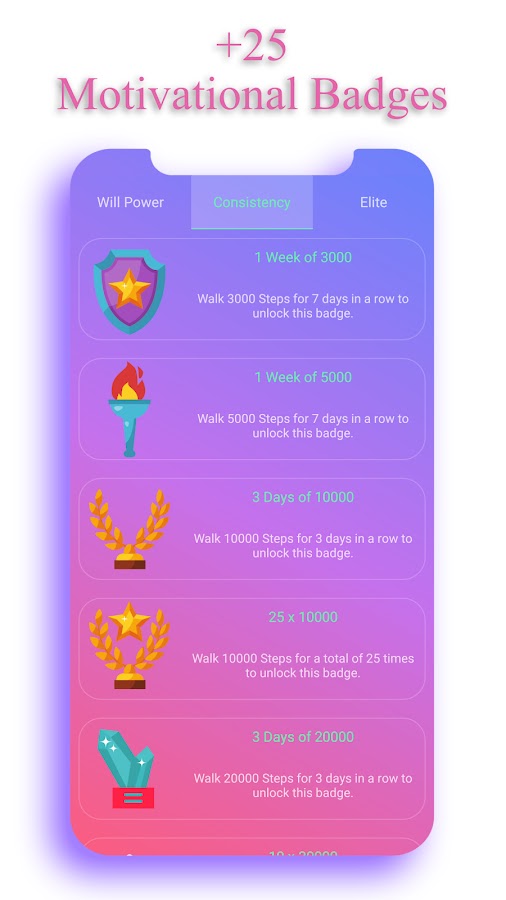
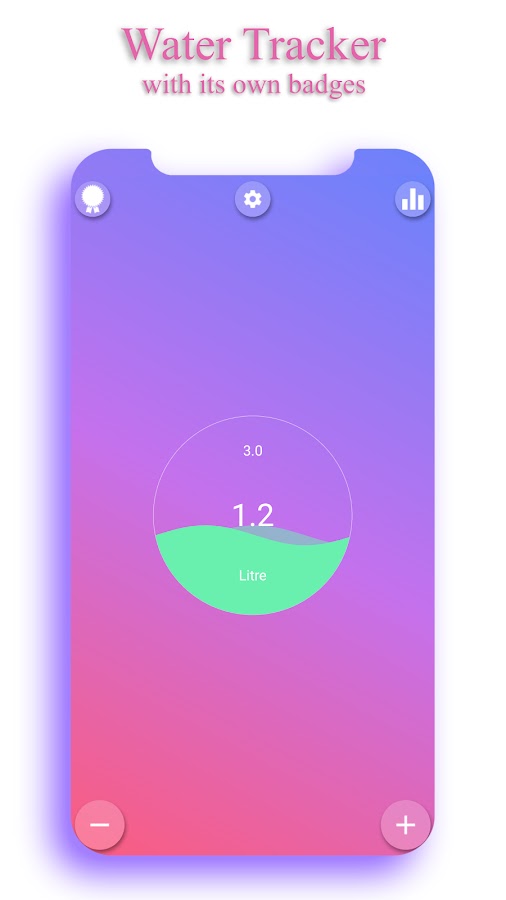
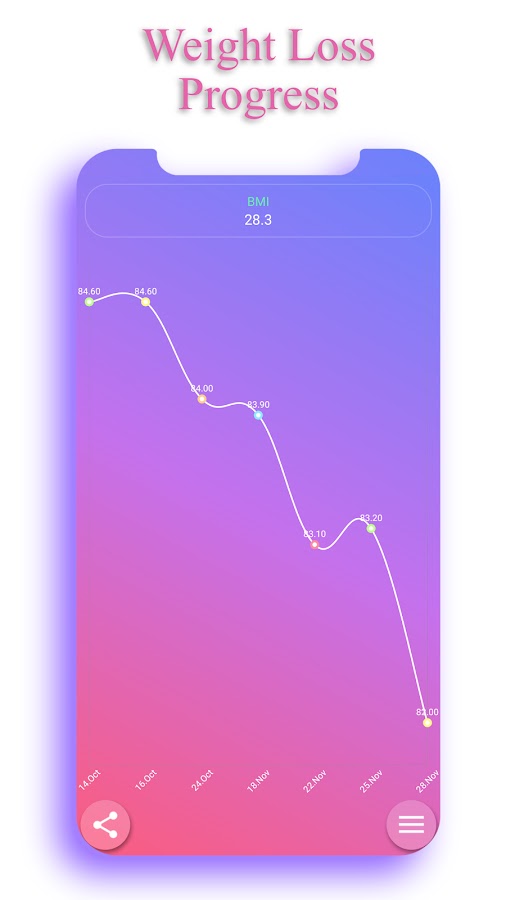
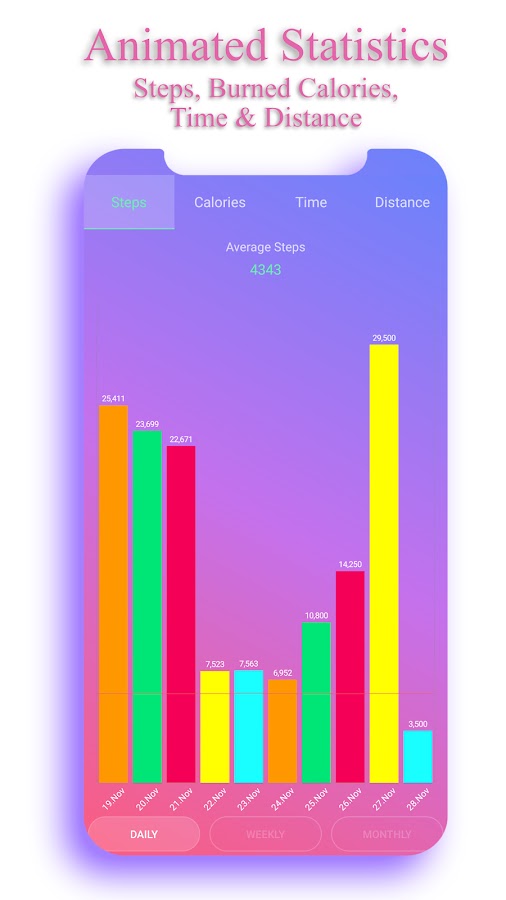

The Android app to look for is Step Counter EasyFit Pedometer by Easy Health Apps. It combines a daily step goal with badges, water tracking, and weight statistics. That combination works well if you already track those habits and want one place to check them. On iPhone, similarly named EasyFit listings may belong to different developers.
10. StepUp — best for step challenges with friends
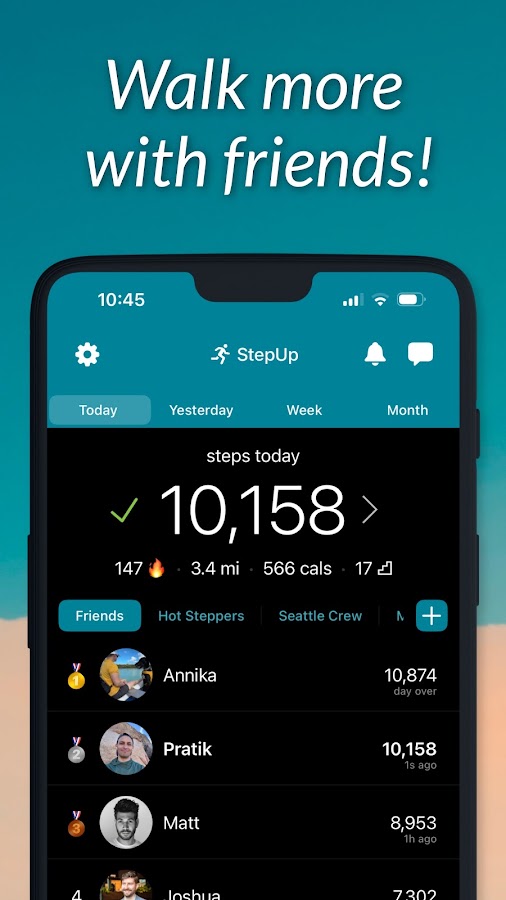
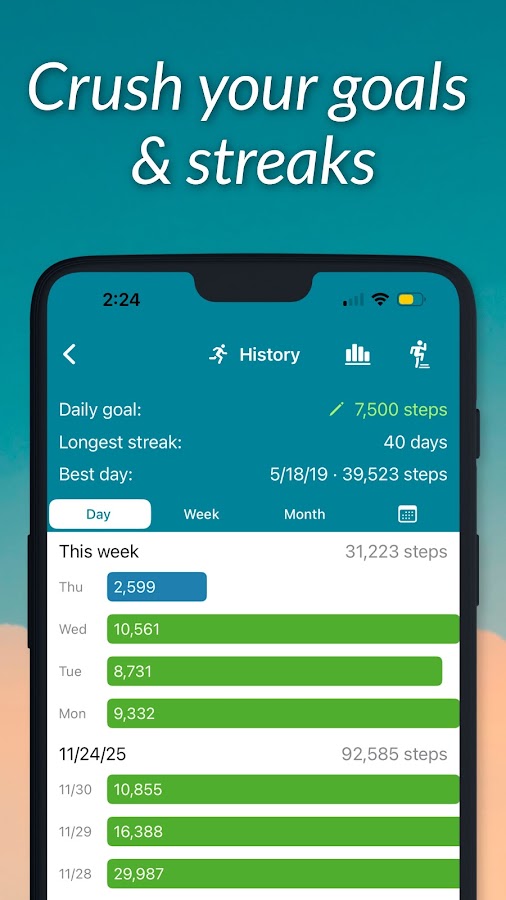
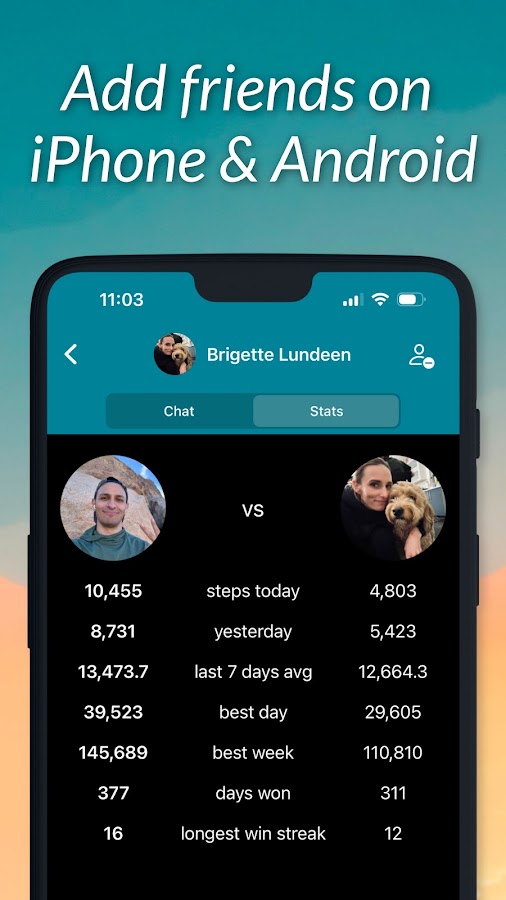
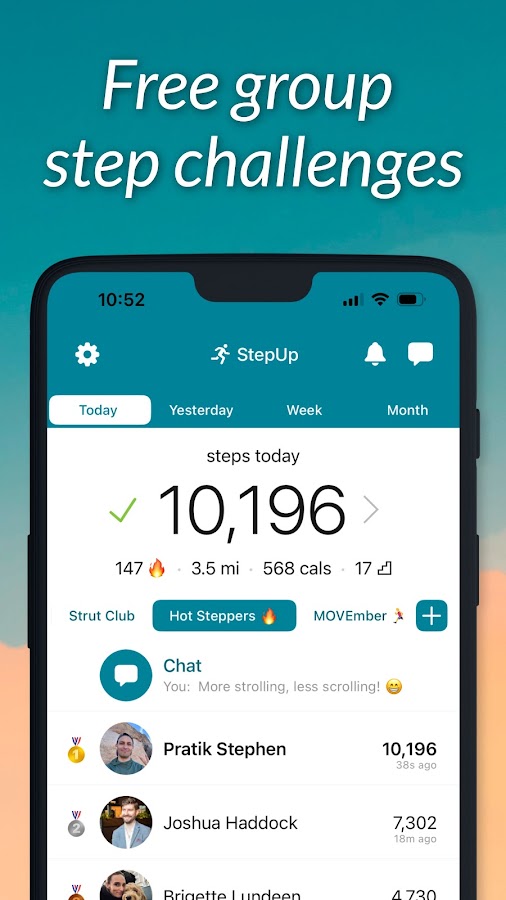

StepUp lets you create a private group, compare daily steps, and run a walking challenge with friends on Android and iPhone. The app can count with the phone alone, so everyone can join without buying a tracker. The developer documents background and offline counting on Android. It’s a good fit for a family challenge or an office leaderboard.
11. WalkFit — best for following a walking plan
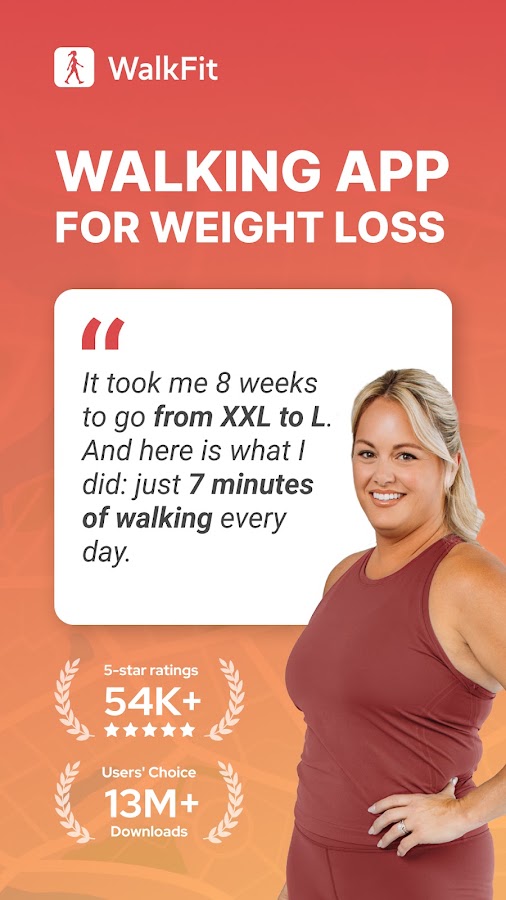
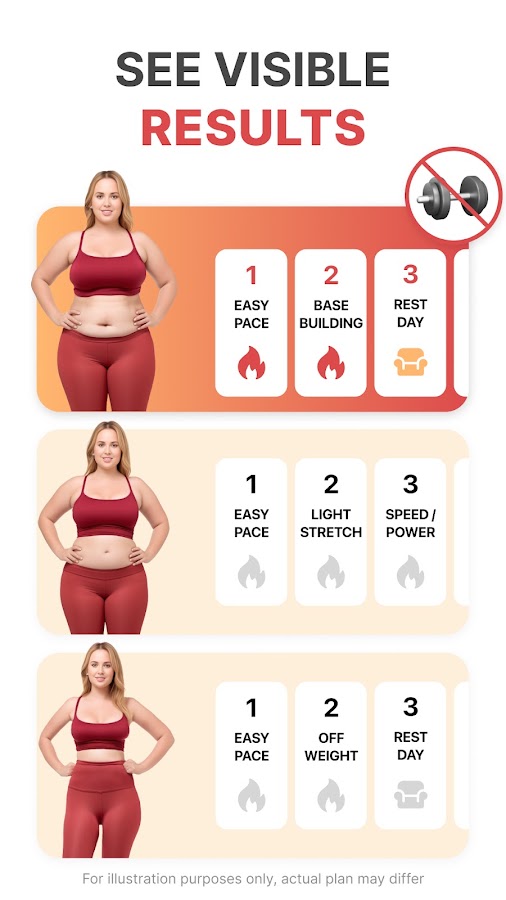
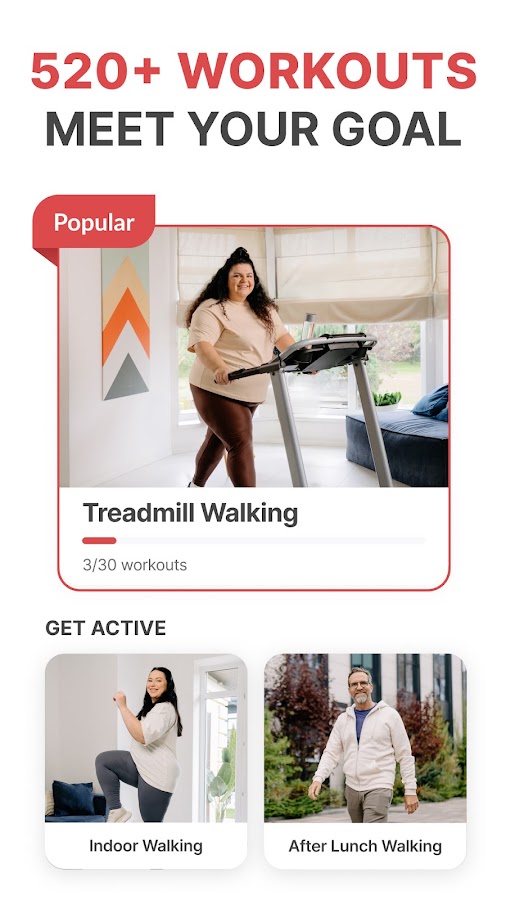
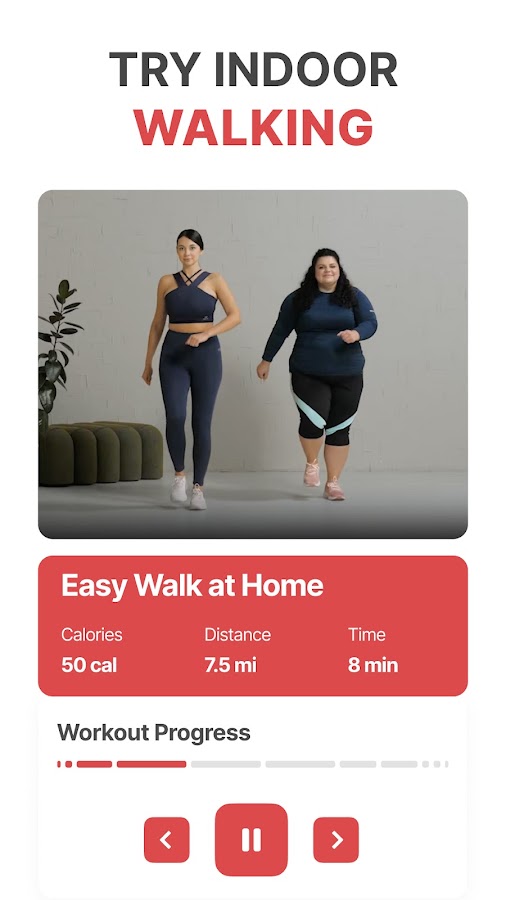
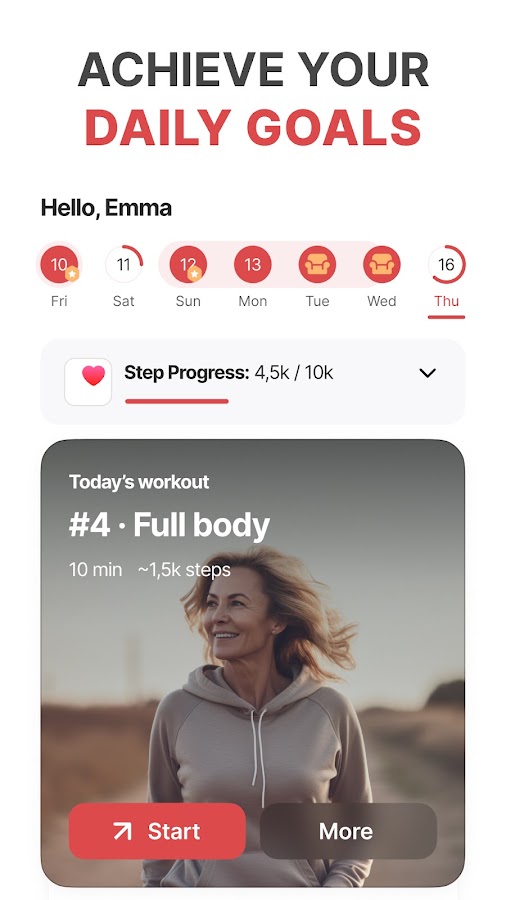
WalkFit combines a step counter with guided walking programs. Choose it if you want a session to follow, such as an interval walk, alongside your daily count. Carry the phone during workouts so the app can use its motion data. On Android, check the physical activity permission. On iPhone, check Motion & Fitness and Apple Health access as prompted. Some programs require a subscription.
12. Sweatcoin — best for a rewards-based walking goal
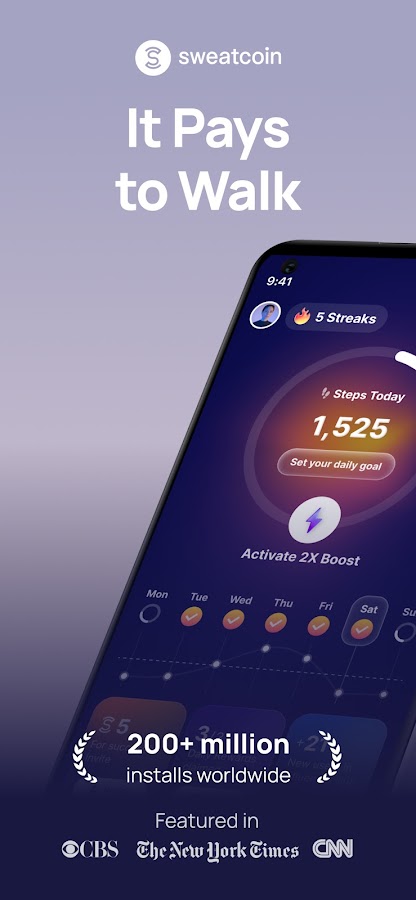
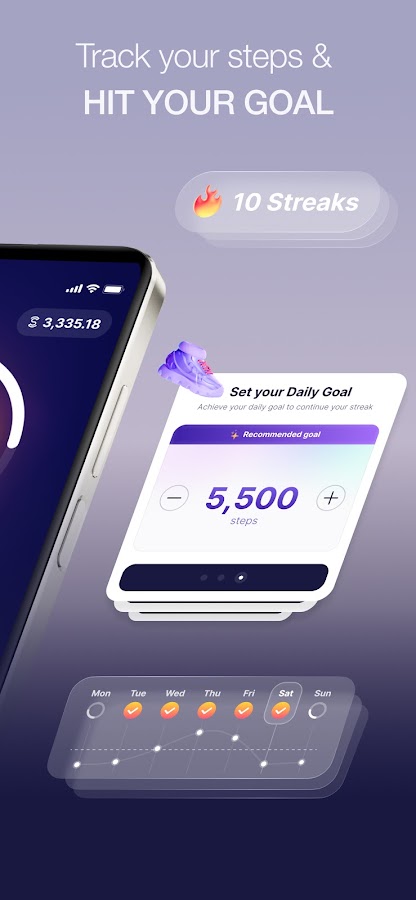
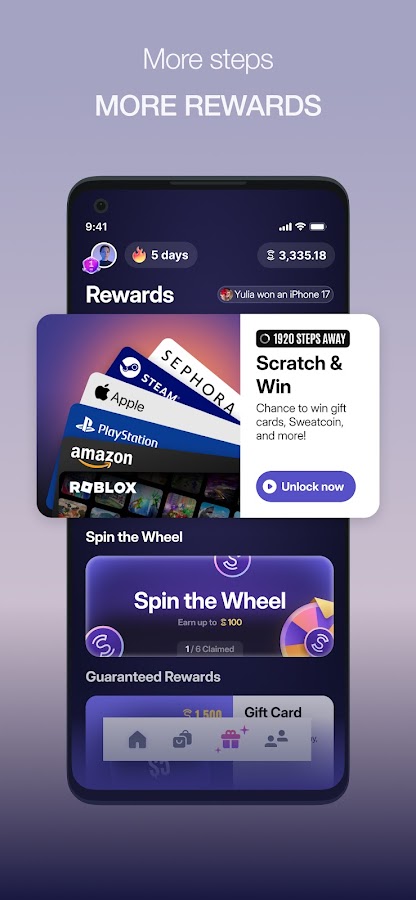
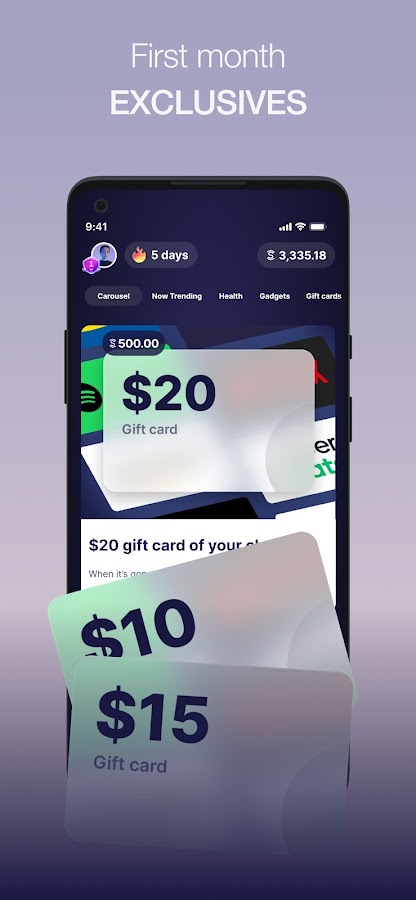
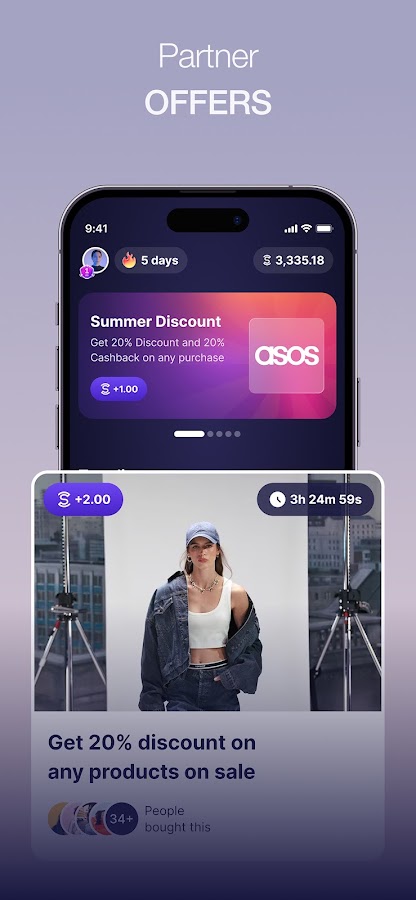

Sweatcoin counts movement from a compatible phone and awards in-app currency for eligible steps. Its credited total can differ from the number in your regular pedometer because some recorded steps may not qualify. Check that your Android phone is supported before relying on the app for daily tracking.
13. GStep — best for recording individual walks

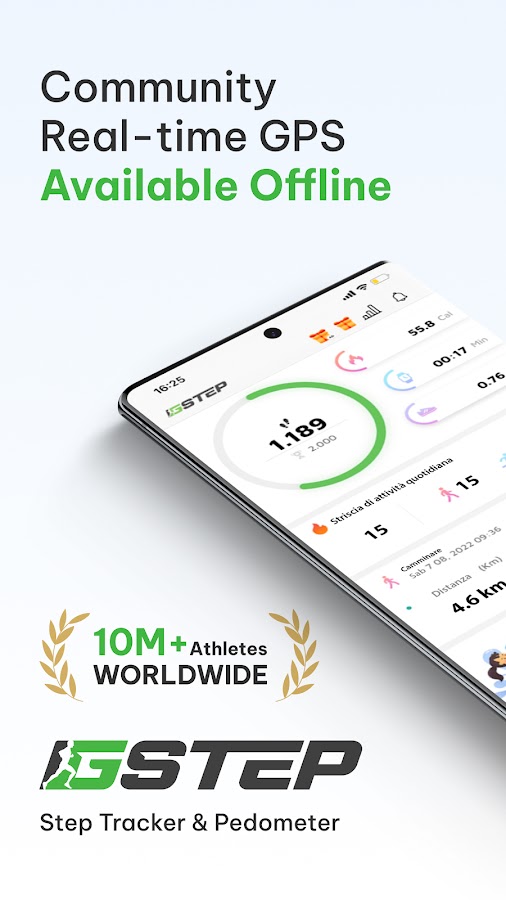
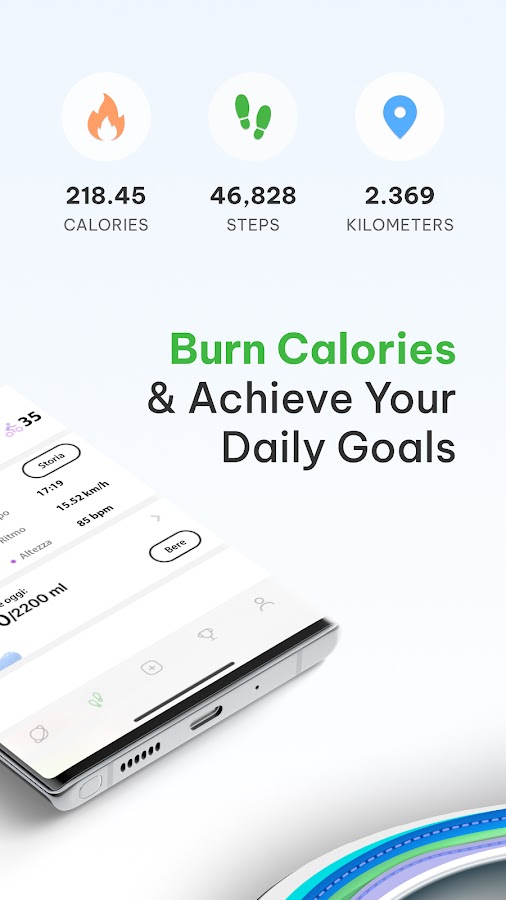
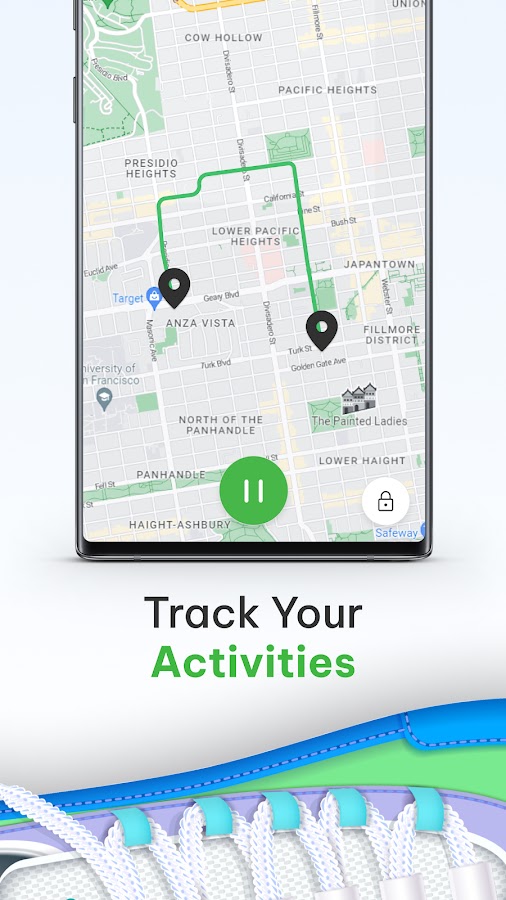
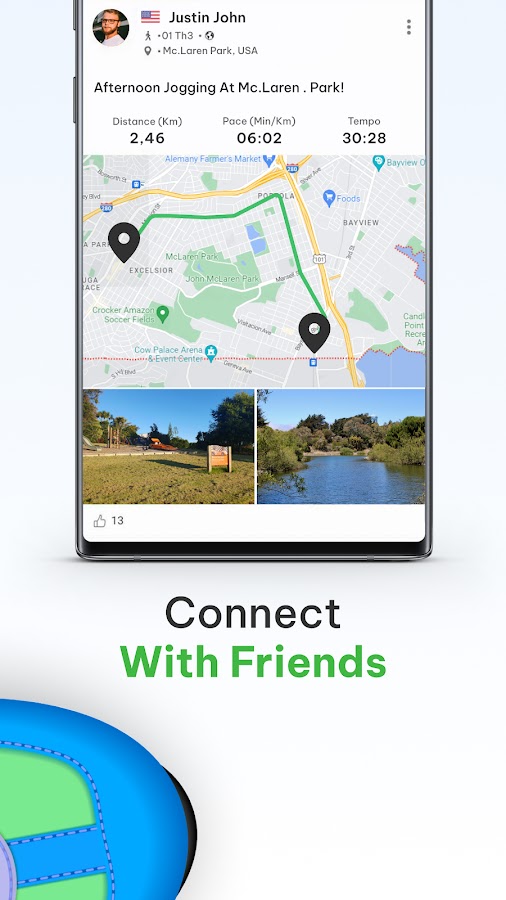

GStep combines a pedometer with route tracking for walking, running, and cycling. Start a session when you head out if you want a record of that particular walk, including distance and a route map. The developer describes background recording after you start tracking, including when the Android screen is locked.
14. iSteps GPS Pedometer — a classic iPhone option
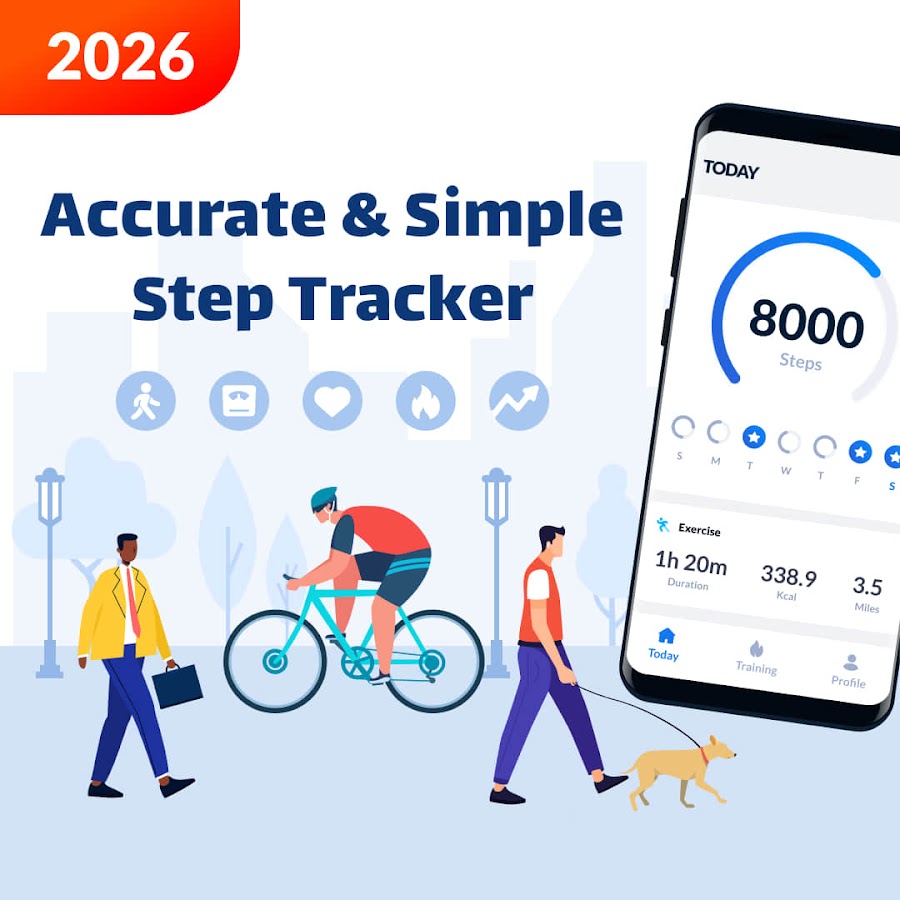
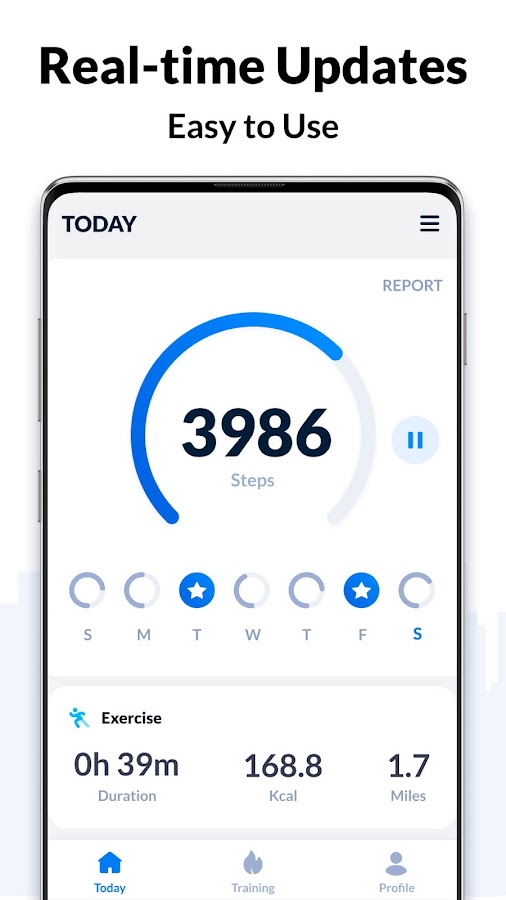
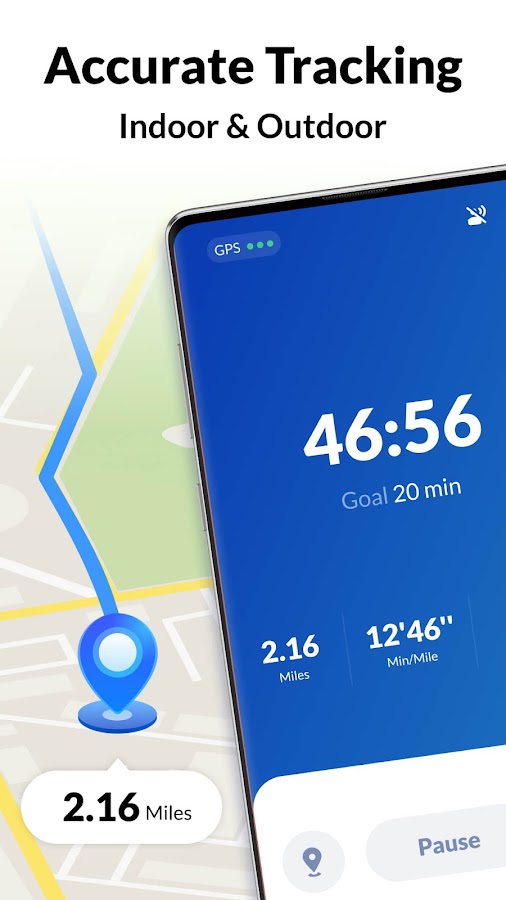
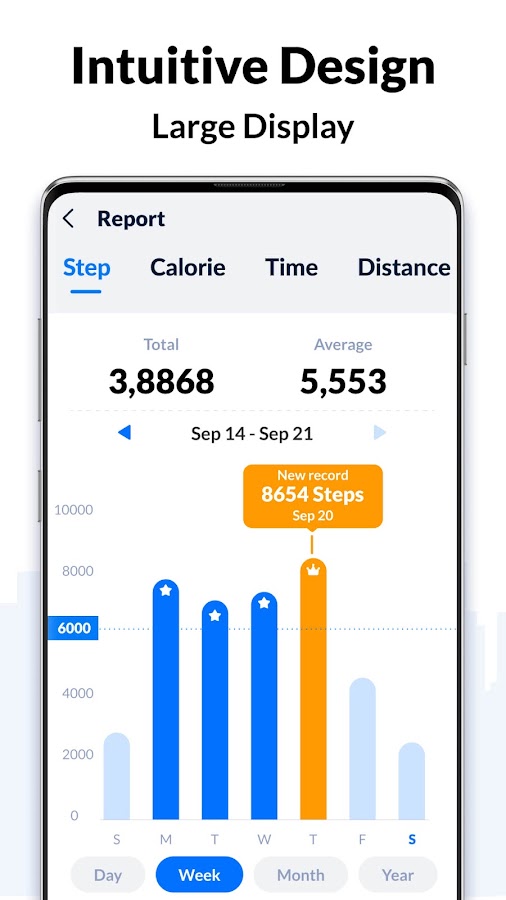
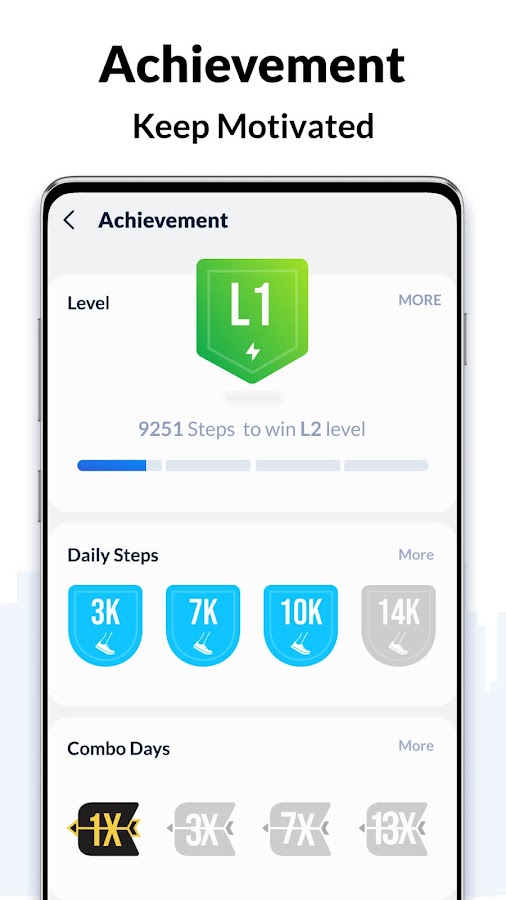

The iPhone app to look for is iSteps GPS Pedometer by KBMSoft. It has a Daily Totals Tracking mode for recording steps throughout the day and a separate option for mapping walks. The similarly named IStep: Step Counter, Calories for Android was removed from Google Play. For a similar day-to-day step counter on Android, try Mstep or Accupedo.
How to pick a step counter that works on your phone
- Decide what you want to count. For trips around the house, commutes, and errands, choose a pedometer that records automatically. To track a particular walk, use an app that lets you start and stop a session.
- Check the permissions. On Android, look for Physical activity in the app’s permission settings. On iPhone, the app may ask for Motion & Fitness access, permission to read Steps from Apple Health, or both.
- Try a short walk with your screen locked. Note the starting total, walk 100 to 200 steps at your usual pace, then check the difference. Give the app time to refresh. Try again with the phone where you usually carry it.
- Choose one step source when comparing counts. If one app reads Apple Health or combines phone data with a wearable you used previously, it may show a different total from a phone-only pedometer, even when both are working as intended.