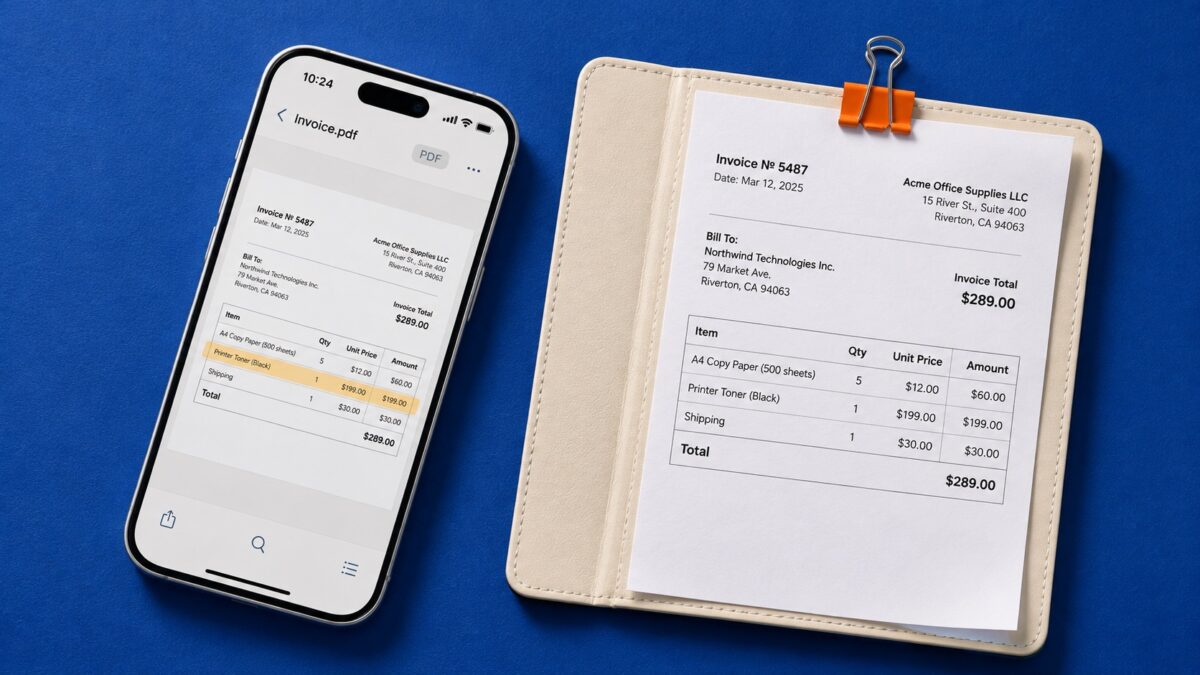
A scan can look sharp and still be impossible to search. If you need to find a clause in a contract, copy an invoice number, or turn a printed page into an editable document, check what the scanner actually gives you after it recognizes the text. A searchable PDF, a text snippet you can copy, and an editable Word file serve three different purposes.
Adobe Scan is the best starting point for everyday searchable PDFs. Choose Genius Scan for stacks of paperwork, vFlat Scan for books and curved pages, or Docutain for an archive you’ll search regularly. If you need an editable file, compare PDFgear Scan, CamScanner, and PDFelement using a page with the same layout as your own documents.
Best OCR scanner apps at a glance
All 15 apps have Android and iPhone versions. The picks below are based on documented features. OCR access, export formats, and page limits can vary by platform and plan.
| App | Best for | What to check before you commit |
| Adobe Scan | Everyday searchable PDFs | OCR page allowance for longer documents |
| CamScanner | Scanning and exporting to several formats | Whether your plan includes the OCR export you need |
| Genius Scan | Batch scanning and filing paperwork | OCR access and search in exported PDFs |
| SwiftScan | Copying text and sending scans to cloud storage | OCR access and supported export destinations |
| iScanner | Extracting text and reusing it in other files | Which conversion formats your mobile version offers |
| Tiny Scanner | Assembling multipage documents | Whether the shared PDF contains searchable text |
| vFlat Scan | Books and curved pages | Text recognition limits for long reading assignments |
| TapScanner | Receipts and forms | Whether the exported file includes a text layer |
| Notebloc Scanner | Printed handouts and classroom materials | Supported languages and text export options |
| Clear Scan | Quick scans and occasional text extraction | How recognized text is shared |
| Mobile Scanner | Searchable PDFs from paper records | OCR access for multipage files |
| PDFgear Scan | Exporting recognized text to Word or TXT | Formats available on your phone |
| Docutain | A searchable archive of household paperwork | Search inside the app and in an exported copy |
| iLovePDF | OCR alongside PDF conversion and organization | Access to OCR and the order of export steps |
| PDFelement | Scanning and editing documents on mobile | Whether conversion preserves the layout you need |
1. Adobe Scan — Best for everyday searchable PDFs
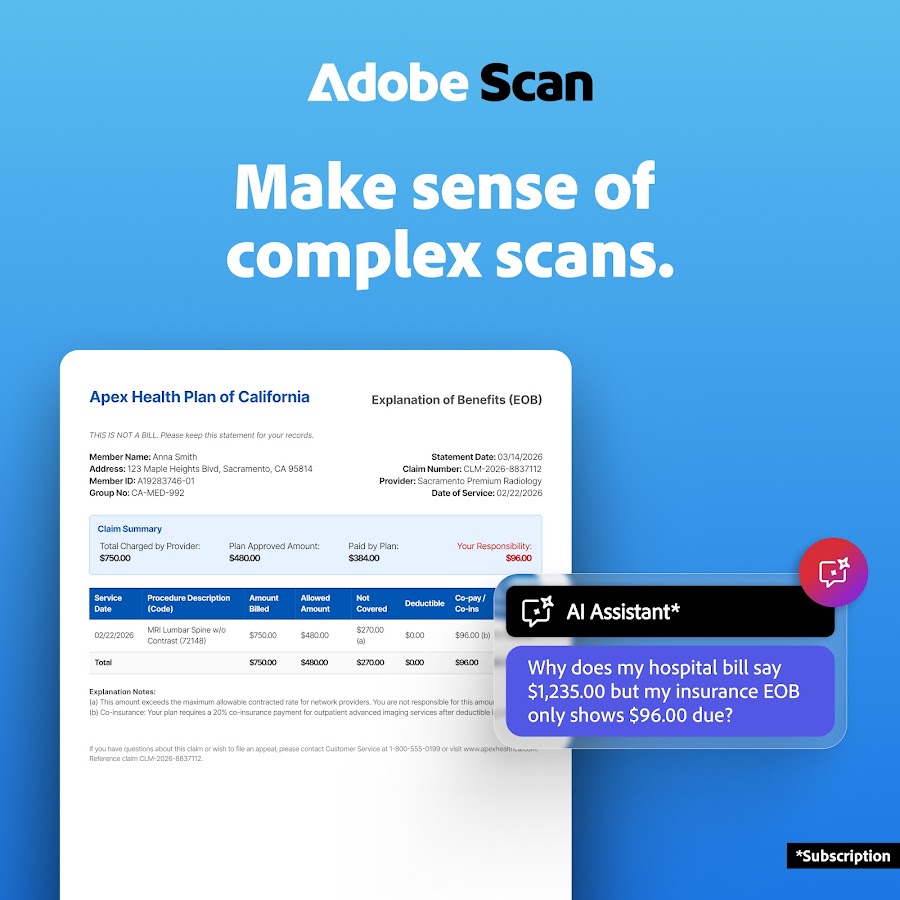
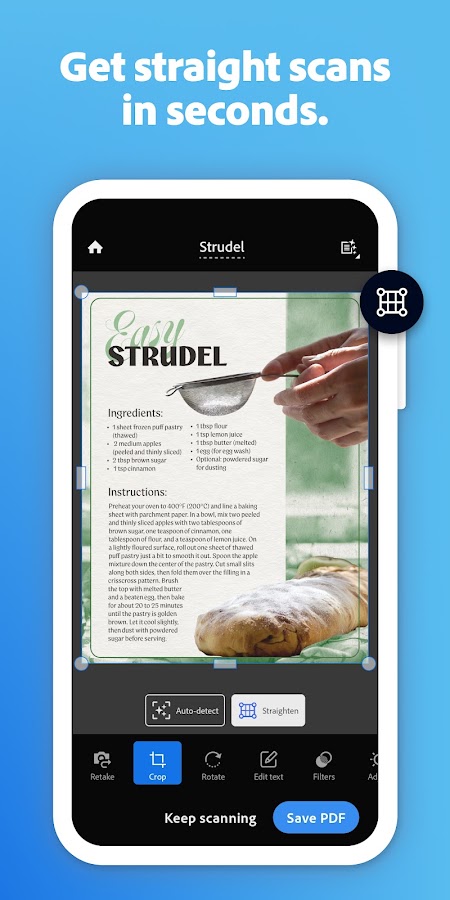
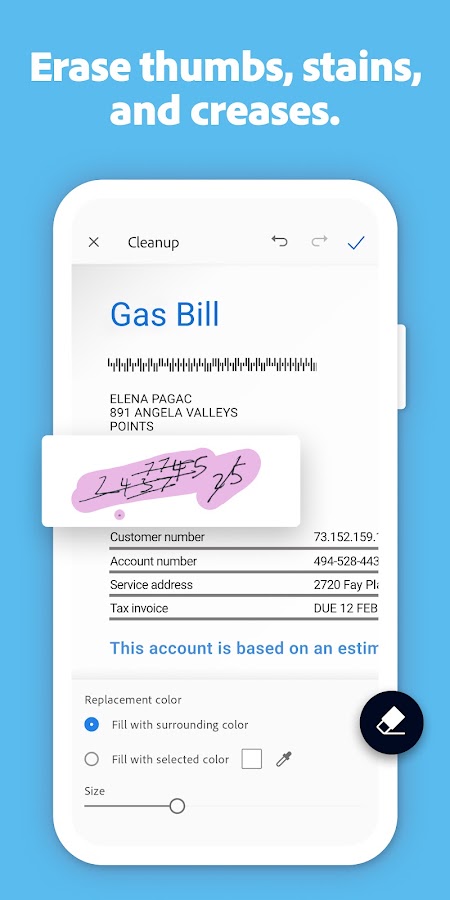
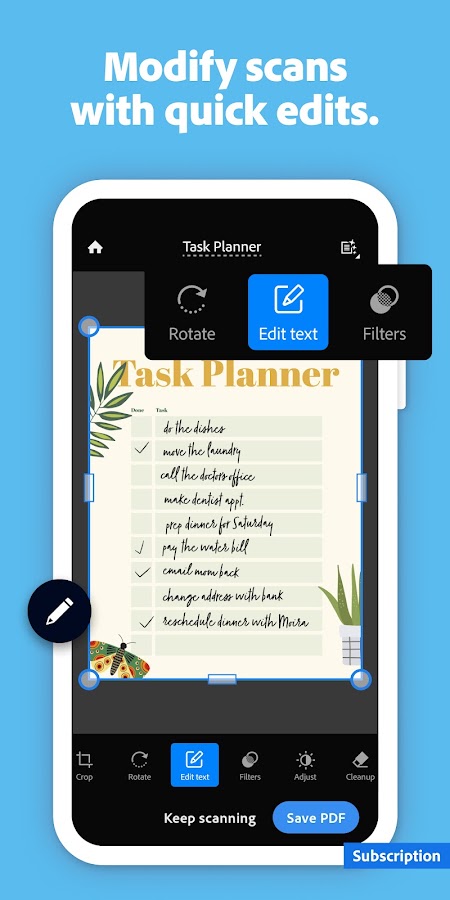
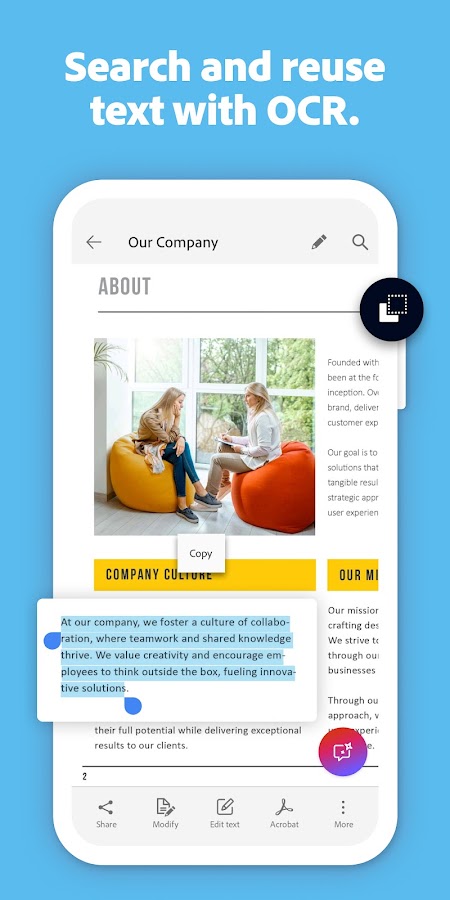
Adobe Scan is the first app I’d try for letters, invoices, and contracts you want to keep in their original layout. It recognizes text in scans so you can look up a name or phrase in the resulting PDF. That makes it useful for paperwork you’ll read and reference later.
Adobe offers a higher OCR page allowance and additional export formats with a subscription. For a long contract, check that a word near the end of the file is searchable before filing it away.
2. CamScanner — Best for multiple export formats
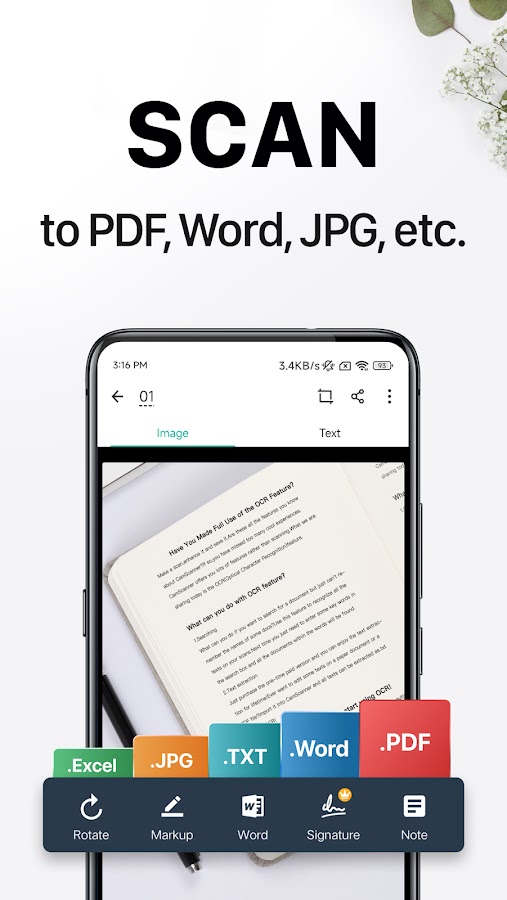
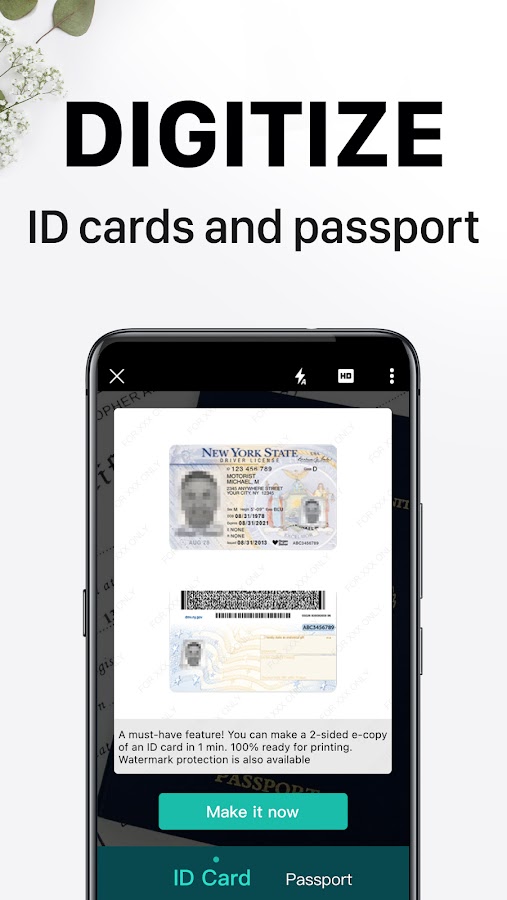
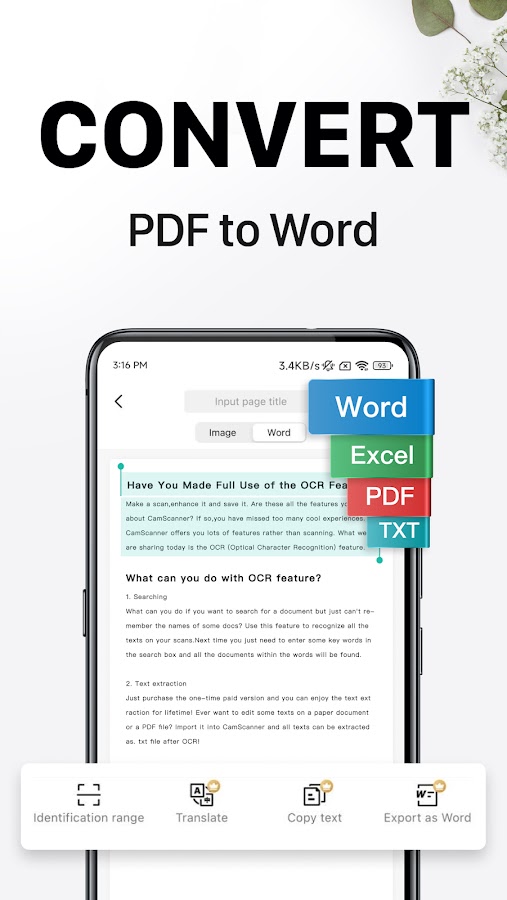

CamScanner suits a workflow where the same scan has two destinations. You might need a PDF copy for your records and editable text to reuse in another document. The app combines document capture, image cleanup, text recognition, and export options such as Word and TXT.
Use a page with columns or a table to evaluate the editable export. A conversion can recognize most words correctly while still mixing the reading order or shifting data into the wrong column.
3. Genius Scan — Best for scanning a stack of paperwork
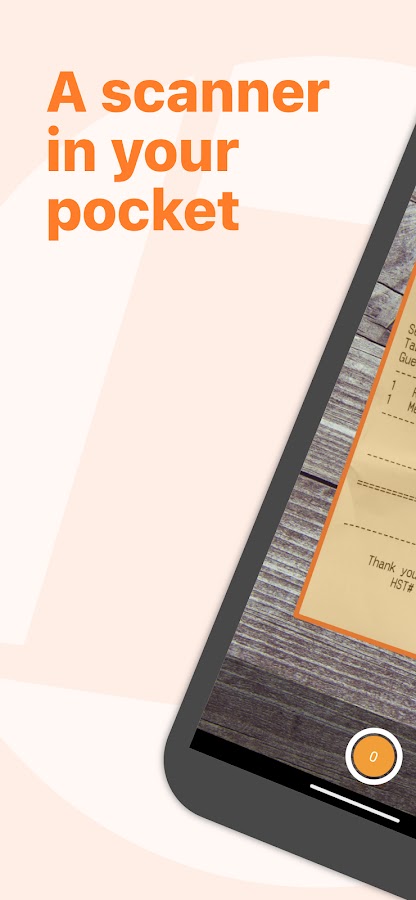
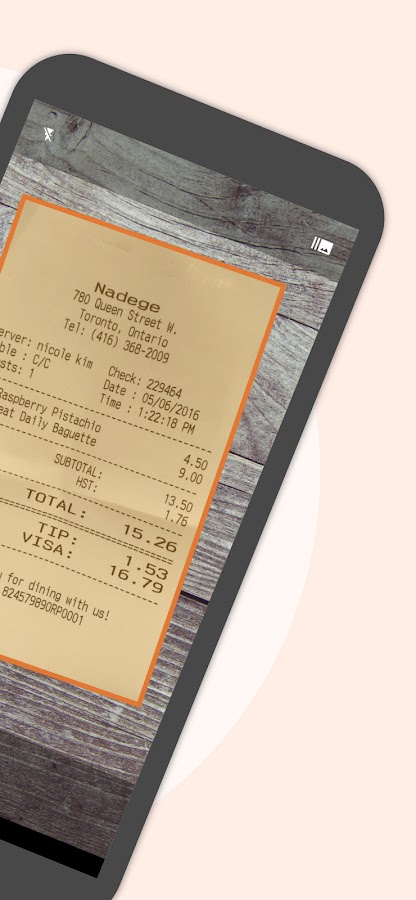
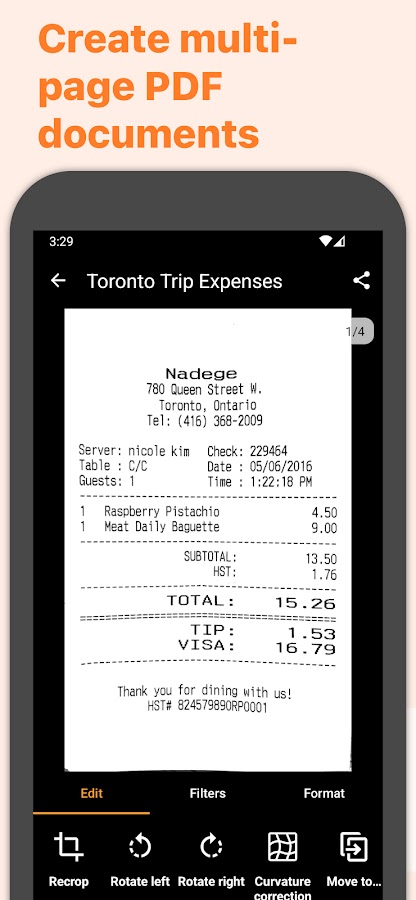
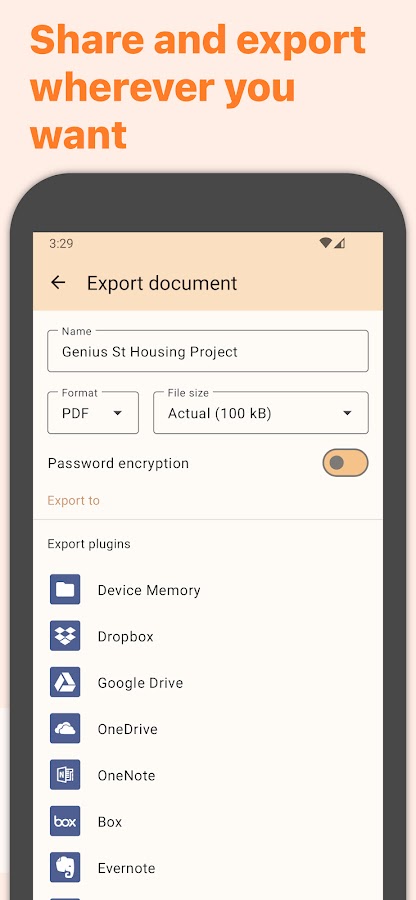
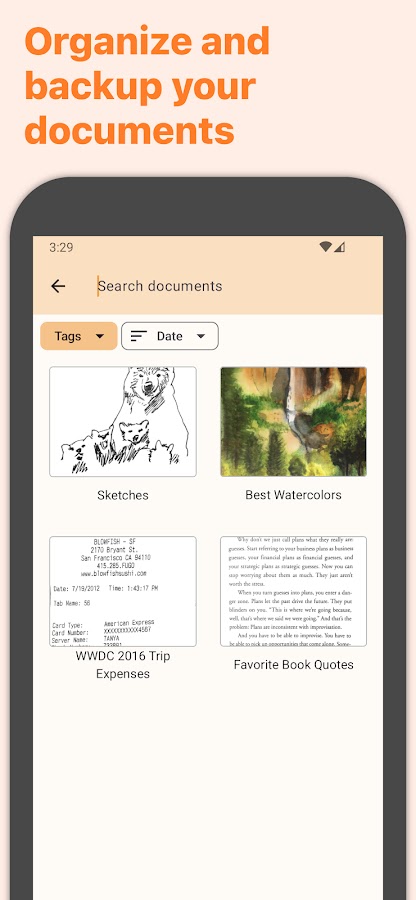

Genius Scan makes sense when the job is a folder of documents instead of a single page. Batch capture, automatic cropping, and tools for organizing scans help you turn a stack of forms into separate files you can find later.
OCR is among the advanced features to check when choosing a plan. If you’re building an archive outside Genius Scan, export a sample and look for a phrase in your usual PDF reader. That tells you whether the file itself will be searchable wherever you store it.
4. SwiftScan — Best for copying text and filing scans in the cloud
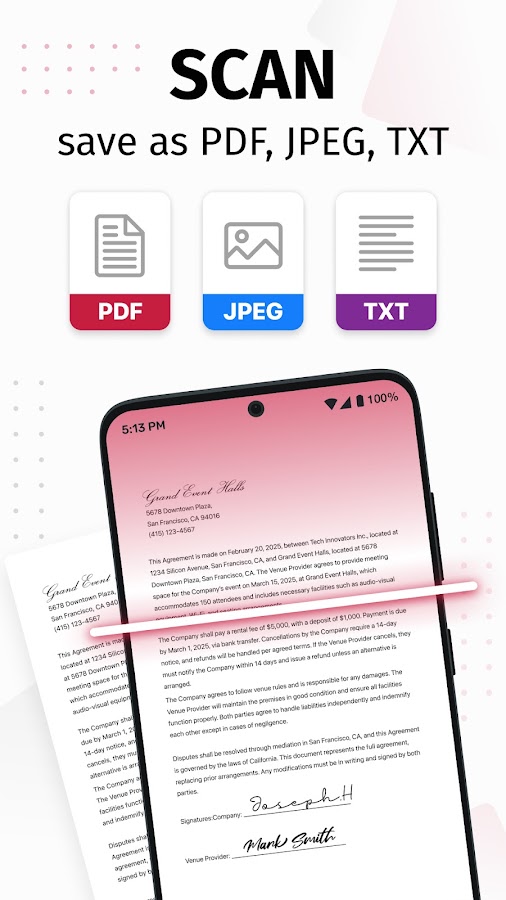
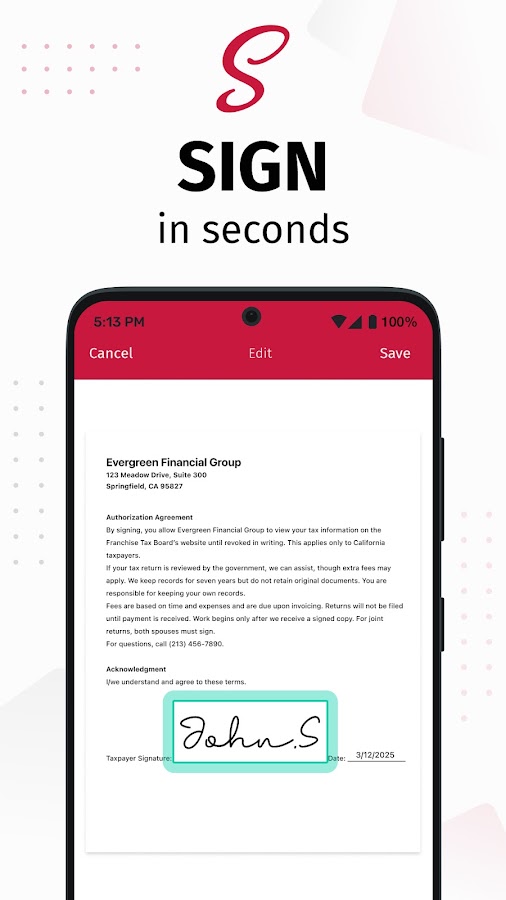
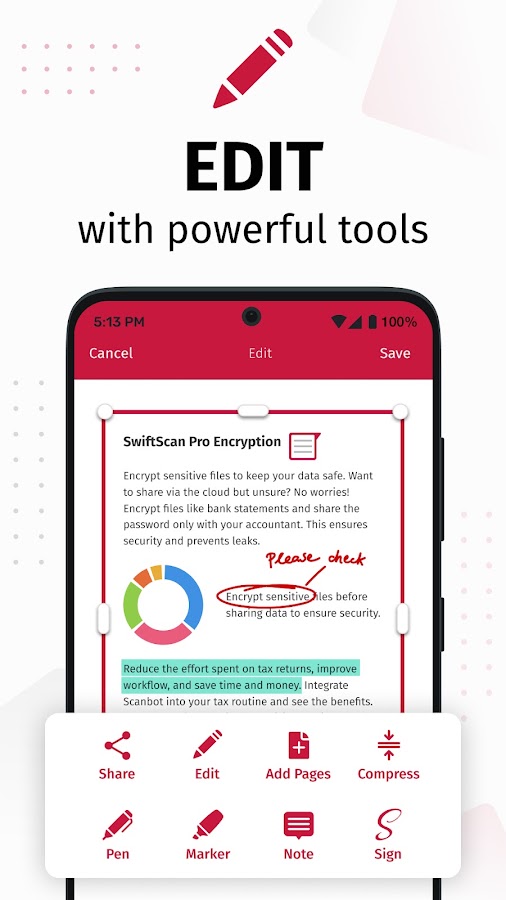
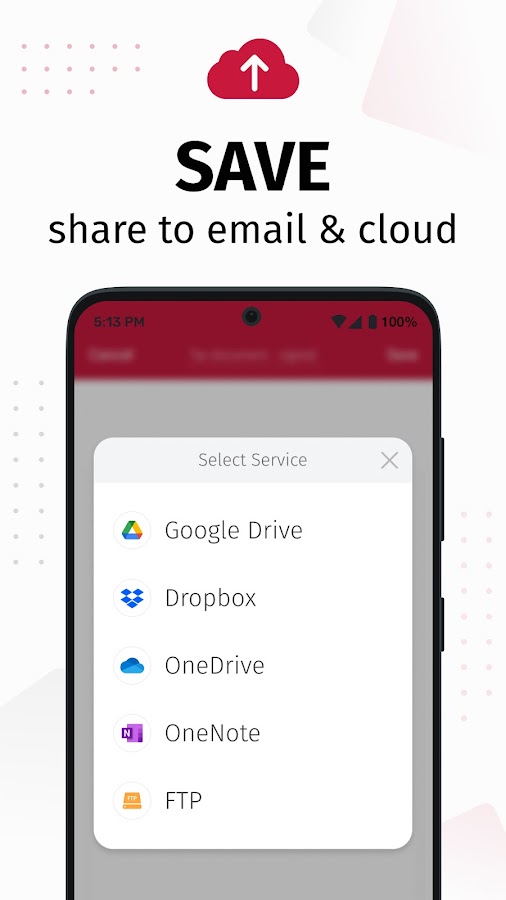
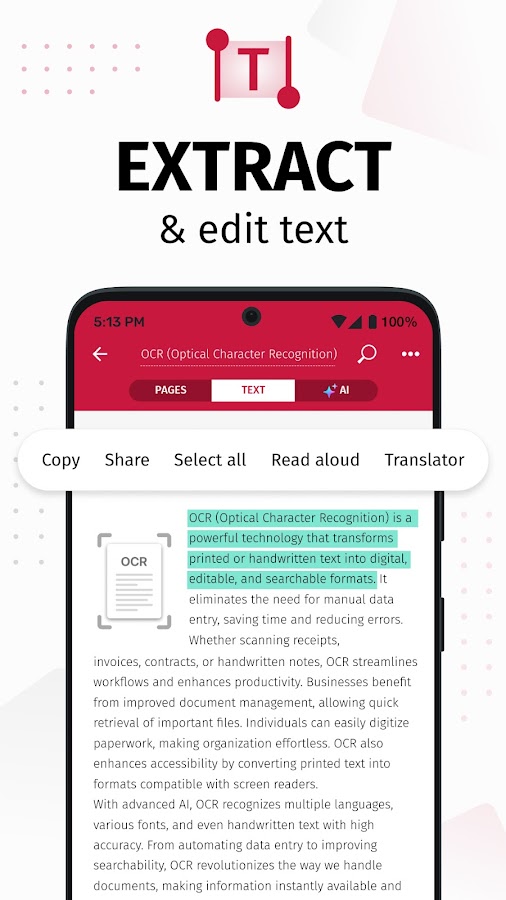
SwiftScan combines automatic document capture with OCR and cloud export options. It fits a workflow where you scan a document, copy a specific passage, and send the complete file to an existing folder.
Check the destinations supported by your phone’s version if a particular service is part of your workflow. SwiftScan lists OCR among its premium features on Android.
5. iScanner — Best for turning snippets into reusable text
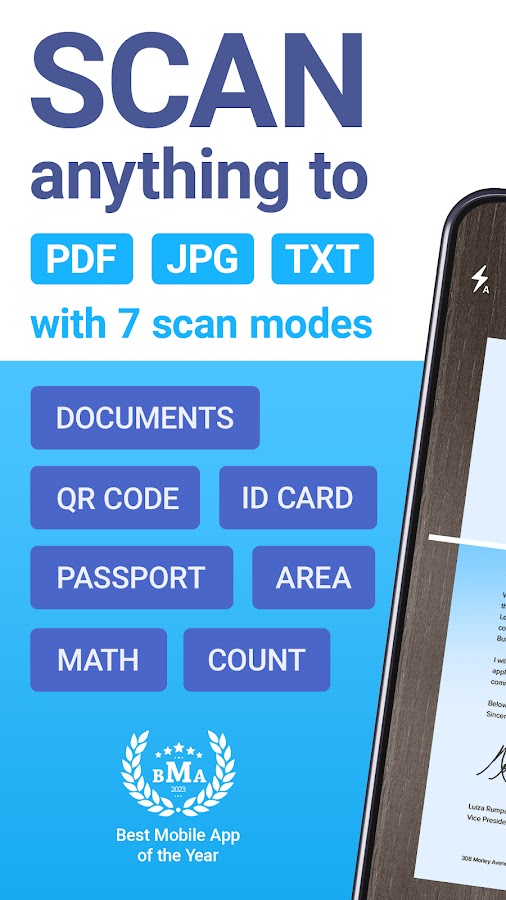
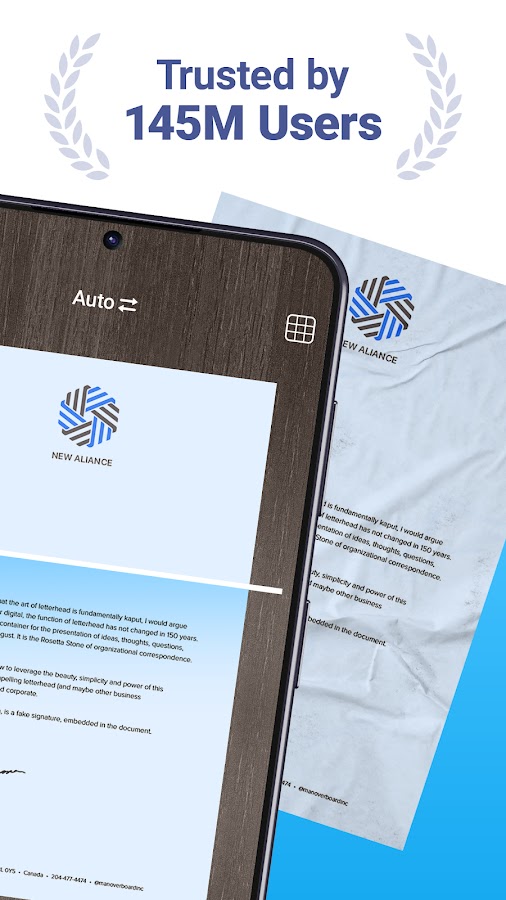
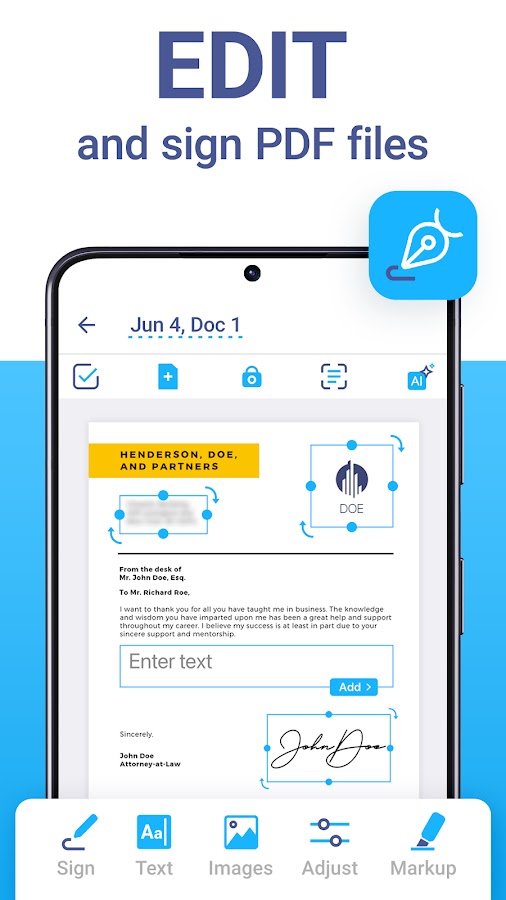
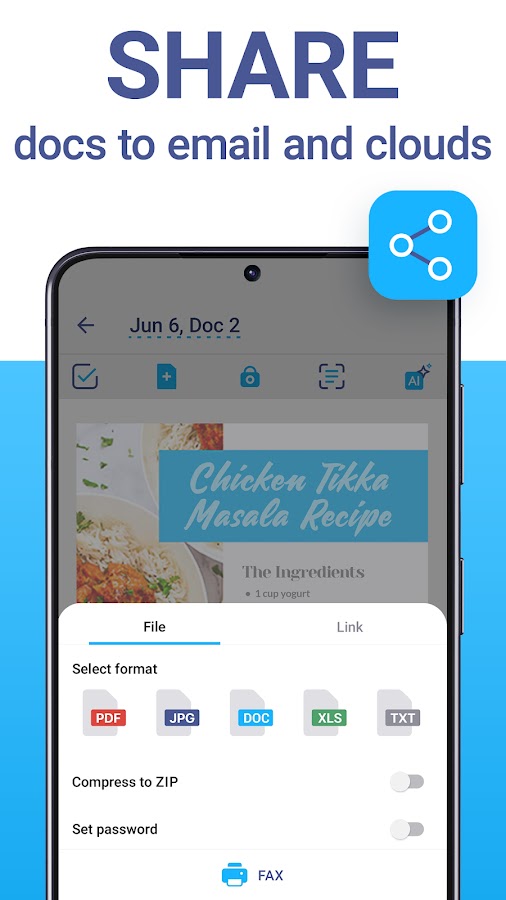
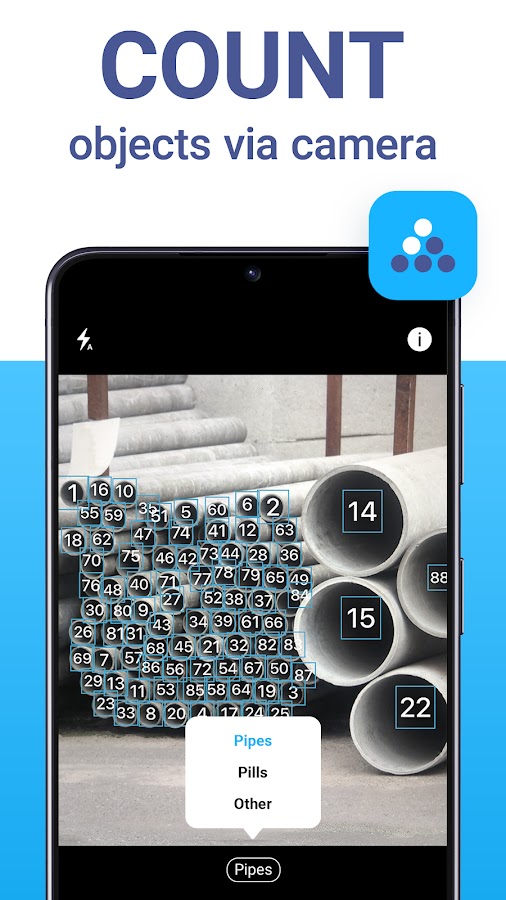
iScanner is worth considering if you often need to pull an address, reference number, or paragraph from a page. It offers image-to-text recognition alongside file conversion tools, so you can choose an output based on where the text needs to go.
A plain-text export is convenient when pasting into an email or notes app. For tables, review the converted rows and columns before using the results in a spreadsheet.
6. Tiny Scanner — Best for assembling multipage scans
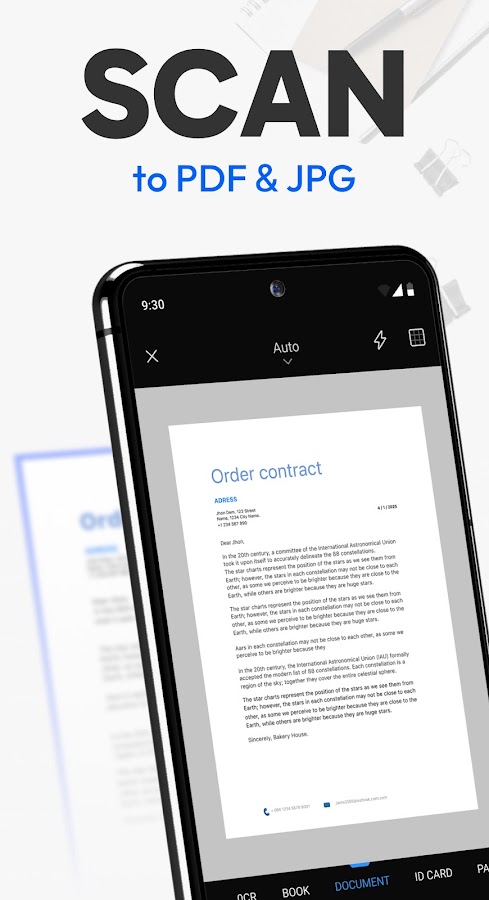
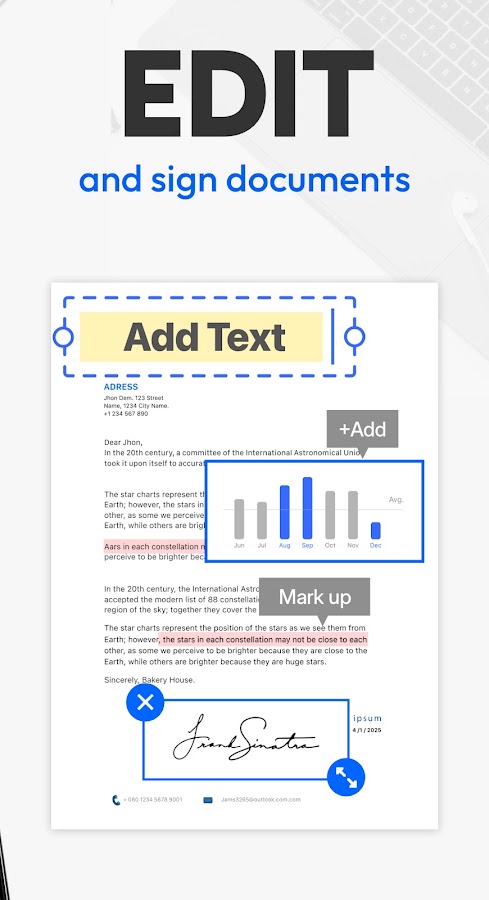
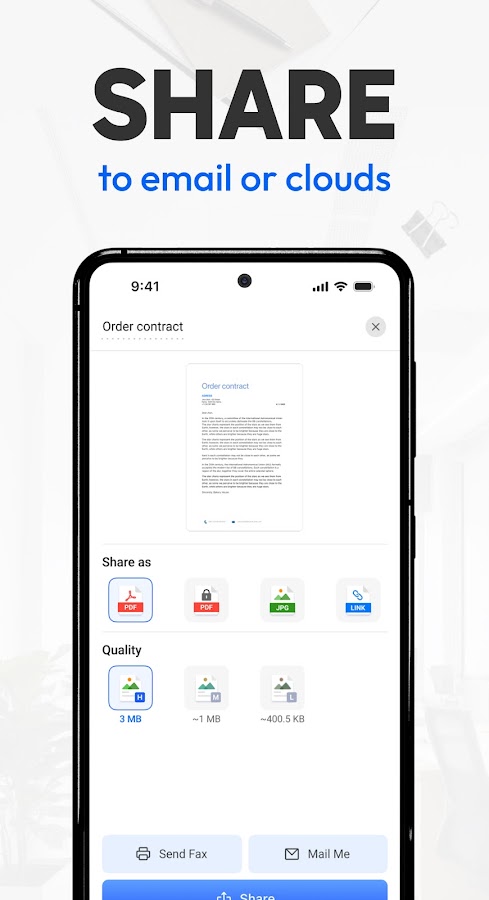
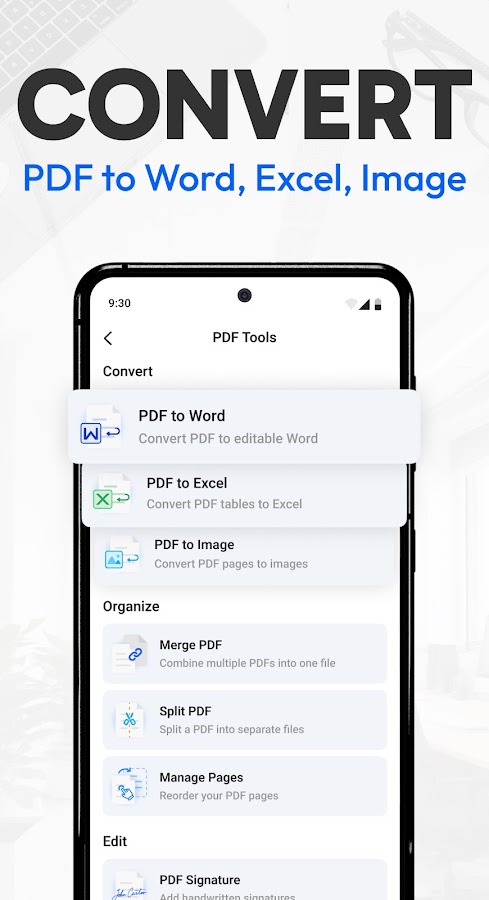
Tiny Scanner is a practical option for capturing several pages and putting them in order before sharing. Automatic edge detection and scan filters help when you need to capture a form and its attachments as one file. The app also offers text recognition.
If search matters, open the shared PDF and look up a word from the last page. This checks both the exported text layer and whether OCR covered the full document.
7. vFlat Scan — Best for books and curved pages
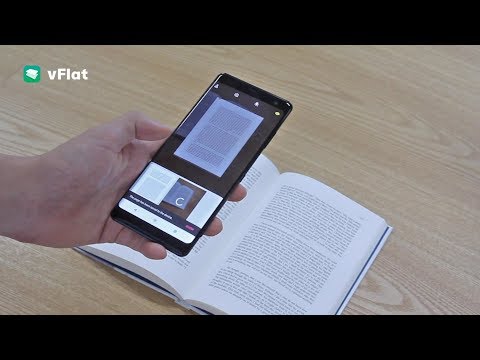
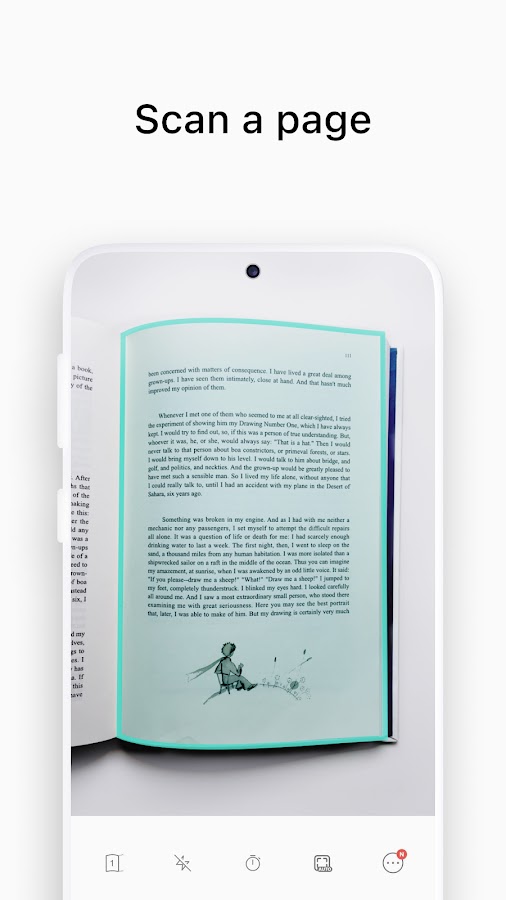
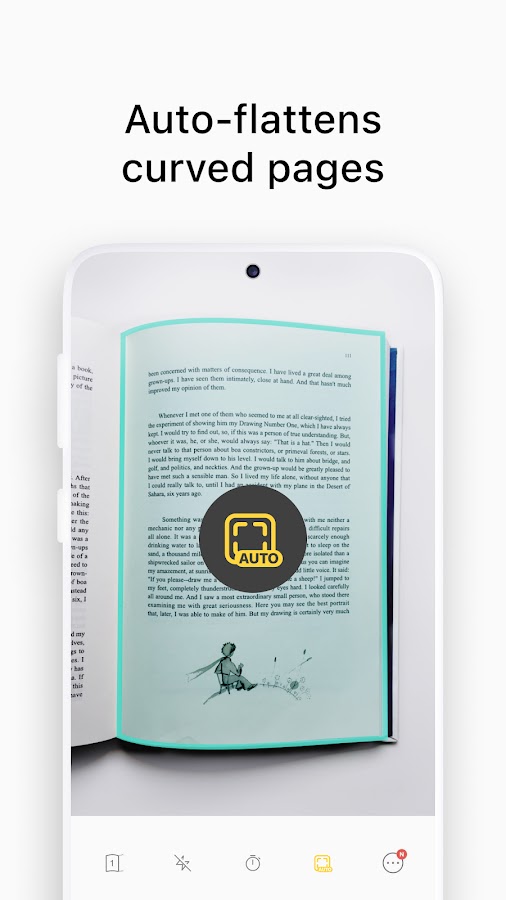
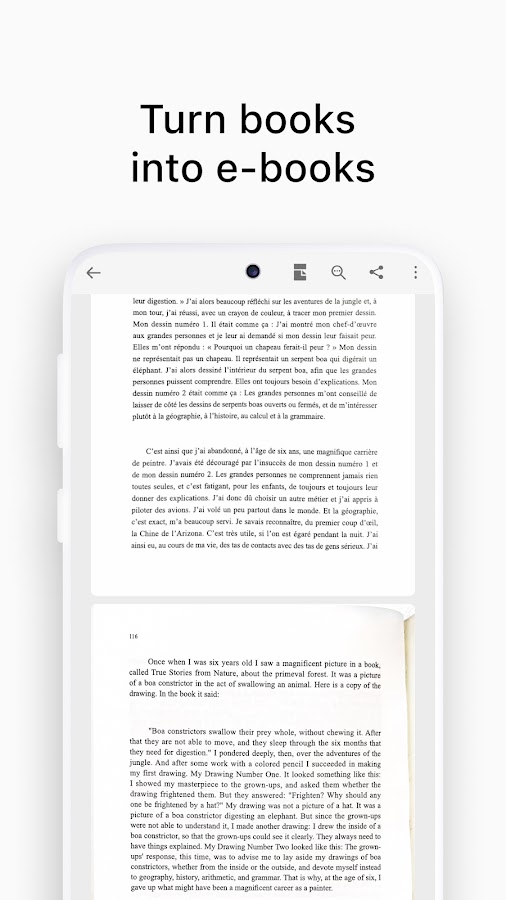
vFlat Scan is the clearest choice here for bound material. Its page-flattening tools address a problem ordinary document cropping can leave behind: lines bending into the gutter of an open book. OCR then lets you extract text from the captured pages.
For a chapter or journal article, capture a spread with print close to the binding and inspect that part of the recognized text first. For a longer assignment, check the text recognition allowance before scanning the whole chapter.
8. TapScanner — Best for receipts and forms
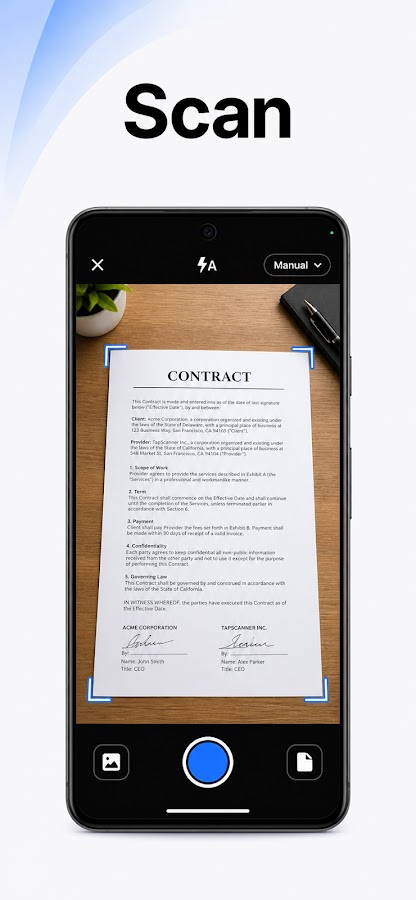
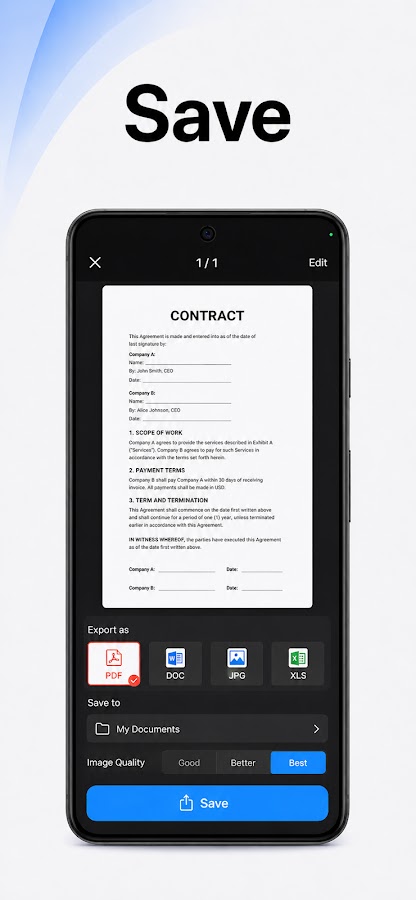
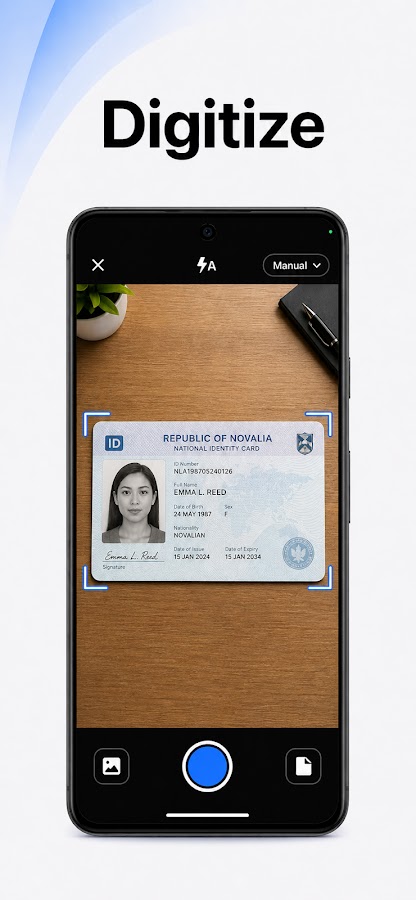
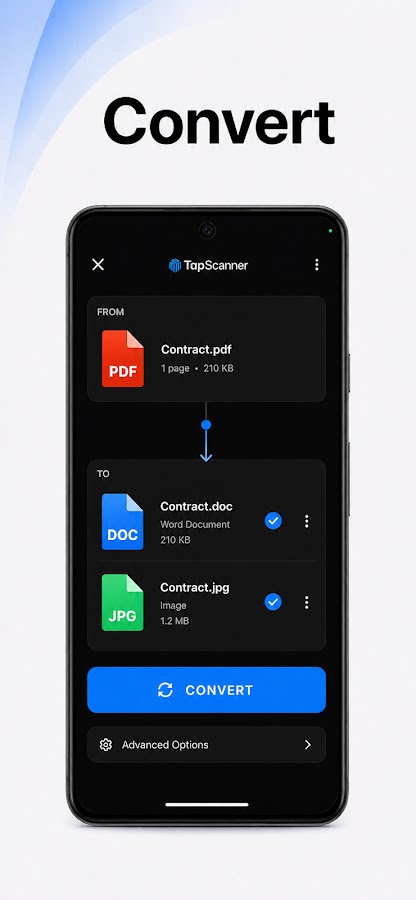
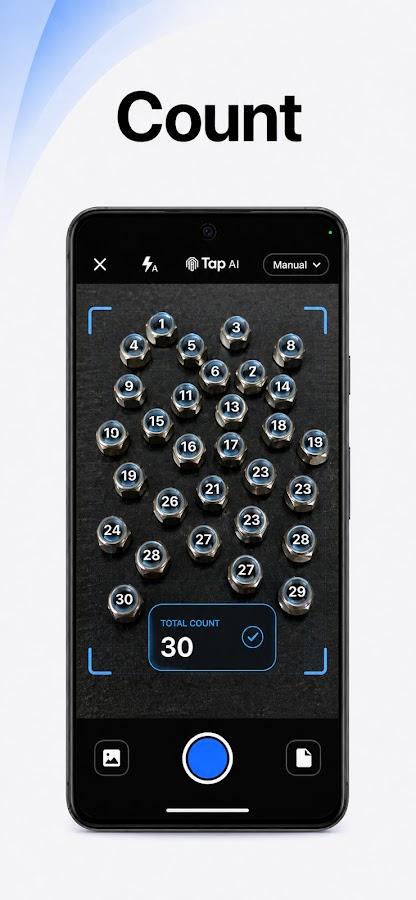
TapScanner combines automatic edge detection, image correction, and OCR. It’s a useful candidate if your scanning routine consists mostly of small receipts, forms, and occasional multipage PDFs.
Try it on a faded receipt before relying on it for expense records. Compare the date, total, and tax against the original, especially where the print is faint or a fold runs through a number.
9. Notebloc Scanner — Best for printed study materials
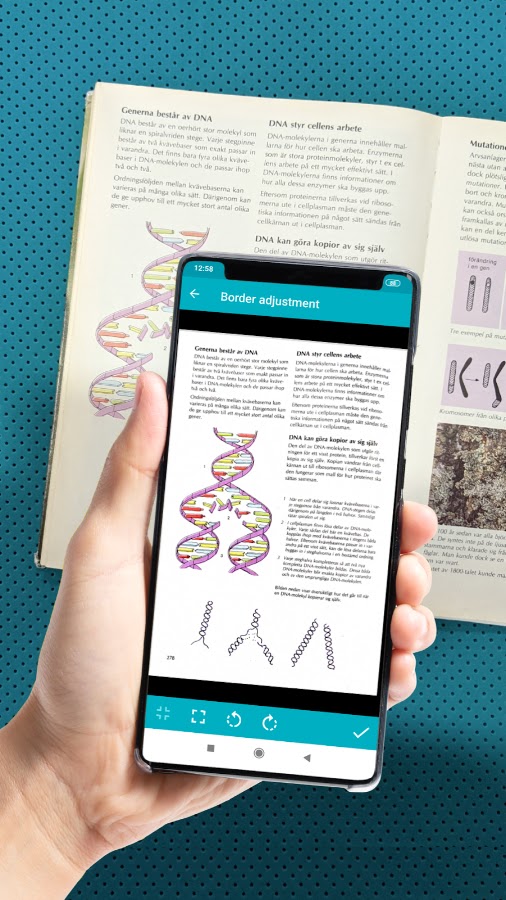
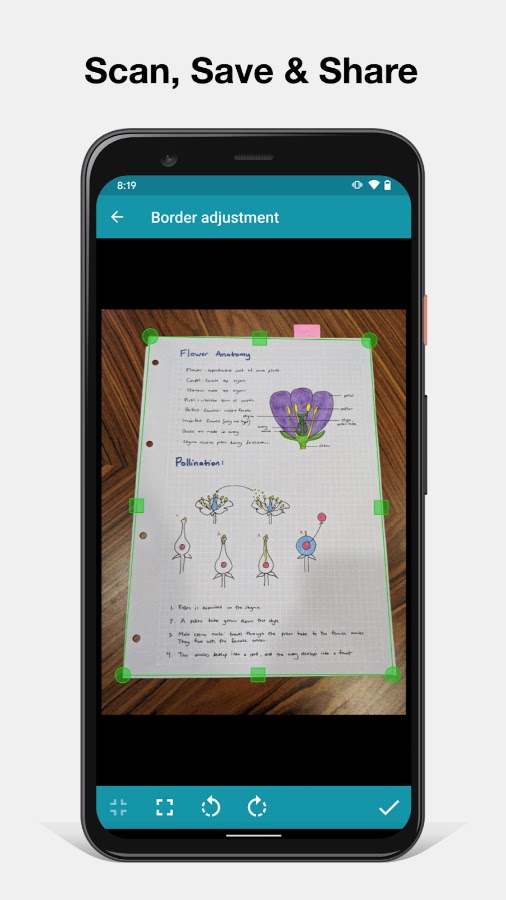
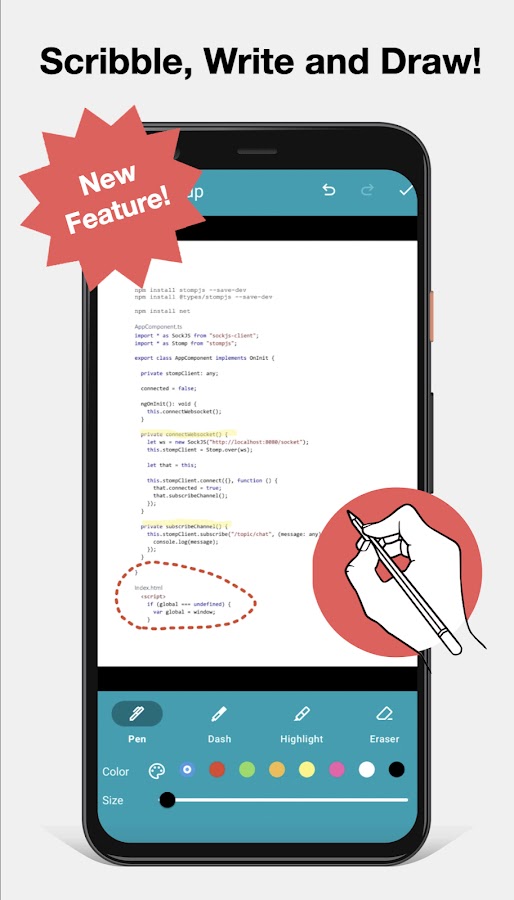
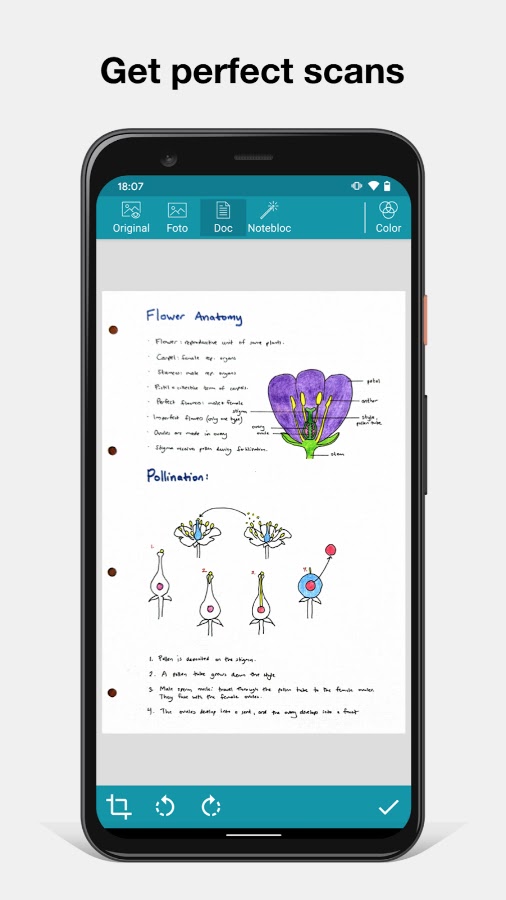
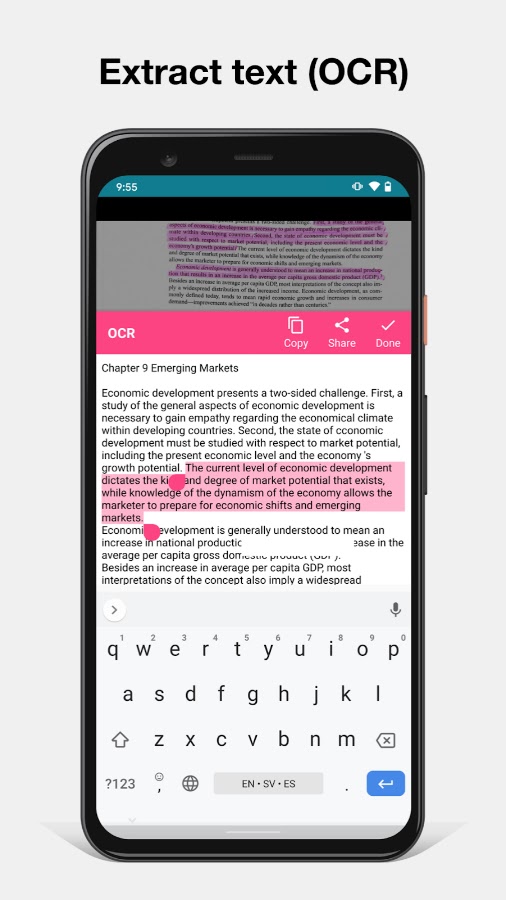
Notebloc Scanner is a good fit for lecture handouts, worksheets, and other pages you want to capture as PDFs and pull text from later. It combines document cleanup with OCR in a straightforward scanning workflow.
Check the language you need and how the app shares recognized text. For handwritten lecture notes, test a full page of your own writing. Good results on printed handouts tell you little about cursive.
10. Clear Scan — Best for quick scans and occasional OCR
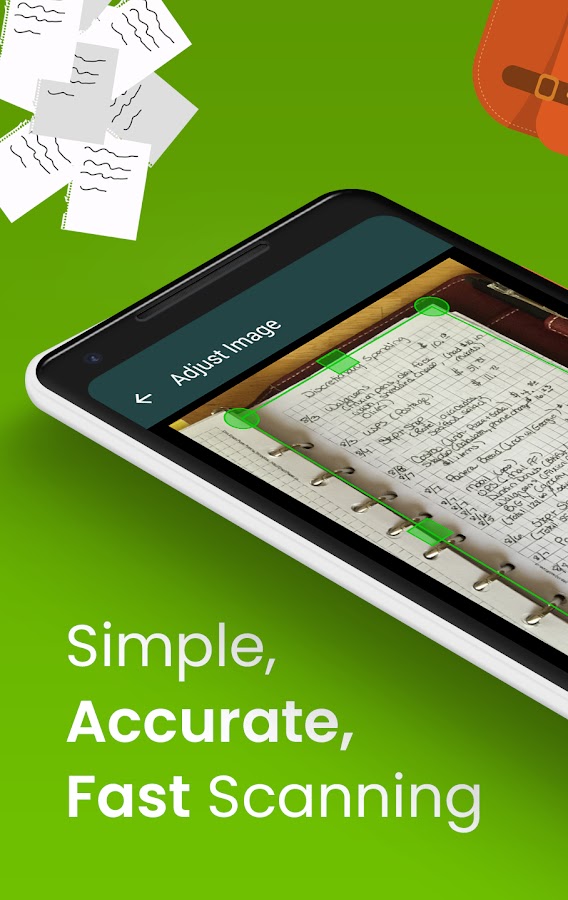
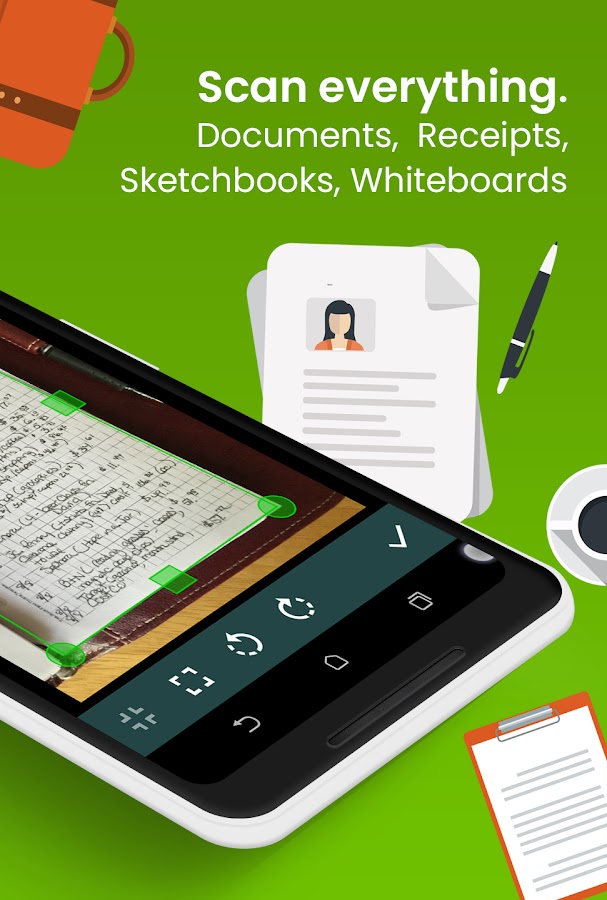
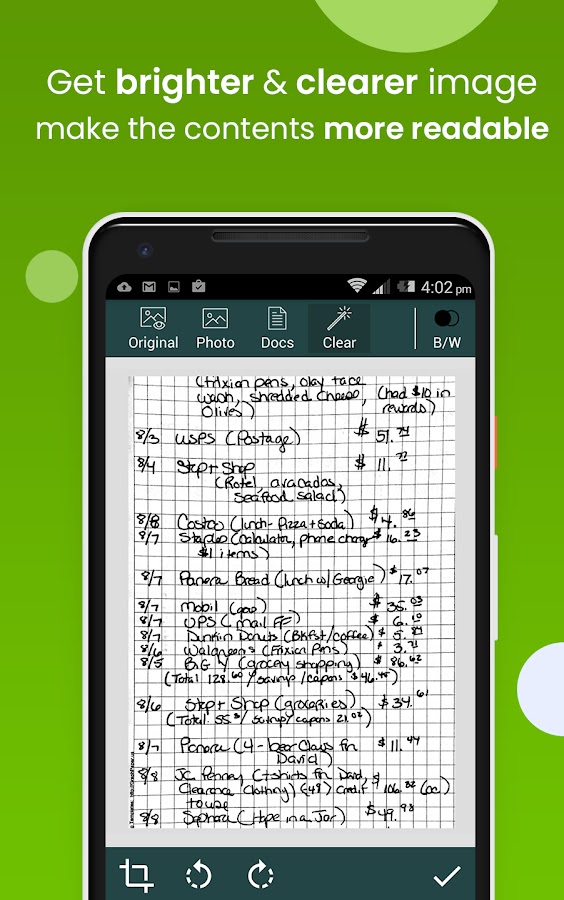
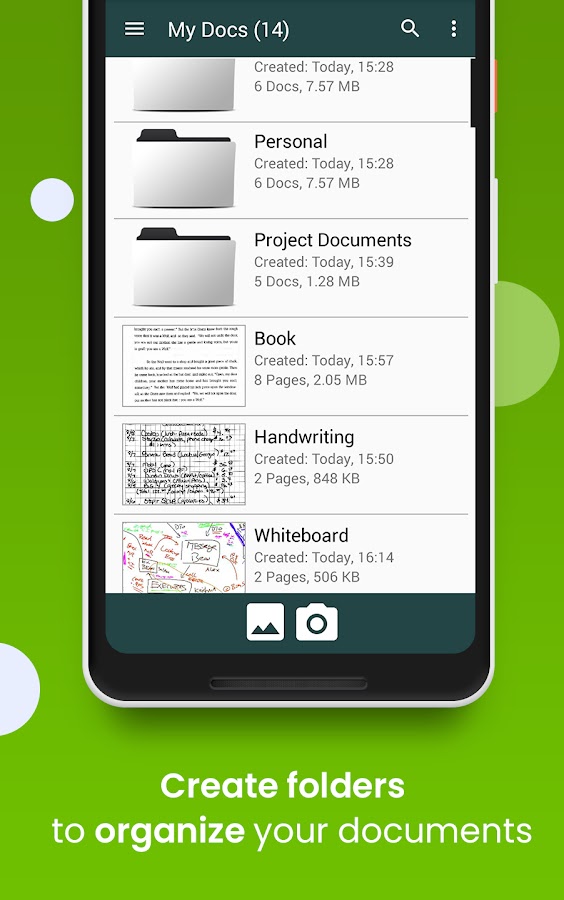
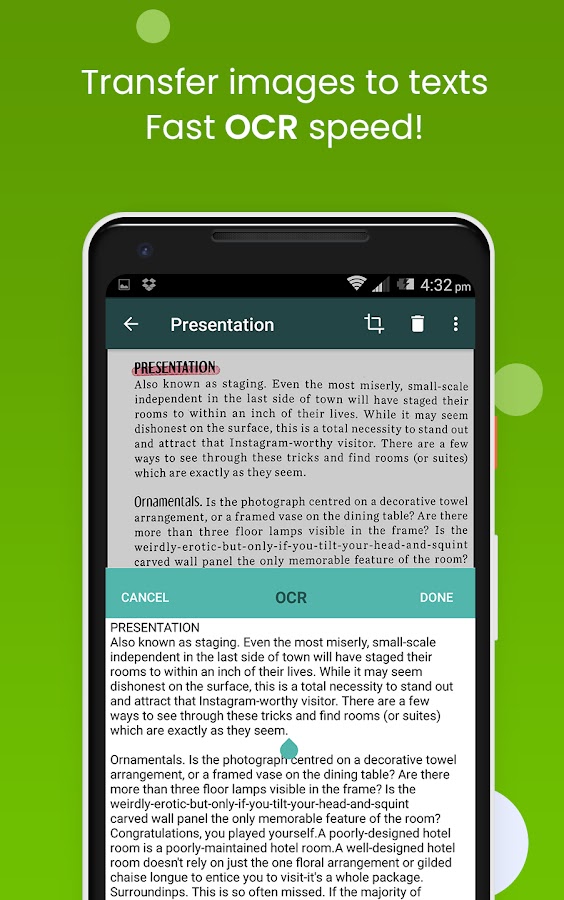
Clear Scan offers document cropping, PDF creation, and image-to-text extraction. It suits the occasional letter, bill, or receipt when you want a clean scan and need to copy only a few lines.
For a searchable archive, test the PDF output in a separate reader. A scanner can let you copy recognized text from a page while sharing an image-only PDF.
11. Mobile Scanner — Best for building a collection of searchable PDFs
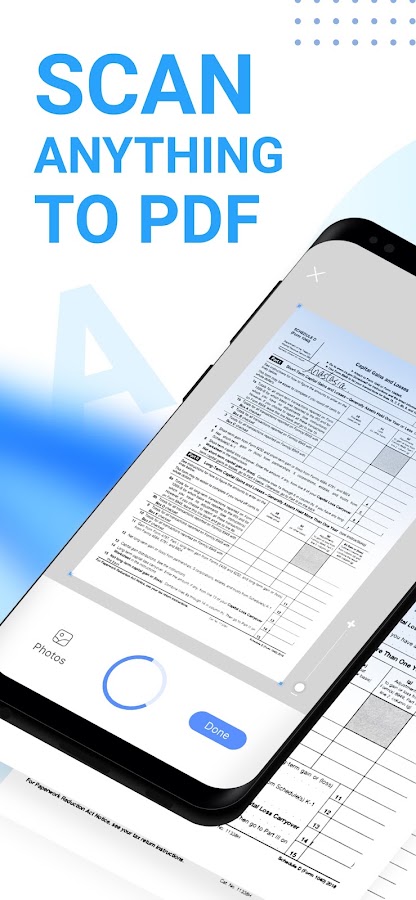
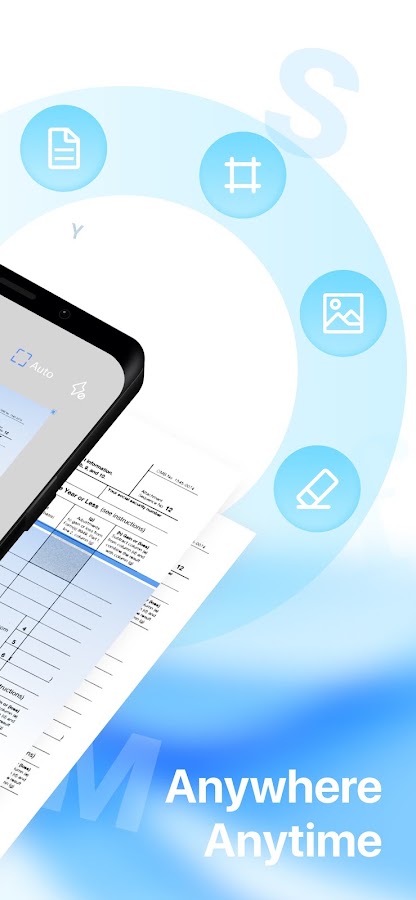
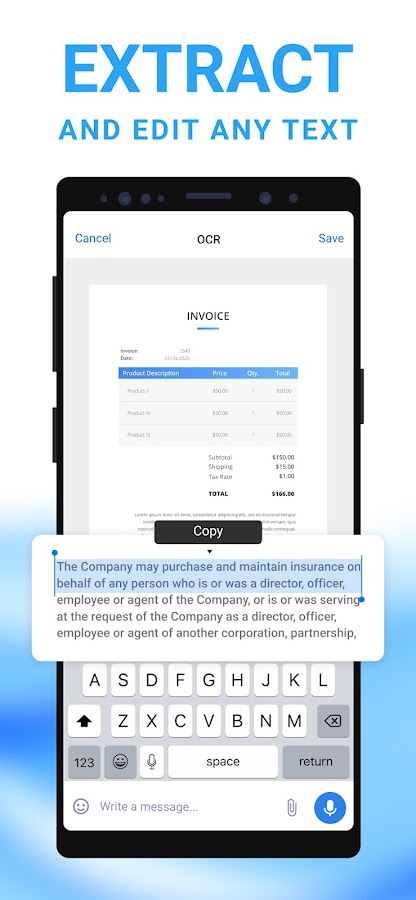
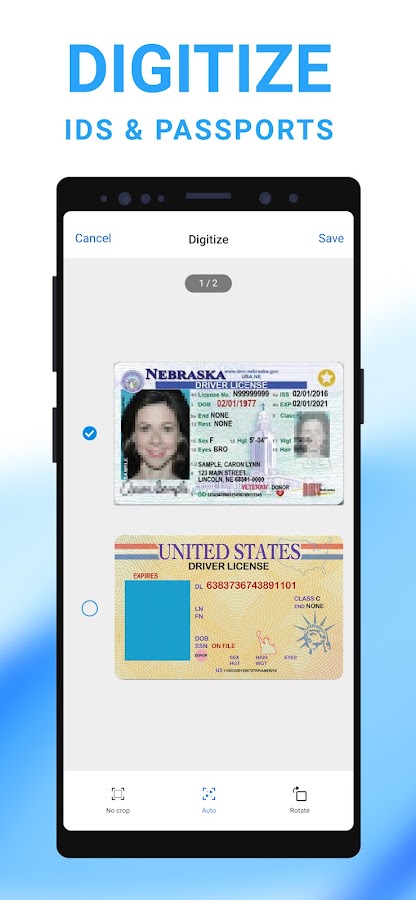
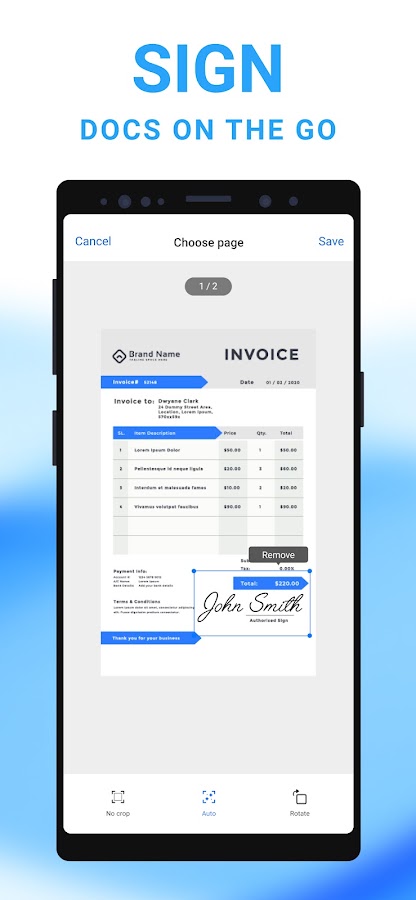
Mobile Scanner combines paper capture and text recognition with searchable PDF export. It’s a candidate for household and office records you expect to look up by a company name or reference number months later.
Export a multipage statement and search for an identifier on its final page. Then try copying that identifier. Search can work even when copied text contains a misread digit.
12. PDFgear Scan — Best for exporting scans as Word or plain text
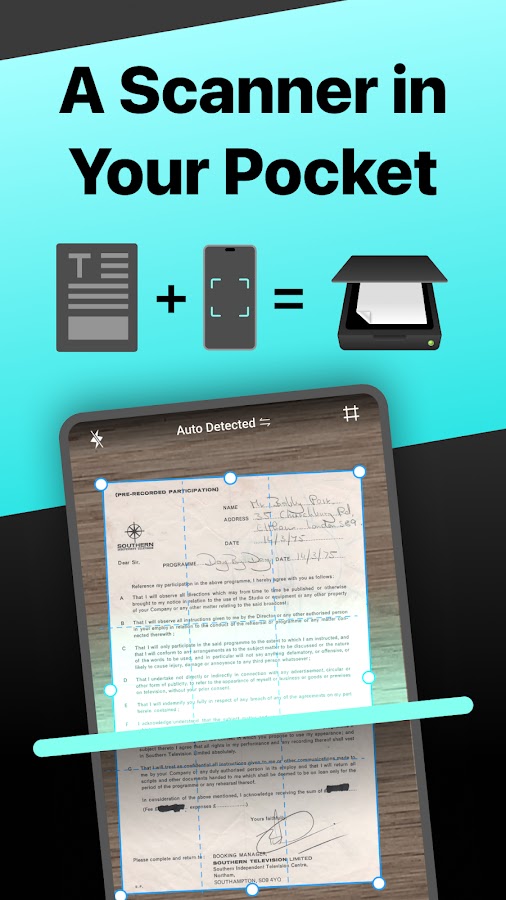
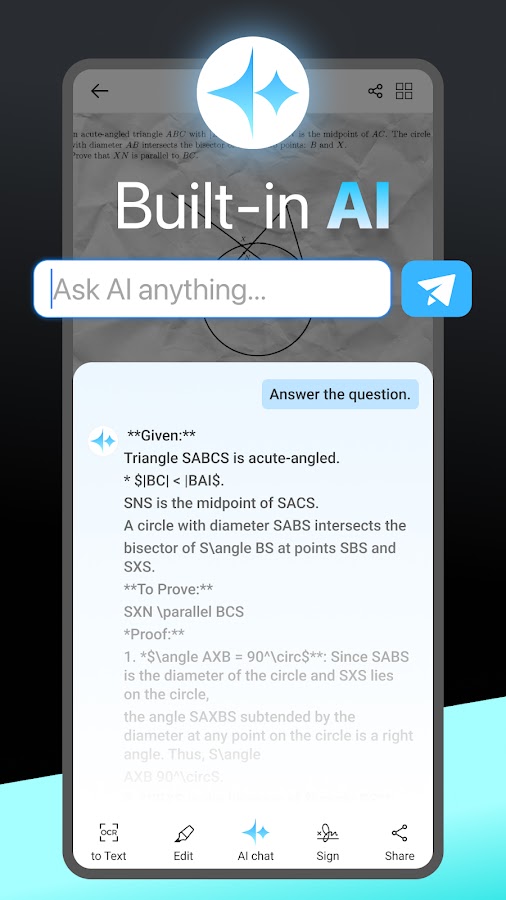
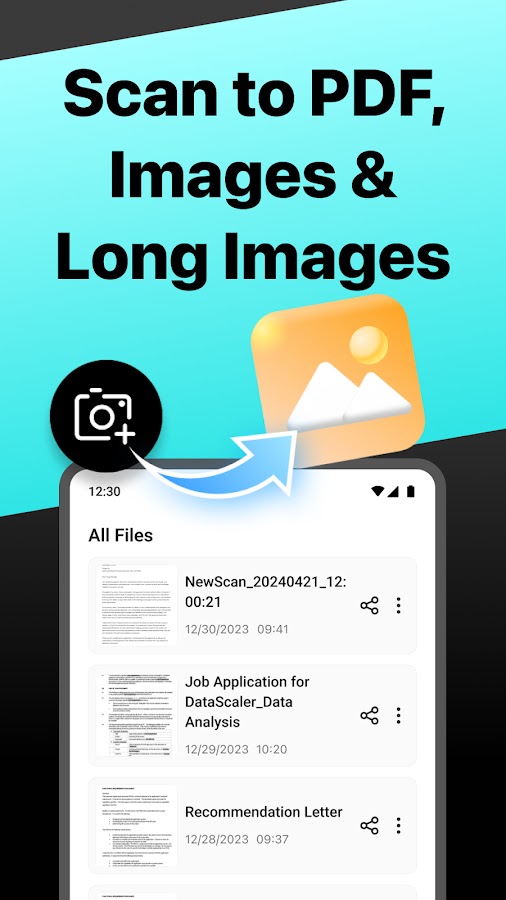
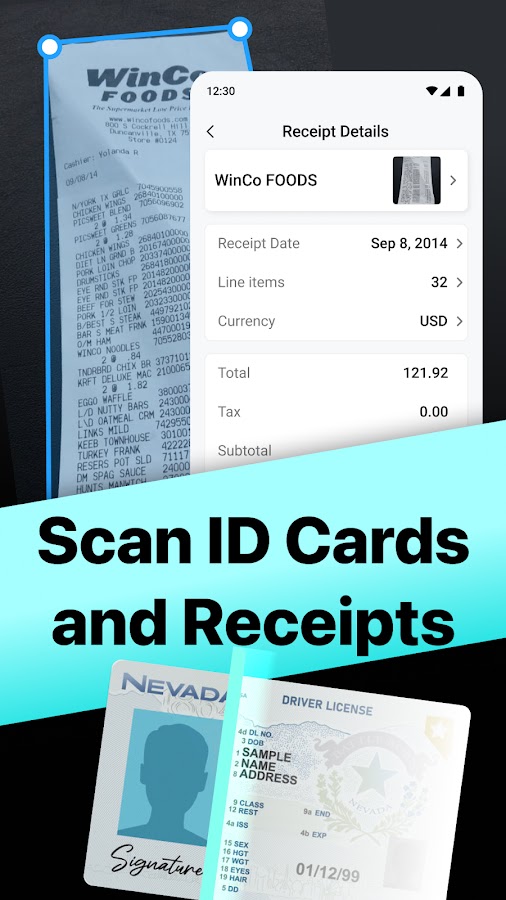
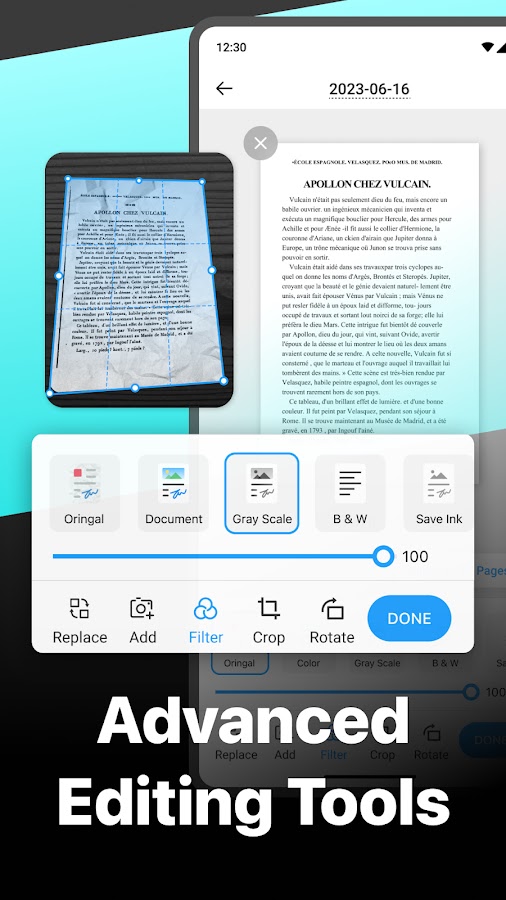
PDFgear Scan is useful when the scan is the beginning of the job. Its iPhone listing describes OCR and export to Word or TXT alongside PDF and image output. Check the export menu on Android if you need a particular format.
Use TXT when you only need the words. Try Word when you need to preserve headings and paragraphs, and check tables, columns, and footnotes against the original.
13. Docutain — Best for a searchable household archive
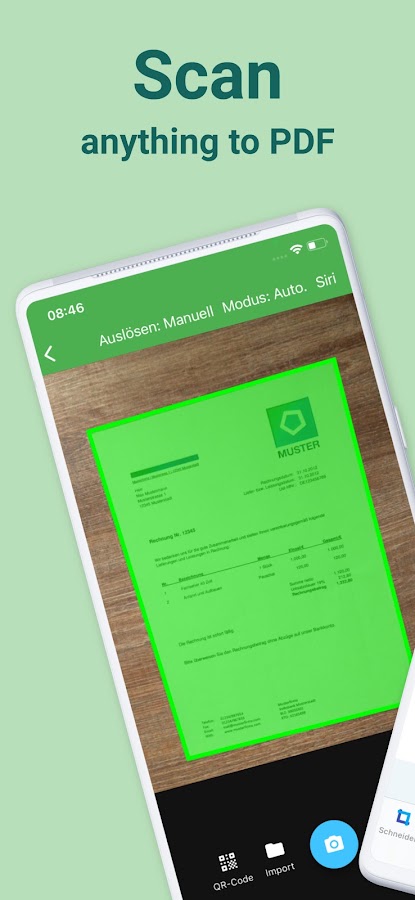
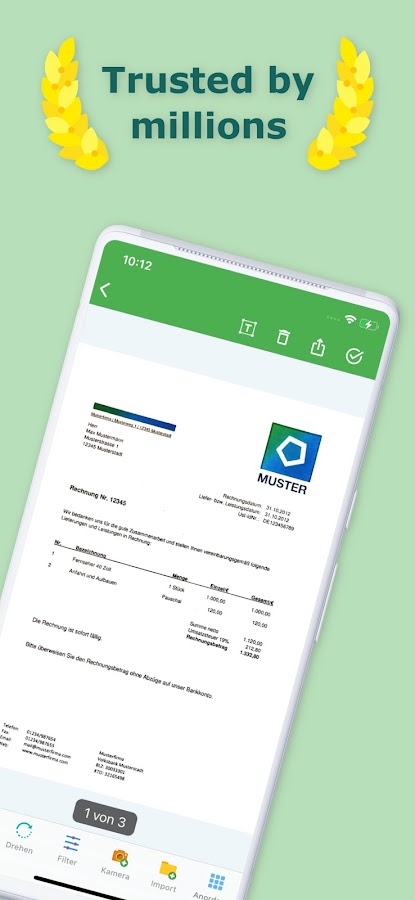
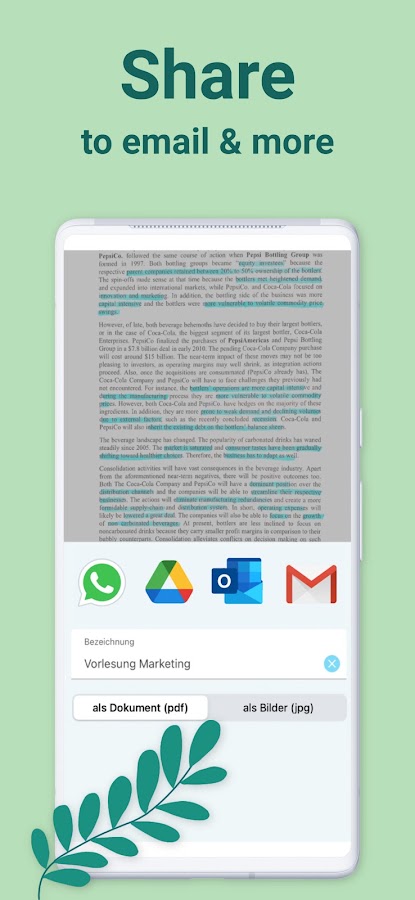
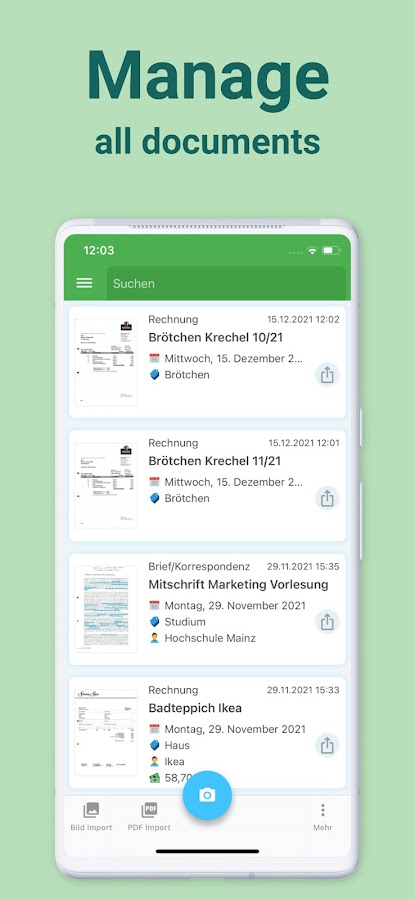
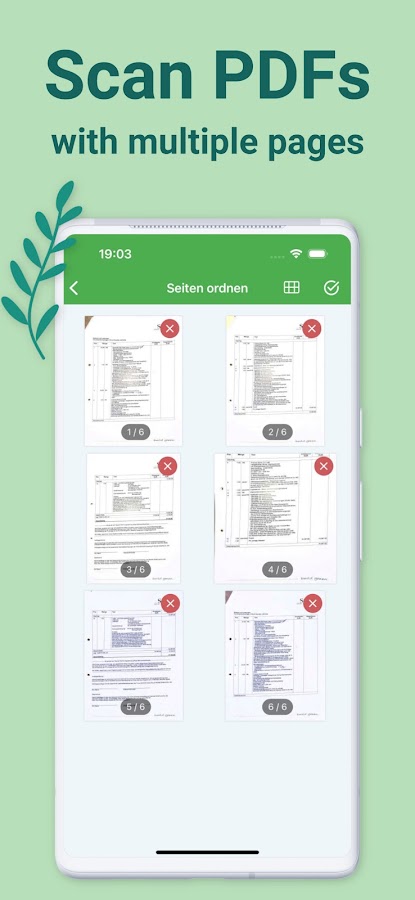

Docutain pairs scanning and OCR with document organization. It makes sense for receipts, warranties, and invoices you keep for years and may remember by their contents long after you forget the filename.
Try searching for a supplier name printed inside a scan. If you share records or back them up to another app, also check whether you can find the same name in the exported PDF.
14. iLovePDF — Best for OCR in a broader PDF workflow
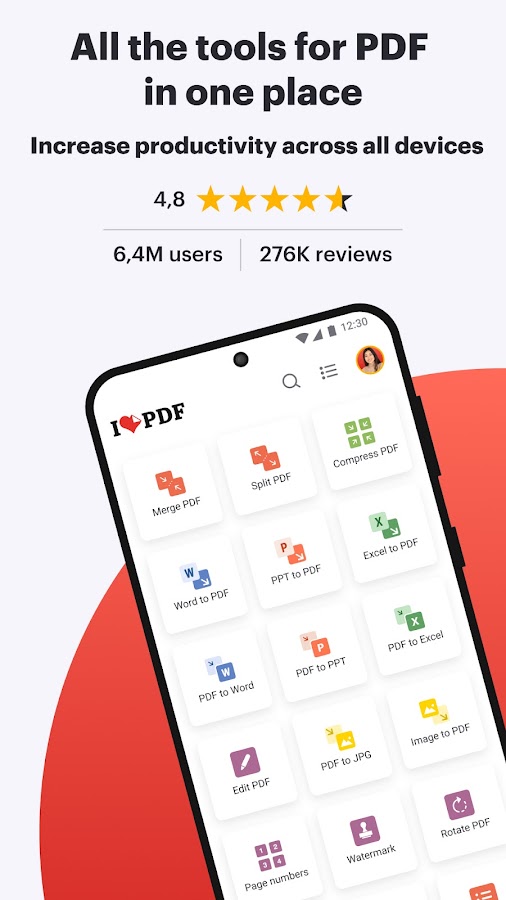
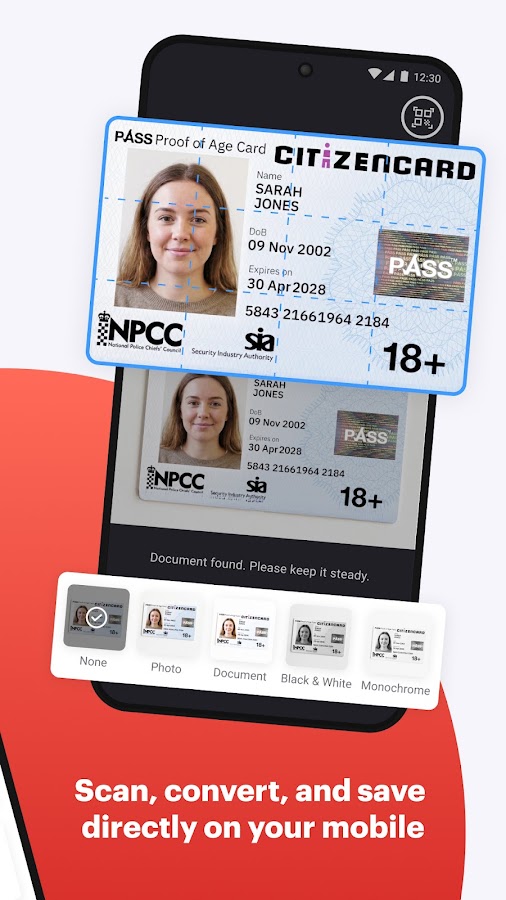
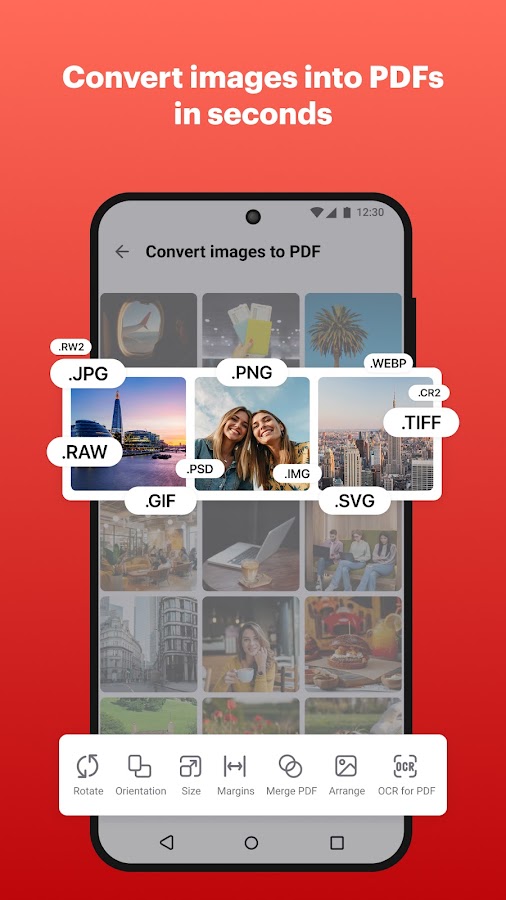
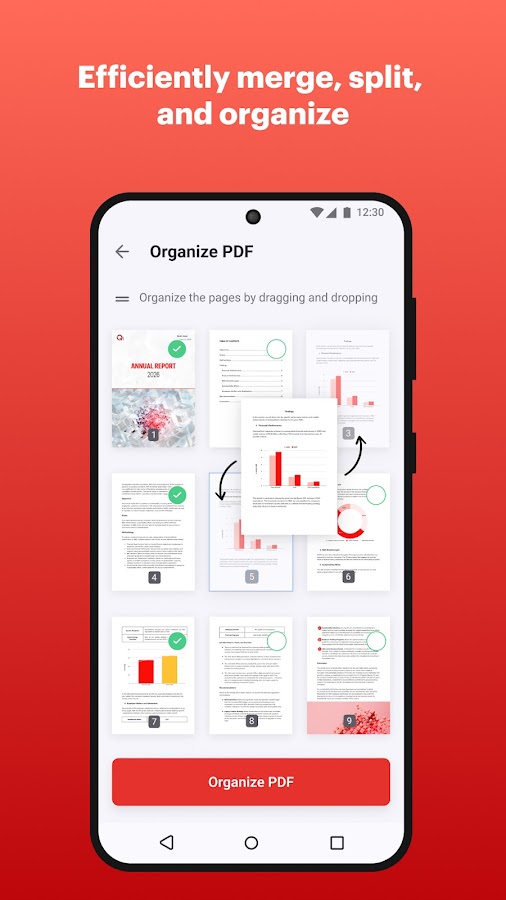
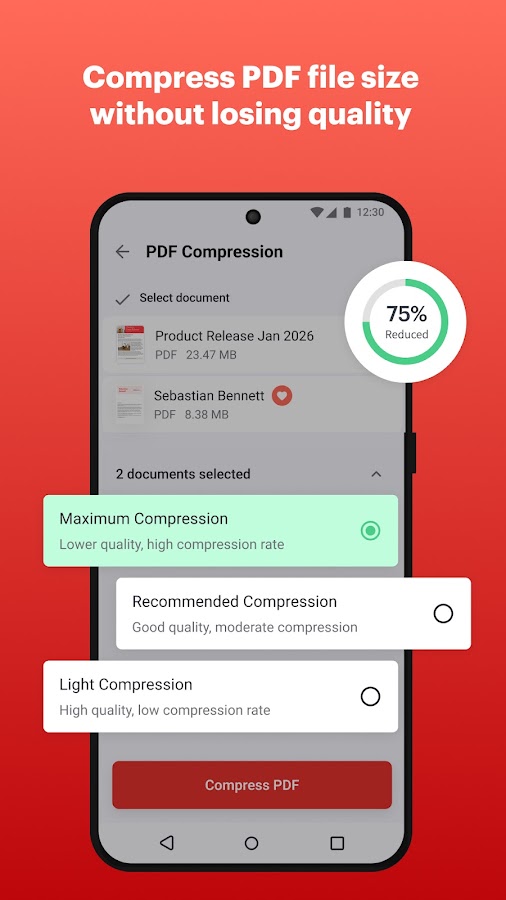
iLovePDF combines a mobile scanner and OCR with tools for organizing and converting PDFs. It’s worth considering if scanning is only one step in assembling paperwork for a submission or sending a single file to someone else.
If you plan to combine files, check text search in the final PDF after merging. A successful OCR pass on the original pages is useful only if the finished file retains the text you need.
15. PDFelement — Best for scanning and editing in one app
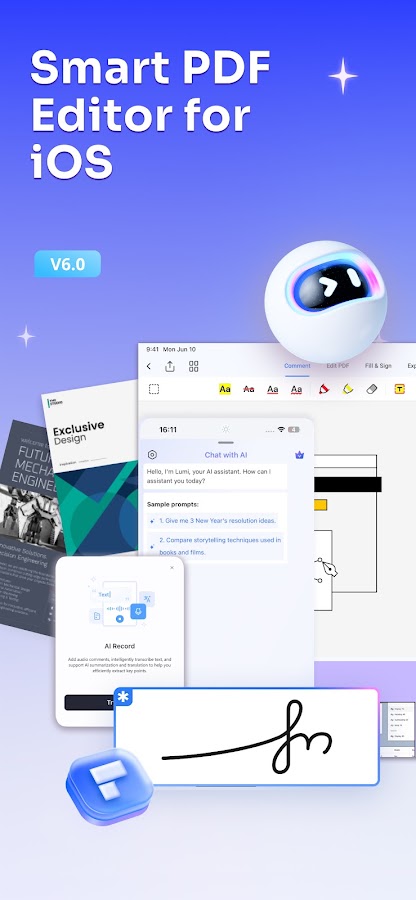
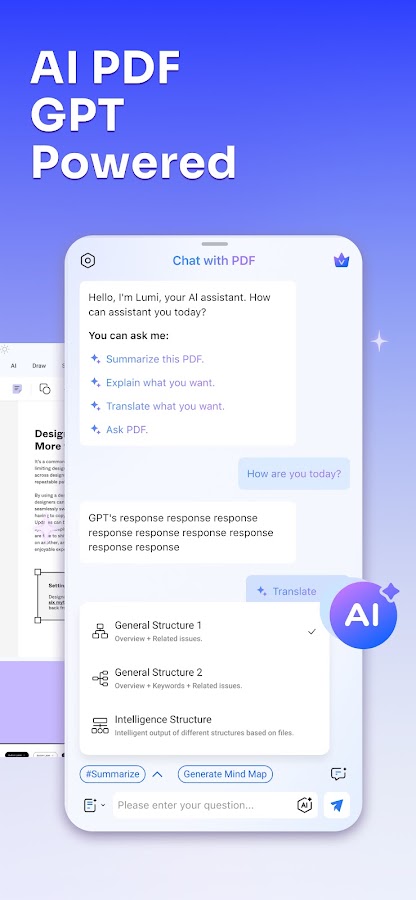
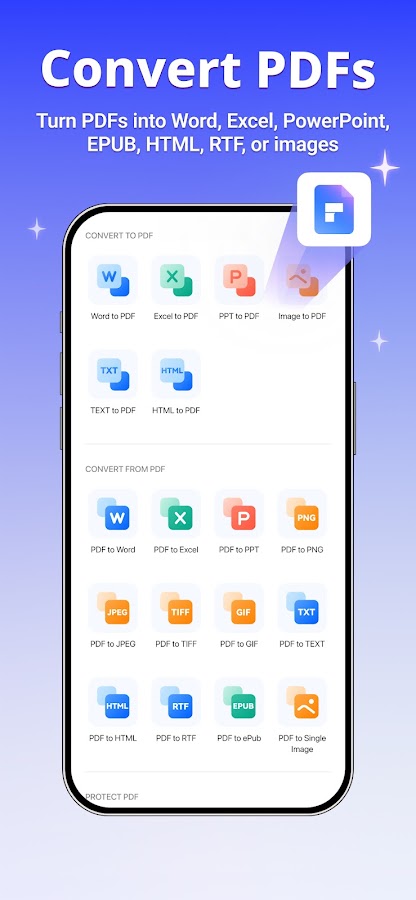
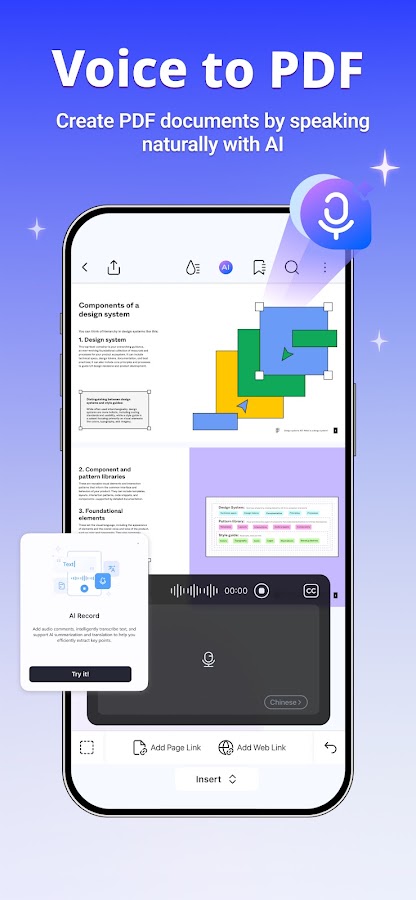
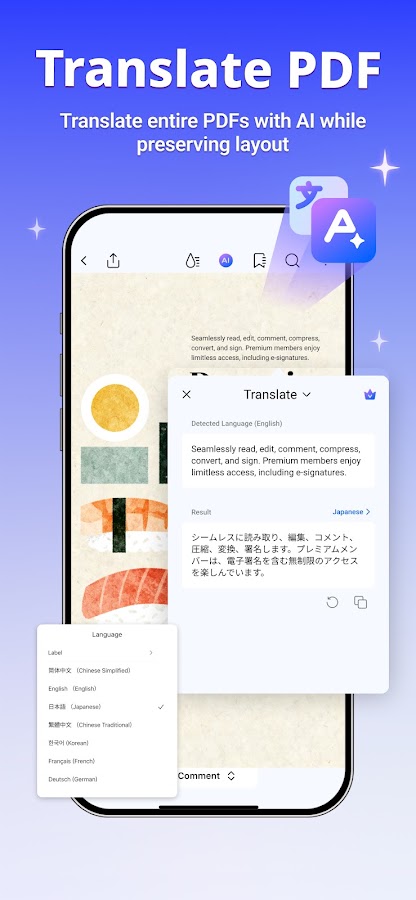

PDFelement combines document capture, OCR, conversion, and PDF editing tools. It fits tasks where you want to scan a document, then continue working on it on the same phone.
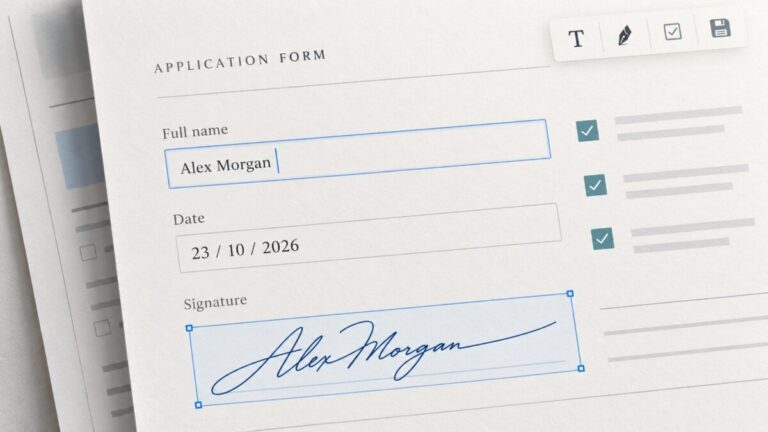
Try an actual form before converting a batch. Check which elements become editable, and compare the output with the original if the page contains boxes, signatures, or tightly spaced columns.
How to choose a document scanner app with OCR
Start with the file you need to hand over. Choose a searchable PDF for records that should retain the look of the original. Choose plain text for copying paragraphs or reference numbers. Choose Word for substantial editing, and allow time to fix the formatting.
Test your hardest page first. Scan a faded receipt, a page with two columns, or a book spread with text close to the binding. Use the same page when comparing apps. Look for mistakes that would matter in practice, such as a wrong date, a missing minus sign, or text read across columns in the wrong order.
Check the complete export. Open the file in a separate app, search for a distinctive word from the first and last pages, then select and copy a sentence. For documents with names, totals, or account numbers, compare those fields with the paper copy. A clean-looking scan can still contain recognition errors.
Check offline behavior and sync separately. An app can capture pages offline and still need an internet connection for OCR or cloud export. If you need the entire workflow to work offline, use a non-sensitive sample in airplane mode and try capturing, recognizing, and exporting it.