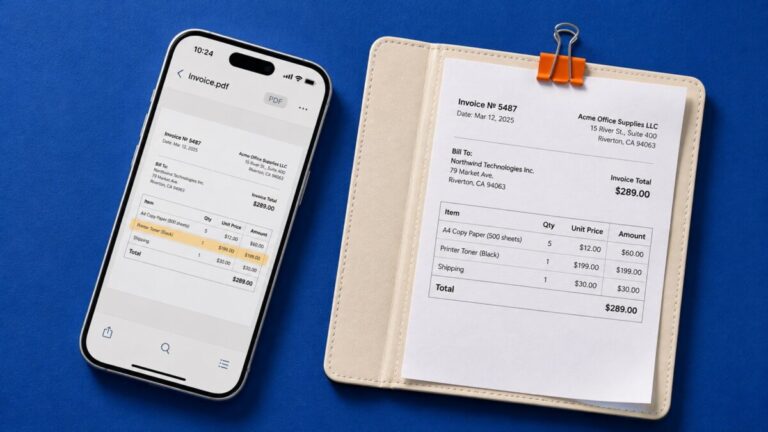
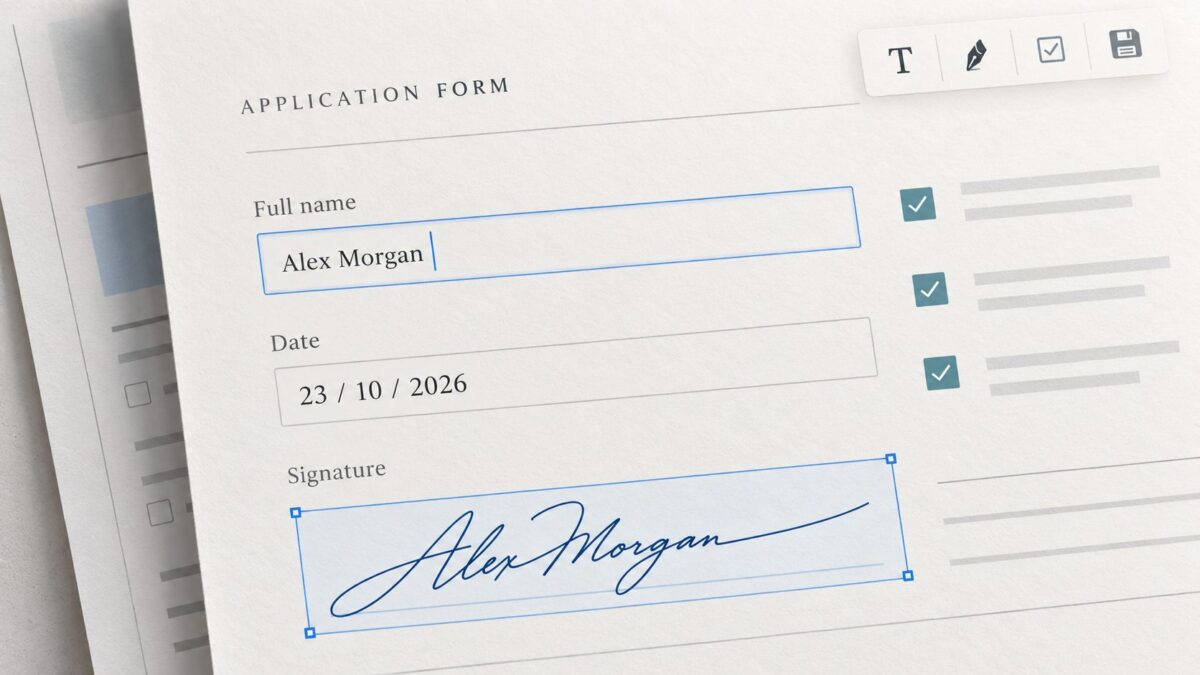
A form arrives in your inbox with instructions to complete, sign, and return it. You open it on your phone, tap a blank line, and nothing happens. The document looks like a form, but it may simply be a scan without interactive fields.
The best PDF editor apps for signing and filling out forms handle that distinction well. They let you enter information into existing fields or place text over a static page, add your signature, and save a copy you can send back. Some also edit the document’s original text, recognize scanned writing, or support signatures backed by digital certificates.
This guide compares ten PDF apps available for iOS and Android, with attention to the mobile features that matter. A desktop feature list does not establish what the phone app can do. Free access, export limits, and available tools can differ between platforms and plans.
Best PDF Apps for Filling and Signing Forms: Quick Comparison
| App | Best fit | Form-filling approach | Signing and limitations |
| Adobe Acrobat Reader | Everyday forms and signatures | Interactive fields and Fill & Sign entries | Basic filling and signing are free; advanced editing is separate |
| Xodo PDF | Forms, annotations, and document review | Form filler plus text and markup tools | Signing available; check current free limits and paid features |
| Foxit PDF Editor | More demanding PDF forms | Fillable fields and form-data tools | Handwritten signatures; certificate tools require eligible access |
| PDFelement | Editing and completing documents in one app | Form-filling and PDF-editing tools | Advanced tools and export conditions depend on access |
| UPDF | Adding text, marks, and signatures | iOS form tools; Android text overlays | Mobile capabilities differ; check trial export conditions |
| Smallpdf | Occasional paperwork and file preparation | Text entries and mobile filling tools | Signing plus conversion and compression; usage limits apply |
| iLovePDF | Filling, signing, and preparing attachments | Typed entries and annotations | Finger-drawn signatures; tool limits depend on the plan |
| WPS Office | PDF forms alongside Office documents | PDF text and fill-and-sign tools | Features vary between mobile editions and plans |
| MobiPDF | Scanning, filling, and signing | Fillable PDFs, text boxes, and marks | Saved signatures; Android and iOS entitlements can differ |
| pdfFiller | Recurring forms and document workflows | Typed entries and form-management tools | Subscription-oriented service; test saving and export before committing |
1. Adobe Acrobat Reader: Best Starting Point for Everyday Forms

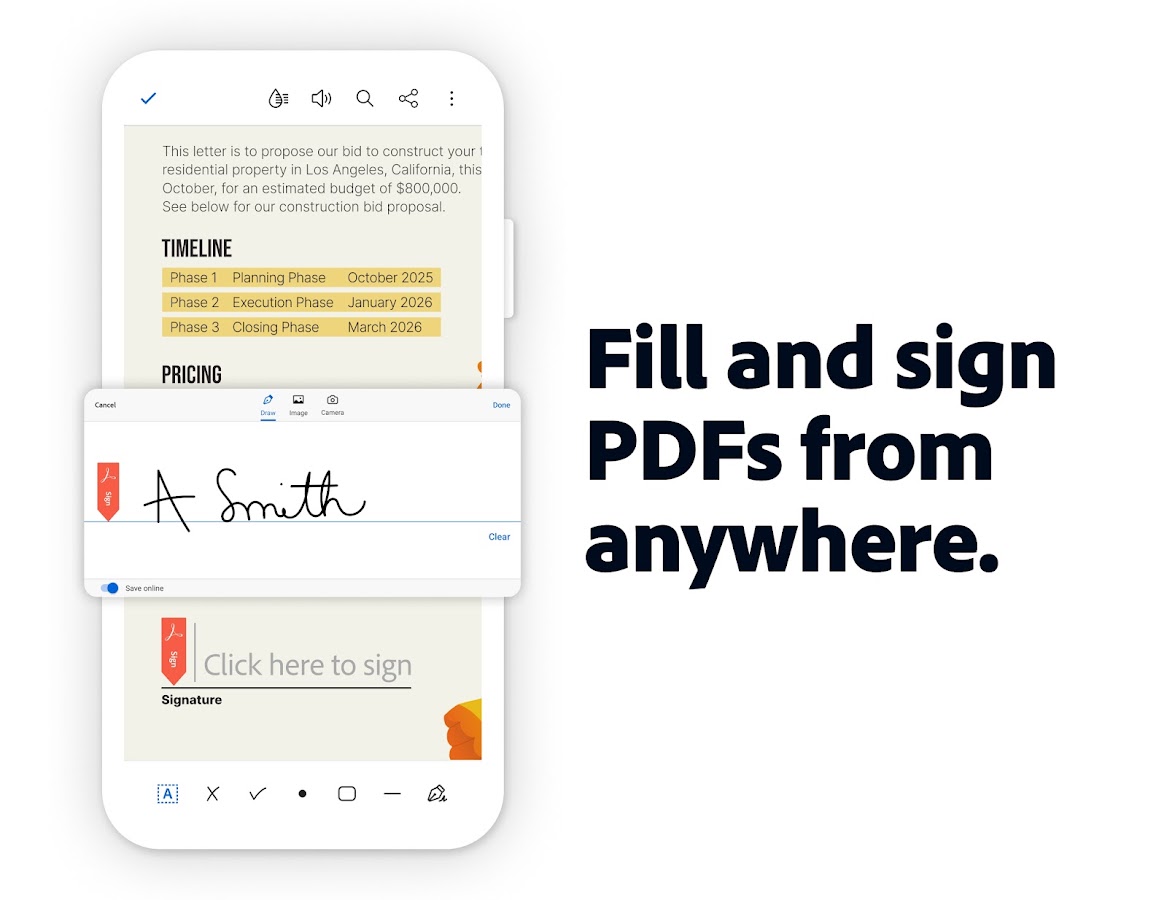
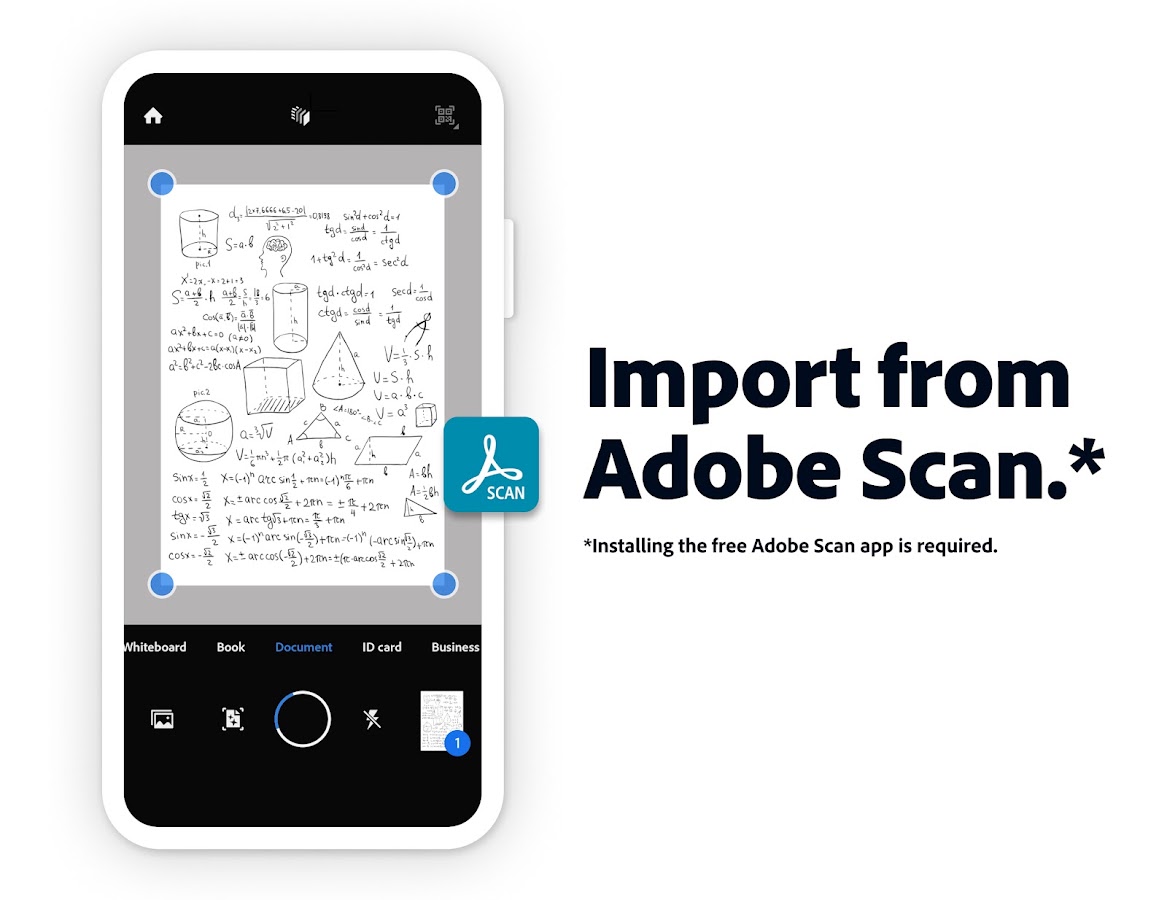
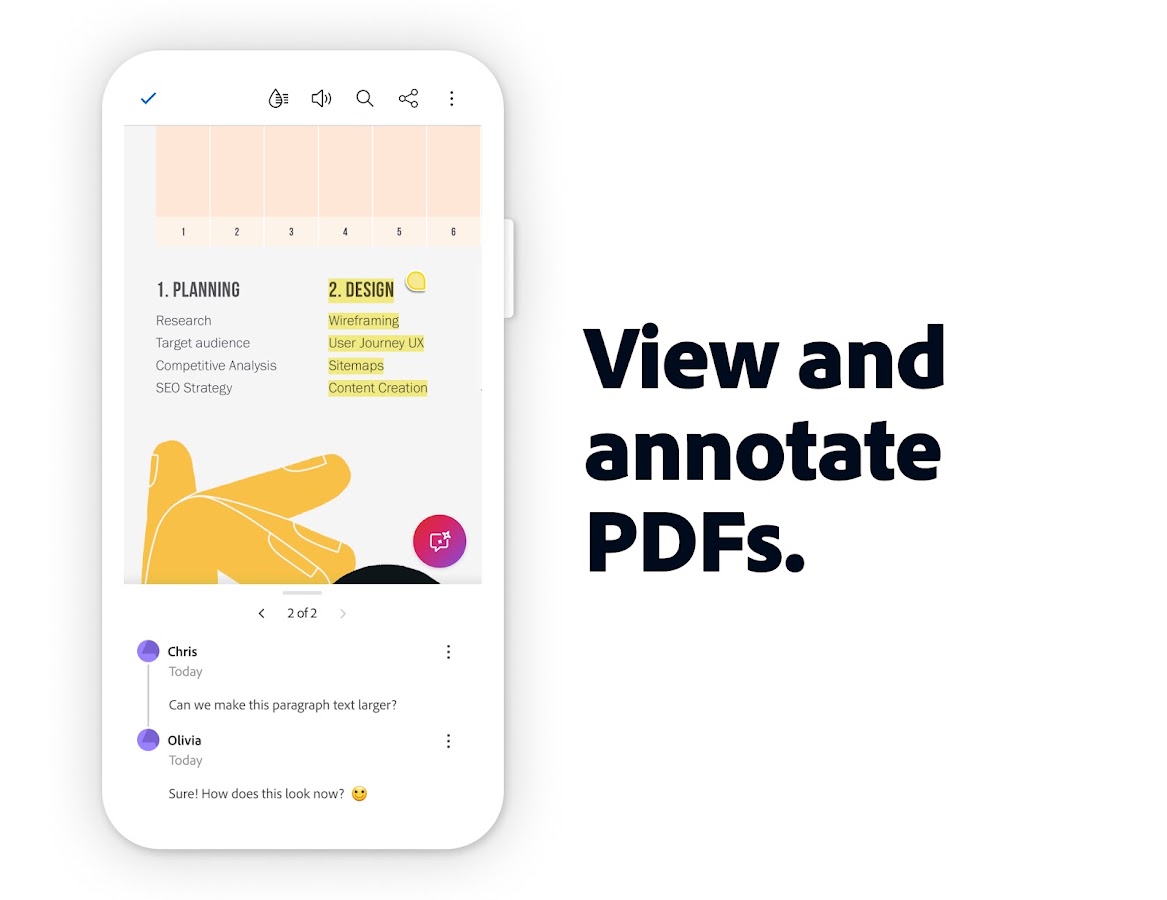

Adobe Acrobat Reader is a practical first option when you need to complete a form and return it without changing the underlying document. Its mobile Fill & Sign tools handle text, marks, signatures, and initials. If the PDF contains supported interactive fields, you can enter information directly. For a static form, manually placed entries let you put your name, address, and date on the appropriate lines. That makes it useful for applications, permission forms, and routine paperwork.
Basic filling and signing are free, while tools such as editing original PDF text or converting documents may require paid access. Adobe also documents offline filling and signing, with synchronization when you reconnect. Keep the original attachment and save a completed copy under a different name. Acrobat is a strong starting point for common forms, although protected documents and unusual form formats can still require a different workflow.
2. Xodo PDF: Best for Combining Form Filling with Document Review
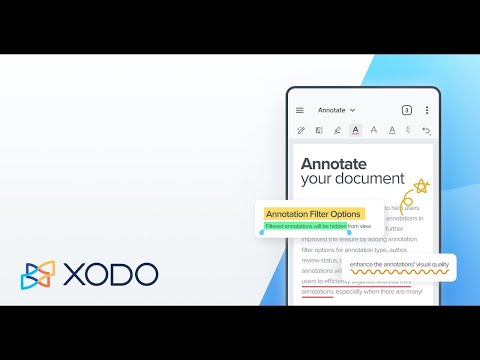
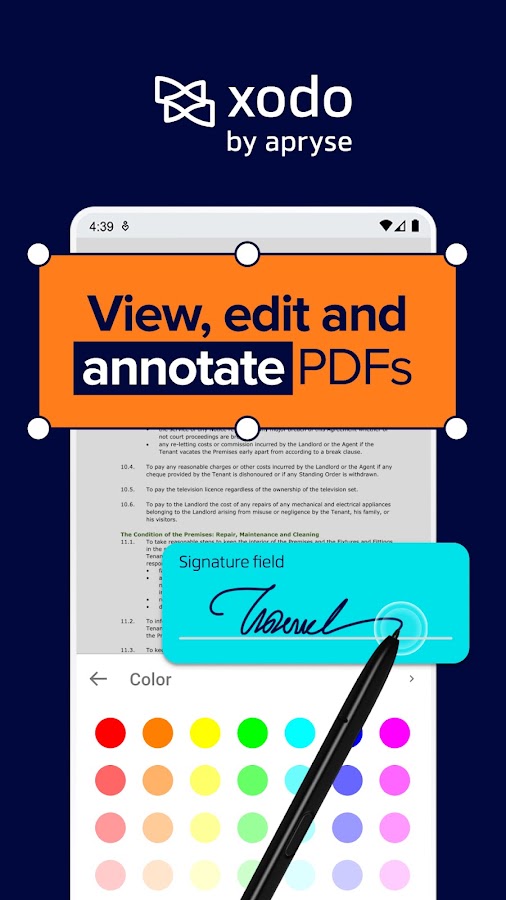
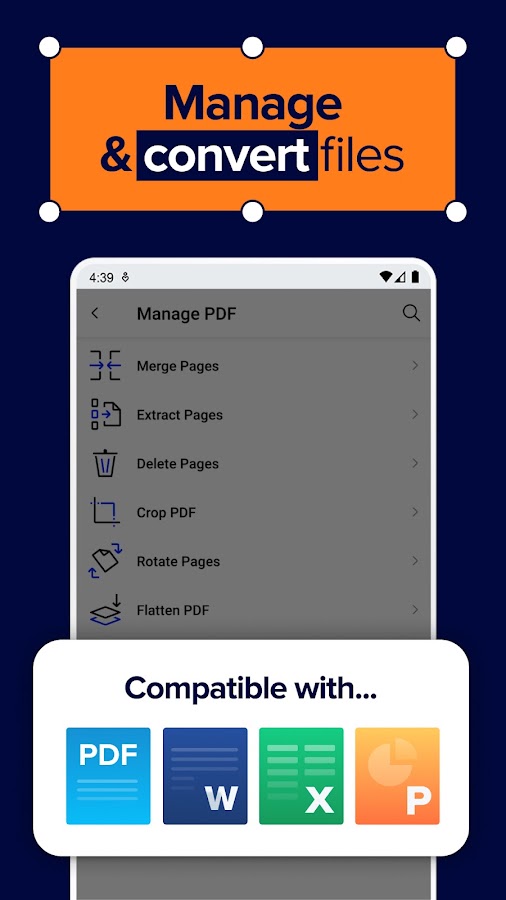
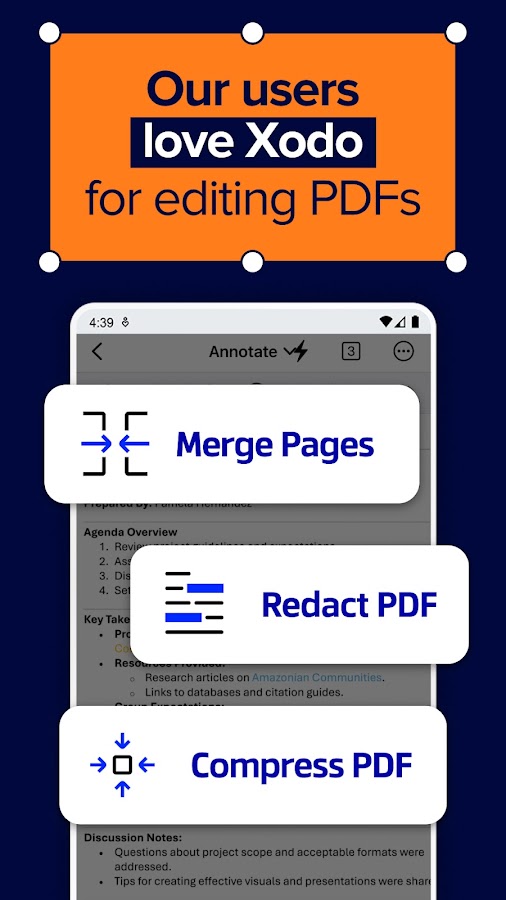
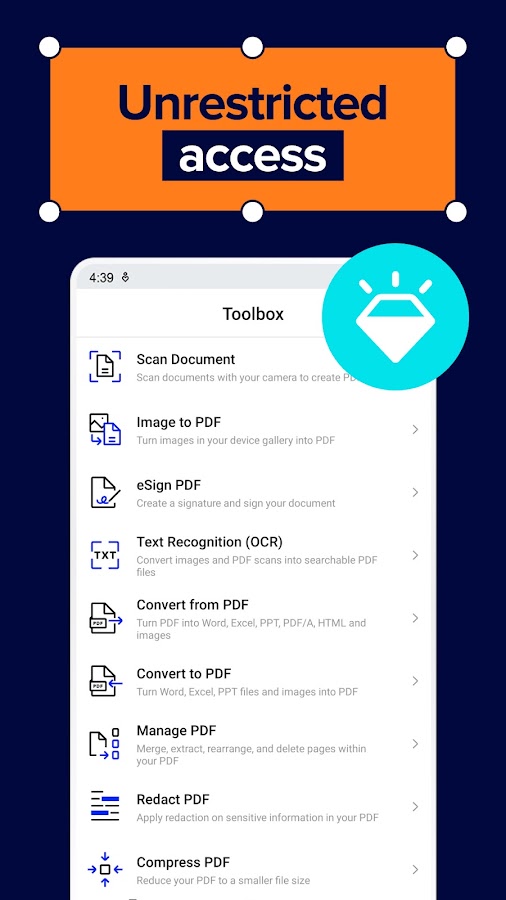
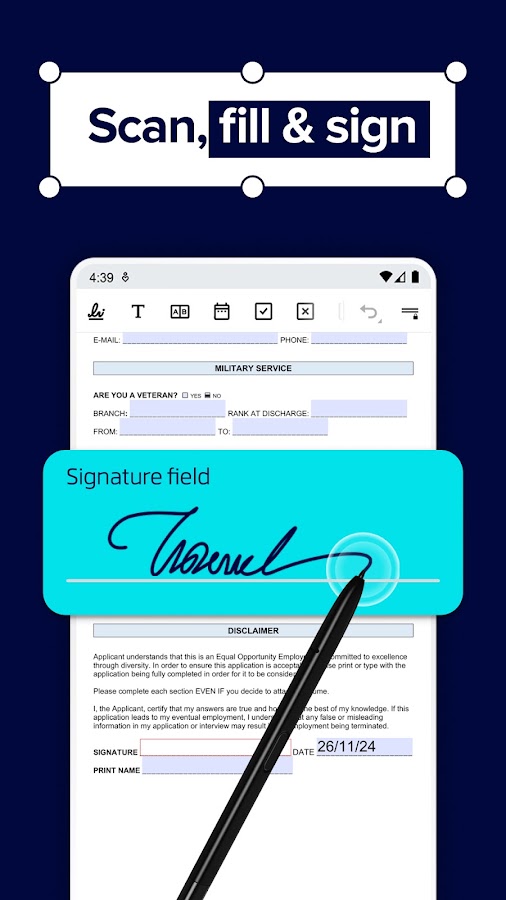
Xodo PDF is worth considering when completing a form is only part of the work. You can read a document, highlight important passages, add comments, fill fields, and place a signature without moving between several apps. This suits longer application packs, agreements with accompanying instructions, and documents you want to review before signing. Its annotation tools are useful when you need to ask a question or flag missing information rather than change the original wording.
Xodo’s mobile app includes form-filling and signing capabilities, but current free limits and premium entitlements deserve checking. Avoid assuming that an older recommendation describing every tool as free still applies. Also distinguish Xodo’s mobile editor from its separate web and signing products. Choose it for a combined reading, markup, and paperwork workflow, and test your actual form before relying on a specific field type or export option.
3. Foxit PDF Editor: Best for More Demanding Forms
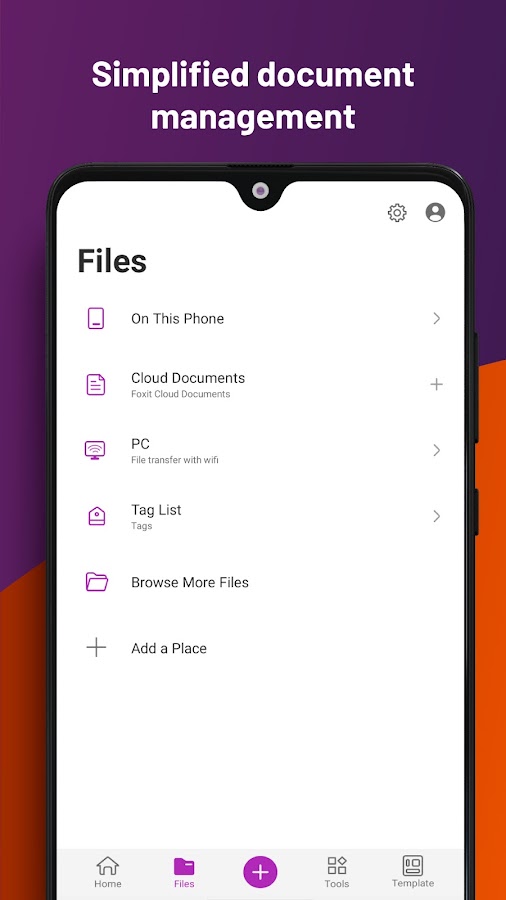
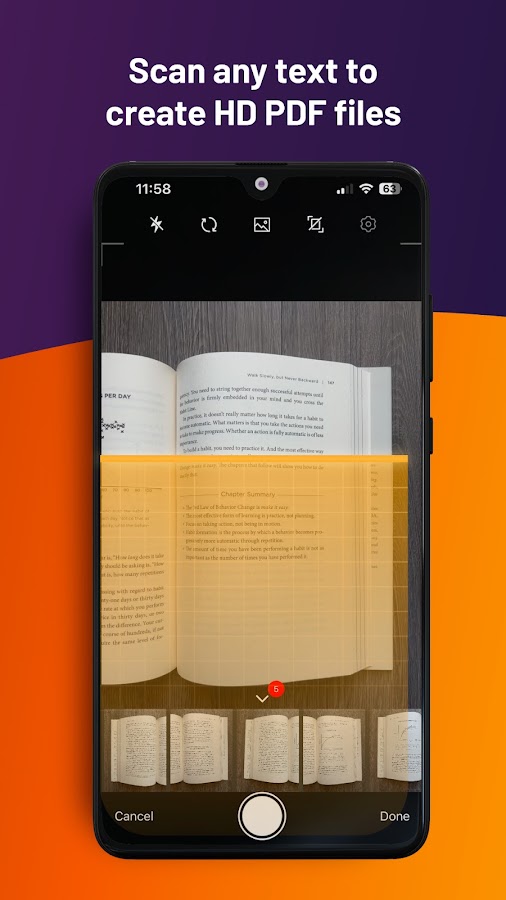
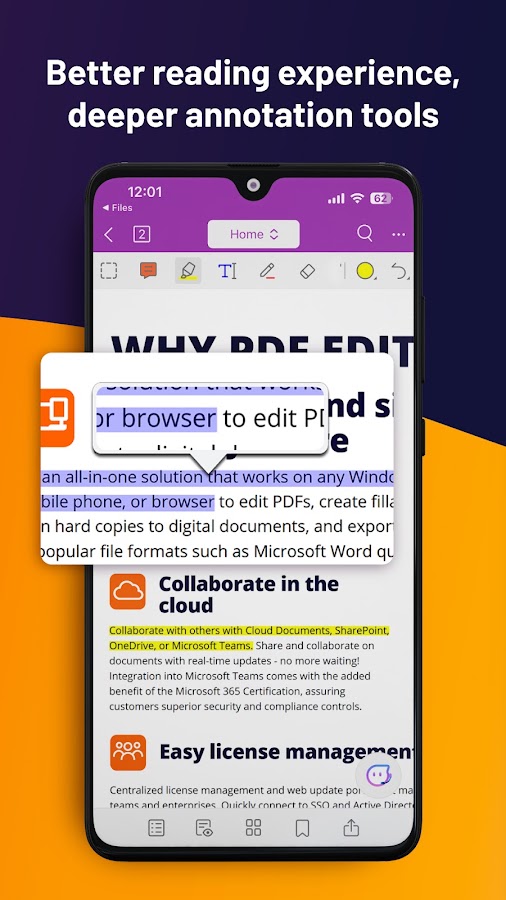
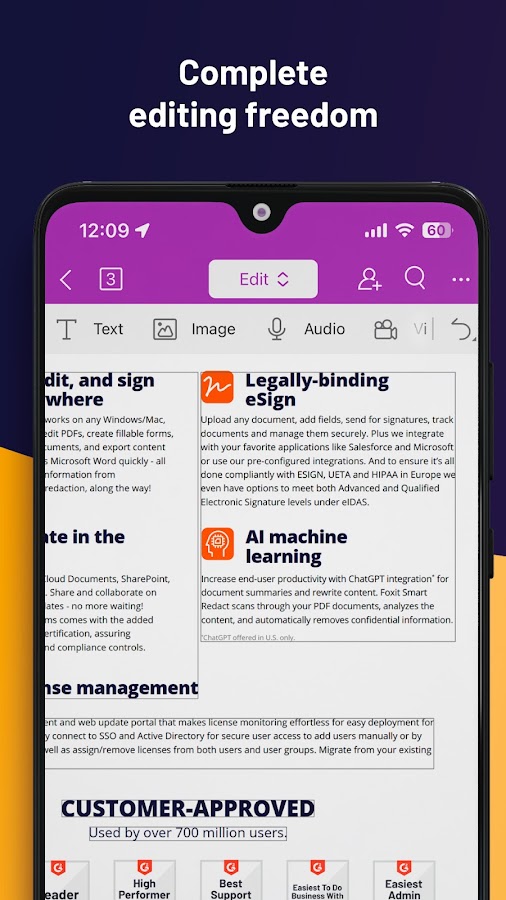
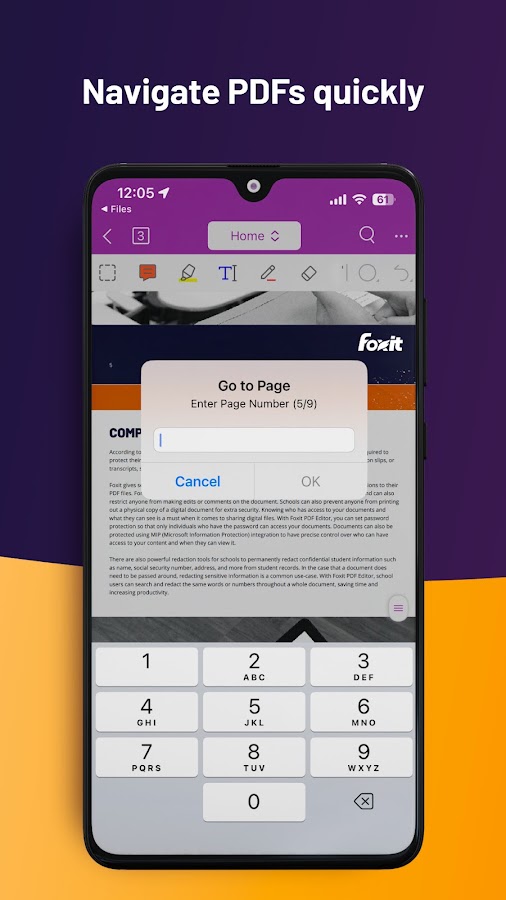

Foxit PDF Editor offers a more specialized set of form capabilities than a basic PDF viewer. Its mobile feature descriptions include filling and saving forms, importing and exporting form data, and working with XFA forms through advanced access. Those distinctions matter when a document uses more than blank lines and simple text boxes. Foxit also provides annotations and document-management tools, so you can review supporting pages alongside the form itself.
Signing options include handwritten signatures and, with the appropriate access, signing through an existing digital certificate. These serve different purposes: a drawn mark provides a visible signature, while certificate-based signing adds cryptographic verification. Advanced tools require a subscription, and compatibility should be tested with the exact file. Foxit is particularly relevant if your usual PDF app cannot handle a form, but no mobile editor should be assumed compatible with every complex or dynamic document.
4. PDFelement: Best for Editing and Completing PDFs in One Place
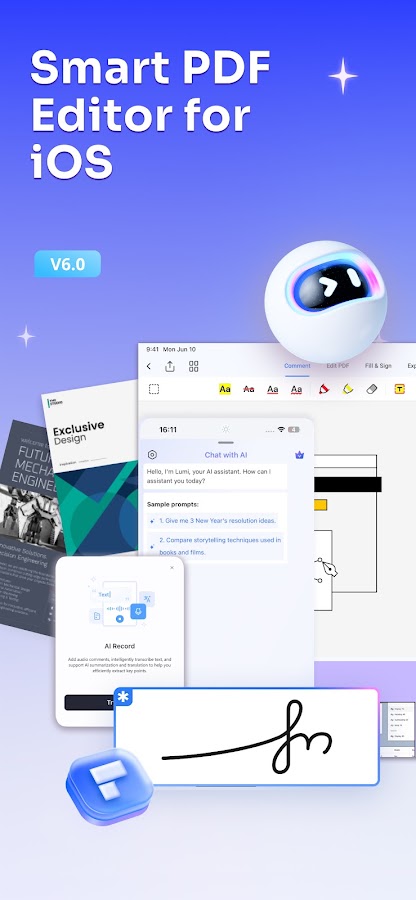
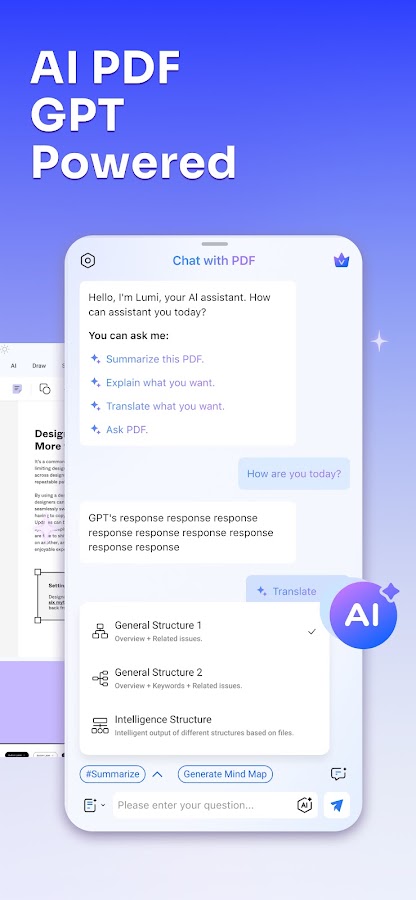
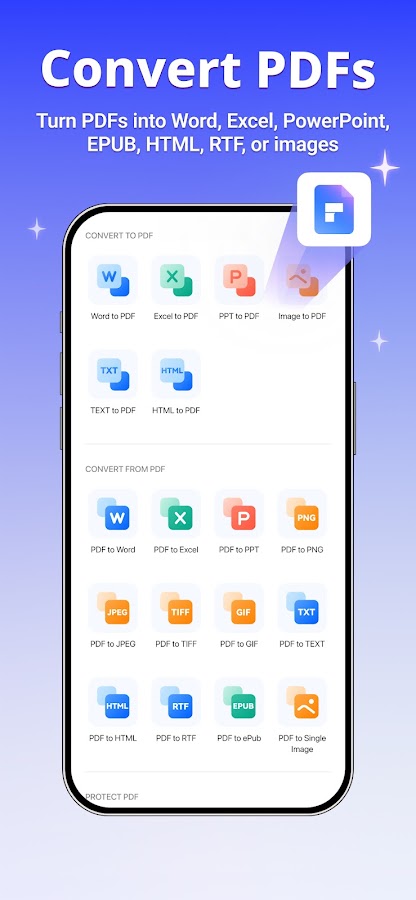
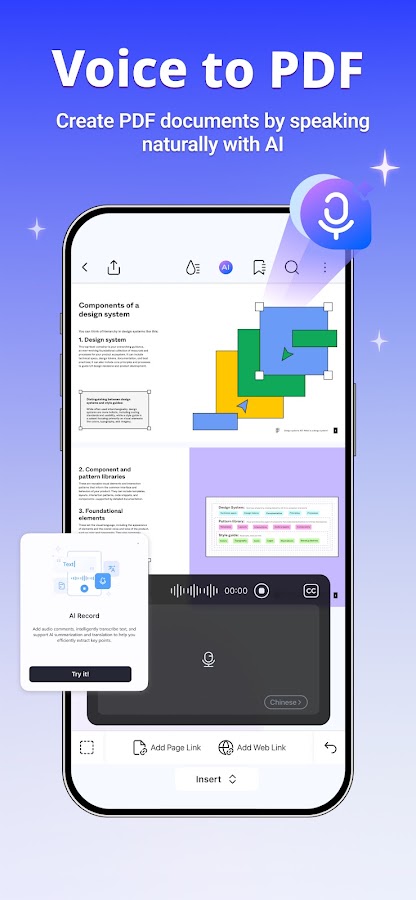
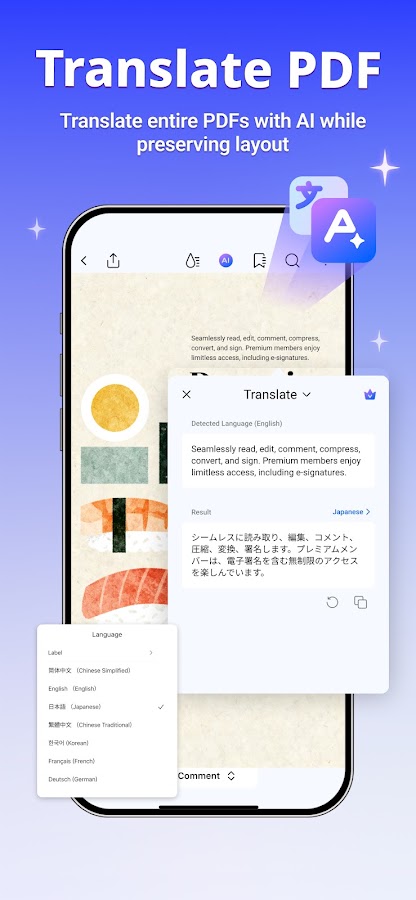

PDFelement combines form filling and signing with broader PDF editing, scanning, conversion, and OCR tools. It suits paperwork that needs preparation before completion: a scan may need cleaning up, pages may need rearranging, or a document may need conversion into another format. For an ordinary application, you can concentrate on entering your answers and adding a signature; for a more involved task, the surrounding tools help keep the work in one app.
The distinction to watch is between filling a form and editing its source content. Adding your answer should not require rewriting the form’s labels or instructions. Advanced features, trials, and export permissions depend on the mobile product and your account, so check the saved result before investing time in a large document. Choose PDFelement if you regularly need more than a signature, and verify that the intended phone features are included in your access.
5. UPDF: Best for Placing Text and Signatures on Static Forms
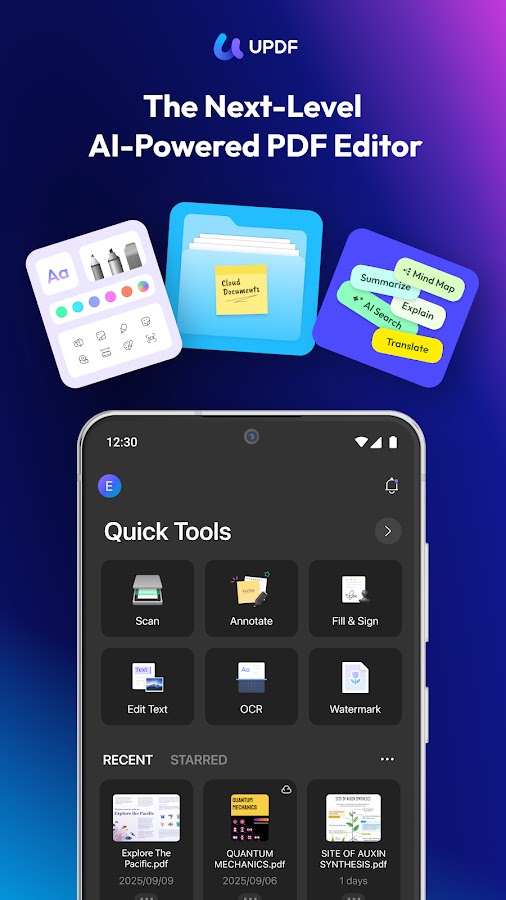
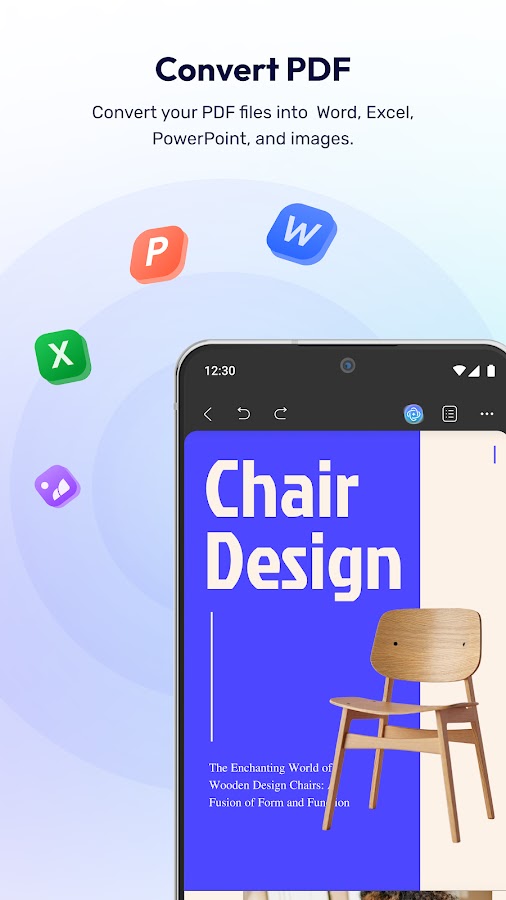
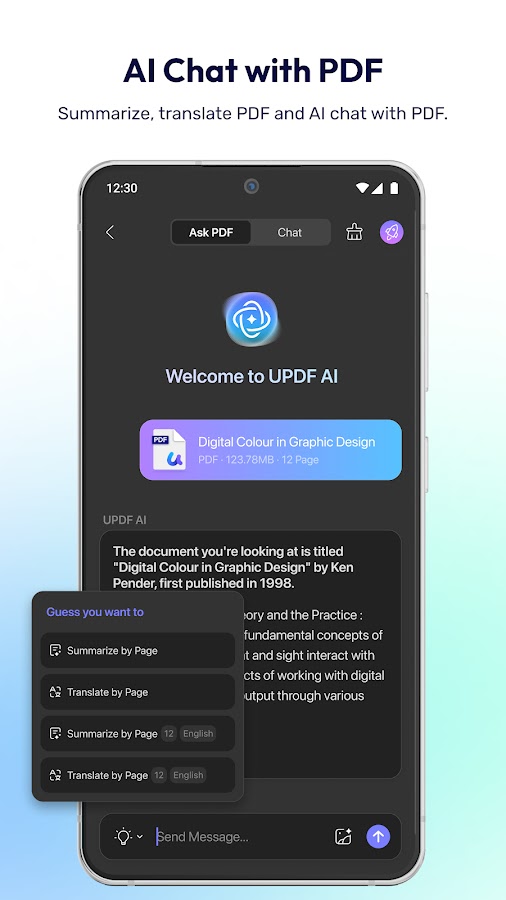
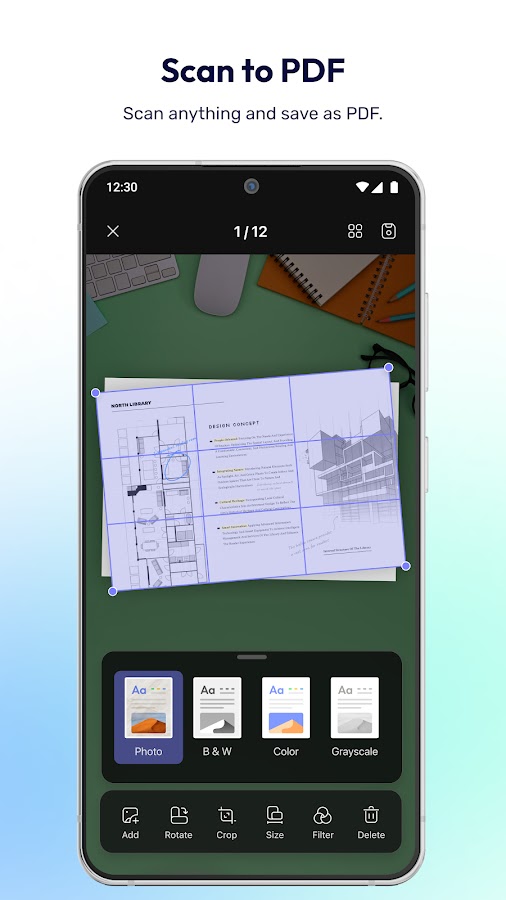
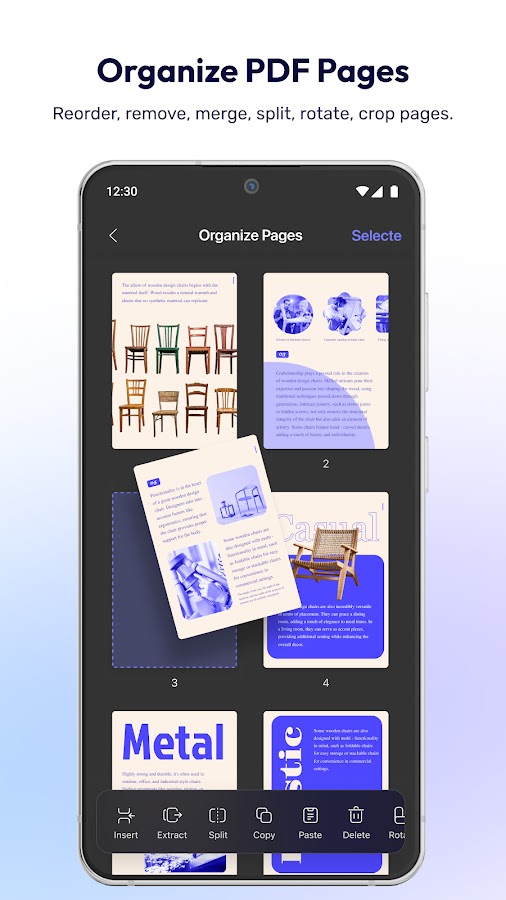

UPDF is useful for forms that need typed answers, dates, checkmarks, or a visible signature placed over the page. On iPhone and iPad, its Fill & Sign tools provide a dedicated route for those entries, and supported existing fields can be highlighted for completion. This helps with documents that mix interactive fields and areas that need manual placement. Annotation and page-management tools support the surrounding review work.
Android and iOS capabilities differ. UPDF’s mobile guidance describes iOS form tools while directing Android users toward adding text over the form layout rather than equivalent dedicated form handling. That is an important limitation if your document depends on interactive fields. Trial saves can also include a watermark, so check the export conditions. Choose UPDF for its available mobile workflow, rather than assuming the Windows, Mac, iPhone, and Android feature sets match.
6. Smallpdf: Best for Occasional Paperwork and File Preparation
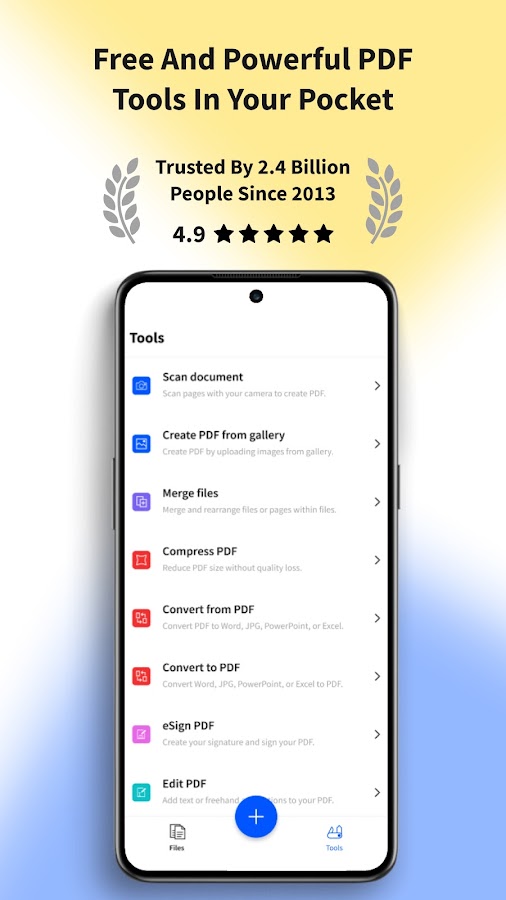
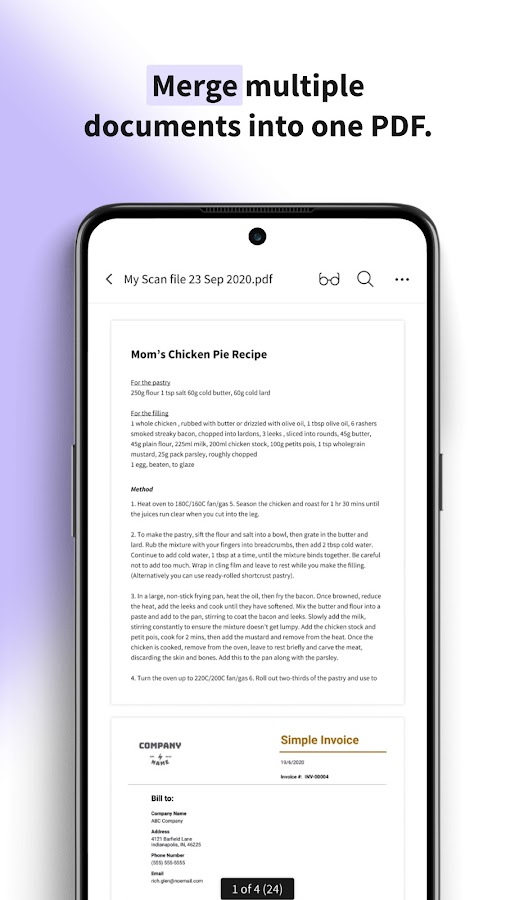
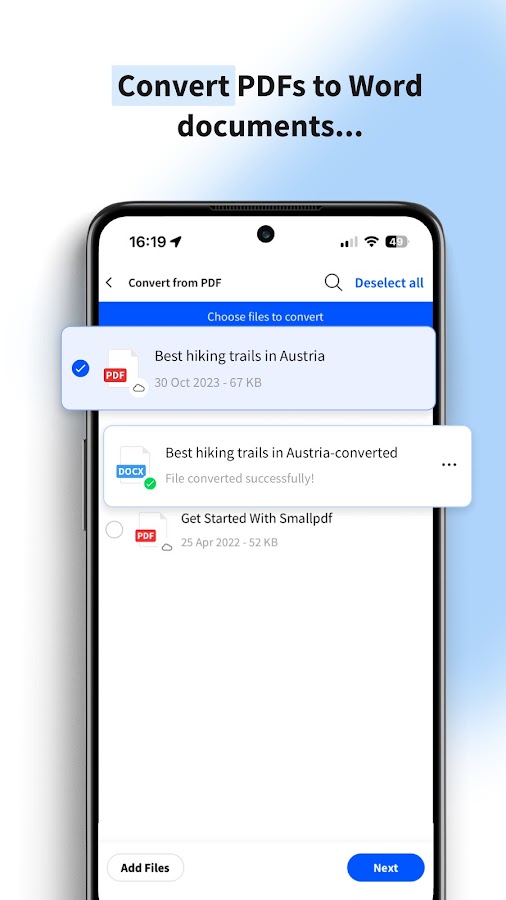
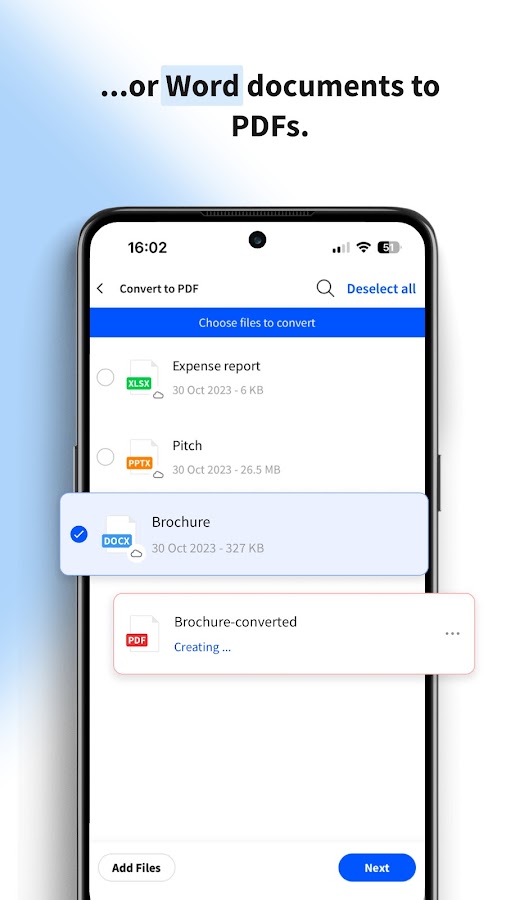

Smallpdf combines signing and form completion with common preparation tasks such as scanning, converting, merging, and compressing files. That makes it useful when the final job is more than entering a name: you might need to combine an application with supporting pages or reduce the attachment size before emailing it. Its mobile filling and signing tools provide a straightforward route for common documents without requiring a desktop editing workflow.
Free use comes with limitations, while broader access depends on the plan. Check which tools are available inside the installed app and which lead to an online service; the mobile and browser interfaces are not interchangeable feature lists. Smallpdf is a sensible option for occasional document tasks. Before handling a large batch, test that the required edits, signature, and final download are included in your current access.
7. iLovePDF: Best for Completing Forms and Preparing Attachments
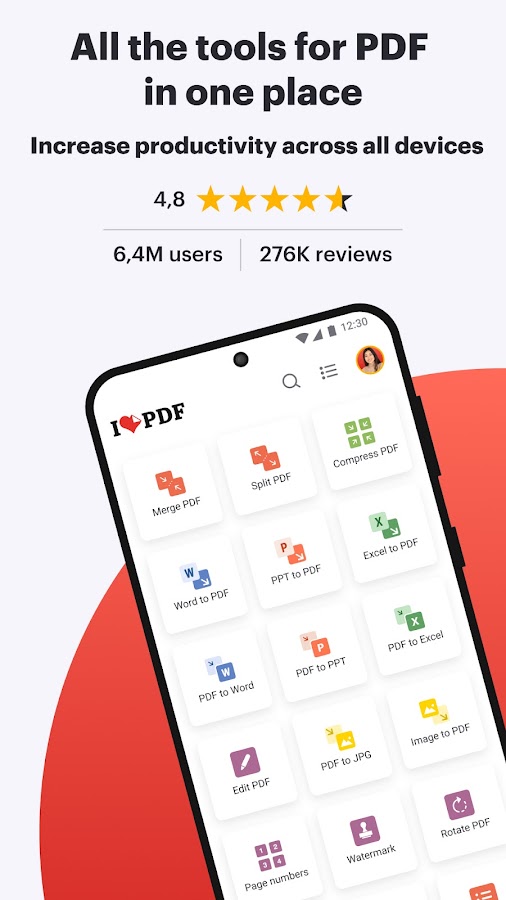
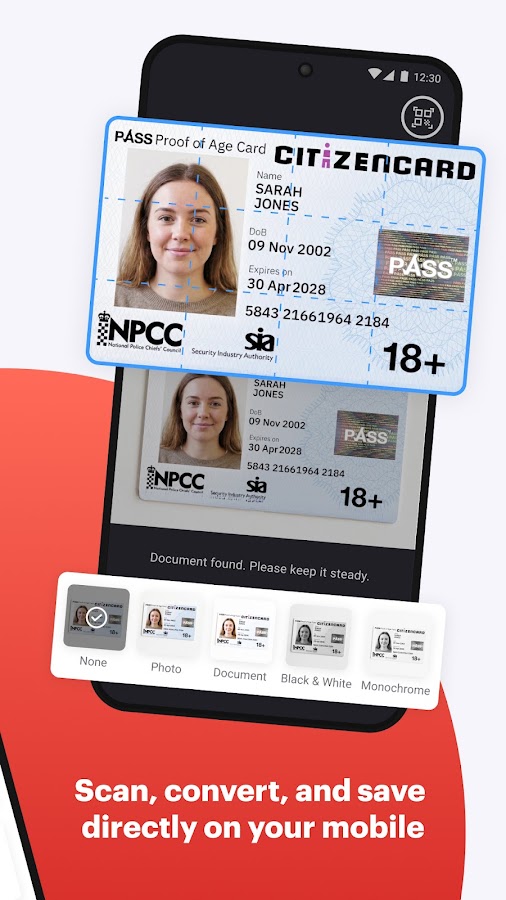
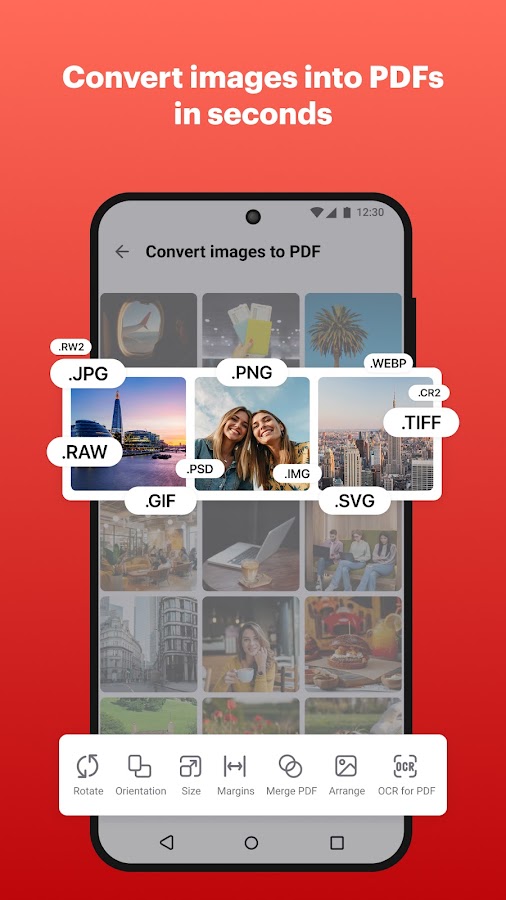
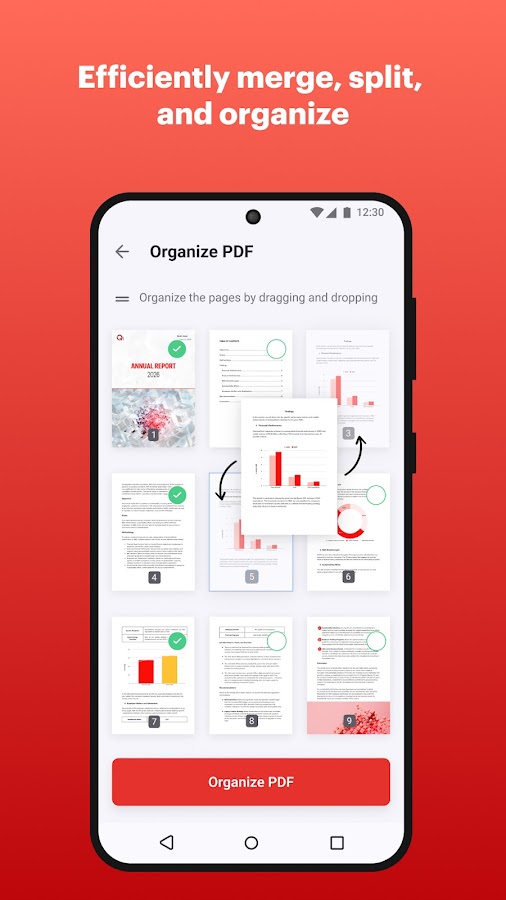
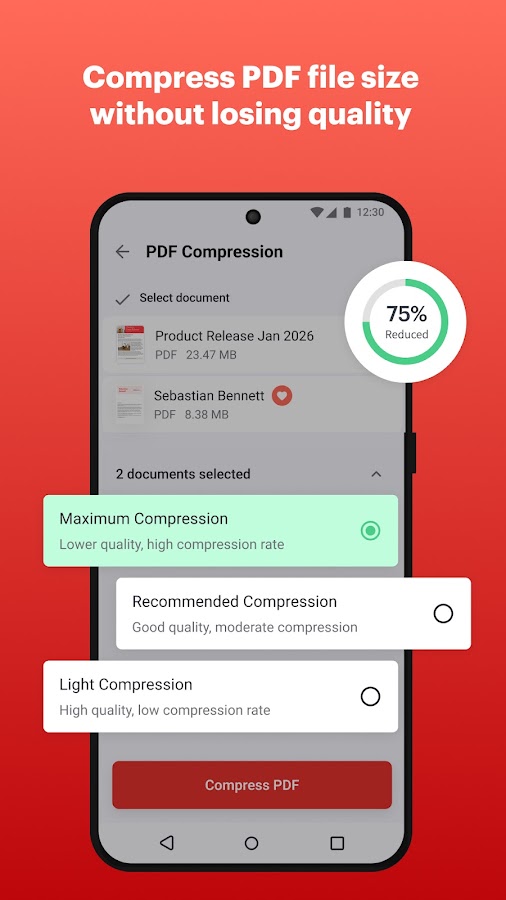
iLovePDF’s mobile app lets you type entries onto a form and sign with your finger, alongside tools for annotations, scanning, merging, splitting, and compression. It fits a common sequence: open the form, add details, sign it, then prepare the file for sharing. Being able to organize the attachment in the same app is useful when the recipient needs a single document rather than several separate scans.
Its typed-entry approach is helpful for ordinary static forms, but do not assume it provides every advanced interactive-form feature found in a specialist editor. Free allowances and premium access also vary by tool. Check the completed file after saving, especially where small text must align with printed boxes. Choose iLovePDF if your paperwork regularly involves both completing a document and adjusting its size or page arrangement before sending.
8. WPS Office: Best for PDF Forms Alongside Word and Excel
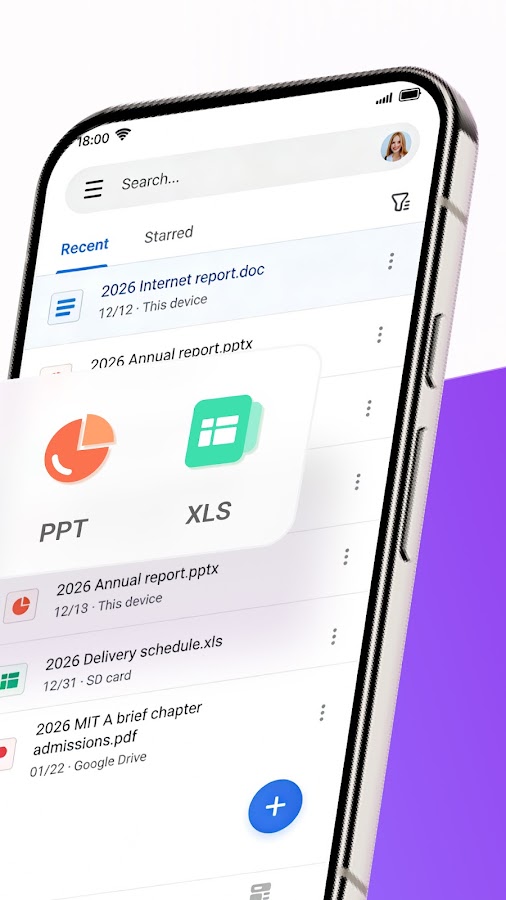
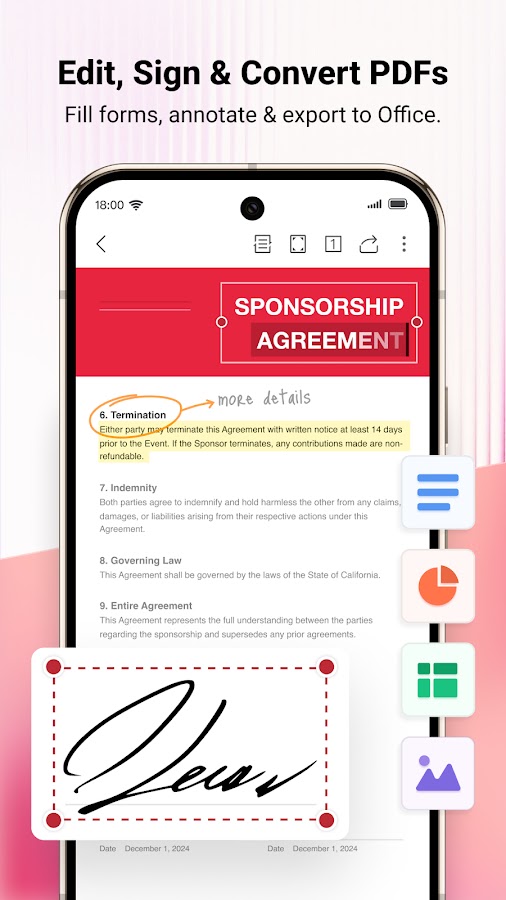
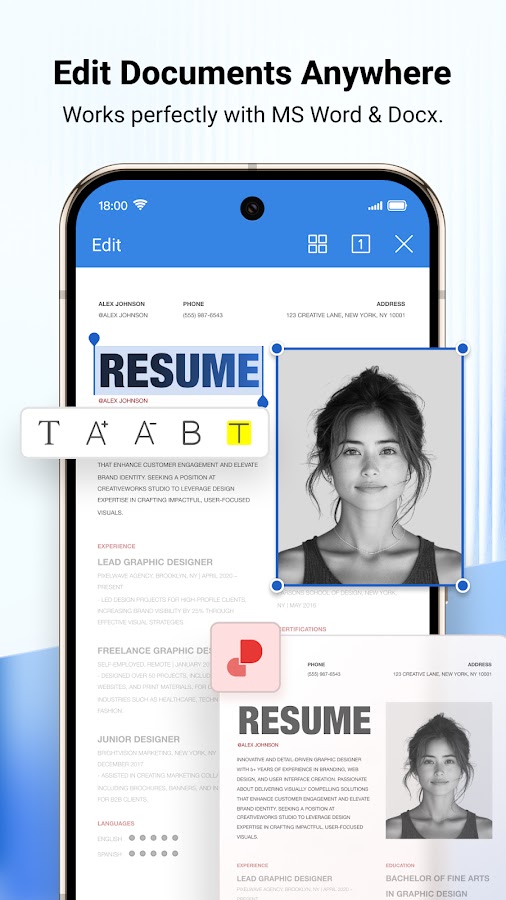


WPS Office makes sense when PDFs sit alongside Word documents, spreadsheets, and presentations in your everyday work. Its PDF tools let you handle common filling and signing tasks within the same office suite. You can review an accompanying document, enter information into the PDF, and prepare the finished attachment without installing a separate app solely for occasional signatures. That convenience matters more if you already use WPS for other files.
Check the exact mobile tools and plan before assuming a feature shown in a desktop tutorial exists on your phone. Form handling, original-text editing, conversion, and signature options can have different access conditions. For straightforward paperwork, the broader suite may be convenient; for a difficult interactive form, Foxit or Acrobat is a better place to investigate specific compatibility. Test the PDF export rather than relying only on how the page looks inside WPS.
9. MobiPDF: Best for Moving from Paper to a Completed PDF
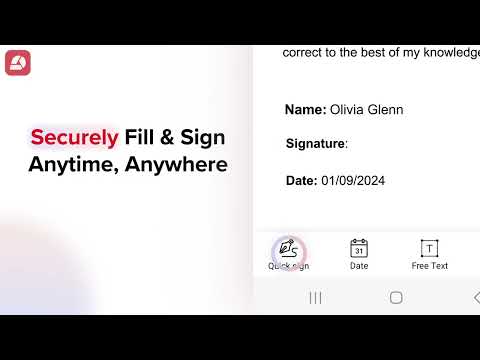
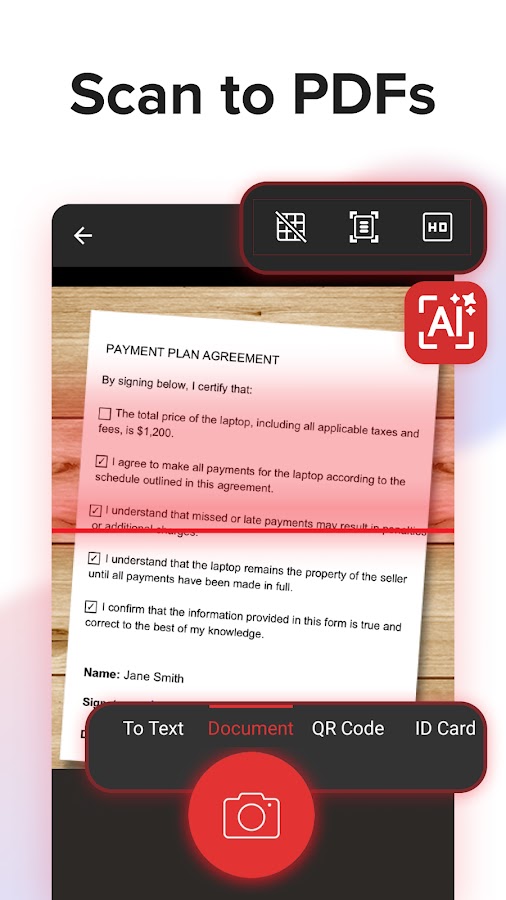
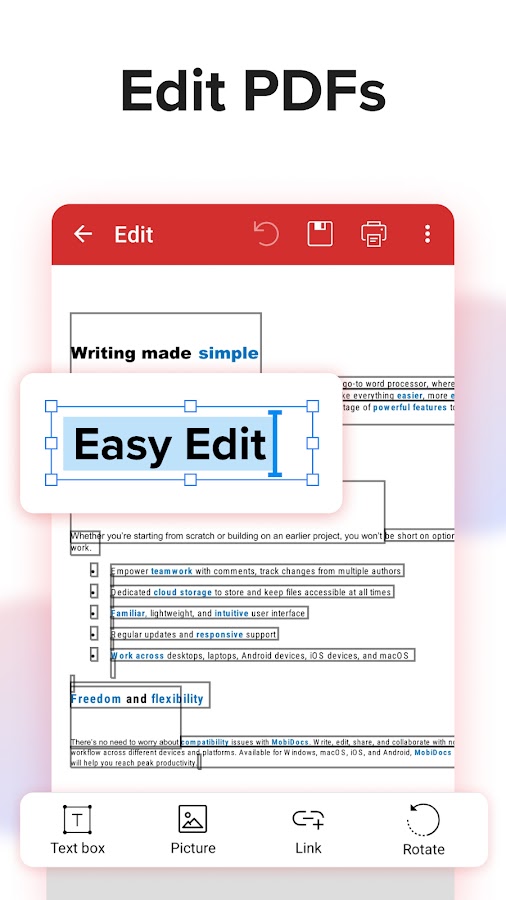
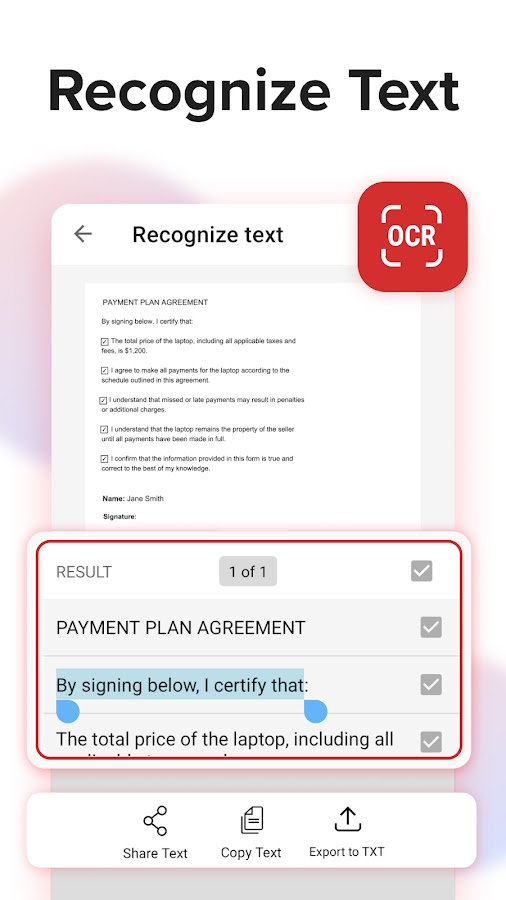
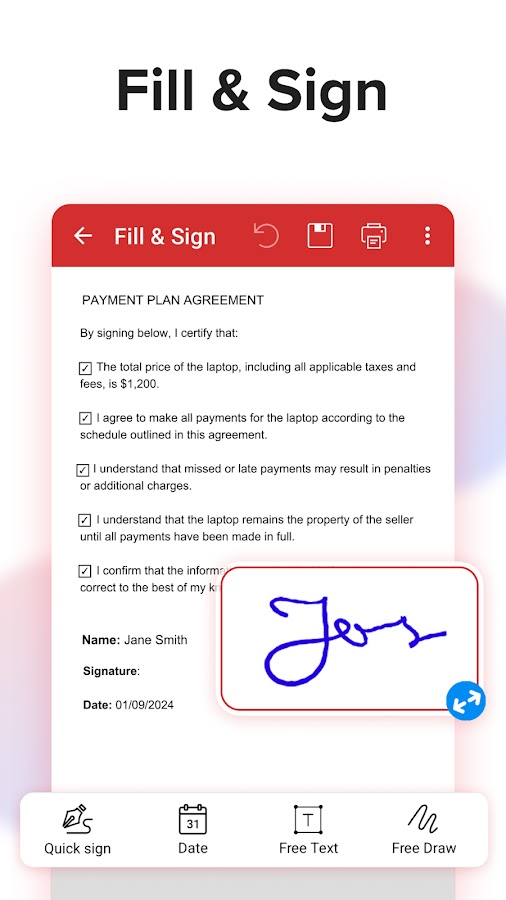
MobiPDF, previously known as PDF Extra, combines scanning with PDF editing, form filling, and signing. It suits situations where the starting point is still paper: capture the pages, check the scan, add the missing information, and apply your signature. For supported fillable PDFs, you can work with existing fields; for static pages, text boxes and marks provide a manual route. Saved signatures help with repeated paperwork.
The Android listing and iOS guidance describe filling and signing, but their included features and purchase conditions should be checked separately. On iOS, the documented workflow includes signature placement, dates, text boxes, and freehand drawing. The main reason to choose MobiPDF is the combination of document capture and completion. Confirm that all pages, entries, and signatures appear in the exported file before deleting the original scan or sending the attachment.
10. pdfFiller: Best for Recurring Forms and Document Workflows
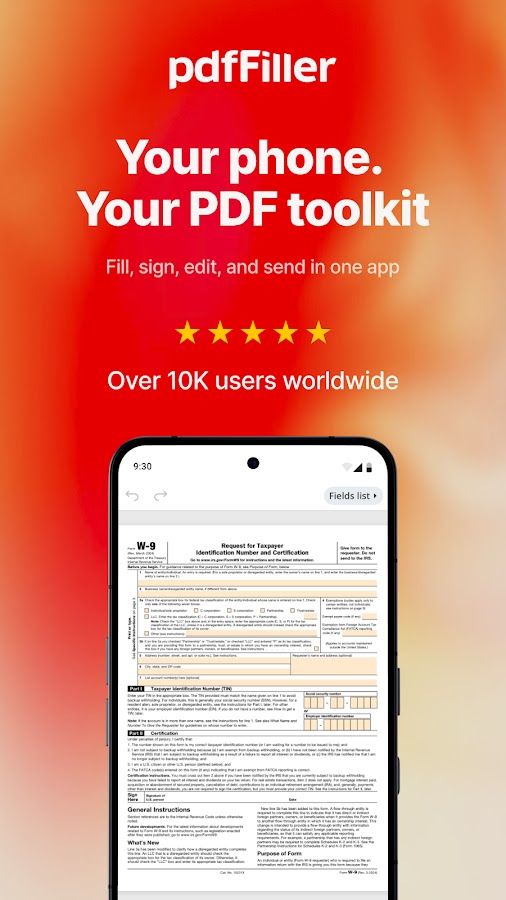
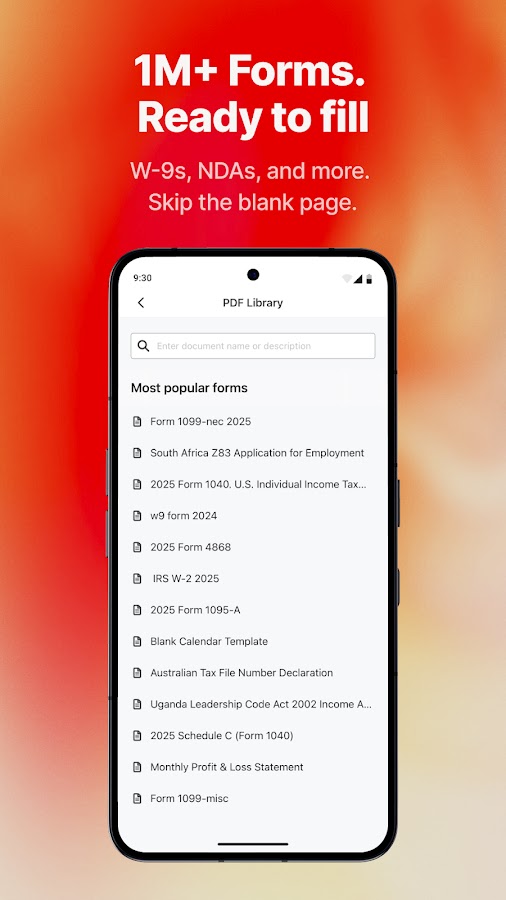
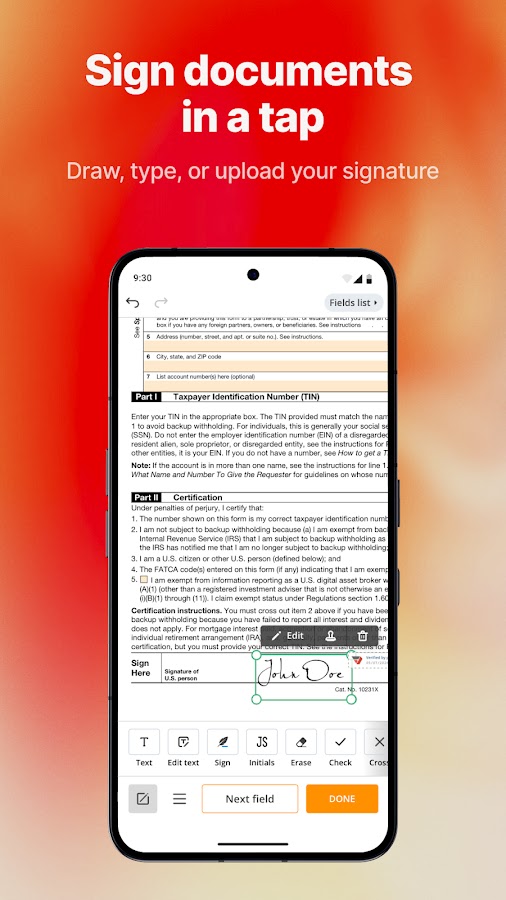
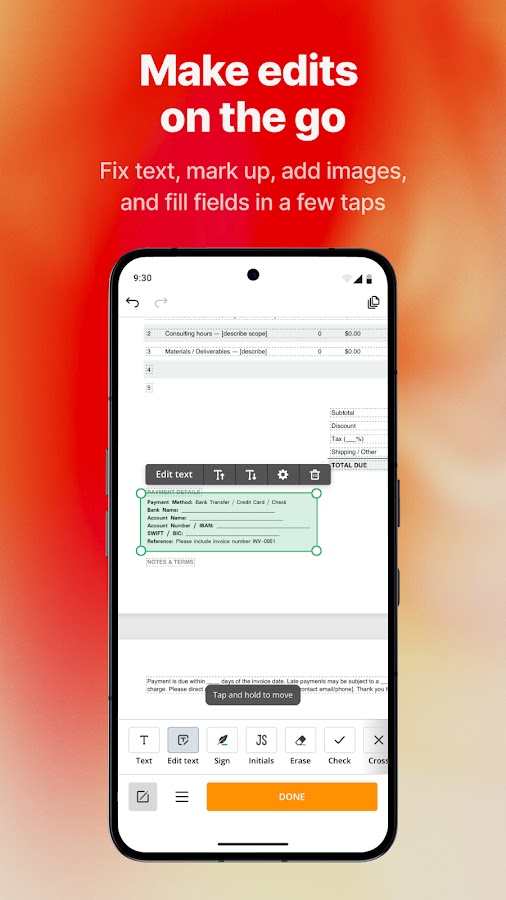
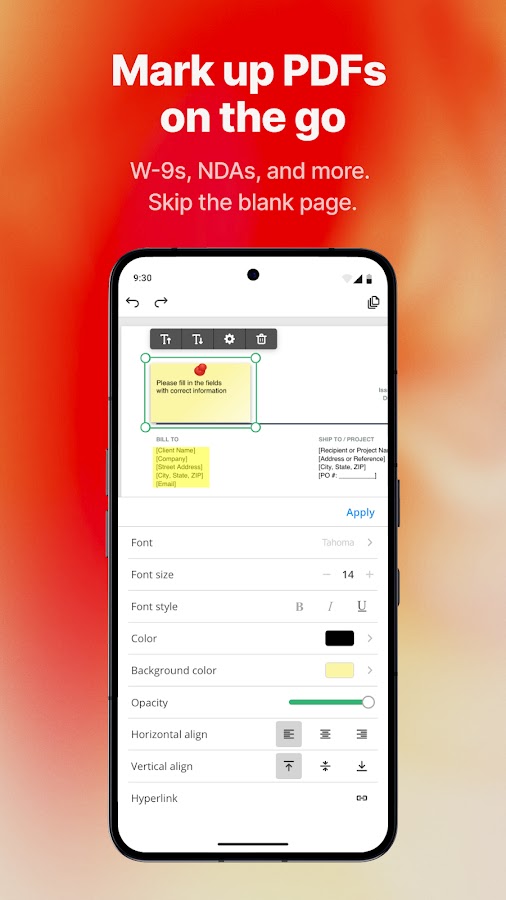
pdfFiller is aimed at users who handle forms repeatedly rather than sign a single attachment every few months. Its mobile tools cover entering text, completing documents, signing, and working within a wider document-management service. Depending on the available workflow, reusable documents, form fields, and cloud integrations can reduce repetitive preparation. It is particularly relevant when the paperwork continues across a phone and another device.
Treat pdfFiller as a subscription-oriented service and test the full task before committing. Opening or editing a document does not establish that exporting, downloading, or sending the completed version is included without paid access. Confirm the mobile tools available on your platform, your account entitlements, and whether the intended workflow needs connectivity. Choose it when recurring form work justifies that service model; a simple local fill-and-sign app may suit occasional personal paperwork better.
Interactive Forms, Scanned Forms, and PDF Editing
A PDF can look identical on screen while behaving very differently when you tap it. Identifying the type of document helps you choose the right tool.
| Document type | What happens when you tap | What you need |
| Interactive PDF form | A supported field accepts text or a selection | A form filler compatible with its field types |
| Static PDF | Printed lines and boxes do not respond | Text boxes, checkmarks, and signature placement |
| Scanned paper form | The page behaves like an image | Text overlays; OCR only if you need recognized text |
| Protected PDF | Editing or signing may be restricted | The required permission or an authorized editable copy |
| Complex or dynamic form | Some fields may fail or display incorrectly | Compatible software and the issuer’s instructions |
OCR is not required just to type answers over a scanned form. It becomes useful when you need the scanned text to be searchable, selectable, or editable. Recognizing text also does not automatically turn every printed blank into a working form field.
A Drawn Signature and a Digital Signature Are Different
A signature drawn with your finger, typed in a script font, or inserted as an image creates a visible mark. This is the familiar option in many mobile fill-and-sign tools.
A certificate-based digital signature uses cryptographic information to help verify the signer and detect changes to the signed document. A button labelled “Sign” does not establish that this is the method being used. If the recipient specifies a certificate or particular signing process, confirm that requirement before choosing an app.
Completing your own PDF is also different from sending a document to other people and tracking their signatures. That second task may require a separate signing service or an eligible plan.
How to Fill and Sign a PDF on Your Phone
- Save the original attachment. Work on a copy so you can restart if necessary.
- Check for interactive fields. Tap a name box or checkbox before choosing an editing tool.
- Add entries using the appropriate method. Fill existing fields or place text over static areas.
- Review the information before signing. Check spelling, dates, selections, and required pages.
- Add the required signature type. Position it carefully without covering nearby text.
- Save or export the completed PDF. Reopen the actual output file, preferably in another viewer.
- Share the saved attachment. Confirm you are sending the completed copy rather than the original.
If entries disappear in another viewer, a flattened copy may improve display consistency by making annotations or field appearances part of the page content. Keep the editable original. For certificate-signed documents, follow the required workflow instead of flattening or otherwise changing the file after signing.
Frequently Asked Questions
Conclusion
Start with the document you need to complete. Acrobat Reader suits everyday filling and signing, Xodo adds a useful review workflow, and Foxit offers more specialized form capabilities. PDFelement, UPDF, Smallpdf, iLovePDF, WPS Office, and MobiPDF provide different combinations of editing, scanning, and file preparation. pdfFiller is most relevant when recurring forms justify a broader service.
Before choosing, confirm three things: the app can handle your type of form, it supports the required signature method, and it lets you save the finished document under acceptable conditions. Then reopen the exported PDF and check every page. That last check is what turns an apparently completed form into a file ready to send.