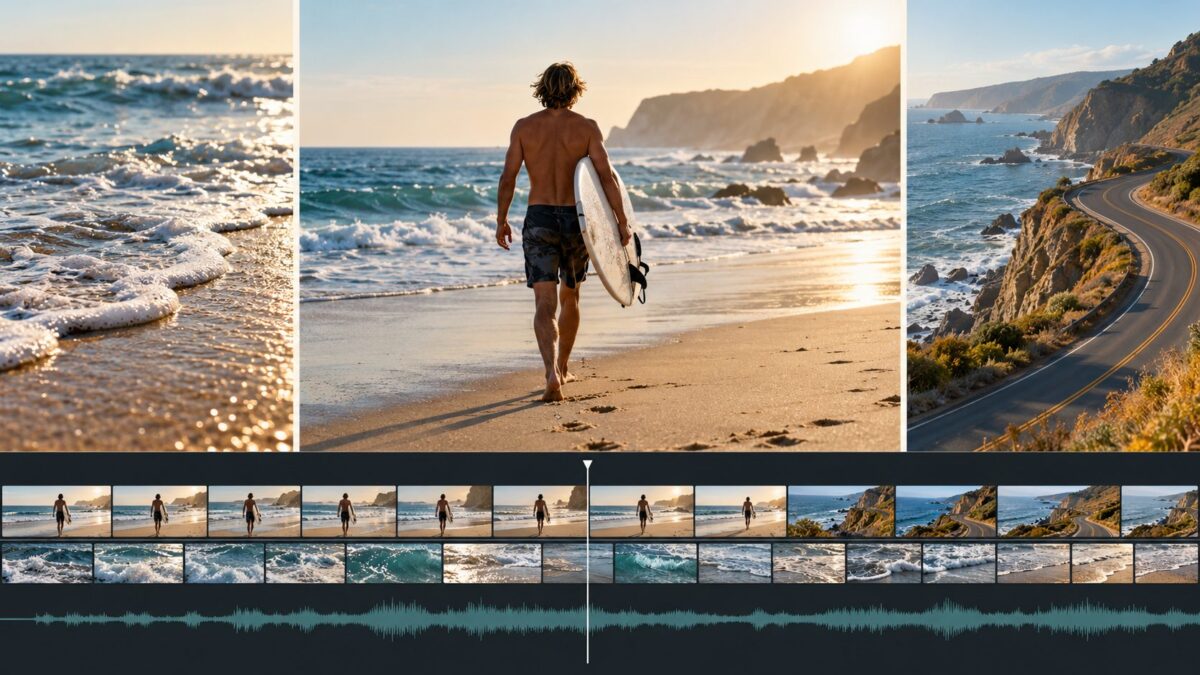
A logo in the corner can spoil an otherwise finished video. It covers part of the frame, distracts from captions, and puts another brand on content you made. Discovering that logo after an hour of editing is particularly frustrating.
The best video editing apps without watermarks make the export conditions clear before you start. Some let you save ordinary projects free of branding. Others require a subscription, or let you export without a watermark only when you avoid premium stock footage and graphics.
This guide compares 14 editors available for Android and iOS. It covers free options for everyday videos, tools for Reels and Shorts, and paid alternatives for layered editing and animation. Availability, features, and purchase options can differ between countries and platforms.
Best Video Editors Without Watermarks: Quick Comparison
| App | Best for | Watermark-free export | Main consideration |
| VN | Versatile timeline editing | Free for standard projects | Some tools and content have separate limits |
| YouCut | Quick everyday edits | Free for standard projects | Advanced features and assets may require payment |
| VLLO | Vlogs and narrated videos | Free | Premium tools and materials are separate |
| LightCut | Automatic highlight videos | Free | Less control than a detailed timeline editor |
| Edits | Reels and talking-head content | Free | Requires an Instagram account |
| Spring | Short-form social videos | Free core export | Some tools and assets require Premium |
| VITA | Music-led edits and templates | Check the watermark setting and selected template | Confirm the result with a short test export |
| Canva | Branded social content | Free with your own or free assets | Premium elements need the appropriate license |
| InShot | Fast social and personal videos | Pro; an ad-supported removal option may also appear | Free removal offers can vary |
| KineMaster | Layered editing and compositing | Premium | Free exports carry branding |
| PowerDirector | Timeline editing and effects | Premium | Free editing access does not mean clean export |
| Filmora | Templates, captions, and general editing | Paid removal option or eligible plan | Mobile purchase entitlements matter |
| Videoleap | Creative compositing and effects | Pro | Check feature availability on your platform |
| Alight Motion | Motion graphics and animation | Paid membership | Free exports include a watermark |
“Without a watermark” refers here to the editor’s visible branding on your exported video. It does not mean every effect, music track, template, or export setting is free.
1. VN: Best All-Round Starting Point
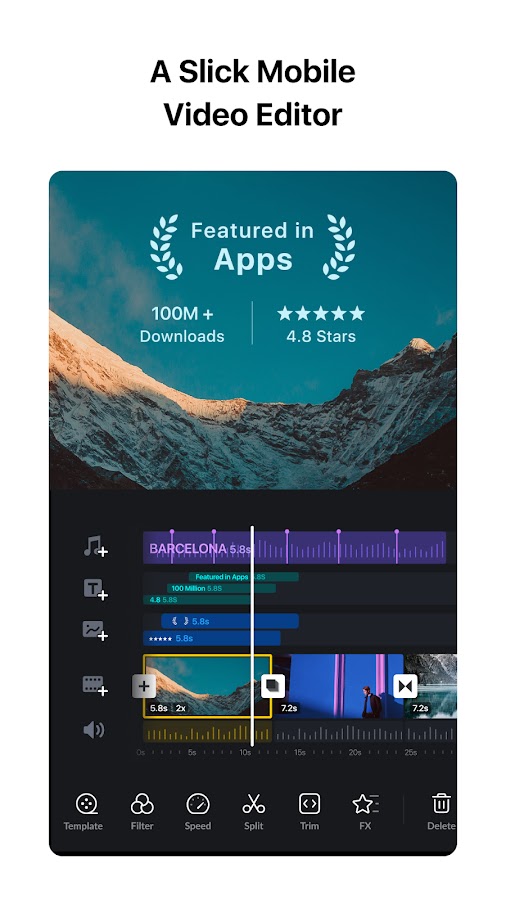
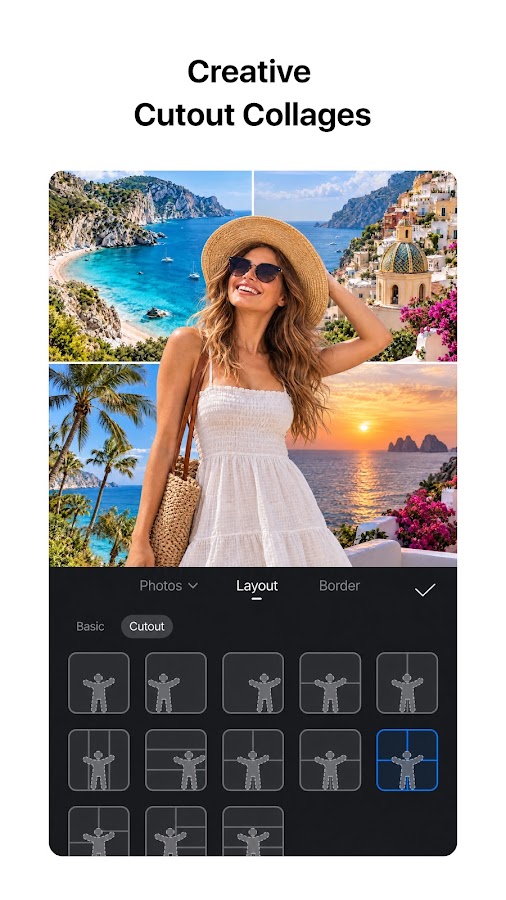
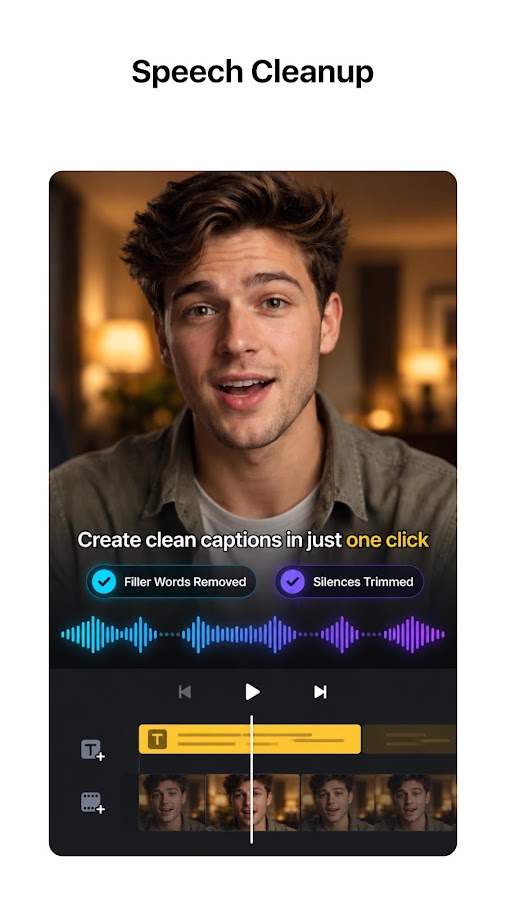
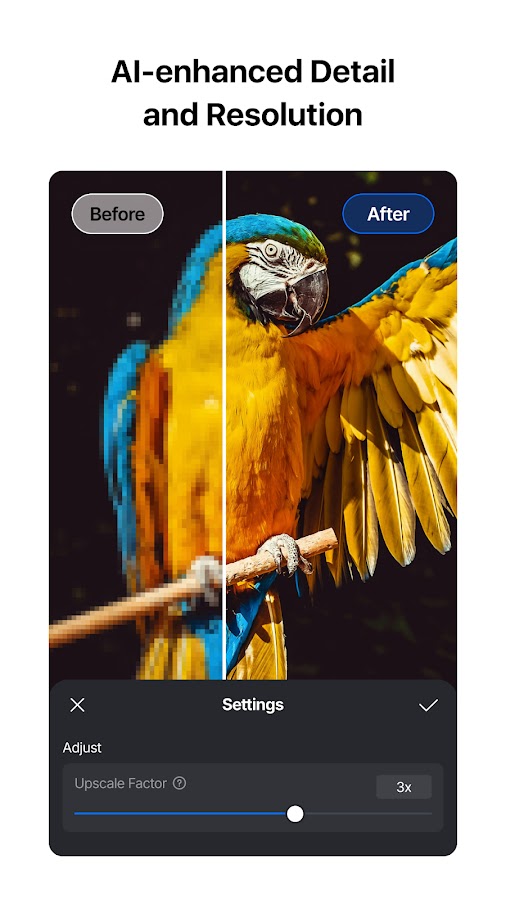
VN is a useful first choice when you want a proper timeline without immediately committing to a paid editor. You can arrange clips, layer visuals, add text, adjust speed, and shape an edit around music. Keyframes give you control over movement: a still image can slowly zoom toward a subject, while an overlay can move between positions. That flexibility suits travel videos, tutorials, product demonstrations, and short social posts.
VN supports free export without an editor watermark, making it one of the strongest options for ordinary projects on Android and iPhone. Check the final frames before saving and remove any unwanted ending clip included in your project. Free export does not imply unlimited access to every newer feature or asset. Start with your own footage and a short edit; VN makes particular sense when you have outgrown basic trimming but still want an approachable interface.
2. YouCut: Best for Quick, Straightforward Editing

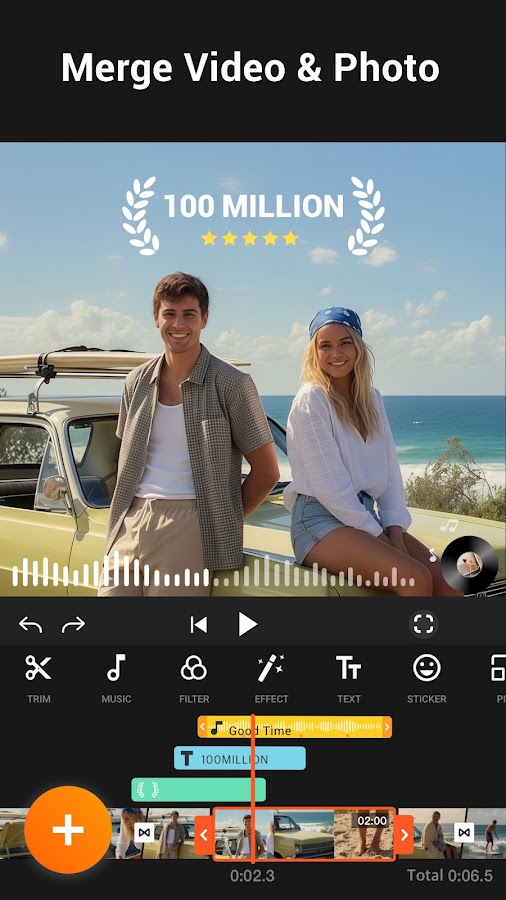
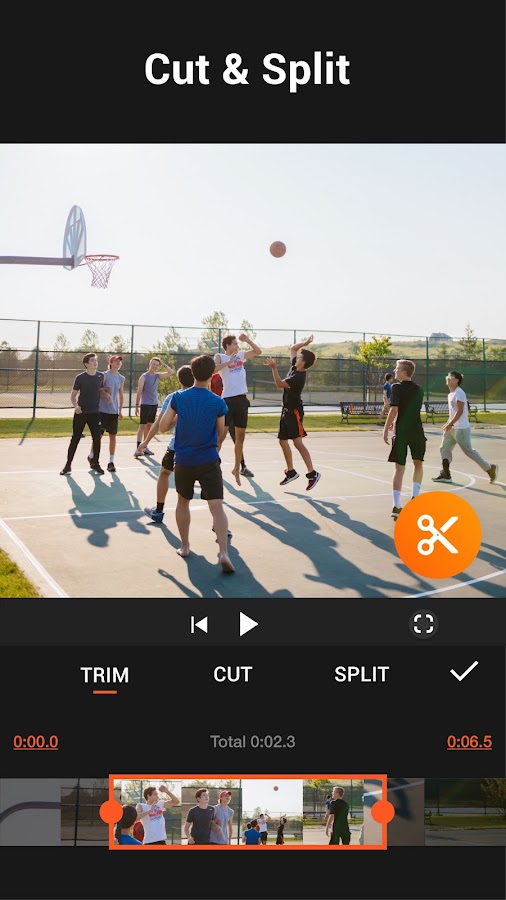
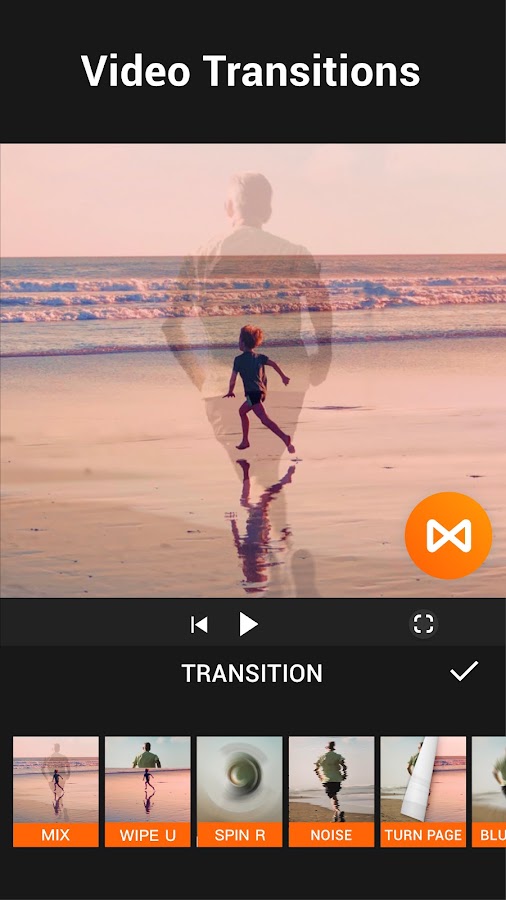
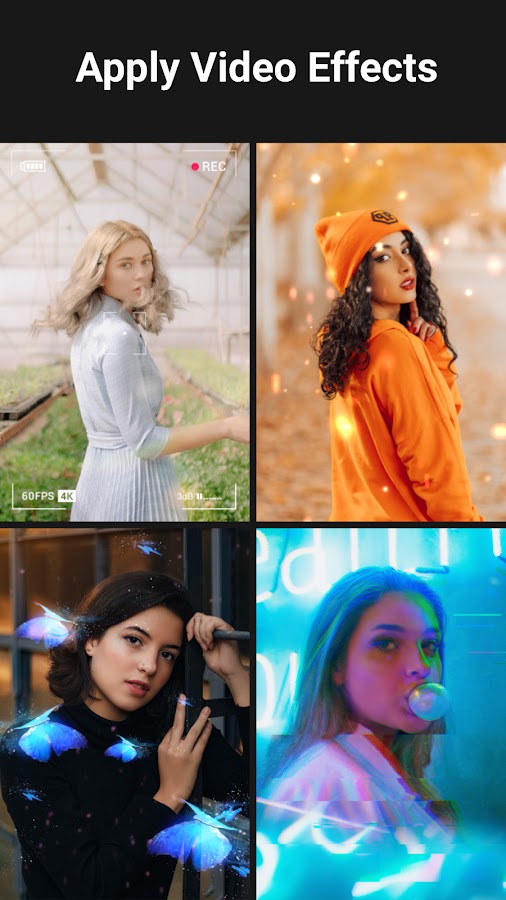

YouCut suits the videos that need a clean finish rather than elaborate effects. Trim the pause before someone speaks, join several clips, change the aspect ratio, add music, and place a title. Its appeal is how quickly you can reach those common tasks. For a family montage, a short product video, or a simple YouTube clip, a smaller set of clearly presented tools can be more useful than a crowded editing workspace.
The app offers watermark-free exports without requiring payment for the basic result. Additional tools, effects, and materials can still involve purchases, and the Android and iOS editions should not be assumed identical. YouCut is a sensible starting point if you mainly cut footage together and want to avoid paying simply to remove a logo. Choose VN instead if your projects increasingly depend on detailed layering and animation.
3. VLLO: Best for Vlogs and Narrated Videos
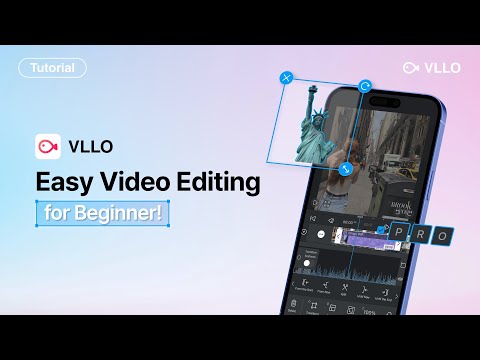
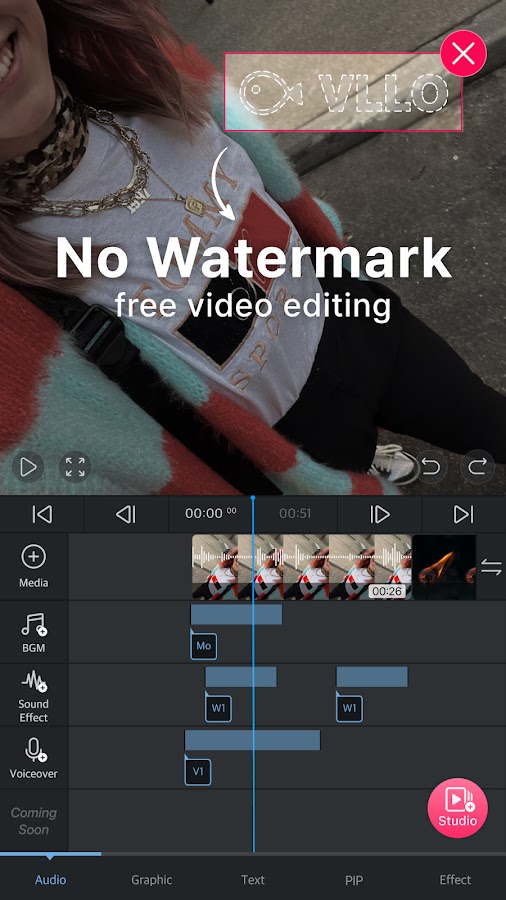
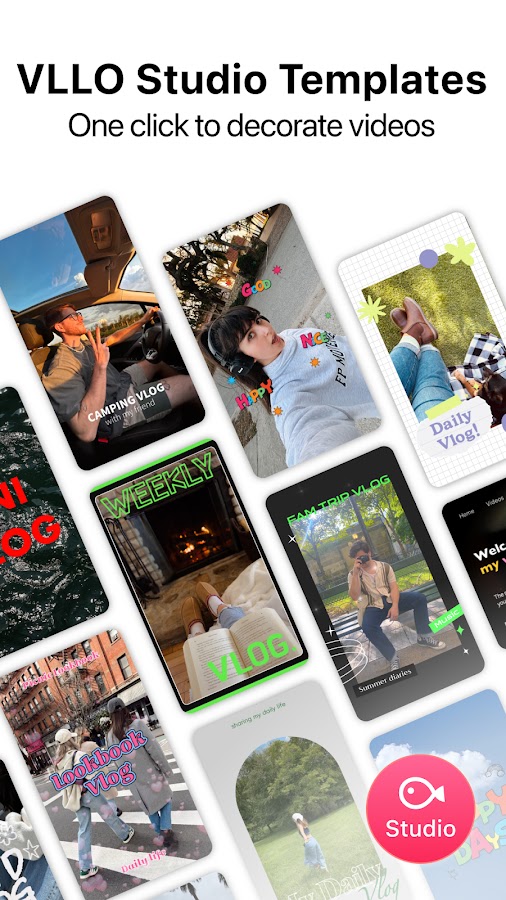
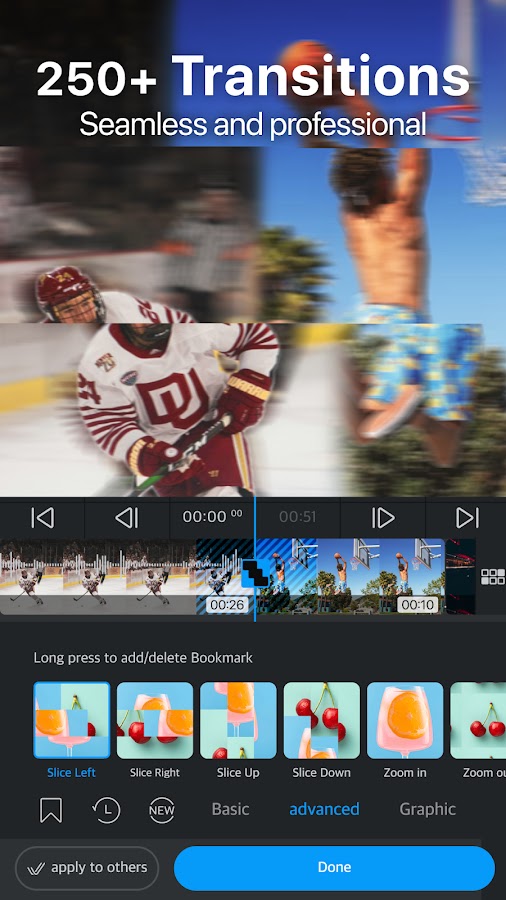
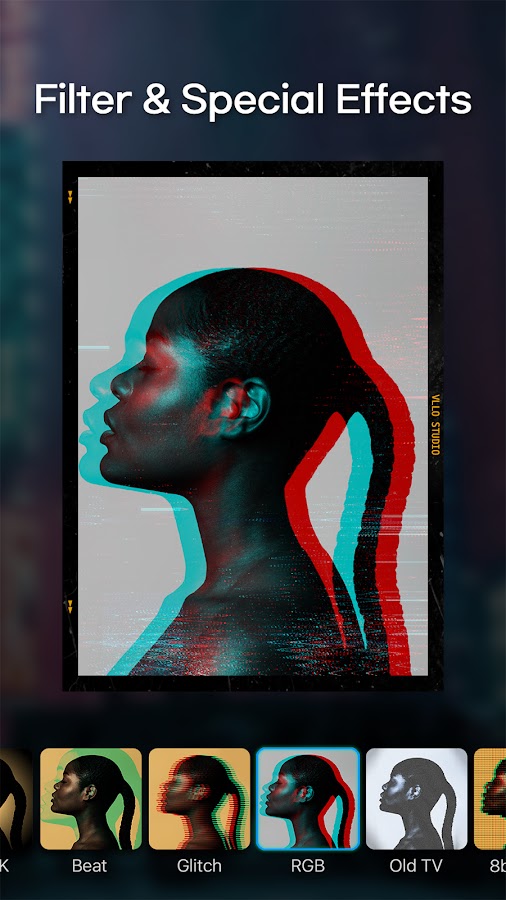
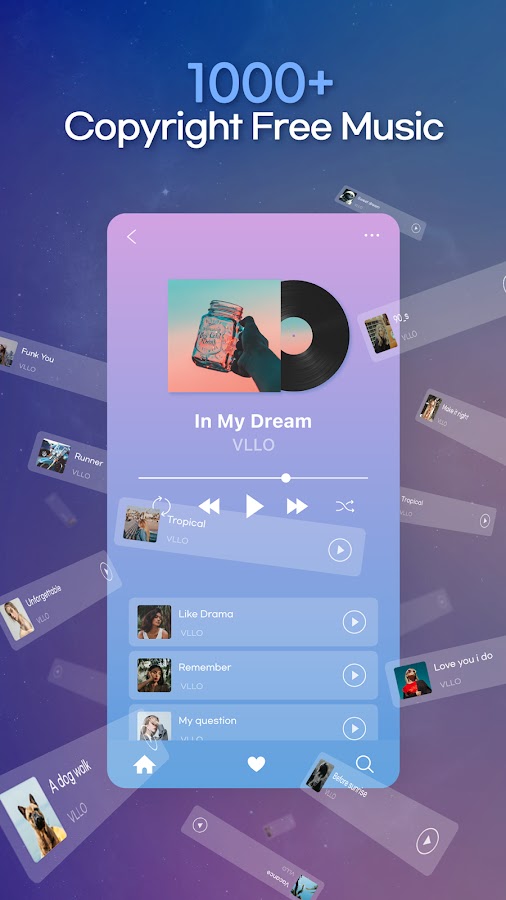

VLLO works well for videos built around speech, background music, and supporting visuals. You can assemble a vlog, add an explanatory caption, record a voiceover, and place extra footage over the main sequence. That combination suits tutorials, daily-life videos, and short educational posts. Its layout makes it easier to treat audio and text as part of the edit rather than decorations added at the end.
VLLO explicitly offers exports without a watermark even when you do not pay. Premium features and creative assets remain separate, so check labels before building a sequence around a particular effect. The distinction is useful: you can decide whether an advanced tool is worth buying without needing it just to obtain an unbranded video. VLLO is especially worth considering if you regularly alternate between spoken explanations, music, and on-screen text.
4. LightCut: Best for Fast Highlight Videos
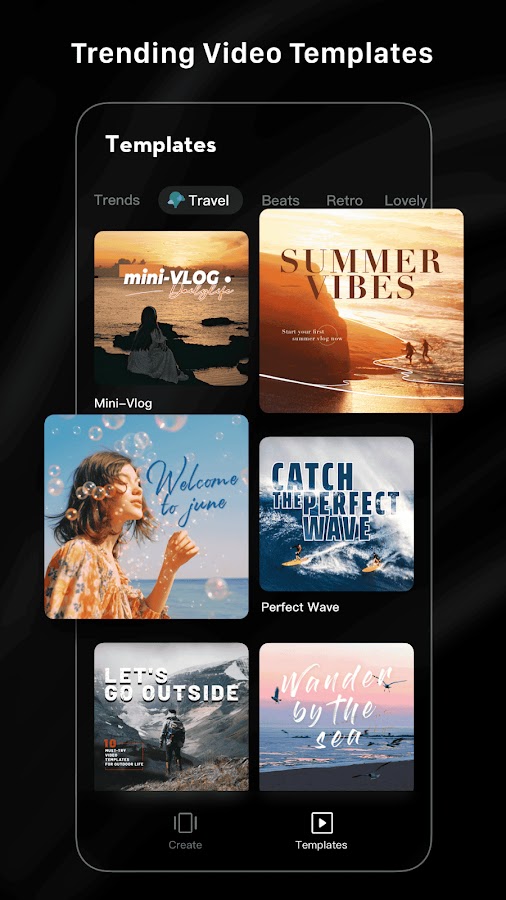
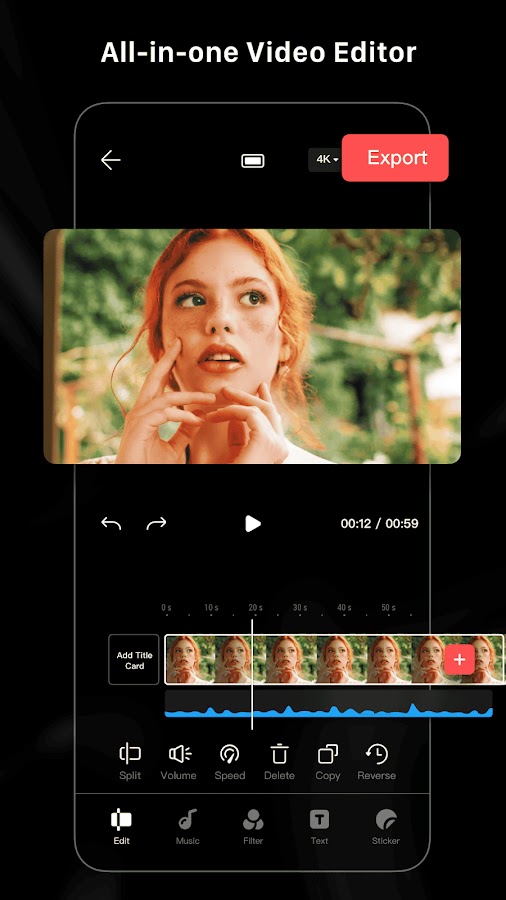
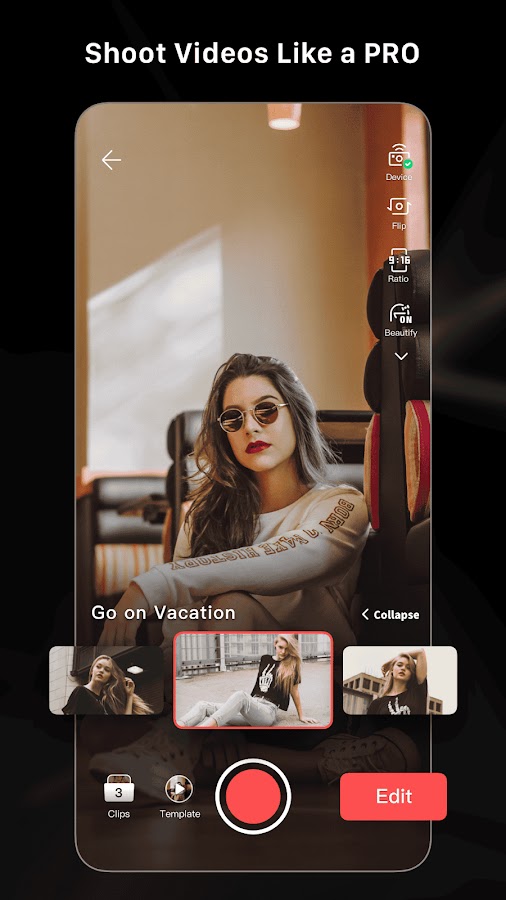
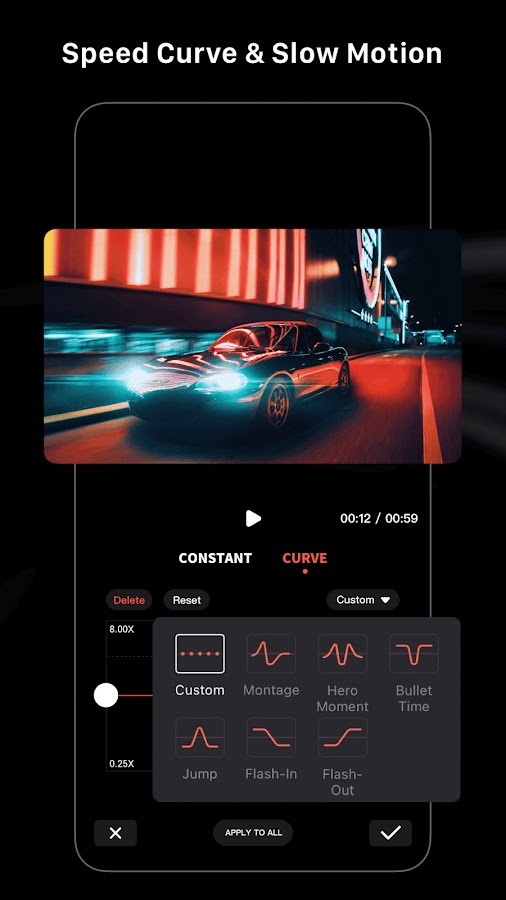
LightCut helps turn a collection of clips into a short, watchable sequence with less manual assembly. Its automatic editing and templates suit travel highlights, outdoor footage, and event recaps. Instead of placing every cut yourself, you can begin with a suggested edit and adjust the result. DJI users may also benefit from supported device connections, although compatibility depends on the equipment and phone involved.
LightCut is presented as a free video editor without ads or watermarks. The main compromise is editing depth: an automatically assembled sequence may not match the exact rhythm or structure you had in mind. It is a good choice when speed matters and the footage already tells a simple story. For a detailed tutorial with several audio layers and precisely timed explanations, a more manual editor such as VN or VLLO is a better fit.
5. Edits: Best for Reels and Talking-Head Content
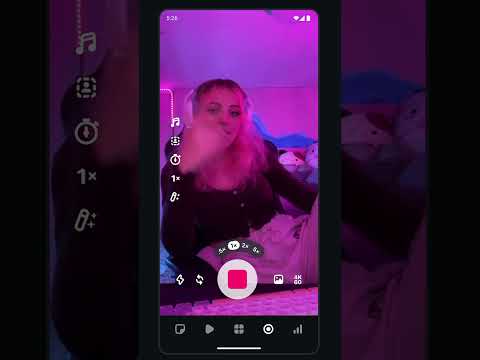
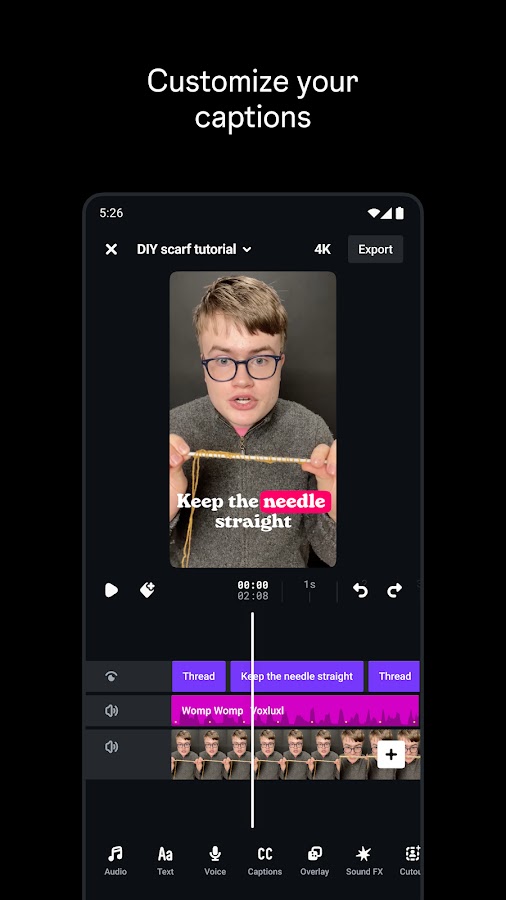
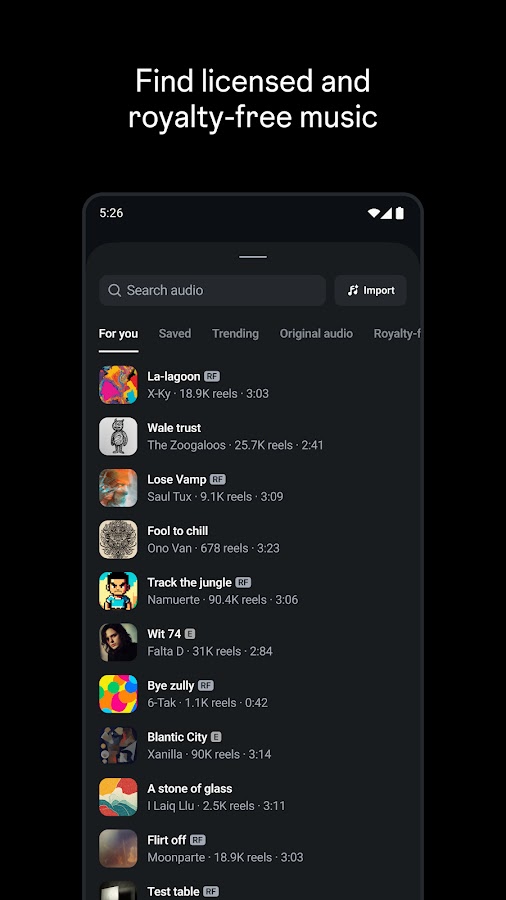
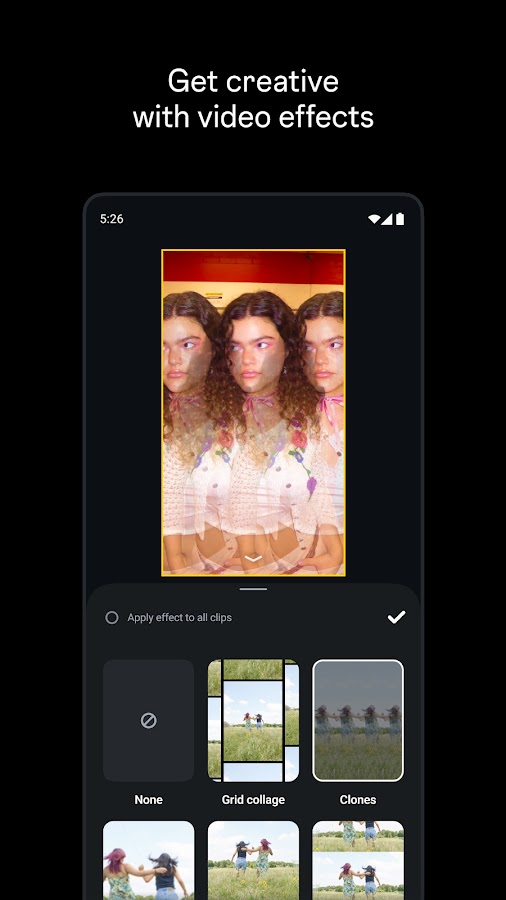
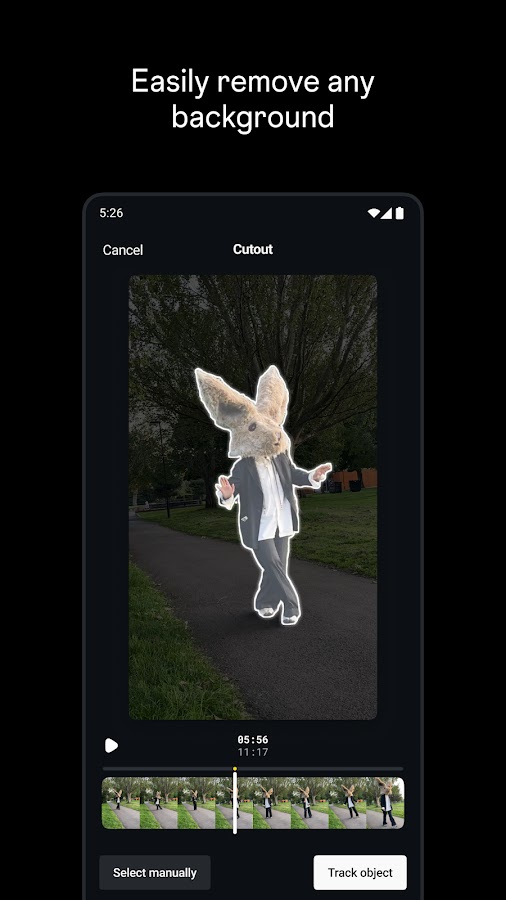
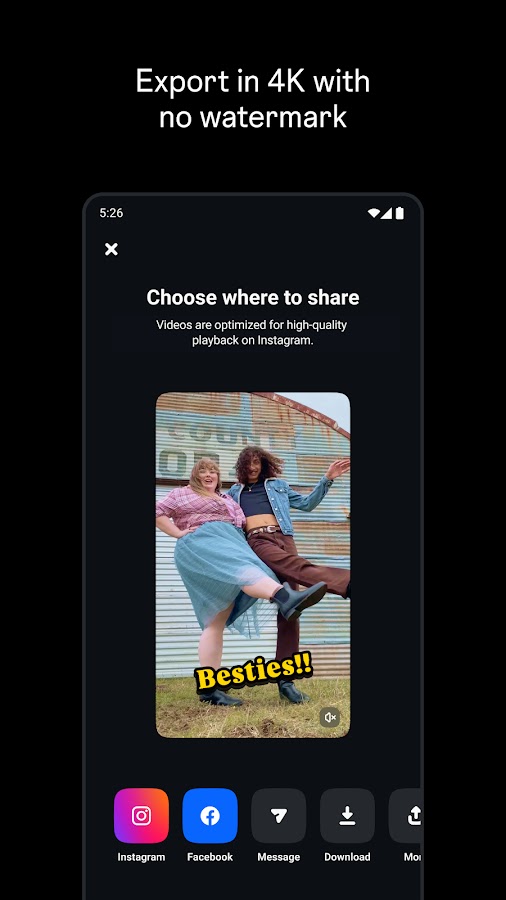

Edits, developed by Instagram, brings recording and editing into a workflow aimed at social creators. Its timeline, caption tools, and creative controls are useful for spoken videos, demonstrations, and short explanations. If you regularly turn a longer recording into a concise Reel, having capture, trimming, and text tools together can reduce the number of apps involved.
Edits offers free exports without a watermark, including sharing to platforms beyond Instagram. Its store descriptions advertise export up to 4K, although the practical result depends on footage, settings, and device support. An Instagram account is required. Choose Edits if short-form publishing is central to your work, but remember that saving a high-quality file and uploading it to a social network are separate steps; the destination can still compress the video.
6. Spring: Best for Short-Form Videos with Layered Elements
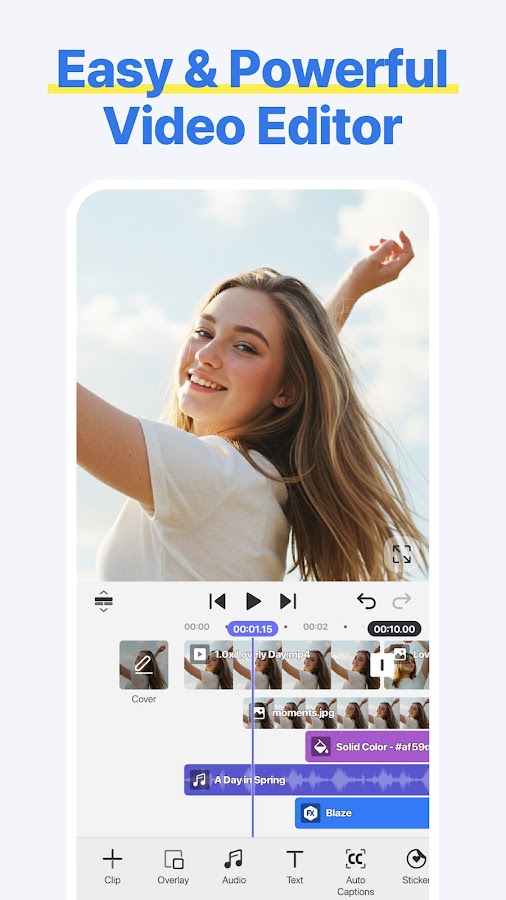
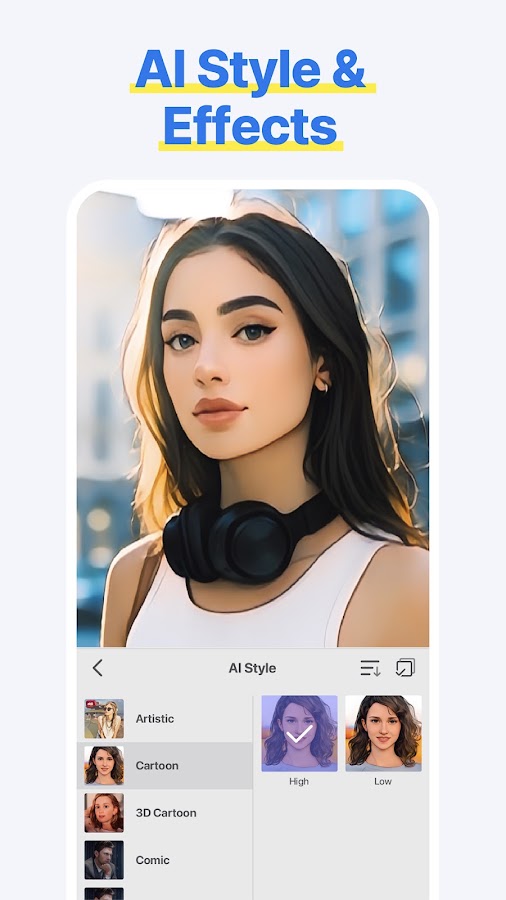
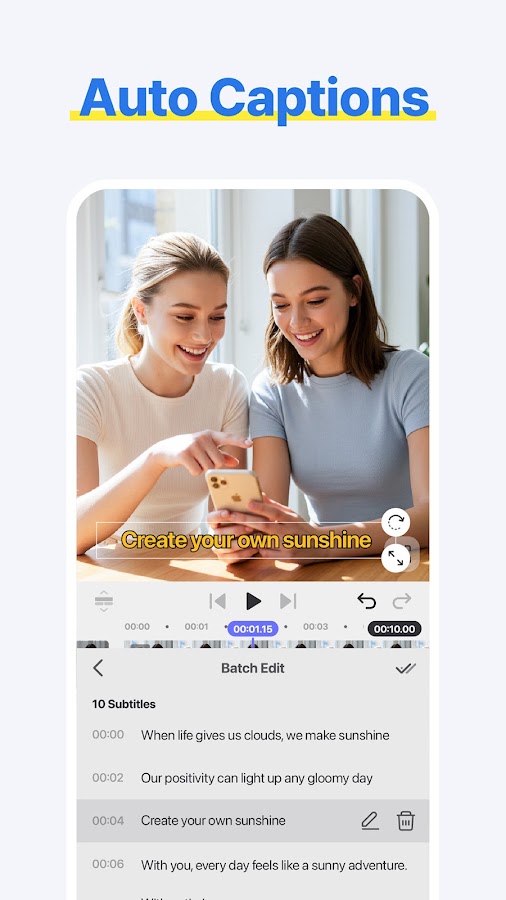
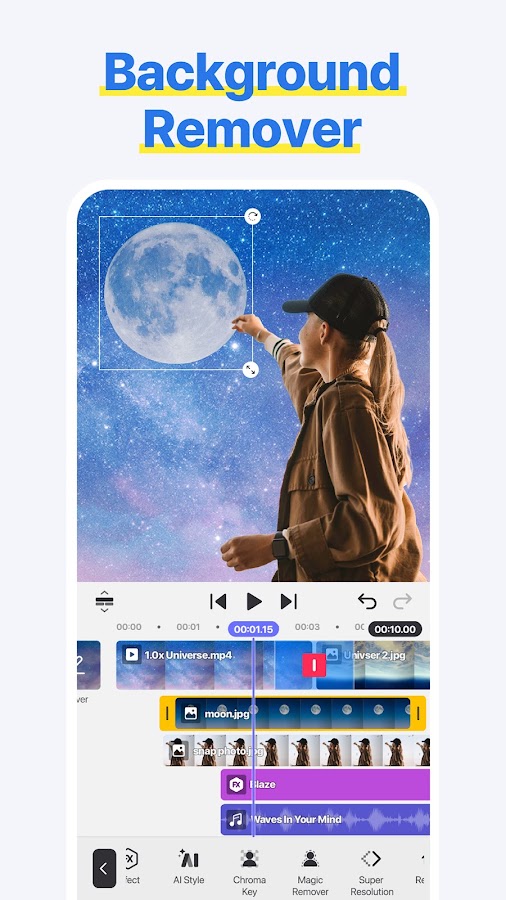
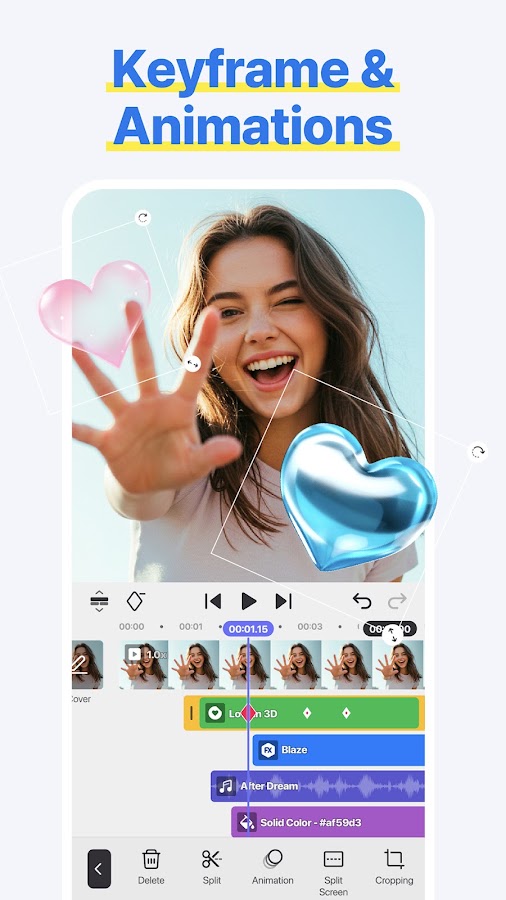

Spring is KineMaster’s separate editor focused on short-form content. It combines accessible cutting tools with text, overlays, effects, and animation options that can give a brief video more structure. A product demonstration might need a close-up over the main shot, an animated label, and a change of pace between sections. Spring provides room for that kind of edit without requiring you to begin with a more elaborate project.
Its core export is available without a watermark, while some tools and assets belong to Premium. This matters because Spring and KineMaster have different free-export conditions despite their shared developer. Choose Spring when you want an unbranded social video and more creative control than basic trimming provides. Check premium labels early, particularly if you plan to reuse the same effect across a series of posts.
7. VITA: Best for Music-Led Edits and Visual Templates
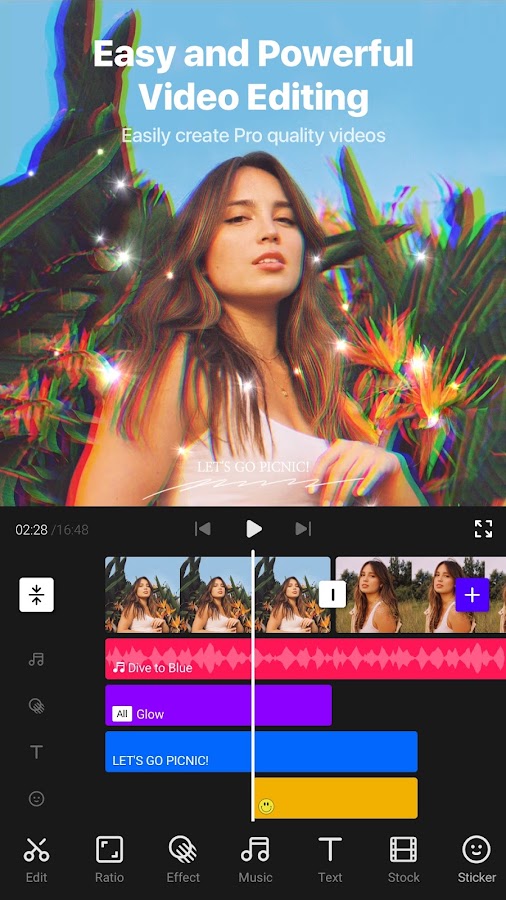
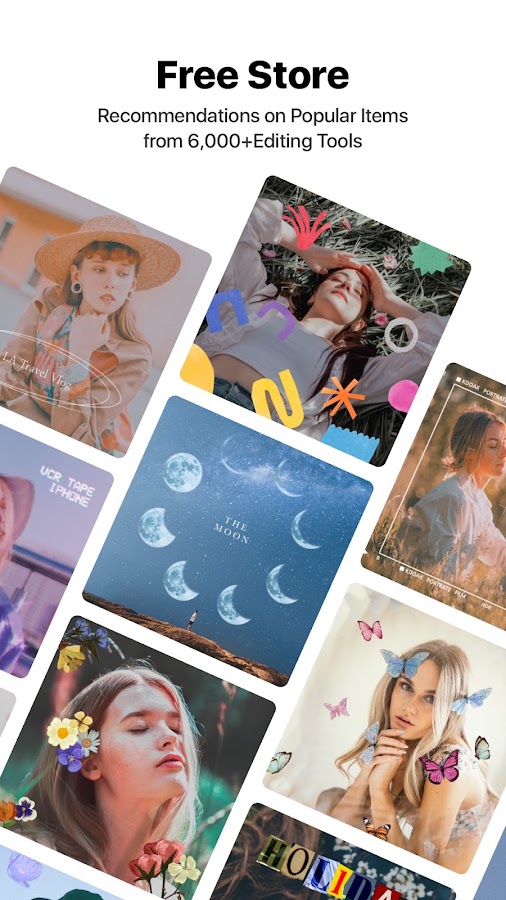
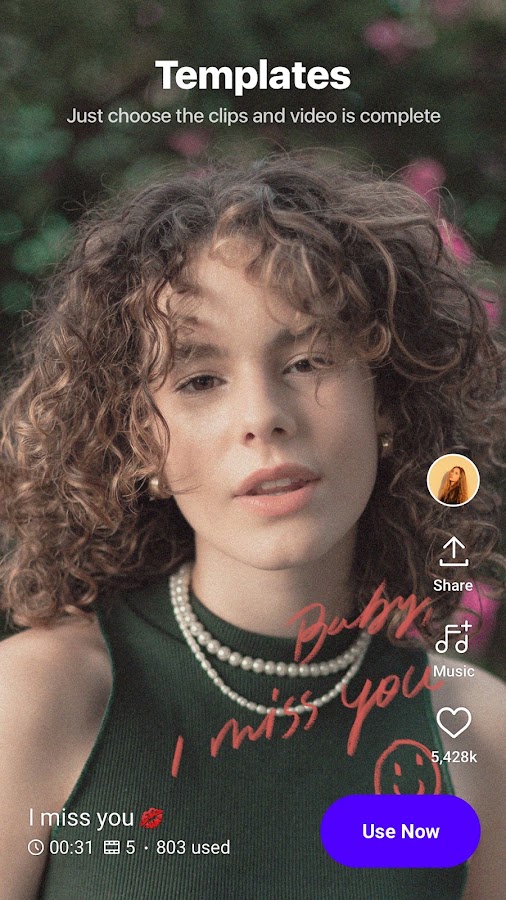
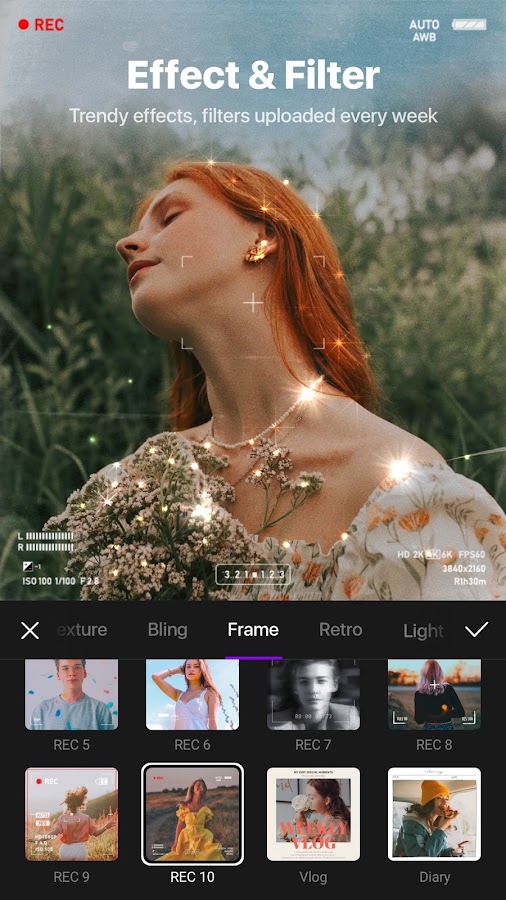
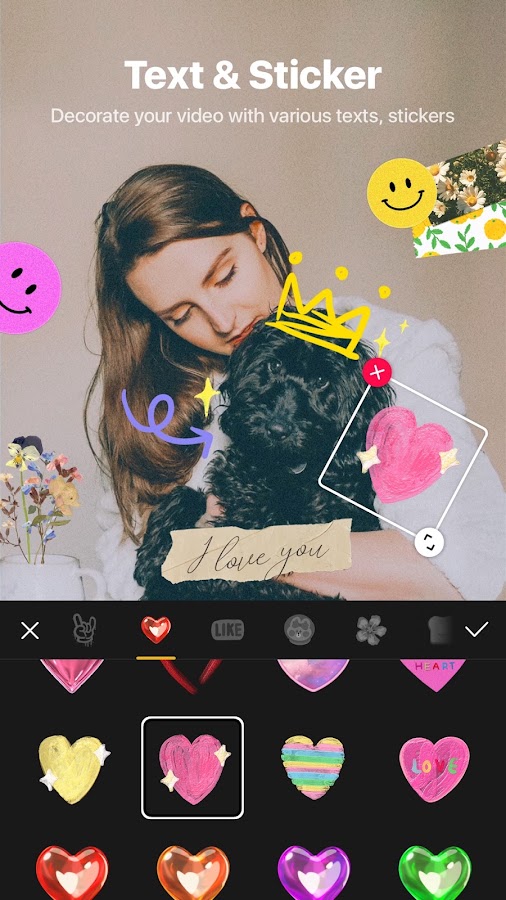

VITA favors quick visual styling: filters, transitions, speed changes, text, and music help turn ordinary footage into a more coordinated sequence. It suits casual vlogs, short montages, and videos where the mood matters as much as the explanation. You can start with a template or assemble clips yourself, then adjust the pacing so important moments have enough time on screen.
For an unbranded result, check the watermark control in your installed version and inspect any template ending before export. Treat this as a setting to verify rather than assuming every ready-made project will save identically. A short test export is particularly useful before editing a long video. VITA is worth considering for its accessible styling tools; if an explicit developer promise of free watermark-free export is your priority, VN, YouCut, or VLLO provides a clearer starting point.
8. Canva: Best for Branded Social Videos



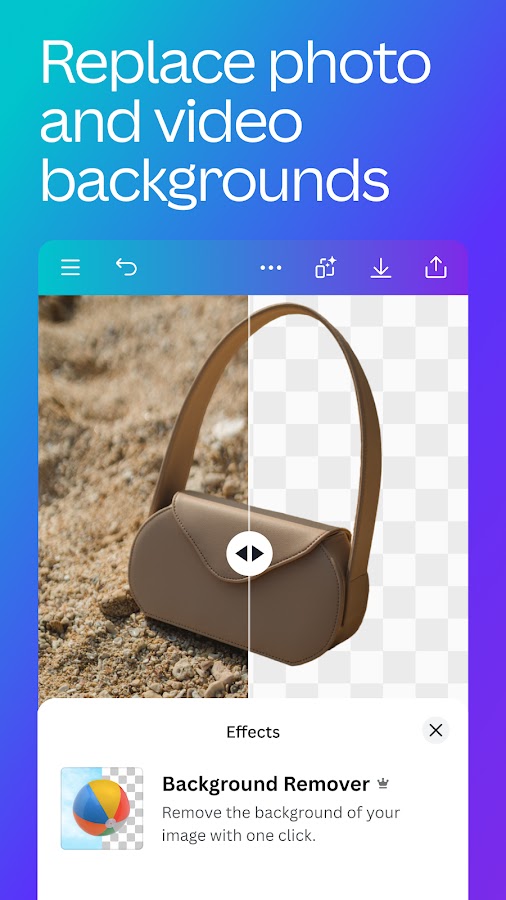
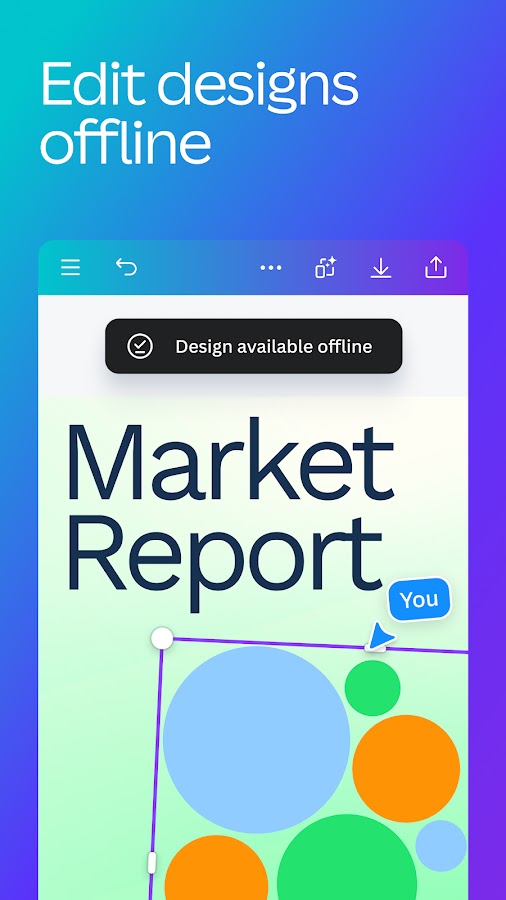

Canva is useful when video needs to match the rest of a brand’s content. Combine footage with headings, graphic elements, photographs, and a consistent layout to create announcements, promotional clips, or short explainers. Its strength is visual coordination. A business can make a video that shares the fonts and colors of its other posts without constructing every graphic inside a traditional video editor.
Free Canva accounts can export videos without watermarks when the project uses your own uploads and free materials. Premium stock footage, images, music, or graphic elements need the appropriate license or plan. An asset watermark is therefore different from an unavoidable Canva logo on every export. Check each element before finishing, especially in templates that mix free and paid content. For intricate cutting and audio work, a dedicated timeline editor will usually be more comfortable.
9. InShot: Best for Everyday Social Videos
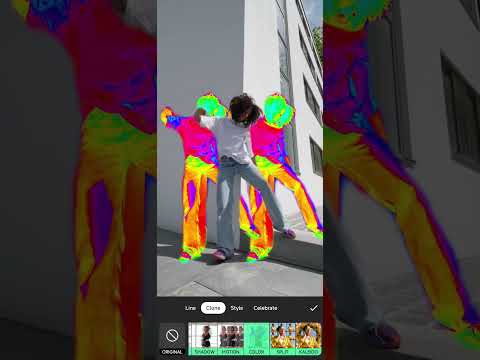
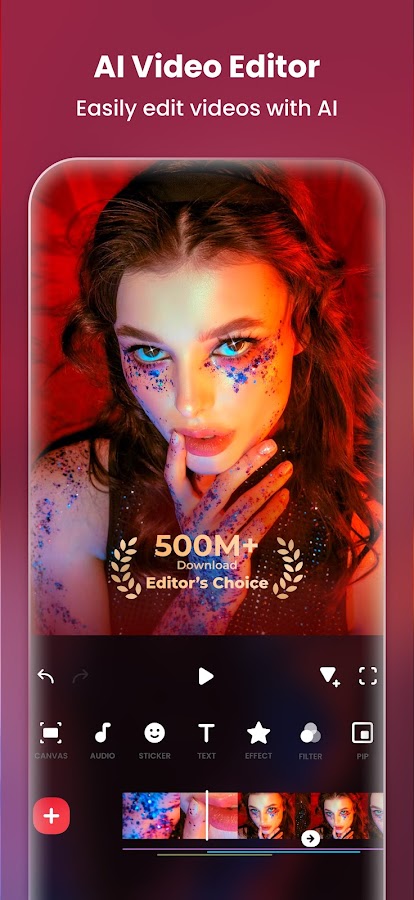
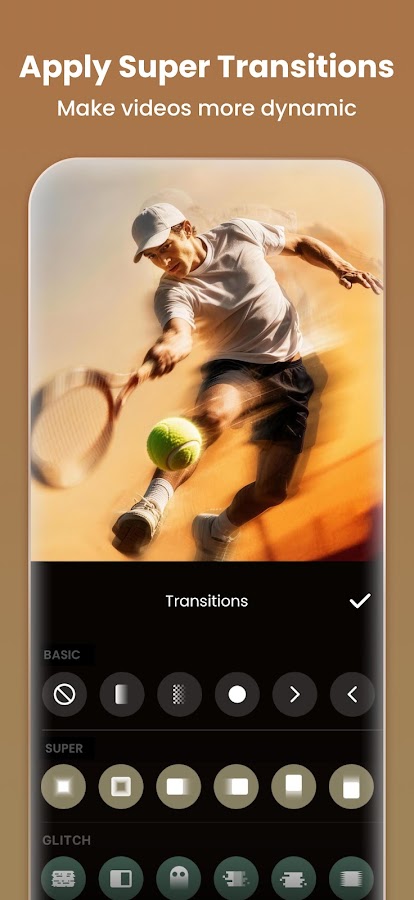
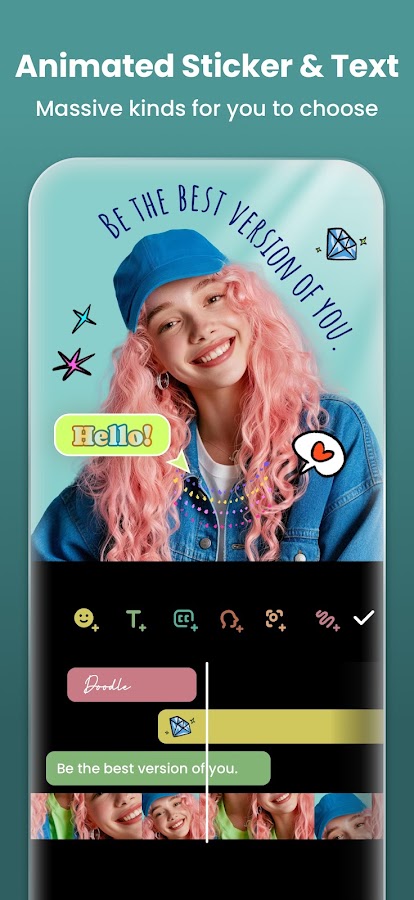
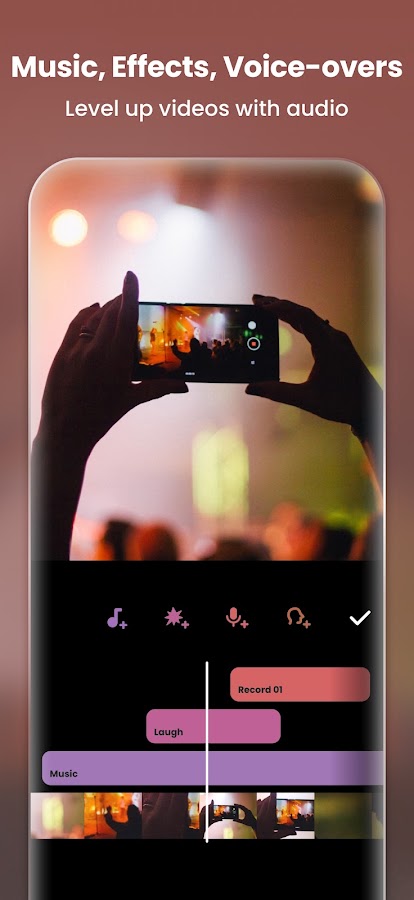
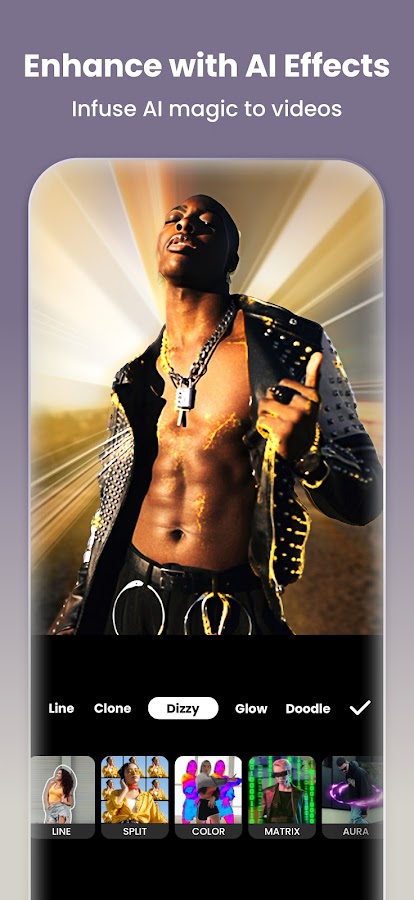

InShot makes common mobile editing tasks easy to reach. You can trim clips, change the canvas, blur the background around differently shaped footage, add music, and position text. It is particularly convenient when a video needs adapting for several social formats. A horizontal clip can become part of a vertical composition without forcing you to crop away everything at the edges.
The free version can add InShot branding. Pro includes watermark removal, while an option to remove the mark by watching an advertisement may appear in some versions. Do not make a recurring publishing workflow depend on that offer always being available. InShot is a practical choice if you like its controls and editing speed; if your only requirement is consistently free export without branding, YouCut or VN is the more direct option.
10. KineMaster: Best for Layered Editing and Compositing
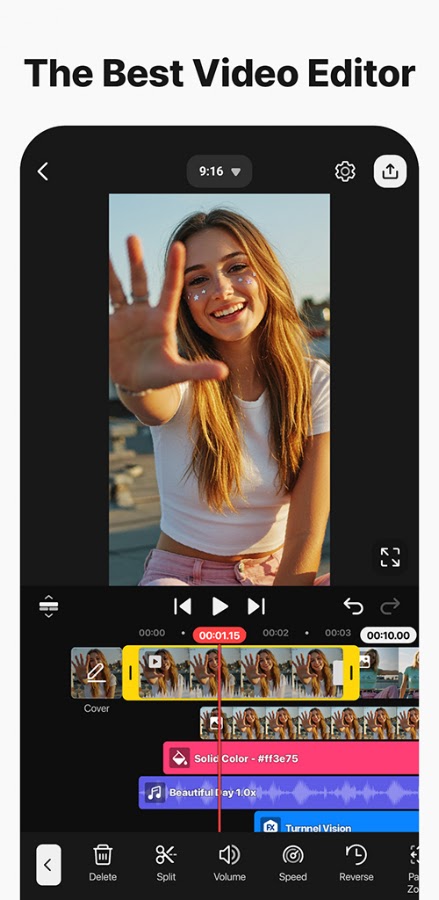
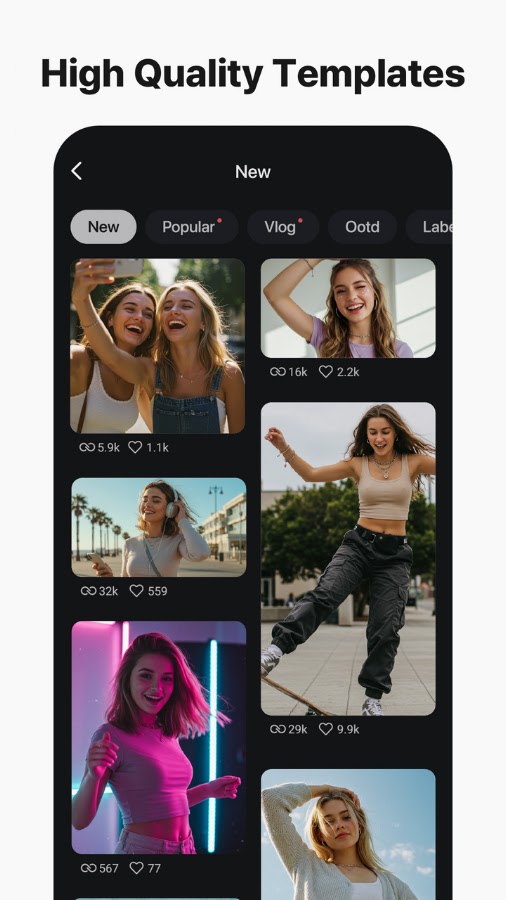
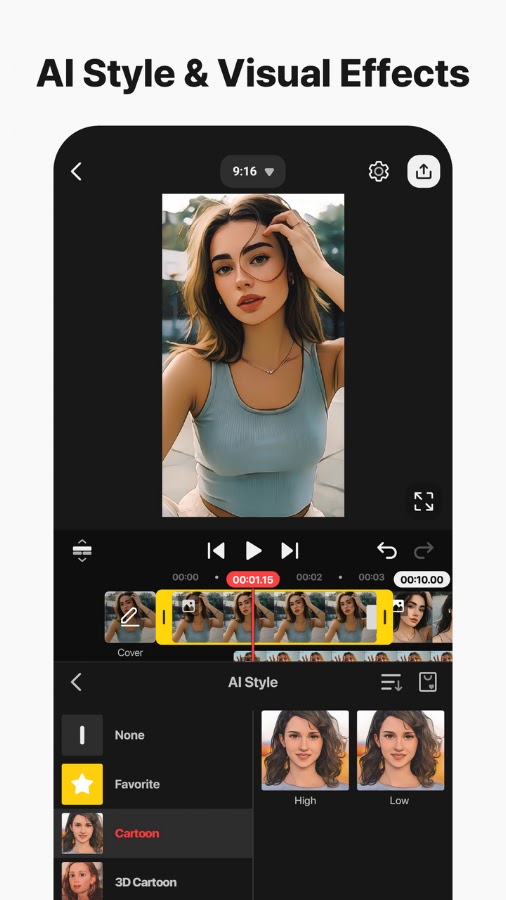
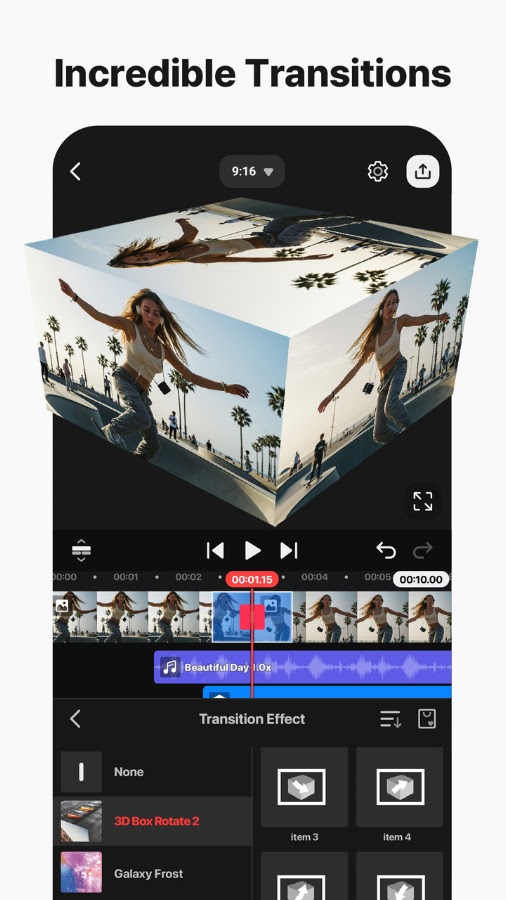
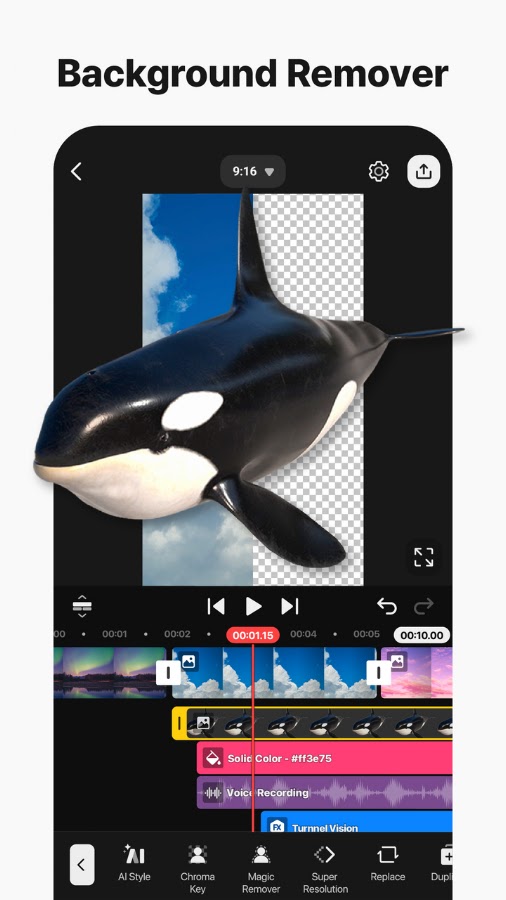
KineMaster is suited to projects with several visual elements on screen at once. Layer video over a background, add titles, use chroma key, and animate elements with keyframes. It can handle explanatory videos where a presenter, demonstration, and labels all need to appear in a planned arrangement. That extra control is valuable when the edit needs more than a sequence of full-screen clips.
The free version adds a KineMaster watermark; Premium removes it. Its inclusion in a guide to video editing apps without watermarks therefore depends on choosing the paid export route. Use the free editor to assess whether its timeline and compositing tools suit your work before building a large project. For a simpler edit without a paid watermark-removal requirement, consider Spring from the same developer or a free-export alternative such as VN.
11. PowerDirector: Best for a More Detailed Editing Workflow
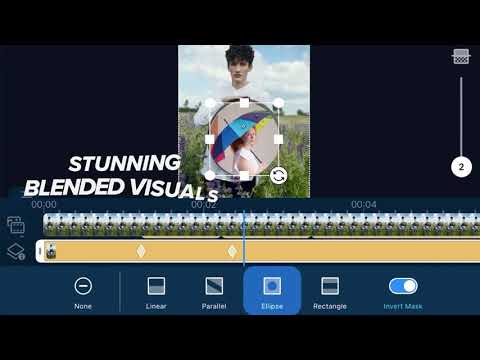
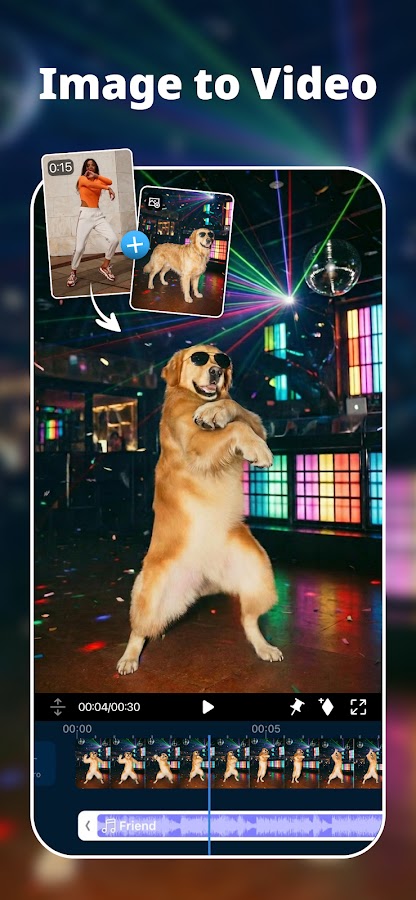
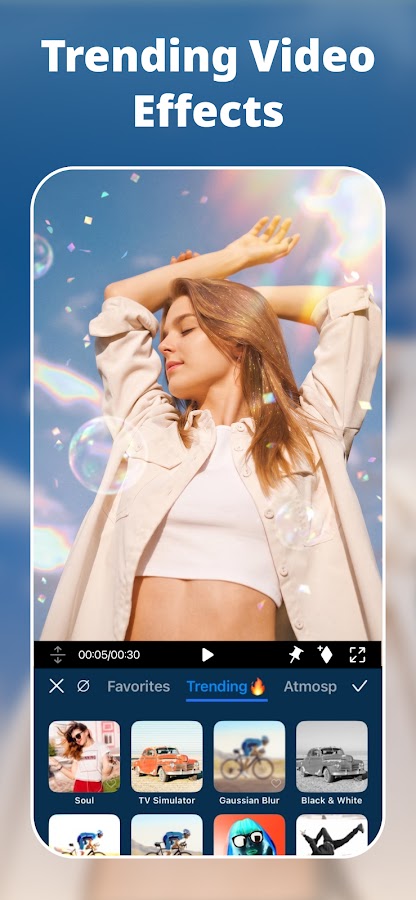
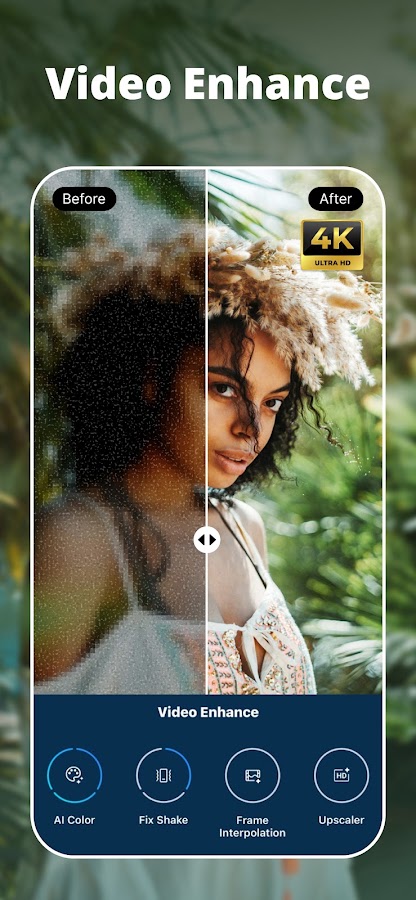
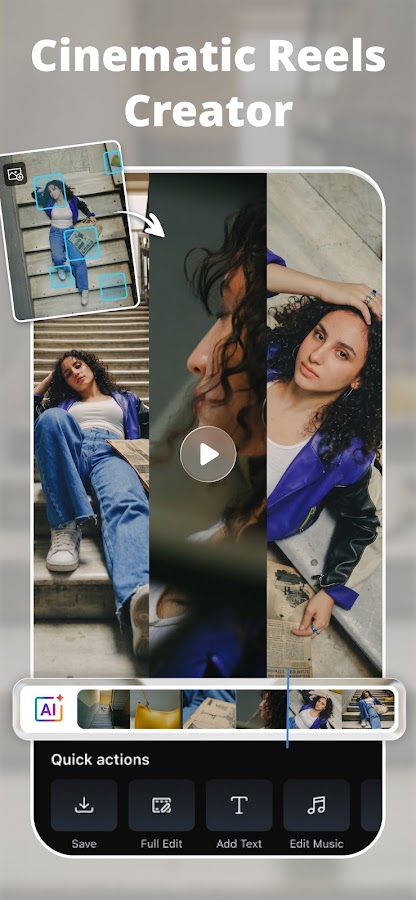
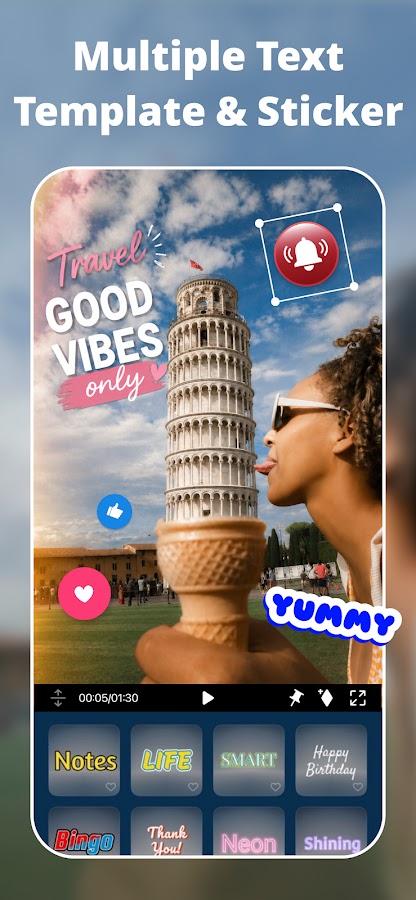

PowerDirector offers a timeline-based approach with tools for combining clips, audio, text, transitions, and effects. It suits creators who want to keep several stages of production in one editor, from arranging the first cut to adjusting the final presentation. Additional processing features can help with specific footage problems, although availability depends on the platform, device, and plan.
Removing the PowerDirector logo is a premium capability. The free app lets you explore the editing experience, but that access should not be confused with unrestricted watermark-free export. Before choosing it, check the tools you actually need and confirm that your phone handles the intended footage smoothly. PowerDirector is worth considering for ongoing, more involved projects; a quick trim and caption job may be easier in YouCut or InShot.
12. Filmora: Best for Combining Templates with Manual Editing
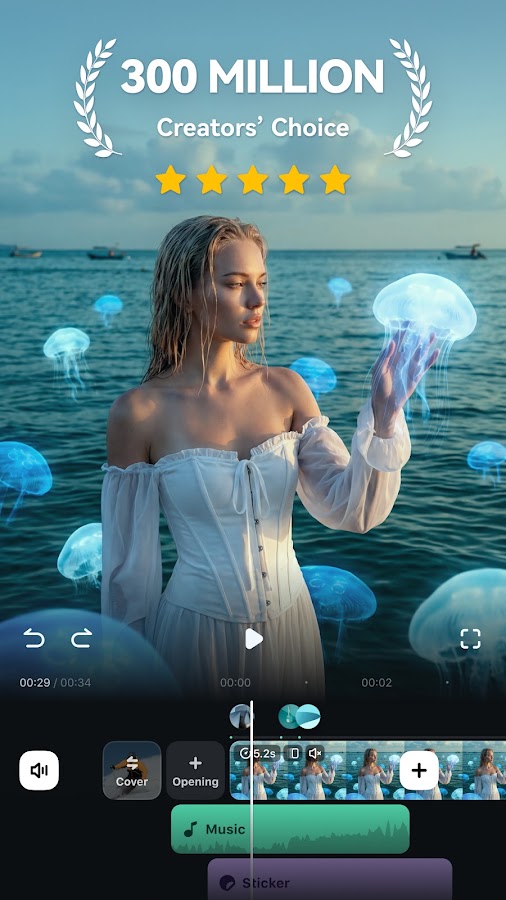
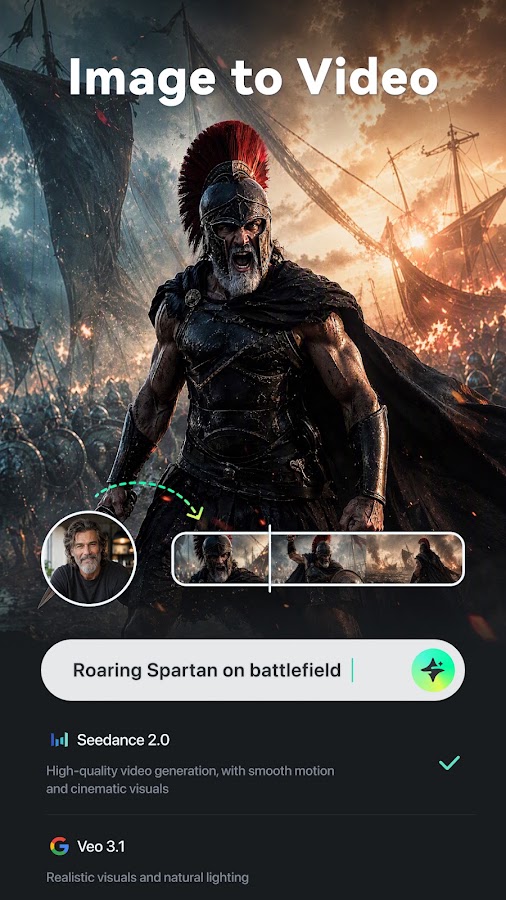
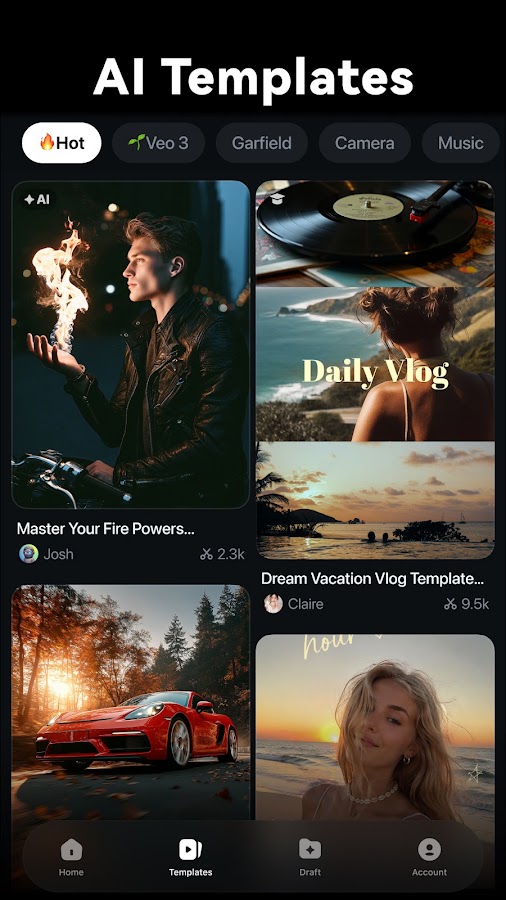
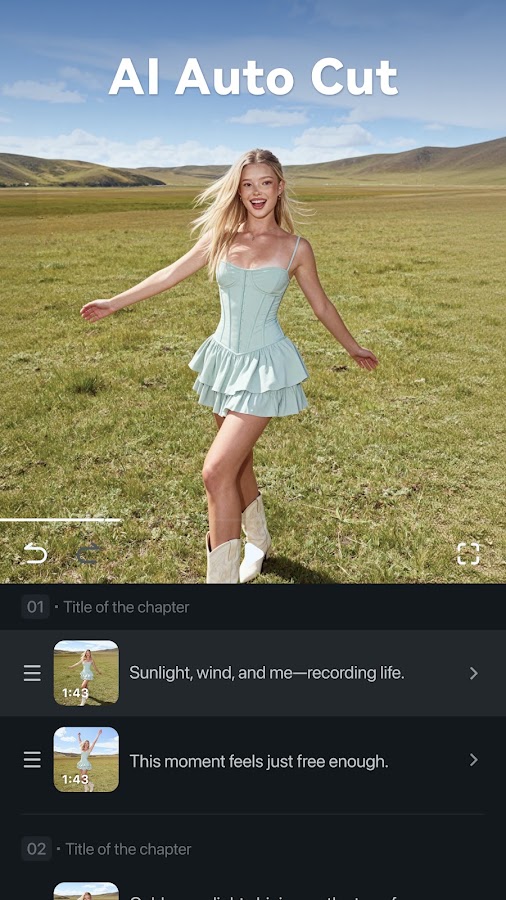
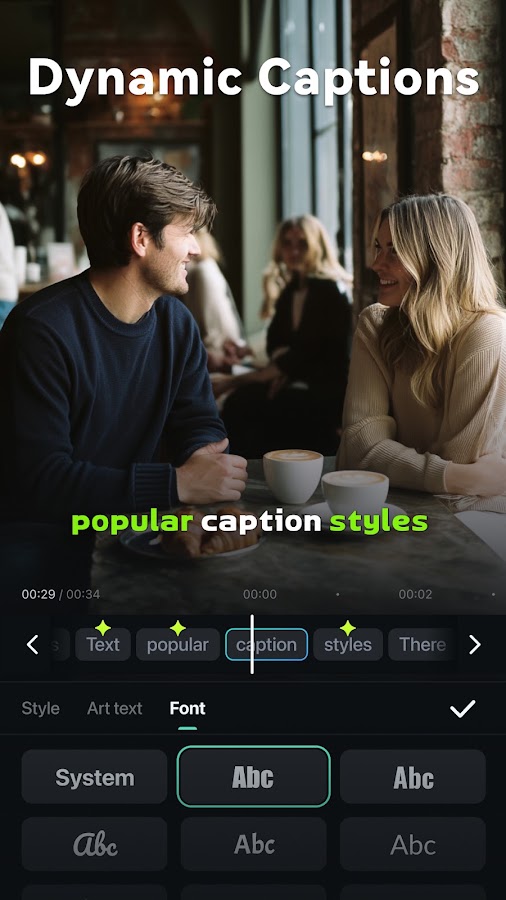

Filmora’s mobile app combines conventional editing with templates, captions, effects, and assisted tools. It can suit creators who want to assemble a video manually but still use a ready-made title style or effect when it saves time. For example, you can cut a product demonstration around the important steps, then add captions and visual emphasis without designing each element from scratch.
Watermark removal is available through the relevant paid mobile option or eligible plan. Check that the purchase applies to Filmora on your phone; a similarly named desktop product does not automatically establish mobile access. If branding remains after purchase, check the account, restore-purchase options, and watermark setting before exporting again. Filmora is a useful candidate when you will use its broader toolkit regularly, rather than paying solely to remove a logo from one short clip.
13. Videoleap: Best for Creative Effects and Visual Compositing
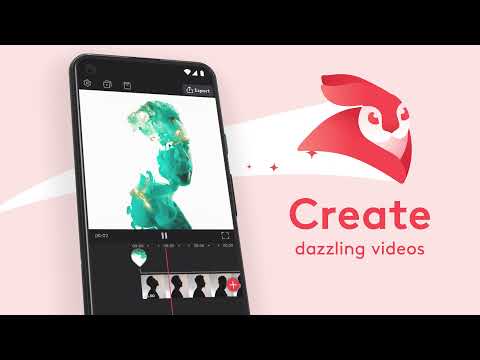
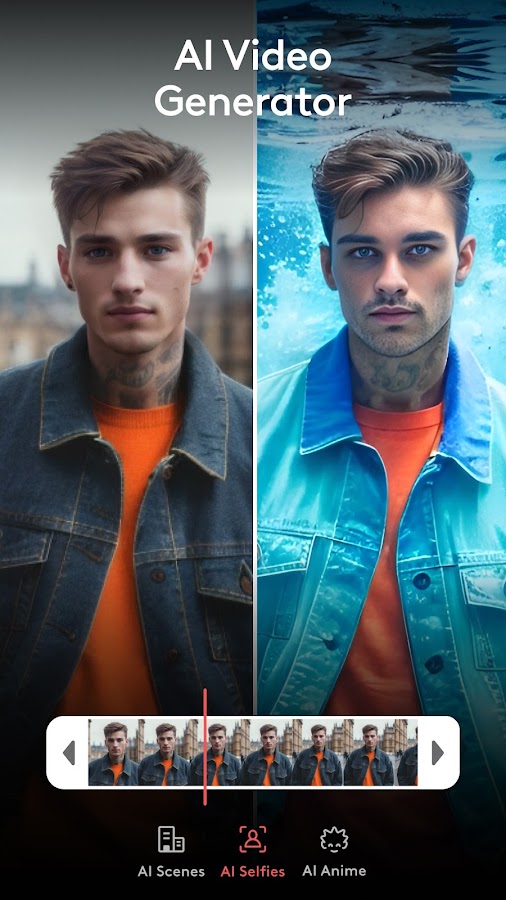
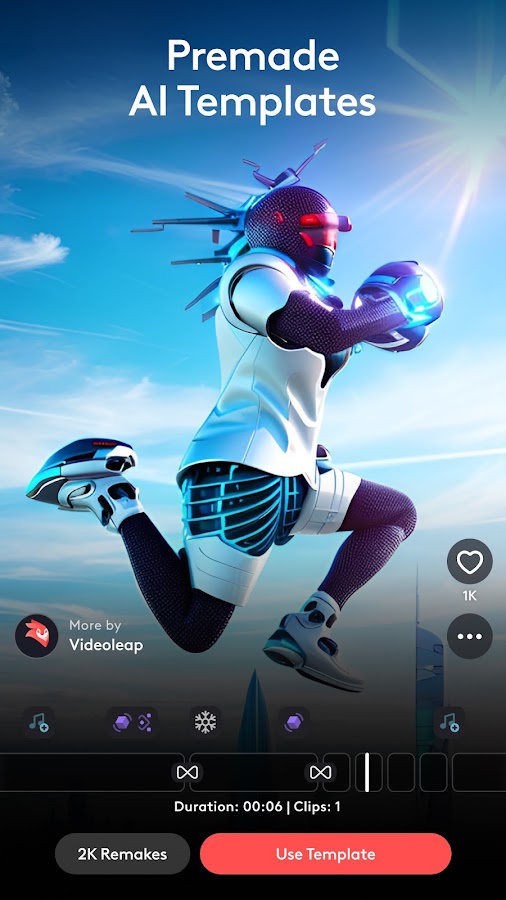
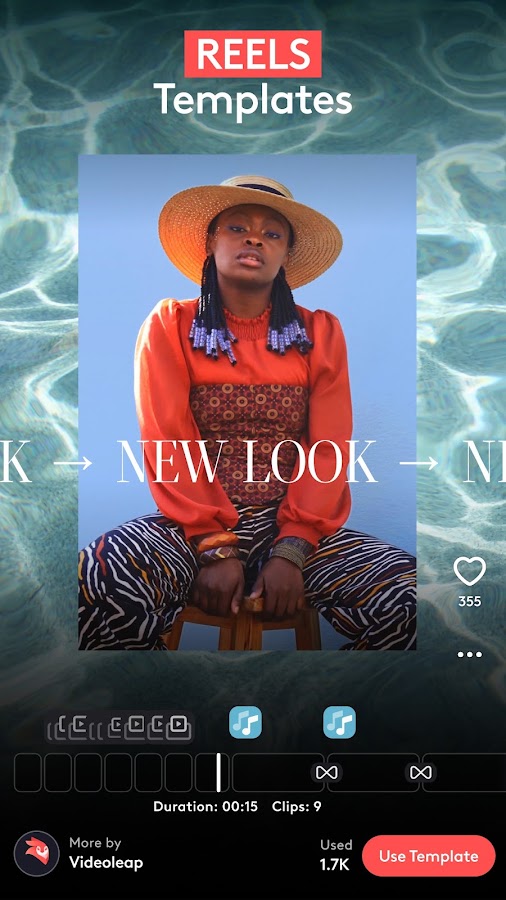
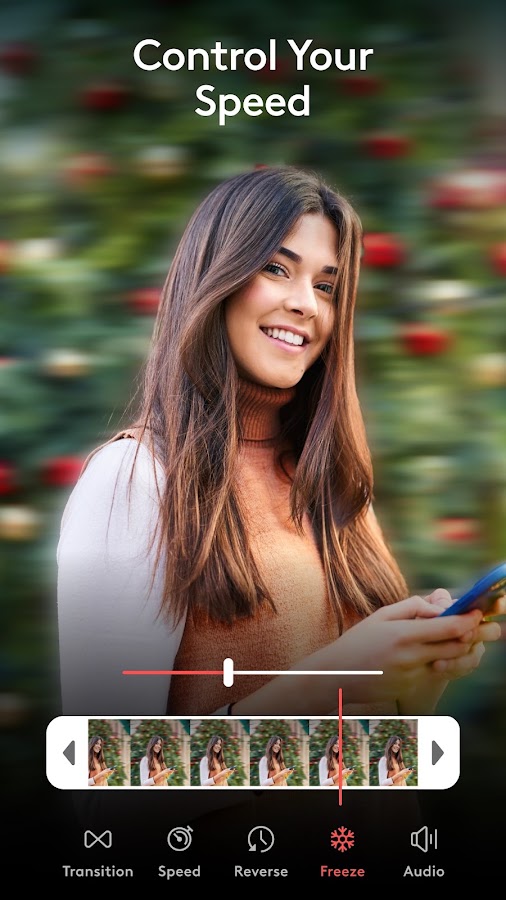
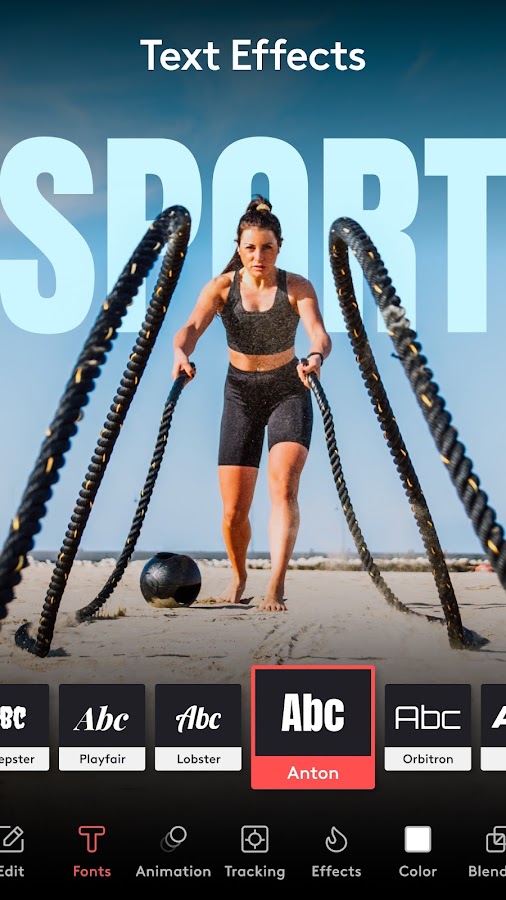

Videoleap is worth considering when you want to change how footage looks or combine it into a more stylized scene. Layering, masking, blending, and effects can help create visual transitions and compositions that go beyond a straightforward montage. It suits promotional clips, creative social posts, and projects where experimentation is part of the process.
Watermark-free project export is a Pro feature. Tool availability can differ between Android and iOS, so check the exact feature you want on your own phone rather than relying on a tutorial made for another platform. The same applies to templates and newer effects. Choose Videoleap for a specific visual task you can identify; for ordinary cutting, captions, and music, a simpler editor may produce the finished video with fewer steps.
14. Alight Motion: Best for Motion Graphics and Animation
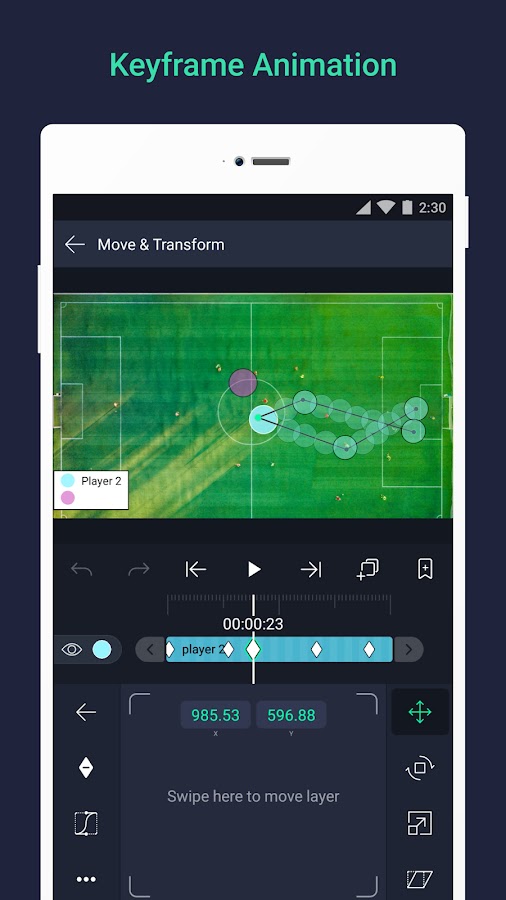
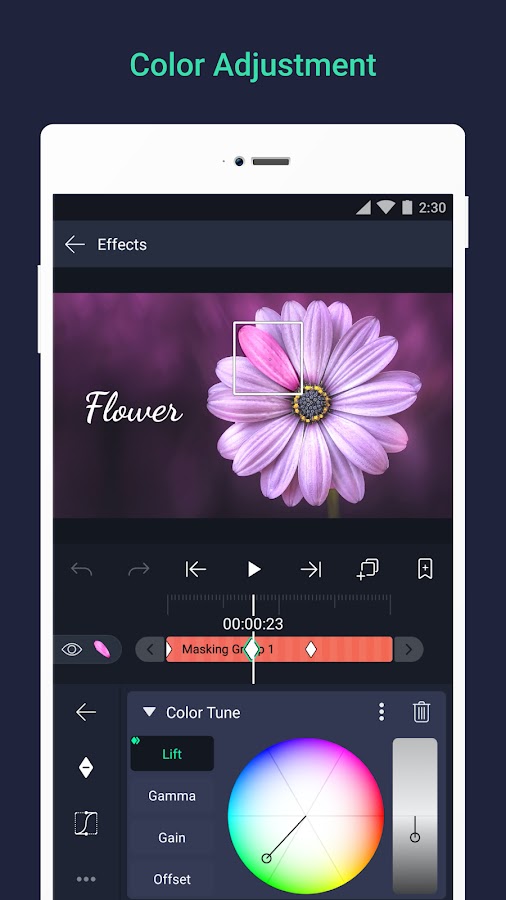
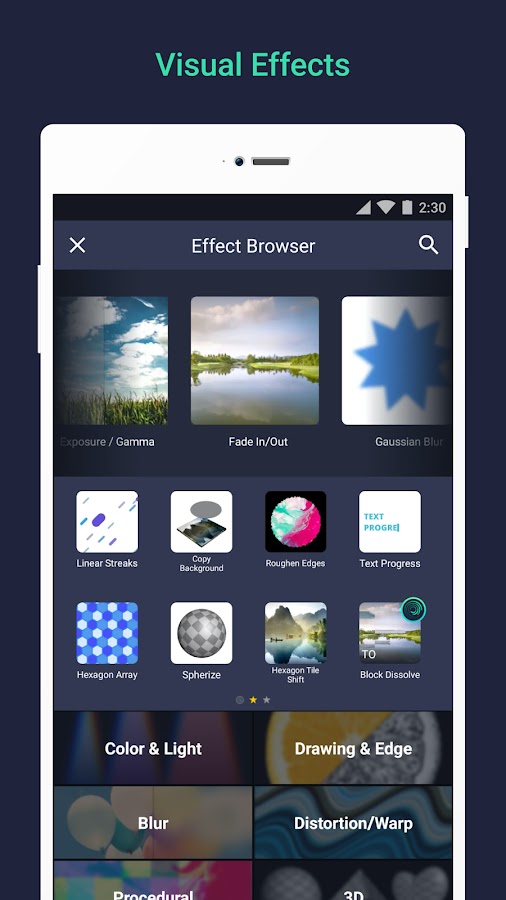
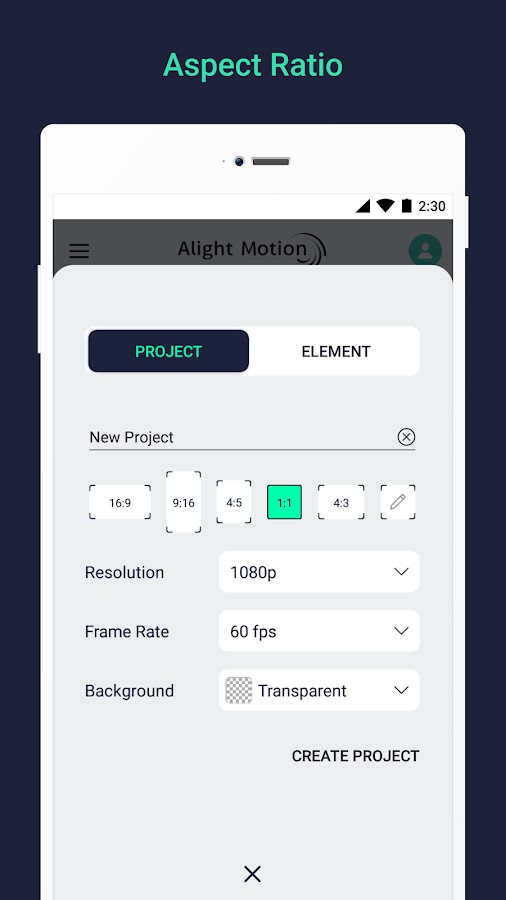
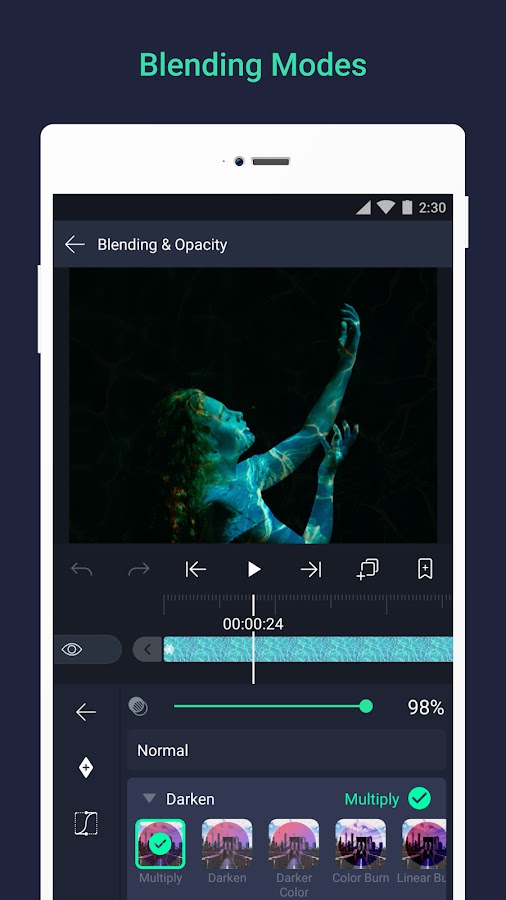

Alight Motion focuses on animation, motion graphics, compositing, and effects alongside video editing. Keyframes and easing controls let you determine how an element moves, not simply where it starts and ends. That makes it useful for animated titles, moving labels, branded intros, and edits built around graphic elements. It asks for more learning than a basic trimming app, but offers much finer control over motion.
The free version adds a watermark, and removing it requires a paid membership. Alight Motion belongs on this list as a paid option for unbranded output, rather than a free editor without restrictions. Choose it when custom animation is the reason for the project. If you only need a title to appear over a clip, VN, VLLO, or Spring will usually provide a quicker route with less setup.
How to Choose a Video Editor Without a Watermark
Begin with your normal project. For trimming clips and adding music, YouCut is an easy starting point. For a flexible timeline, consider VN. Vlogs and spoken tutorials suit VLLO, while Edits and Spring are useful for short social videos. Canva makes sense when layout and branding matter most. For custom motion graphics, look at Alight Motion.
Before editing something important, make a short sample using the same tools you expect to need. Include a title, a transition, an audio track, and any premium-looking effect. Export it, then check the corners, final frames, resolution, and audio synchronization. This reveals export restrictions before you spend an evening assembling a longer project.
Frequently Asked Questions
Conclusion
VN, YouCut, VLLO, LightCut, Edits, and Spring are the clearest starting points for free video editing without an app watermark. Canva also provides clean exports when you use your own or free materials. VITA is worth considering for quick visual edits, with its export settings checked first.
InShot, KineMaster, PowerDirector, Filmora, Videoleap, and Alight Motion offer further choices when their paid tools match the work you do. Choose the editor that handles your usual footage comfortably, check its export conditions early, and keep the original project until the finished file looks and sounds right.