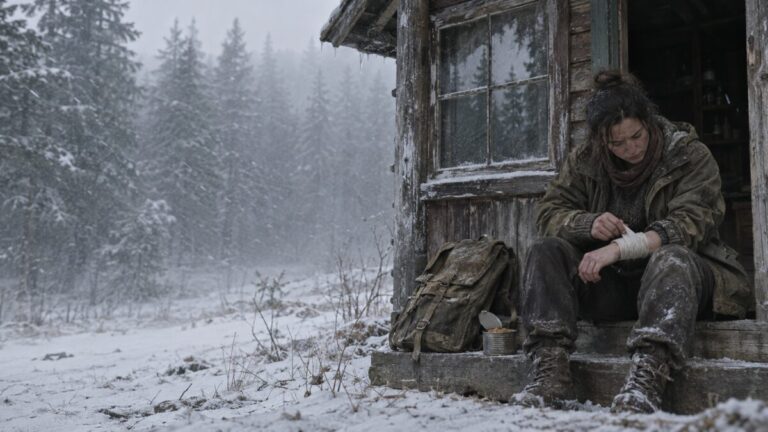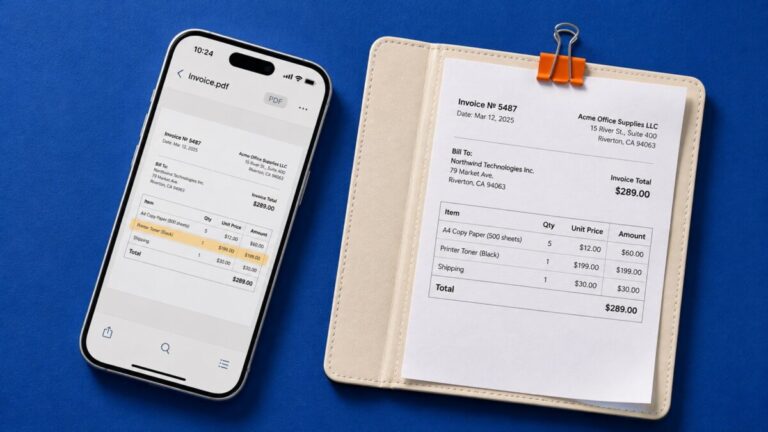
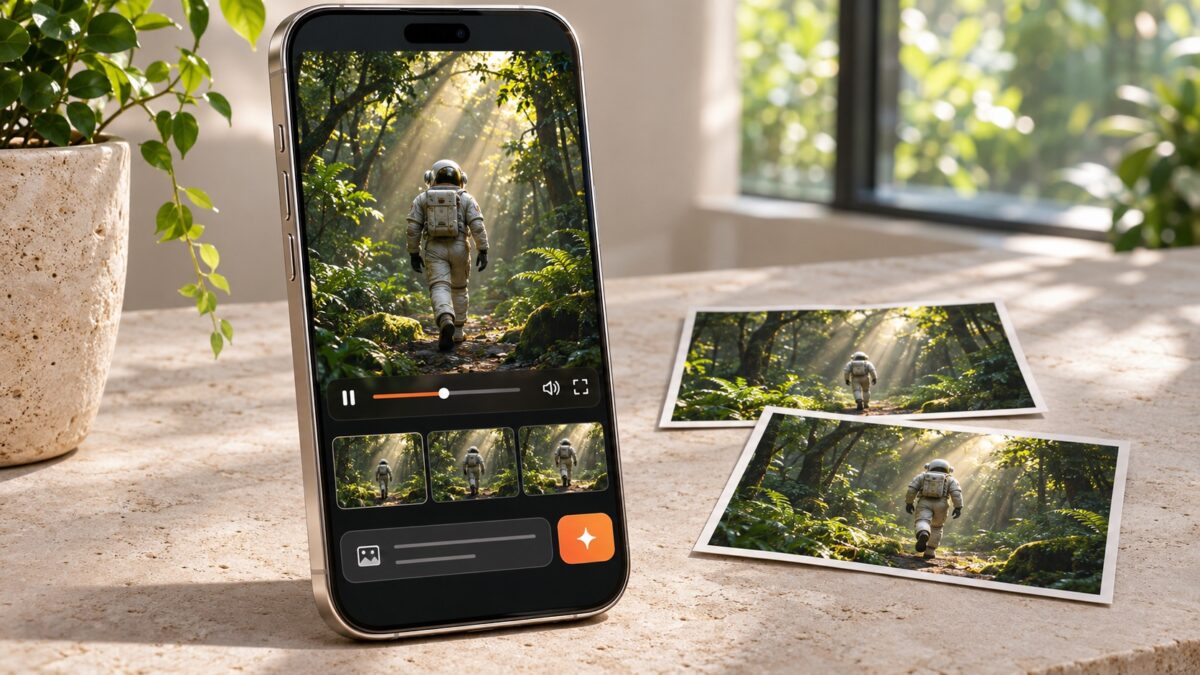
An AI video generator can turn a product photo into a moving shot, create a scene from a written prompt, or build a narrated video from a script. Those are different jobs, and choosing an app that handles the right one matters more than finding the longest feature list.
Kling AI, PixVerse, Hailuo AI, and Vidu focus on generating visual scenes. Pollo AI brings multiple models into one workspace. Tools such as invideo and Fliki help develop larger video projects, while Filmora combines generation with hands-on editing.
This guide compares ten AI video apps for iPhone and Android by workflow, creative controls, and practical limitations. The recommendations reflect their documented features and intended uses, rather than scores from a controlled head-to-head test.
Best AI Video Generator Apps at a Glance
| App | Best suited to | Main workflow | What to check before choosing |
| Kling AI | Prompt-based scenes and photo animation | Text or image to generated video | Available models, clip duration, and extension options |
| PixVerse | Short visual clips and template-based effects | Text, photos, effects, and animation | Current iPhone edition and model access |
| Hailuo AI | Generated scenes with character references | Text or image to video | Regional availability and reference controls |
| Vidu | Reference-led video creation | Text, images, and visual references | App name, reference options, and audio features |
| Pollo AI | Comparing several generation models | Multiple video-generation workflows | Model-specific credits, settings, and restrictions |
| invideo | Building and refining complete video projects | AI-directed generation and editing | Mobile editing controls and included generation tools |
| ToMoviee AI | Camera movement and guided transitions | Text or image to video, frame controls | Supported modes and extension limits |
| VideoGPT | Turning written ideas into styled video stories | Prompt-based story creation | Scene control and the style of the final output |
| Fliki | Narrated explainers and script-based videos | Script, voiceover, visuals, and subtitles | Mobile feature differences and export limits |
| Filmora | Generating clips and editing them into a finished video | AI generation plus timeline editing | AI credits, watermark rules, and feature availability |
These services have mobile offerings across iOS and Android, but names, editions, and features can differ. Vidu may appear as Vidu Pro on iPhone, and PixVerse has an iPhone listing called PixVerse Lite. Store availability also varies by country. Check the publisher rather than choosing an app based only on its name.
Free installation does not guarantee free generation or watermark-free downloads. Before starting a project, check generation credits, export resolution, queue access, and whether the selected feature requires a subscription.
What Kind of AI Video App Do You Need?
The phrase “AI video generator” covers several workflows. Knowing which one you need prevents a common mismatch: expecting a complete narrated video from a tool built to generate one short shot.
Text-to-video generation
You describe a subject, action, setting, and camera movement. The model generates a new visual clip. This is useful for establishing shots, concept videos, stylized scenes, and B-roll that would be difficult to film yourself.
Image-to-video generation
You upload a still image and describe how it should move. The image gives the model a visual starting point, which can help anchor composition, clothing, colors, and subject appearance.
However, the subject can still change during movement. Product labels, hands, jewelry, and faces deserve a close check.
Script-to-video creation
The app turns a script or idea into a sequence with narration and supporting visuals. Depending on the tool and settings, those visuals may include generated clips, AI images, stock footage, and your own uploads.
AI-assisted editing
An editor helps you arrange clips, add captions, adjust sound, and generate missing material. This is the right direction when the final result needs several shots, precise pacing, or a mix of filmed and generated footage.
1. Kling AI — For Text-to-Video and Image Animation
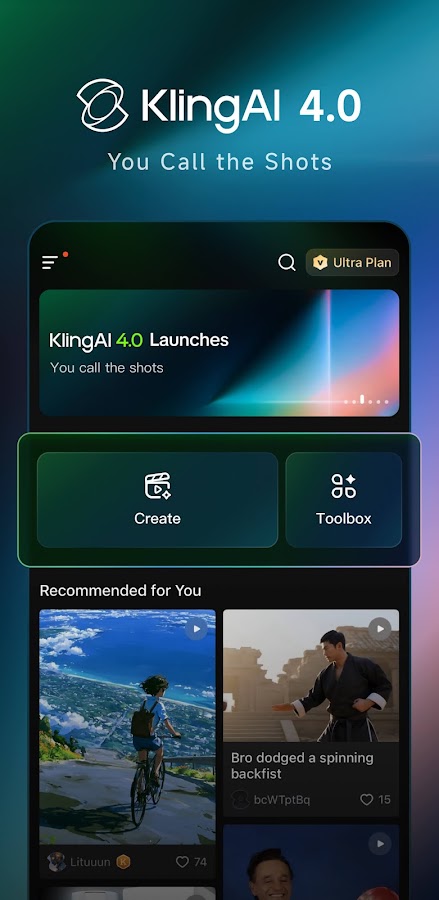
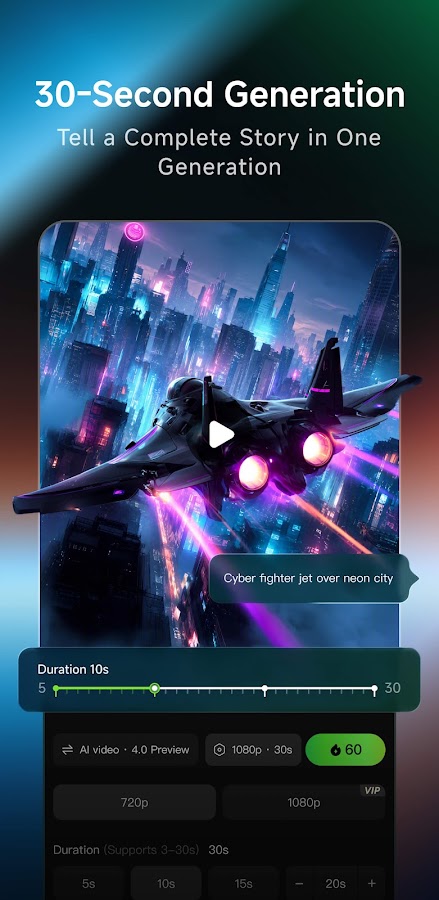
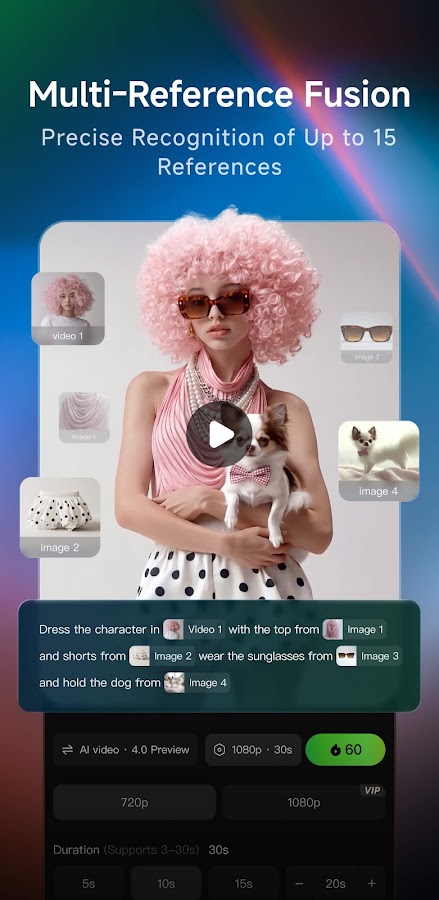
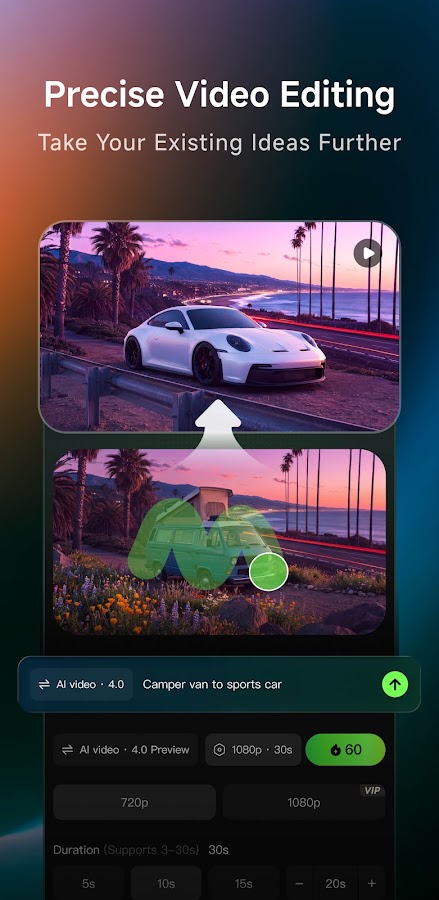
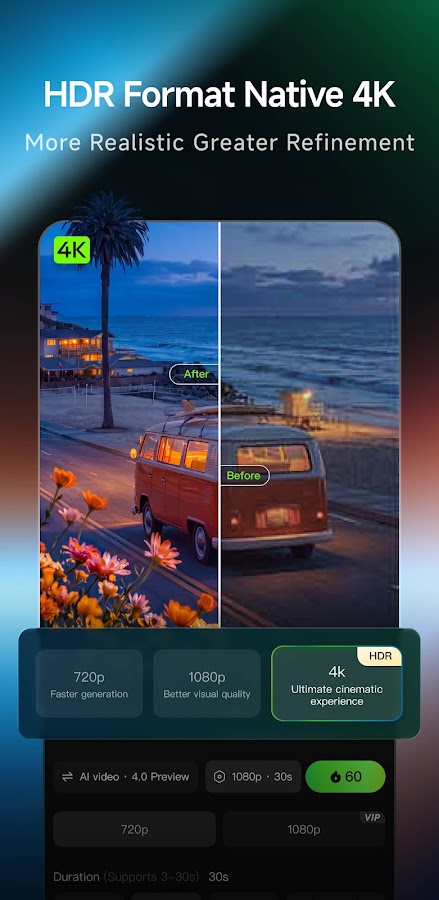

Kling AI generates video from written prompts and still images. Its mobile offering also includes image generation, a creator community, and video extension tools.
Consider it when you want to create an individual shot: a product on a tabletop, a landscape with subtle movement, or a character performing one clear action. Extension can help develop a useful clip further instead of starting again with an unrelated generation.
Useful features: text-to-video, image-to-video, video extension, and community examples for inspiration.
Practical limitation: longer output is not automatically more coherent. Check whether the subject, background, and lighting remain consistent as a clip develops. Available duration and output settings depend on the selected mode.
Suggested first project: animate a well-lit product photo with one slow camera move and a simple background.
2. PixVerse — For Short Clips and Visual Effects
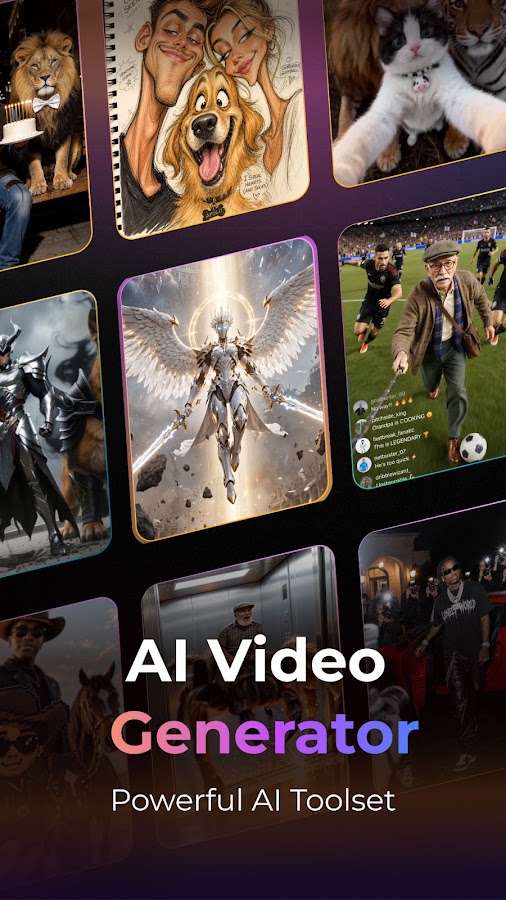
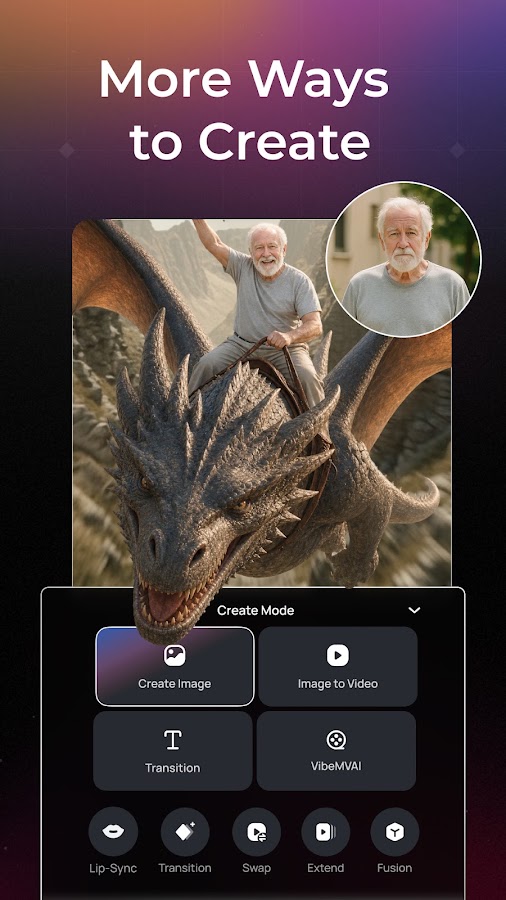
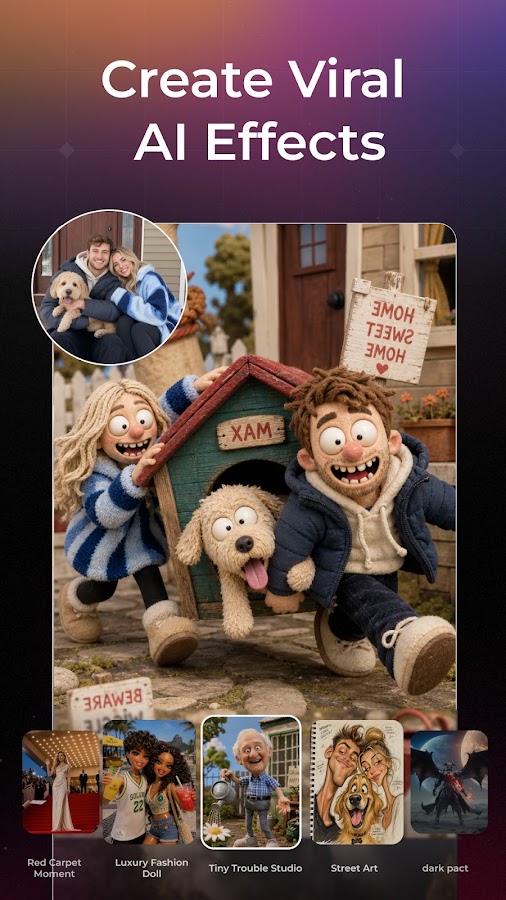
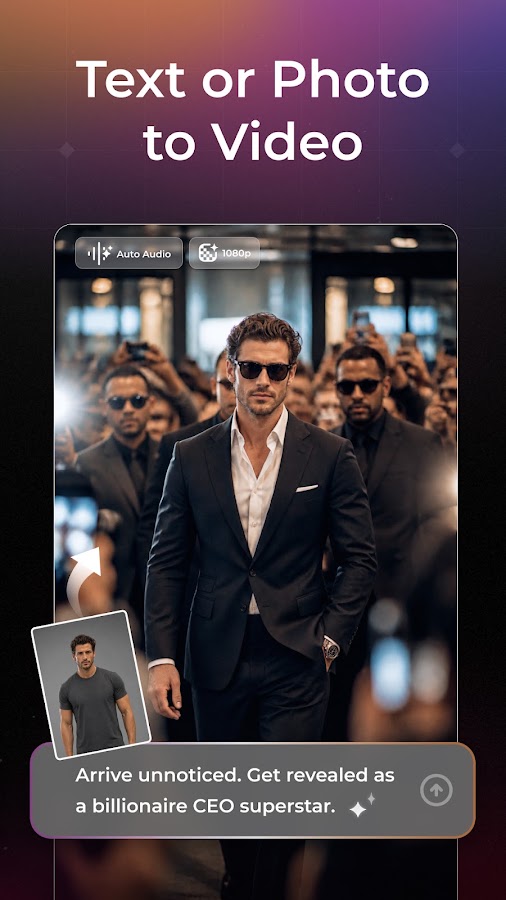
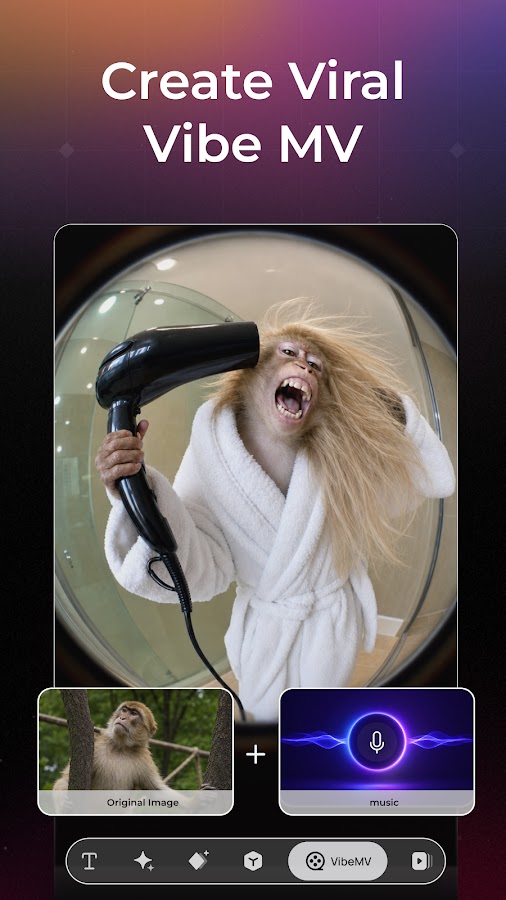

PixVerse combines prompt-based generation, photo animation, and ready-made effects. Its app descriptions also include talking avatars, music-video tools, and access to selected external models.
This gives you two useful starting points: write a prompt for an original scene, or begin with an effect that already defines much of the action. The second route can be easier when you want a quick transformation rather than detailed shot direction.
Useful features: text-to-video, image-to-video, effects, and template-led creation.
Practical limitation: a template can strongly influence motion and framing. For a specific visual brief, use a generation mode with suitable controls rather than expecting every effect to adapt precisely.
Suggested first project: turn one portrait or illustration into a short clip, then compare a template result with a prompt-led version.
3. Hailuo AI — For Generated Scenes and Subject References
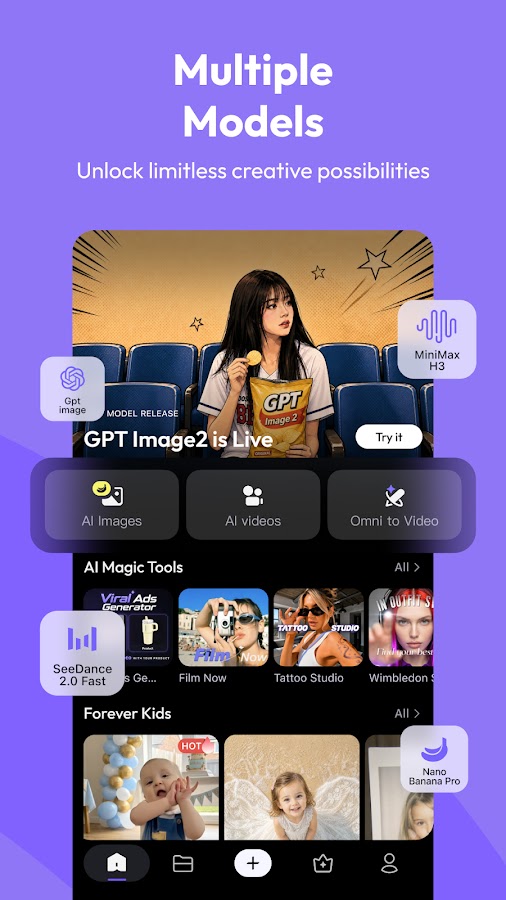
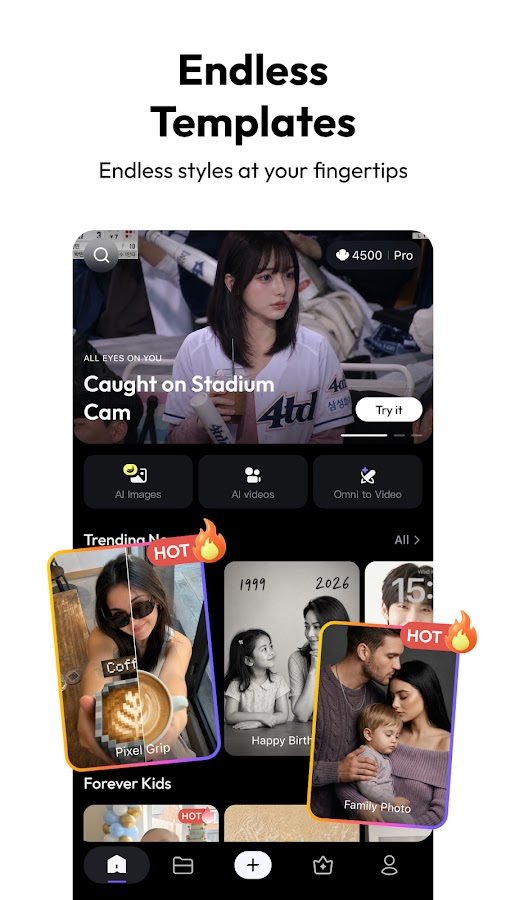
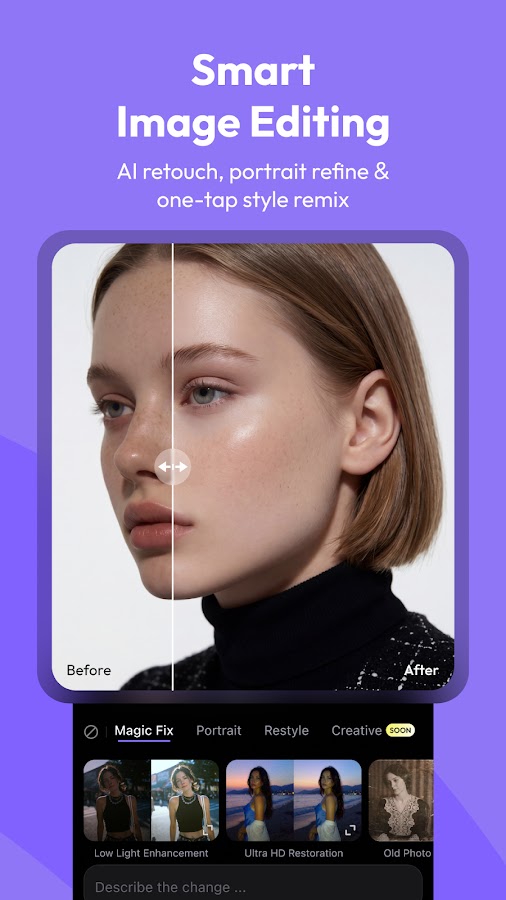
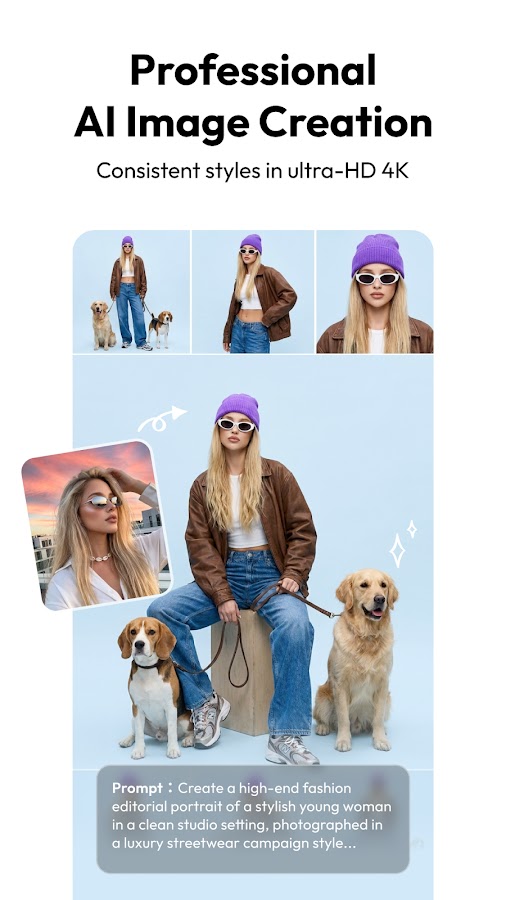

Hailuo AI is MiniMax’s video-generation service. Its Android app documents text-to-video, image-to-video, and subject-reference features intended to help maintain a character’s appearance across scenes.
Reference-led creation is worth considering when a project needs more than one shot of the same person or character. It provides an additional visual anchor, although it does not guarantee identical details in every frame.
Useful features: generation from text and images, subject references, and supported frame-guided workflows.
Practical limitation: reference controls depend on the model and interface. Check which options are actually available in your mobile version before planning a sequence around them.
Suggested first project: create two simple shots of the same character using a clear reference, then compare facial features, clothing, and proportions.
4. Vidu — For Reference-Led Video Creation
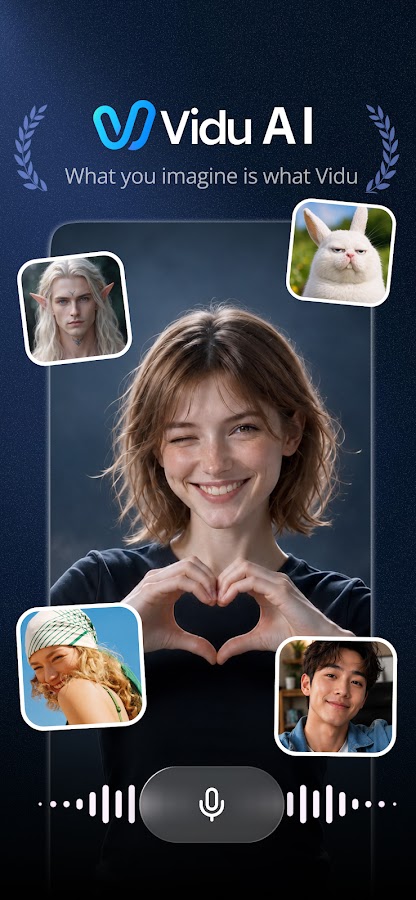
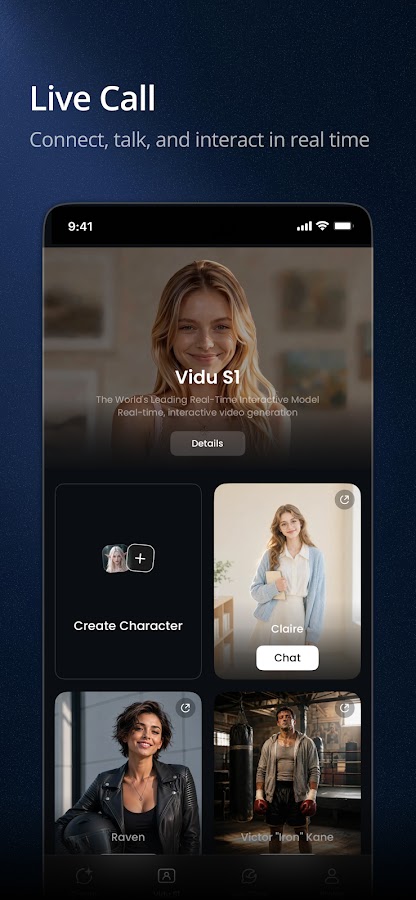
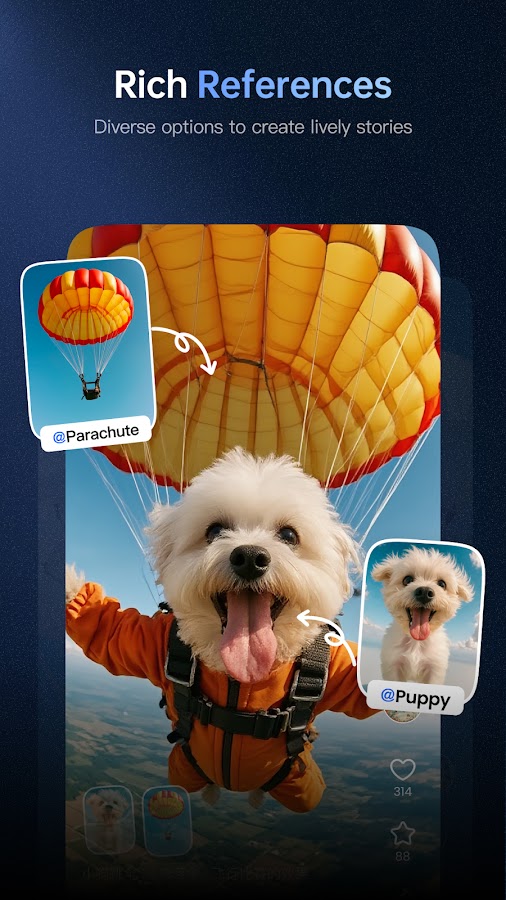
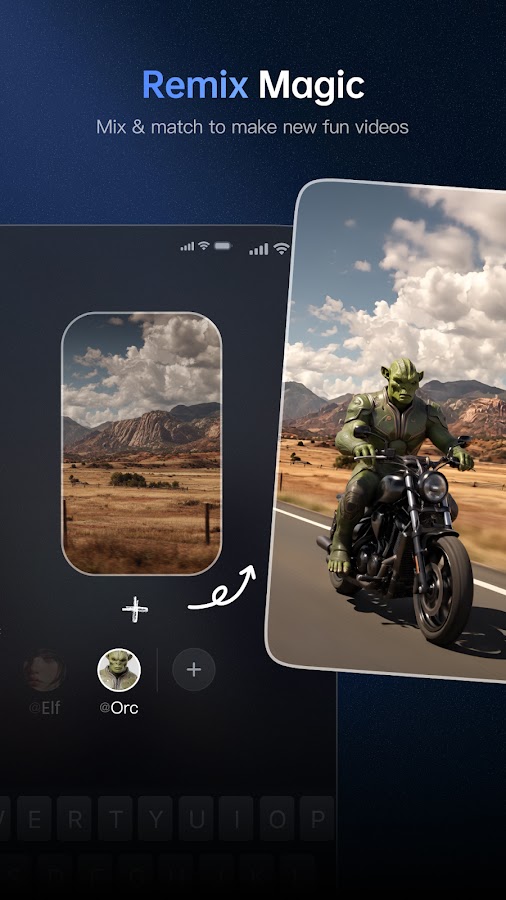
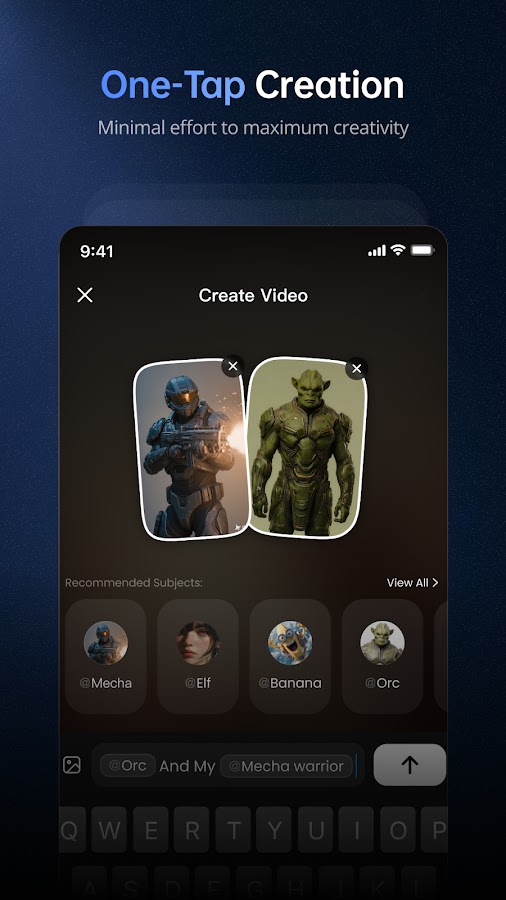

Vidu supports video creation from text and images, with reference-based tools forming part of its wider offering. Its mobile listings also describe audio-related features and community remixing.
It is a candidate for projects where appearance matters as much as movement: recurring characters, a particular illustration style, or a scene built around a visual reference.
Useful features: text and image inputs, reference-based creation, and remix workflows.
Practical limitation: reference support is not the same as exact reproduction. A generated product or character may acquire different small details as the camera moves. Verify the controls provided by the selected mode.
Suggested first project: use a single clear reference and request one action against a simple background before attempting a multi-scene story.
5. Pollo AI — For Trying Multiple Video Models
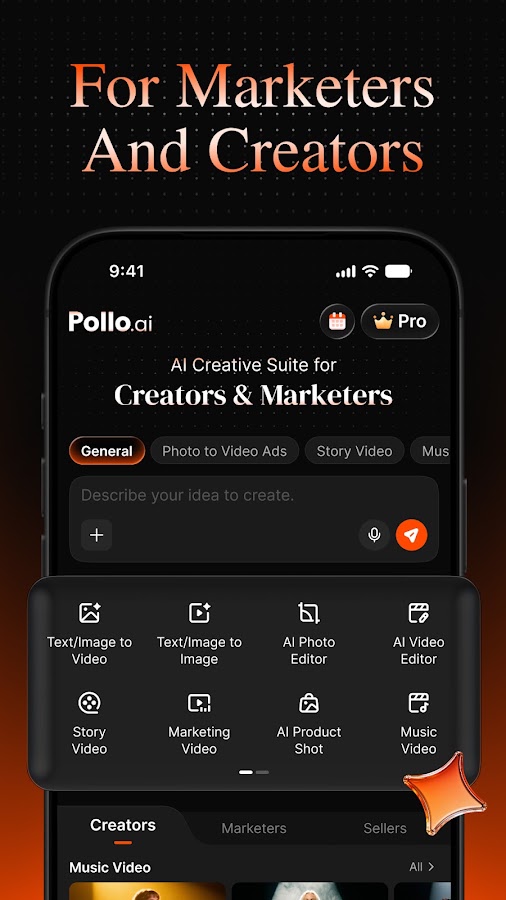
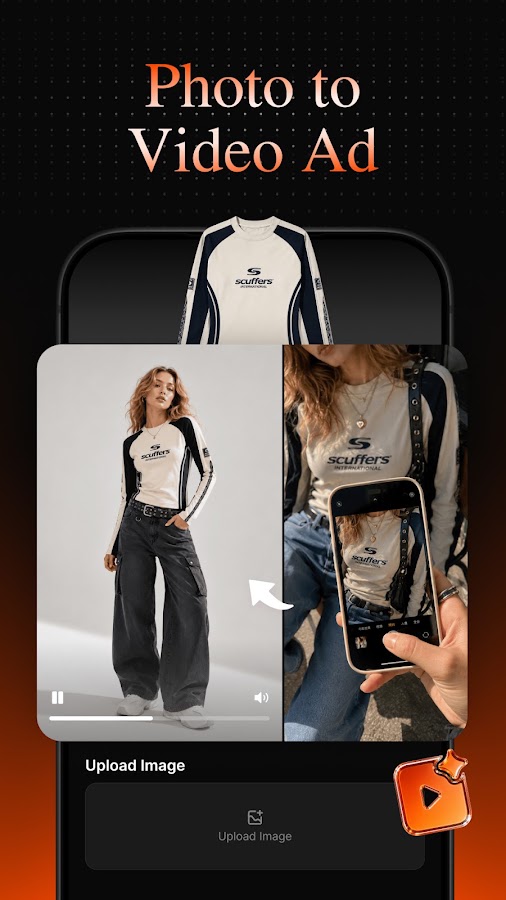
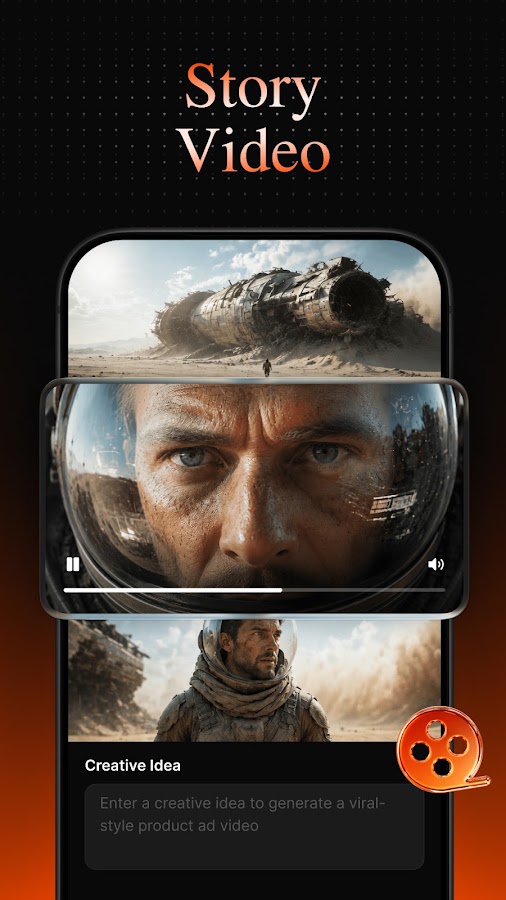
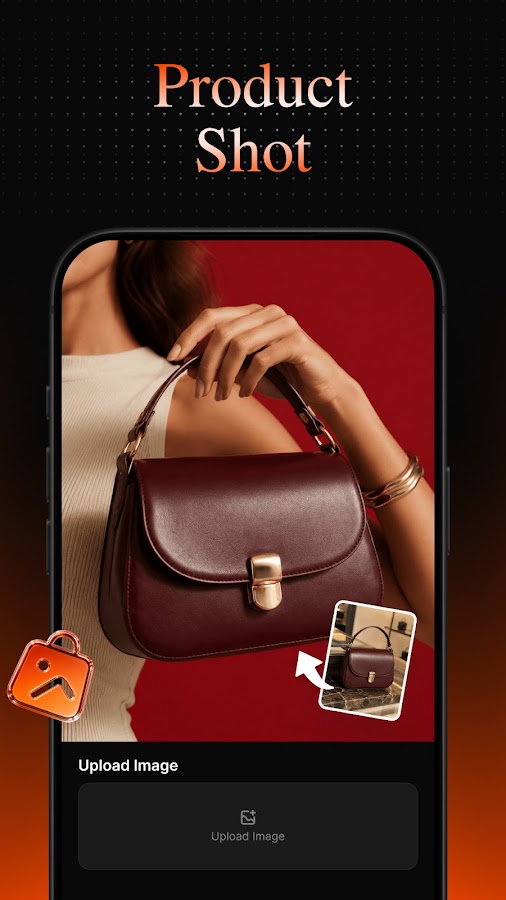
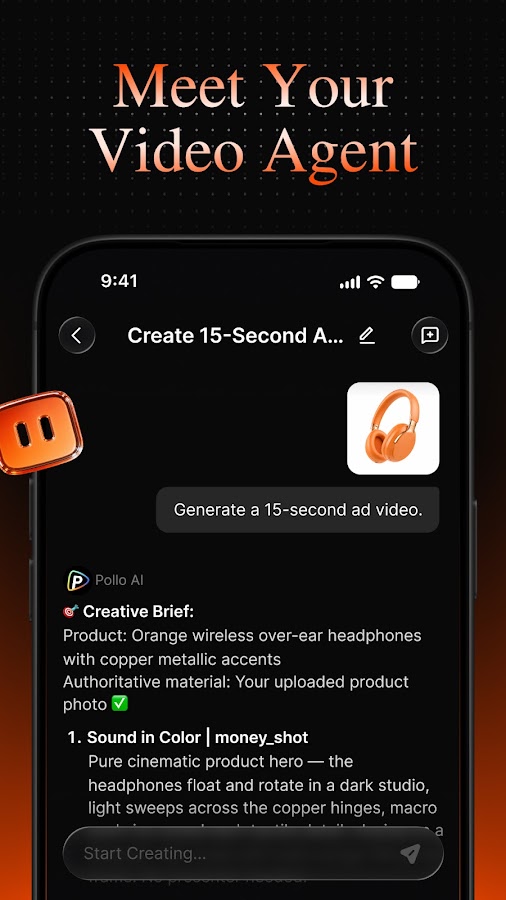

Pollo AI brings several generation models and workflows into one app. Its documented options include text-to-video, image-to-video, reference-to-video, and other forms of video transformation.
The main reason to consider it is flexibility. You can explore how different available models interpret the same creative idea without managing a separate app for each one.
Useful features: multiple model choices, several input workflows, video effects, and tools for promotional content.
Practical limitation: settings and credit requirements vary by model. A resolution, duration, or reference option available in one mode may be missing in another. Model selection also changes over time.
Suggested first project: compare two available models using the same reference image and short prompt. Judge motion, subject consistency, and usable output rather than the preview thumbnail alone.
6. invideo — For Complete Video Projects
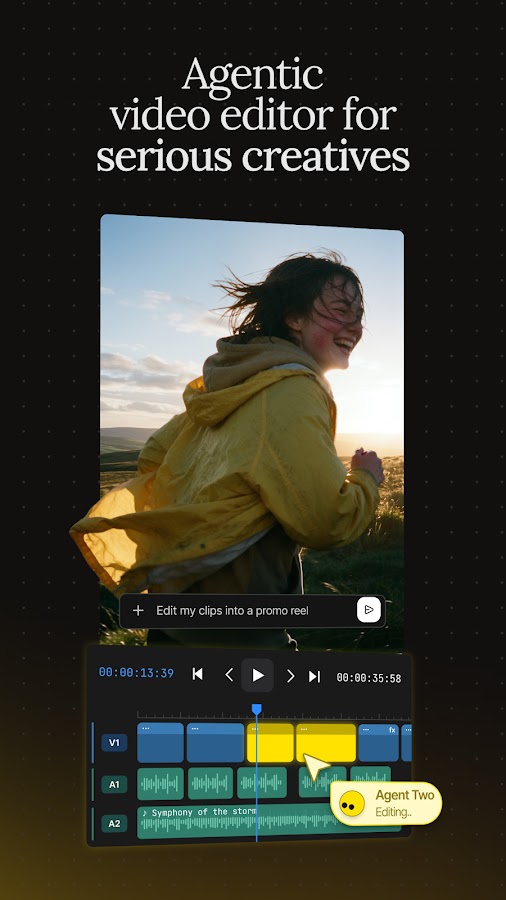
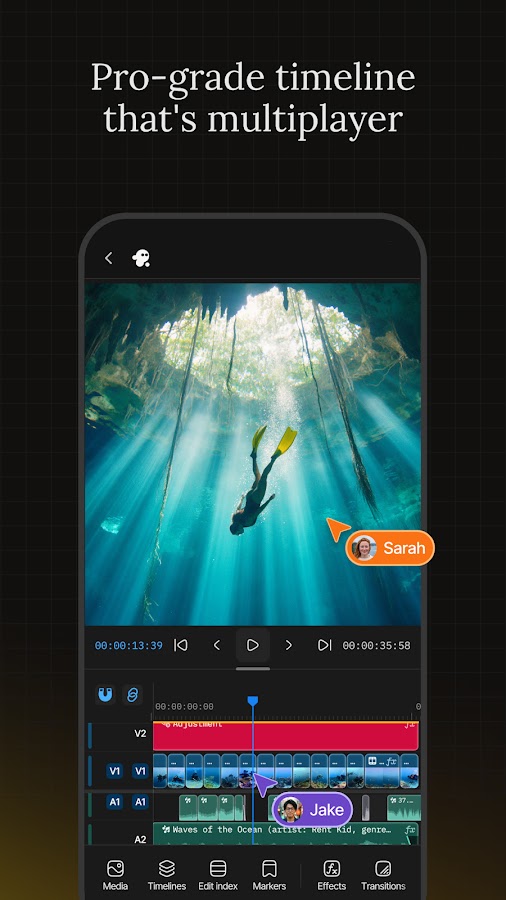
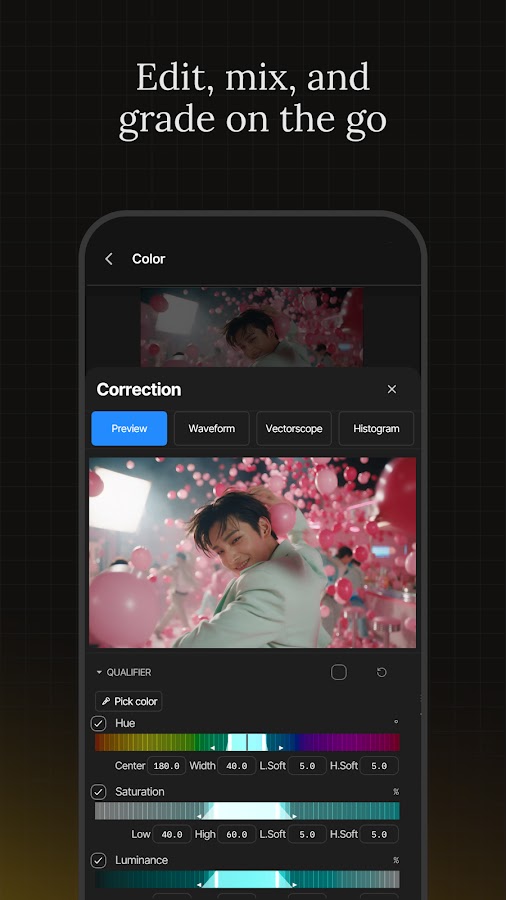
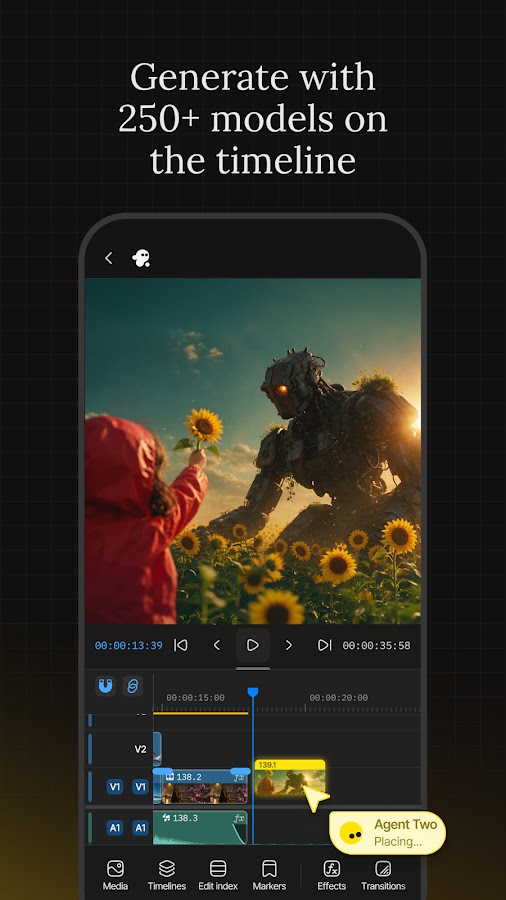
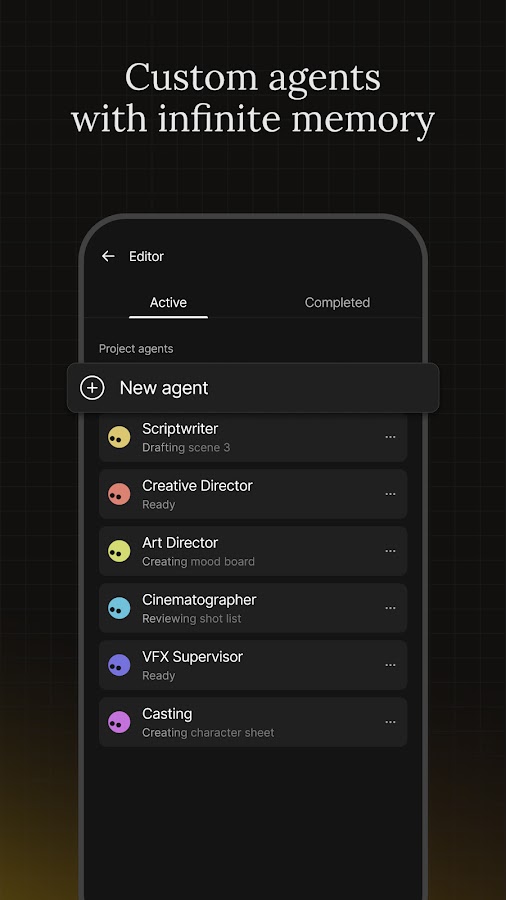

invideo combines generation and editing around a broader production workflow. Its mobile descriptions include AI-directed creation, visual and audio generation, and editing tools for developing an idea into a finished project.
Consider it for an explainer, advertisement, or social video that needs several connected elements. Instead of stopping at a single generated shot, you can work on structure, pacing, visuals, and sound.
Useful features: prompt-led creation, generation tools, and project editing.
Practical limitation: a complete AI-created draft still needs editorial review. Check the sequence, factual claims, voiceover, and whether each visual actually supports the message. Editing capabilities can differ between mobile and other versions.
Suggested first project: create a short explainer from a tightly written brief, then revise one scene at a time.
7. ToMoviee AI — For Camera Movement and Frame-Guided Clips
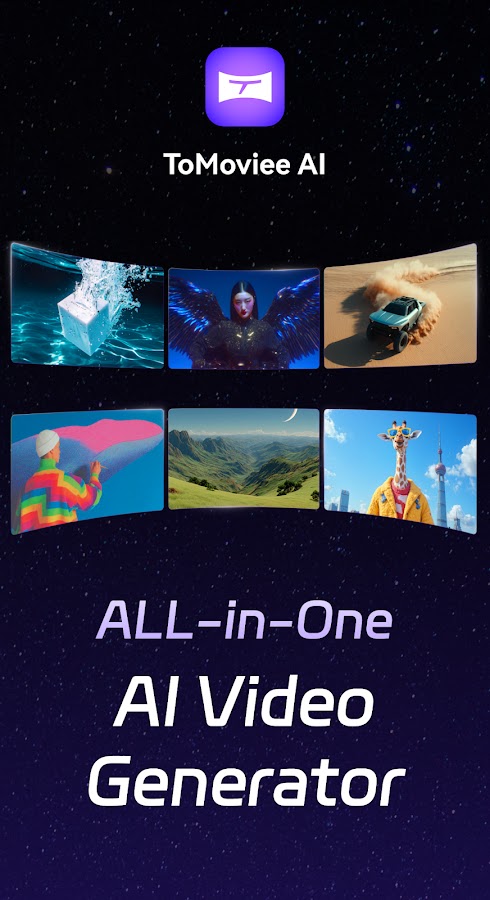
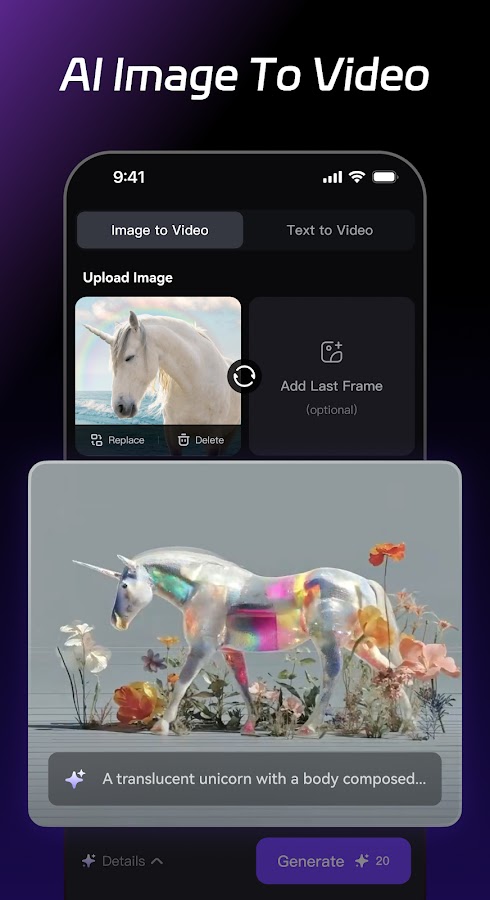
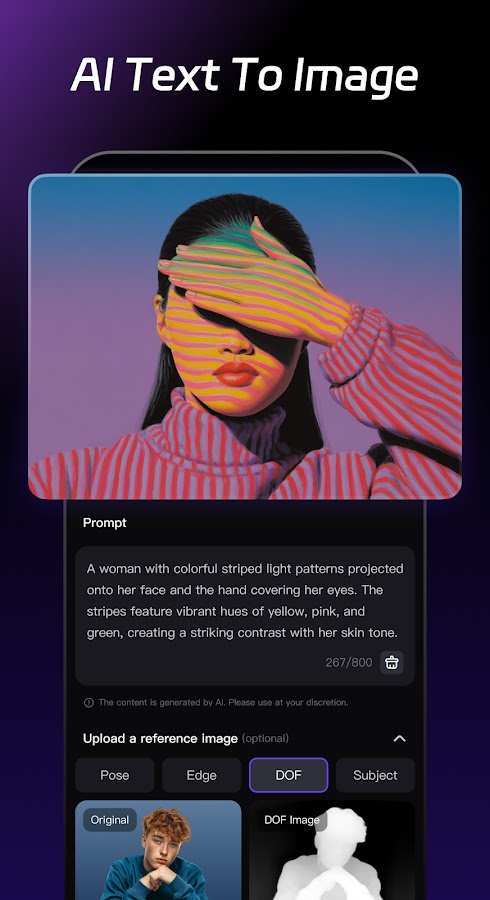
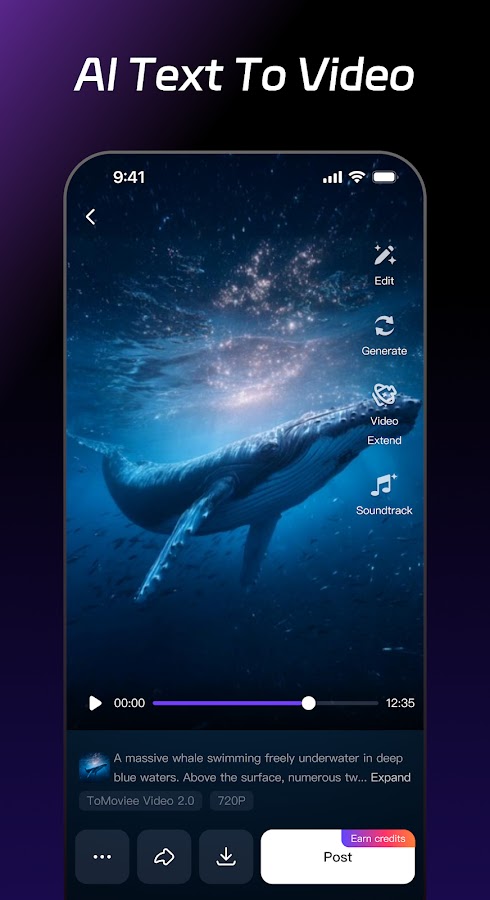
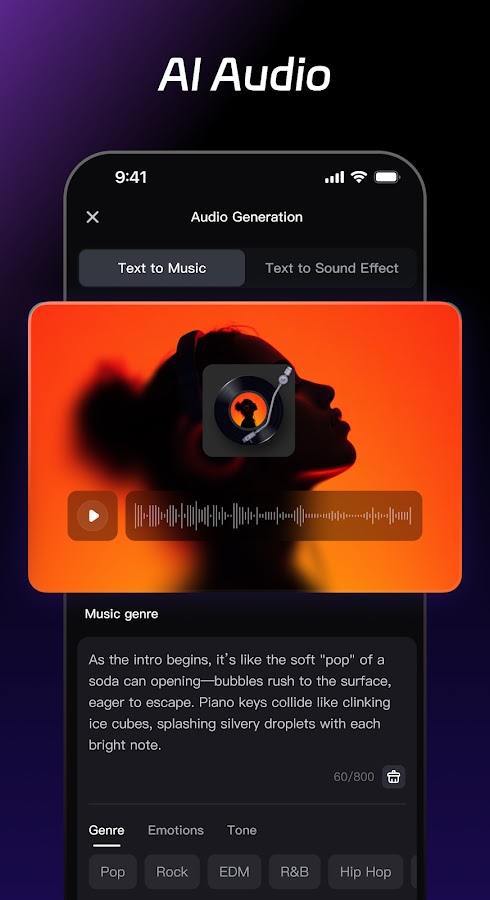

ToMoviee AI documents text-to-video, image-to-video, start and end keyframes, camera movement controls, and video extension. Its wider toolkit also includes audio and voice generation.
These controls make it worth considering when your brief includes how a shot should develop, rather than only what should appear in it. A slow push-in or a guided transition gives the generation a clearer direction.
Useful features: frame controls, camera movements, video extension, and supporting audio tools.
Practical limitation: feature availability and extension limits depend on the selected mode. Frame guidance can help define a transition without guaranteeing a physically accurate path between its endpoints.
Suggested first project: use two compatible images as beginning and ending frames, with one restrained camera movement.
8. VideoGPT — For Prompt-Based Video Stories
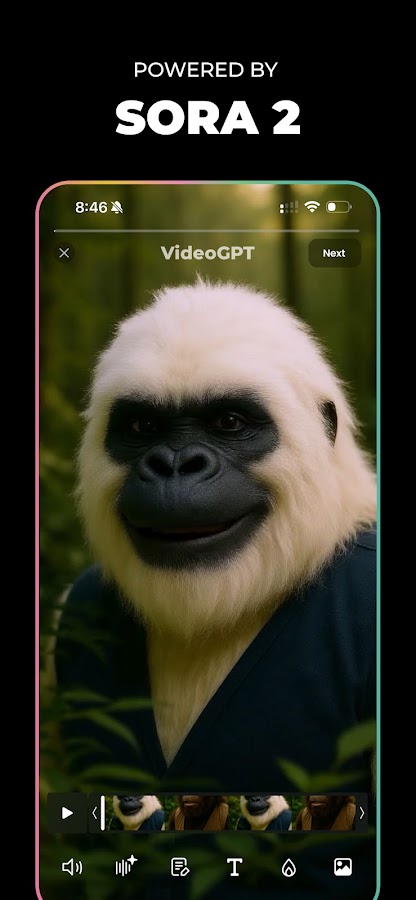
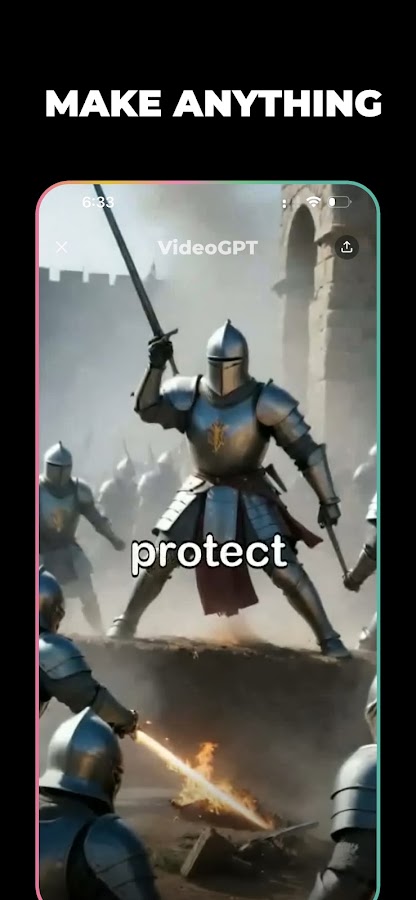
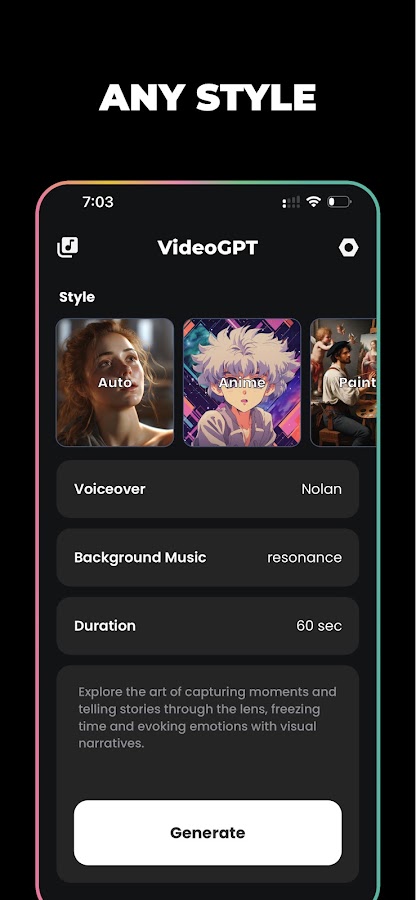
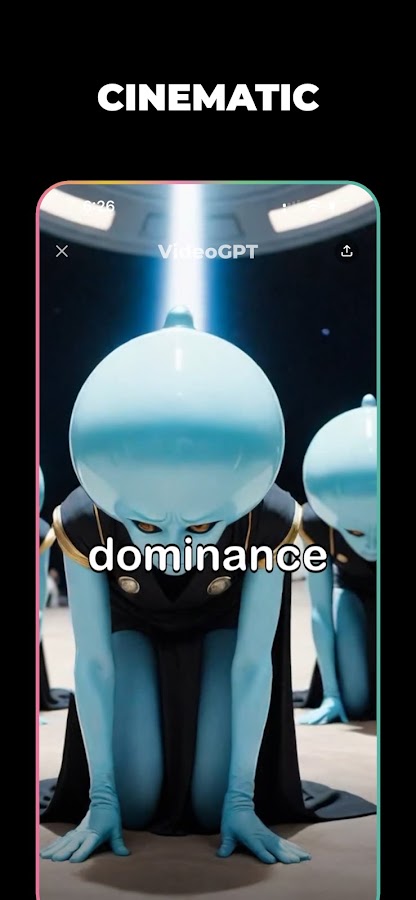
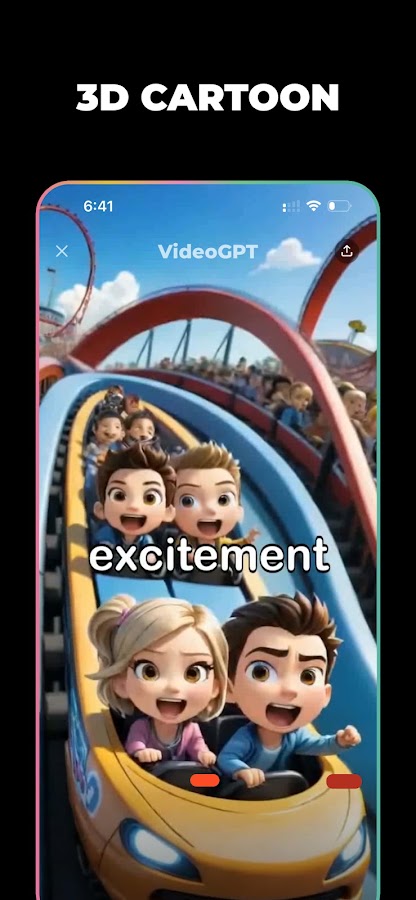

VideoGPT by ElevenThirteen turns written ideas into video stories and offers different visual styles, including cinematic and anime-inspired treatments.
It is a candidate for creators who prefer to begin with a story concept rather than a detailed editing timeline. The useful question is whether its output style and level of control fit the kind of story you want to tell.
Useful features: text-led story creation and a choice of visual treatments.
Practical limitation: “video story” does not necessarily mean the same thing as a continuously generated cinematic shot. Inspect the result for motion, scene continuity, and how closely it follows your script.
Suggested first project: write a short scene with one character, one location, and one action. Avoid introducing a whole cast in your first attempt.
9. Fliki — For Voiceovers and Script-Based Videos
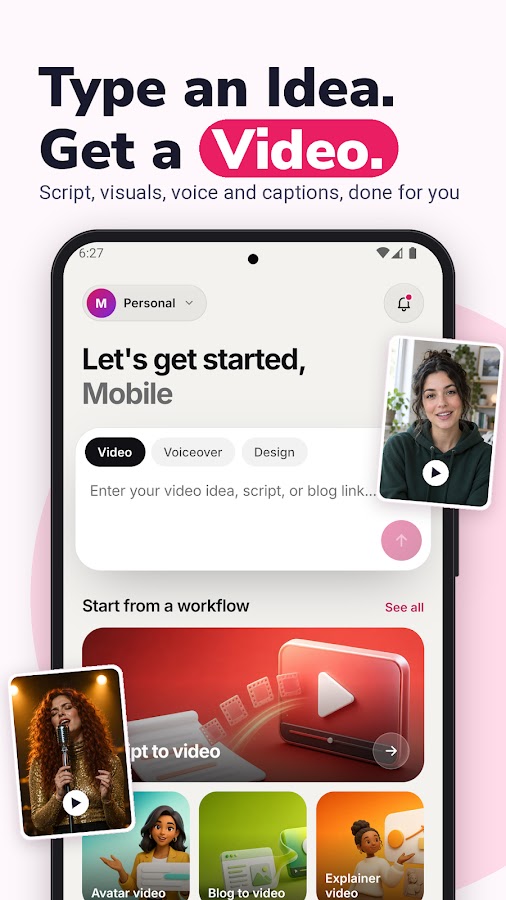
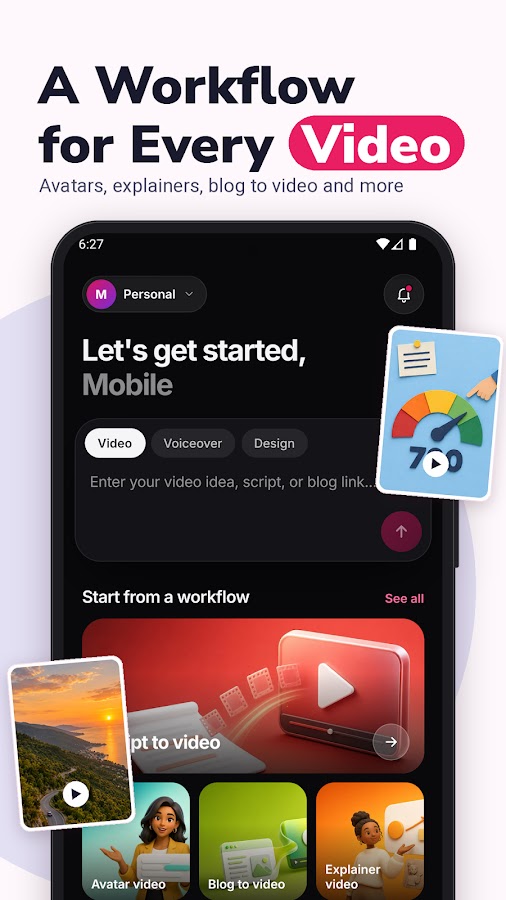
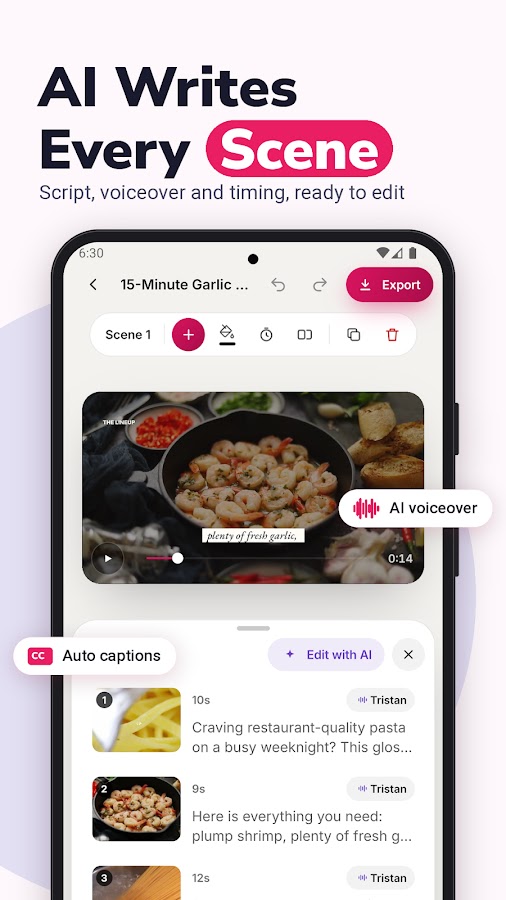
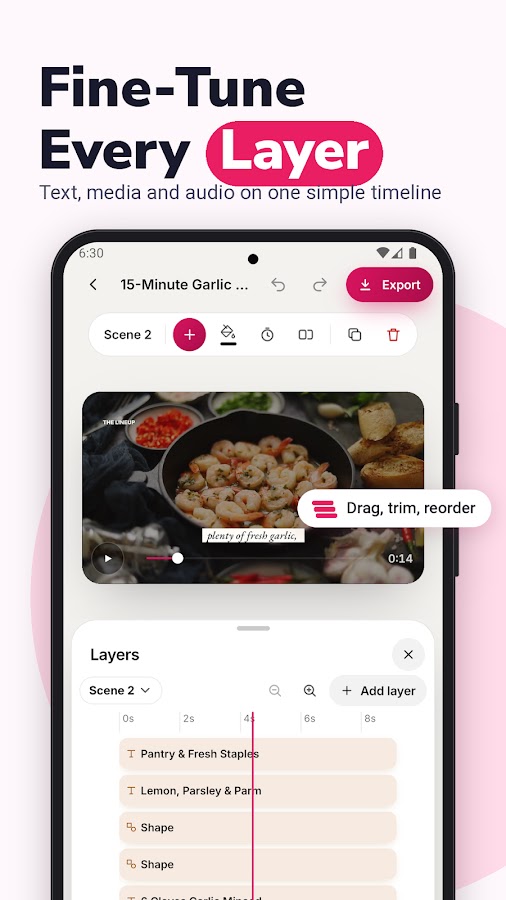
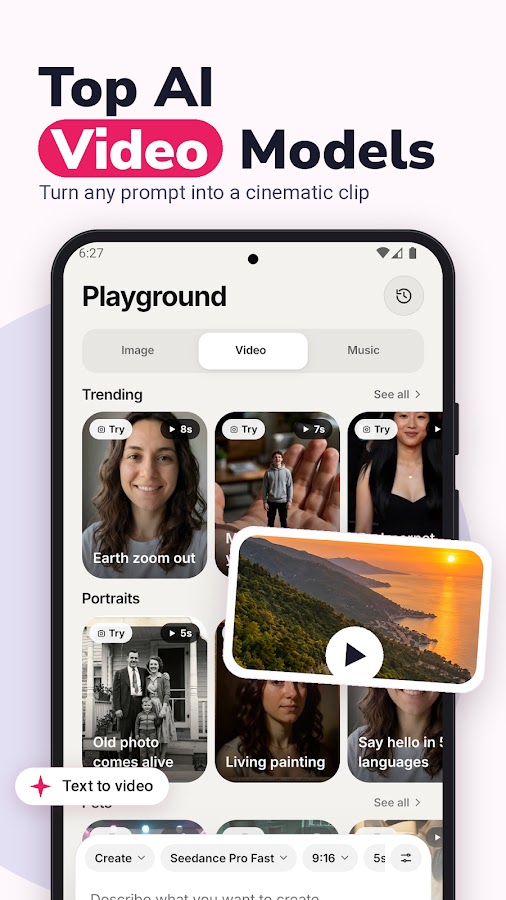

Fliki is particularly relevant when spoken information carries the video. Its documented mobile workflows include script-to-video creation with voiceover, supporting visuals, and subtitles.
For tutorials, explainers, and narrated social content, that structure can be more useful than starting with a standalone visual generator. You can shape the script first and then choose visuals that support each point.
Useful features: script-based creation, AI voiceovers, scene editing, and subtitle tools. The iPhone listing also describes generated clips, stock media, and uploaded content.
Practical limitation: the Android and iPhone listings document different levels of detail. Confirm the specific editing and export tools on your device. Preview pronunciation, pauses, and emphasis before rendering a full project.
Suggested first project: turn a short how-to script into a narrated video, using one clear idea per scene.
10. Filmora — For AI Generation Plus Hands-On Editing
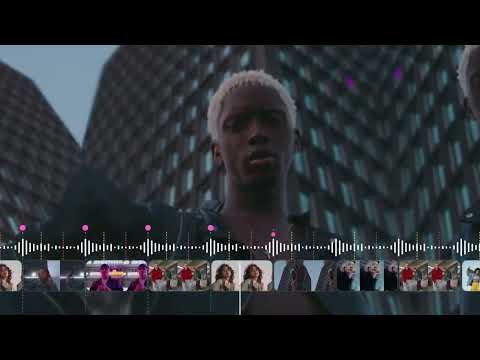
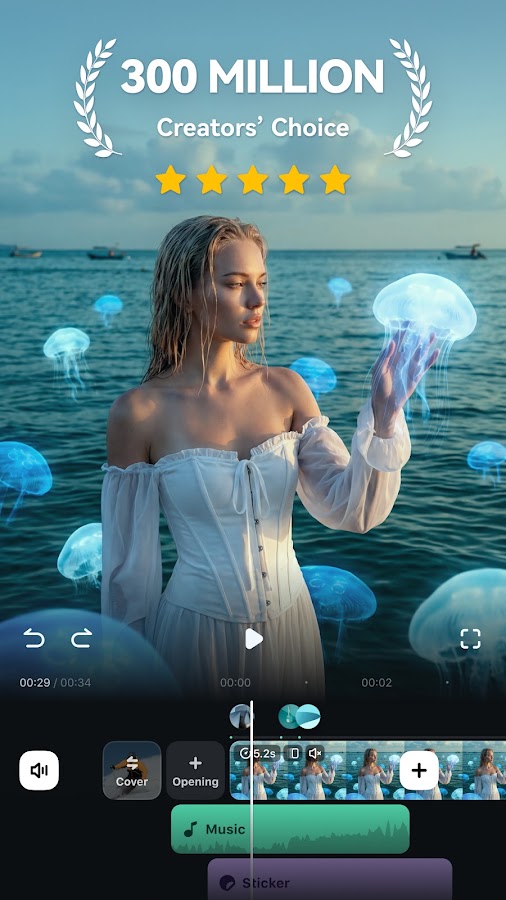
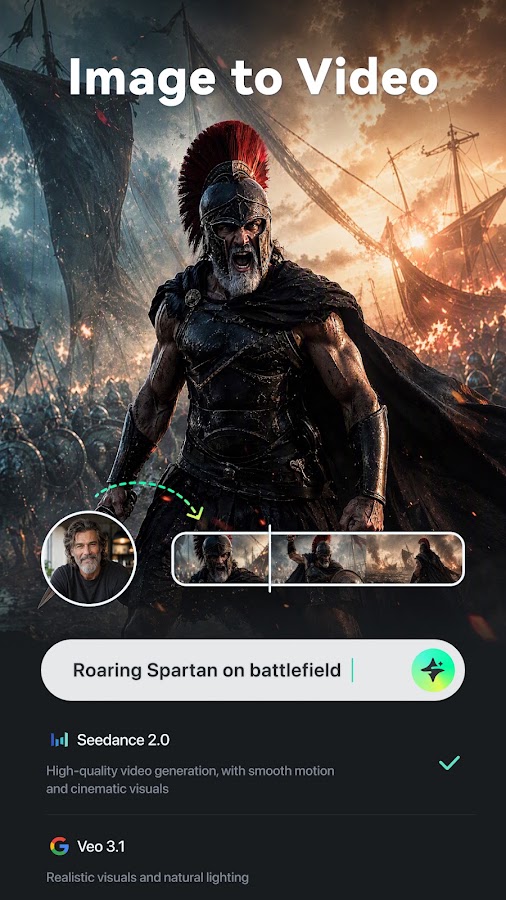
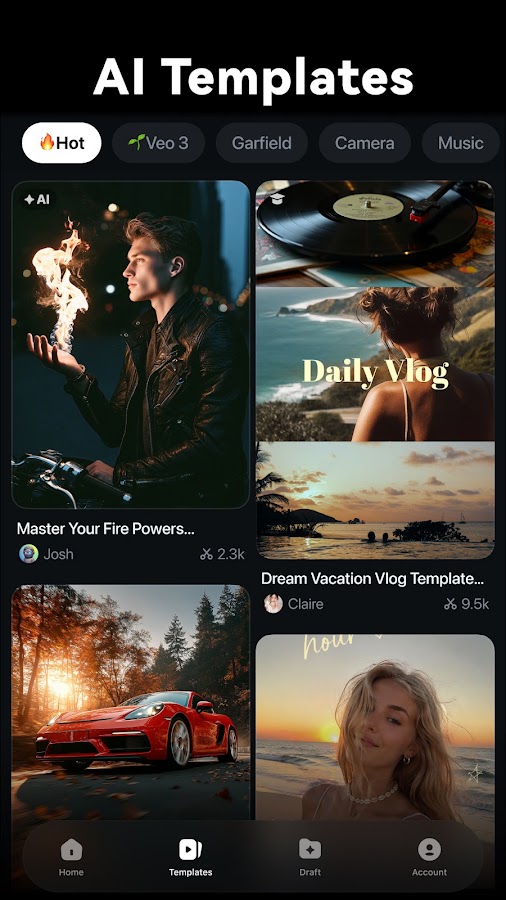
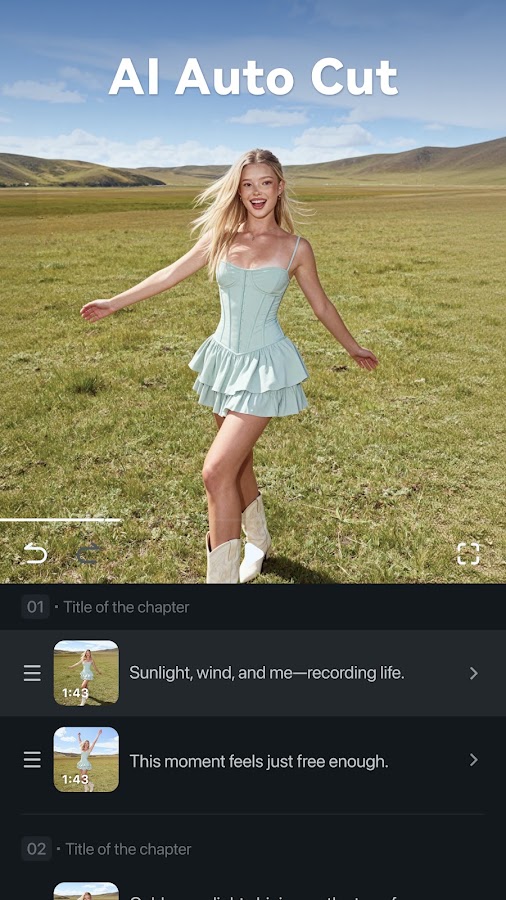
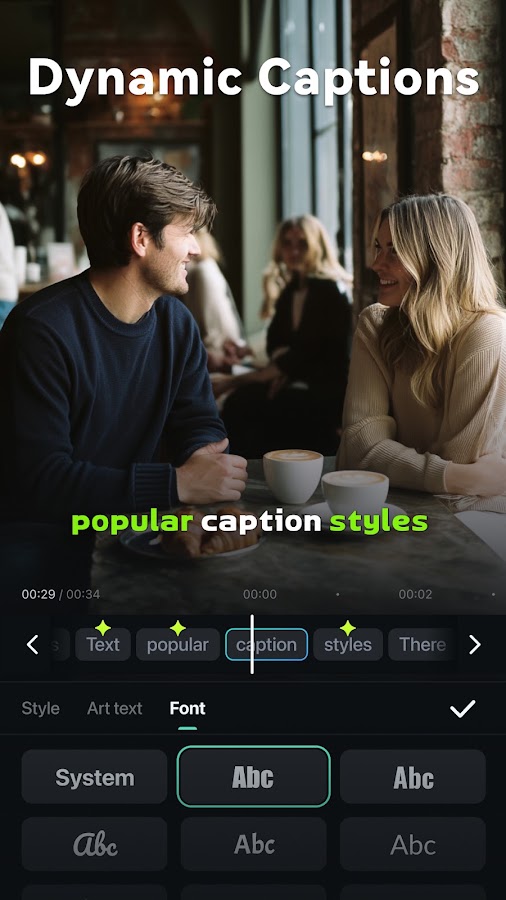

Filmora combines mobile editing with AI creation. Its Android listing documents text and image-to-video generation, story-based video creation, and product-video tools alongside conventional editing features.
This is a practical option when generated material will become part of a larger edit. You may need to trim a shot, place it between filmed clips, add a title, or adjust the soundtrack before publishing.
Useful features: generation from text and photos, timeline editing, captions, transitions, and audio tools.
Practical limitation: access to the editor and access to particular AI features can have different conditions. Check AI credits and export rules separately, along with differences between platforms.
Suggested first project: generate a short opening shot, combine it with your own footage, and finish the video with captions and sound.
How to Choose the Right AI Video Generator
Start with the output you need, then choose the tool.
- A new visual scene from a prompt: compare Kling AI, Hailuo AI, Vidu, and PixVerse.
- A moving version of a photograph: compare image-to-video modes in those apps, Pollo AI, or ToMoviee AI.
- Several models in one workspace: consider Pollo AI.
- A complete narrated video: consider Fliki or invideo.
- A short styled video story: consider VideoGPT.
- Generation followed by detailed mobile editing: consider Filmora.
Next, check five practical details: generation limits, watermark rules, usable export resolution, control over the result, and whether your projects are accessible across the devices you use. Do not assume that a mobile subscription, web subscription, and account balance are interchangeable.
How to Get Better Results from AI Video Apps
Give each shot one main action
A short generation is easier to direct when the subject does one thing. Instead of asking a character to enter a shop, pick up a product, speak, and walk away in one clip, create separate shots.
Describe the camera separately from the subject
“The subject turns toward the window” and “the camera slowly moves closer” are different instructions. State them clearly, and avoid combining several competing camera moves.
For example:
A ceramic coffee cup sits on a wooden table beside a window. Thin steam rises from the cup. The camera slowly pushes in. Soft morning light, realistic textures, one continuous shot.
Use a reference when appearance matters
For a product, recurring character, or established illustration, start with a suitable image when the app supports it. Describe the movement you want while keeping the visual requirements simple.
Generate in the final aspect ratio
Choose vertical framing for a vertical project when the mode supports it. Cropping a horizontal shot later can remove the subject or cut off an important action.
Review the moving image, not just the opening frame
Watch hands, faces, logos, reflections, and object edges throughout the clip. Check whether an object changes shape, a person gains an accessory, or background details slide unnaturally.
Add exact wording during editing
When a slogan, product name, caption, or disclaimer must be correct, place it in the editor after generation. This gives you direct control over spelling, placement, timing, and legibility.
Common AI Video Problems and What to Try
| Problem | What to try |
| The subject changes appearance | Use a clearer reference, simplify movement, and shorten the shot |
| Hands or objects look distorted | Reduce interactions and avoid several overlapping actions |
| The camera ignores the prompt | Specify one movement or use a dedicated camera control |
| Different shots look unrelated | Reuse references and keep lighting, wardrobe, and style descriptions consistent |
| A product label becomes unreadable | Use filmed product footage or add accurate graphics during editing |
| A narrated video feels repetitive | Rewrite scene-level instructions and vary the supporting visuals |
| Credits disappear before the project is finished | Test a short draft and check the requirements of each mode before generating |
Frequently Asked Questions
Final Thoughts
For a first project, choose one short scene and test the app’s complete workflow, including export. A useful result is a clip you can actually publish or edit further—not simply an impressive preview. Once that works, build a longer sequence with consistent references, deliberate pacing, and a separate review of visuals and audio.